
How to Format a Book for Amazon KDP (2026): Word, Google Docs, Canva or an AI Formatter
KDP's paperback and Kindle formatting rules from Amazon's own help pages, a margin checker for any trim size and page count, and a step-by-step method for four routes: an AI formatter, KDP's Word template, Google Docs and Canva. Rules checked 13 October 2026.
Quick Answer
To format a book for KDP, make a paperback PDF at your exact trim size with an inside margin set by page count (0.375 to 0.875 in), at least 0.25 in on the other edges, fonts embedded and images at 300 DPI, plus a reflowable EPUB or DOCX for Kindle. An AI formatter builds both; Word, Google Docs and Canva can too, by hand.
Checked on 13 October 2026. Every KDP rule on this page was read on Amazon's own KDP help pages that day (listed under Sources). The Inkfluence AI numbers come from our measured print checks on real rendered interiors. We did not upload test files to a KDP draft or order proof copies for this guide, so nothing here describes a Previewer run or a printed proof.
Formatting is the step between "the book is written" and "the book is on Amazon". KDP's rules are not complicated, but they are spread across several help pages, and each tool gets you to them by a different road. This guide puts the rules in one place, gives you a margin checker for your exact book, and walks through each road with its trade-offs.
If you are starting earlier than this, with a book not yet written, our guide to publishing AI-generated books on KDP covers the whole path, and how to self-publish on Amazon KDP covers the account, pricing and listing side. This page is about getting the files right.
KDP paperback formatting by the numbers
24 pages
minimum for most paper types (72 for standard colour)
0.375 to 0.875 in
inside margin, rising with page count
0.25 in
minimum outside, top and bottom margin (0.375 in with bleed)
+0.125 x +0.25 in
page size added for bleed (width x height)
300 DPI
minimum image resolution; 7 pt minimum font size
650 MB
maximum interior file size
The four routes compared (13 October 2026)
Every route below can produce a file KDP accepts. They differ in how much of the rulebook you apply by hand, and whether the Kindle ebook comes out of the same work. Tool behaviour is from each vendor's help pages, or our code for Inkfluence AI.
| Route | Best for | Inside margin by page count | Paperback cover | Kindle ebook | Main trap | Cost |
|---|---|---|---|---|---|---|
| Inkfluence AI KDP package Best overall for text books | Novels, non-fiction, workbooks and picture books written or imported into the app | Automatic, from the real rendered page count, with headroom above KDP's minimum | Full-wrap PDF included, spine from page count and paper type | EPUB and Kindle cover JPG in the same zip | Margins are set for you, not typed in; paperback only (no hardcover wrap) | Any paid plan or credit pack (from $9.99) |
| KDP's Word template | Authors already writing in Word who want full manual control | You enter it under Mirror margins and change it if the page count crosses a band | Not included; use KDP Cover Creator or a design tool | Upload the DOCX or convert it; check in Kindle Previewer | Leftover placeholder text; section breaks and headers | Template is a free download; needs a Word licence |
| Google Docs | Drafting and short, simple books | No inside/outside setting: set left and right both to the inside value | Not included | Download as DOCX or EPUB | Trim size and mirrored margins; checking font embedding | Free with a Google account |
| Canva | Picture books, coloring books, journals, page-by-page designs | Guides you place and mirror by hand on every page | You build the wrap yourself from KDP's calculator | Not a reflowable ebook; needs a separate route | Crop marks in the download; bleed sizing; text does not flow between pages | Free plan; some elements need Pro |
Amazon's own app, Kindle Create, is a fifth road worth knowing about. It imports DOC and DOCX, prepares print and digital editions from the same project, resizes content and margins for the trim you choose, and produces a KPF file for the Kindle edition. Its themes cannot be edited, and tables, lists and footnotes cannot be edited inside it. Dedicated formatting apps such as Vellum and Atticus are the other paid alternative; our comparisons of Inkfluence AI vs Vellum and Inkfluence AI vs Atticus cover them, and the best book formatting software ranks the field. If you are choosing between those two apps, our Atticus vs Vellum comparison sets out price, platform and print output side by side.
Which route should you pick?
- Paperback, cover wrap and Kindle files in one go: an AI formatter such as Inkfluence AI.
- Your manuscript lives in Word and you want every setting: KDP's Word template.
- Your book is in Google Docs: draft there, then finish the layout in Word or a formatter.
- Every page is a design: Canva, or a picture book maker that already knows KDP's page rules.
Skip the margin maths
Import your Word, PDF, EPUB or text manuscript, or write the book in Inkfluence AI, then export a KDP package with the interior, full-wrap cover, Kindle EPUB and a READ ME with your trim, page count and spine width.
Format my book for KDPWhat KDP checks in a paperback interior
These are KDP's own requirements, taken from its paperback submission and margin help pages on 13 October 2026. Whatever tool you use, the finished file has to meet all of them.
- Page size equals trim size. Without bleed, every page in the file is exactly the trim size you choose in KDP (for example 6 x 9 in). With bleed, every page is 0.125 in wider and 0.25 in taller (6.125 x 9.25 in for a 6 x 9 book). KDP says that if even one page needs bleed, the whole file must be set up with bleed, and bleed is only supported for fixed-format files such as print-ready PDFs.
- Margins by page count. The inside (gutter) margin depends on how many pages the book has, from 0.375 in up to 0.875 in. Outside, top and bottom margins must be at least 0.25 in without bleed and 0.375 in with bleed. KDP notes that top, bottom and outside margins do not have to be the same.
- Single pages, not spreads. KDP requires single-page files, not two-up spreads, with every page in the same orientation.
- Fonts embedded. All fonts must be embedded, with a minimum size of 7 points.
- Images at 300 DPI or more. KDP recommends staying at or below 600 DPI to keep file size down. The maximum file size is 650 MB.
- Page numbers in sequence. Even numbers on left-hand pages and odd numbers on right-hand pages for left-to-right languages. Roman numerals may be used for the front matter.
- A clean file. No crop marks, trim marks, bookmarks, comments, annotations, invisible objects, placeholder text or metadata. Transparent objects and layers flattened. No locked or encrypted PDFs, and no emoji or unsupported special characters in the file name.
- Page count in range. At least 24 pages (72 for standard colour ink), and no more than the maximum for your trim and paper, usually 828 pages on white paper.
- Thin lines and light greys. Lines at least 0.75 point (0.01 in) thick, and grey fills of at least 10% on black-ink books.
KDP's inside margin by page count
| Page count | Inside (gutter) minimum | Outside, top, bottom: no bleed | Outside, top, bottom: with bleed | Inkfluence prints (inside / outside / top and bottom) |
|---|---|---|---|---|
| 24 to 150 | 0.375 in (9.6 mm) | 0.25 in (6.4 mm) | 0.375 in (9.6 mm) | 0.75 / 0.5 / 0.75 in |
| 151 to 300 | 0.5 in (12.7 mm) | 0.25 in | 0.375 in | 0.75 / 0.5 / 0.75 in |
| 301 to 500 | 0.625 in (15.9 mm) | 0.25 in | 0.375 in | 0.75 / 0.5 / 0.75 in |
| 501 to 700 | 0.75 in (19.1 mm) | 0.25 in | 0.375 in | 0.875 / 0.5 / 0.75 in |
| 701 to 828 | 0.875 in (22.3 mm) | 0.25 in | 0.375 in | 1.0 / 0.5 / 0.75 in |
Inside margin: KDP's minimum vs what Inkfluence prints
Inches, by page-count band. Bar length = value / 1.0 in.
24 to 150 pages
151 to 300 pages
301 to 500 pages
501 to 700 pages
701 to 828 pages
Why print more than the minimum? Two reasons. A text column set at the bare 0.375 in gutter on a 150-page book is wide and runs close to the fold, which is legal but tiring to read. And in one case we examined, a 534-page book set at exactly KDP's 0.75 in tier was flagged for an insufficient gutter on 309 pages, because italic letters and punctuation reach a hair past the margin line. Since September 2026 our exports keep 0.125 in of headroom above every tier for that reason. If you format by hand, giving yourself the same allowance costs you very little.
Check my margins
Choose your trim size, page count and paper, say whether anything bleeds, and the checker shows KDP's minimum margins, the page size your file must be, and the widest text block those minimums allow. Type in your own margins to see whether each one passes. Sizes and page limits come from KDP's US trim table; A5 and B5 are from KDP's Japan list.
Your margins (optional, inches from the trim edge)
KDP's minimums for this book
Inside
0.5 in
Outside
0.25 in
Top
0.25 in
Bottom
0.25 in
File page size: 6 x 9 in. Widest text block at the minimums: 5.25 x 8.5 in.
Inkfluence AI prints this book with a 0.75 in inside margin, 0.5 in outside and 0.75 in top and bottom (text block 4.75 x 7.5 in).
Inside margin by page count: 24-150 pages 0.375 in, 151-300 0.5 in, 301-500 0.625 in, 501-700 0.75 in, 701-828 0.875 in. Outside, top and bottom: 0.25 in without bleed, 0.375 in with bleed. Source: KDP help, checked 13 Oct 2026. Running heads and page numbers must also sit inside these margins.
How to read the result. The four boxes are floors, not targets. The "widest text block" line shows how much room the minimums leave; most published books use noticeably less width than that, because a narrower column is easier to read. If you are not sure of your page count yet, use your best estimate, then check again once you export the final PDF: if the count crosses 150, 300, 500 or 700 pages, the inside margin has to grow, and that can push the page count up again. That loop is the single most common reason a hand-formatted file is re-done.
Route 1: an AI formatter (the Inkfluence KDP package)
An AI book formatter lays out a finished or imported manuscript for you. The Inkfluence AI formatter is built around KDP: one zip with every file Amazon asks for, sized to your trim and page count. It is our top pick for text books because it removes the two jobs people most often get wrong by hand, the gutter and the cover wrap, and the Kindle ebook comes out of the same export.
What is in the zip
- KDP Manuscript (PDF): the paperback interior, every page exactly the trim size, with the inside margin chosen from the real page count.
- Full-wrap paperback cover (PDF): back, spine and front in one file with 0.125 in bleed, the spine sized from the real page count and the paper type you choose in the cover designer's Print tab. Spine text appears only on books over 79 pages, as KDP requires, and is kept 0.125 in inside each fold line.
- Kindle ebook cover (JPG) for the Kindle edition's cover slot.
- Kindle eBook (EPUB): the reflowable file for Kindle. Use this, never the print PDF, for the ebook.
- READ ME FIRST.txt: which file goes in which KDP slot, plus the trim size, page count, spine width, paper and the bleed answer KDP will ask you for.
Step by step
- Get the book in. Write it in the app, or import a Word (DOCX), PDF, EPUB or TXT manuscript. Word files with Heading 1 chapter titles import most cleanly. From Google Docs, download a .docx first. Video: importing a Word manuscript (three minutes).
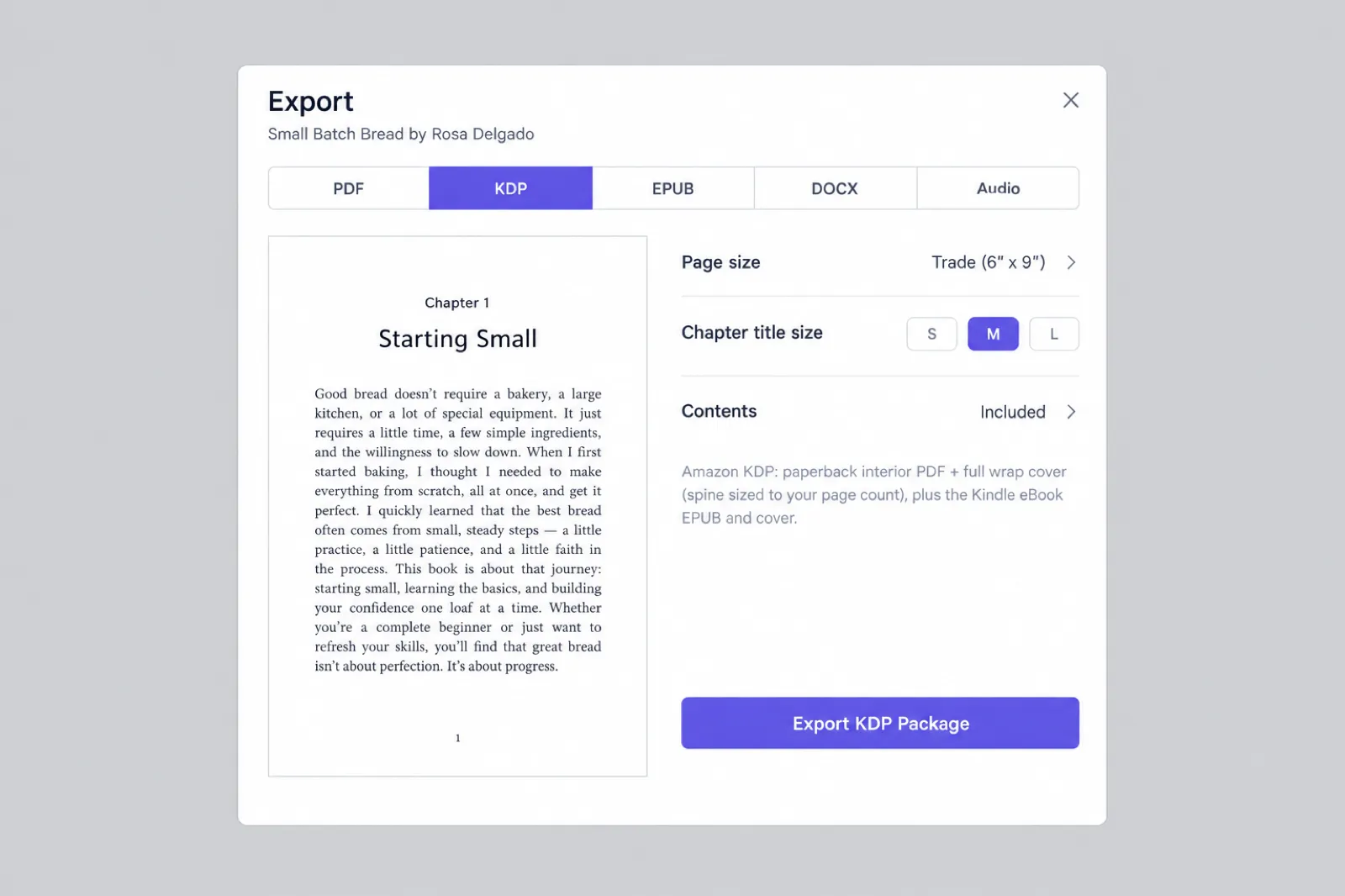
- Check the look in Preview. Pick one of the interior styles (Standard, Classic, Modern, Structured or Workbook) and a chapter title size (S, M or L).
- Set the paper. In the cover designer's Print tab, choose the paper you will pick in KDP (white, cream, standard colour or premium colour). The spine width depends on it.
- Export, then KDP. Choose your trim: 6 x 9 Trade, 5 x 8 Pocket, 5.5 x 8.5 Digest, 7 x 10 Workbook, 8 x 10 Large, US Letter 8.5 x 11, A5, B5 JIS, A4 or the 8.5 x 8.5 picture book size. The export renders the book, counts the pages, and renders it again if the count moves the book into a different gutter band.
- Upload to KDP. Follow READ ME FIRST: manuscript PDF, wrap PDF as the print-ready cover, the bleed answer it gives, then the EPUB and JPG for Kindle.
What we measured
We check the KDP interior by rendering real books through the same steps our server uses and measuring the PDF. On 13 October 2026, at 6 x 9, 5 x 8, US Letter, A5 and 7 x 10, every page was exactly the expected page size and all text sat at least 0.375 in from the trim: the running foot at 0.42 in, the outside edge of the text at 0.50 in and the inside at 0.75 in. A 173-page book, which falls in KDP's 151 to 300 page band, was included. Running heads, feet and page numbers sit inside KDP's minimums (0.25 in without bleed, 0.375 in with bleed).
The honest trade-offs
- It is a paid feature. Any paid plan or any credit pack unlocks the KDP package, EPUB and Word exports. The free plan exports PDF only, with a footer credit and a closing credit page, which is fine for checking your layout but is not the file to upload. Plans start at $9.99 a month (Creator) and credit packs at $9.99 for 15; see pricing.
- You choose a look, not every value. Margins are set by the export (0.5 in outside, 0.75 in top and bottom, the inside by page count with headroom). You cannot type in your own margin values, set a custom trim, or move individual elements the way you can in Word or a desktop formatter.
- Wider margins mean a few more pages, which can slightly raise the printing cost. Run the numbers with the royalty calculator or our guide to KDP royalties.
- Paperback only. It does not make hardcover (case laminate) cover wraps.
- No bleed unless you ask for it. Interiors are exactly the trim size with no bleed, except books with Full-page photos (Full page in the image toolbar), which export as a bleed file 0.125 in wider and 0.25 in taller, and the READ ME tells you to choose Bleed. Picture-book interiors keep their art inside the margins.
For the PDF export in depth, see how to create a print-ready PDF book; for a video walkthrough, paperback publishing on KDP Print.
One export, every KDP file
Interior PDF at your trim, full-wrap cover sized to your page count and paper, Kindle EPUB and cover, and a READ ME with the answers KDP asks for. Unlocked by any plan or credit pack.
Import my manuscriptRoute 2: KDP's Word template (or Word from scratch)
KDP publishes Microsoft Word manuscript templates for paperback and hardcover. You download a ZIP, pick your language and trim size inside it, and choose between a blank template (page size and margins set) or one with sample content (formatted front matter and placeholder chapters). KDP also offers templates set up for its Amazon Endure font, meant to reduce page count. Its "Format your paperback manuscript" guide gives the same settings by hand, worth knowing even if you start from the template.
Step by step (Word for Windows, from KDP's guide)
- Page size. Layout, then Size, then More Paper Sizes. Enter your trim width and height, set Apply to: Whole document. For a bleed book, add 0.125 in to the width and 0.25 in to the height (6.125 x 9.25 in for 6 x 9).
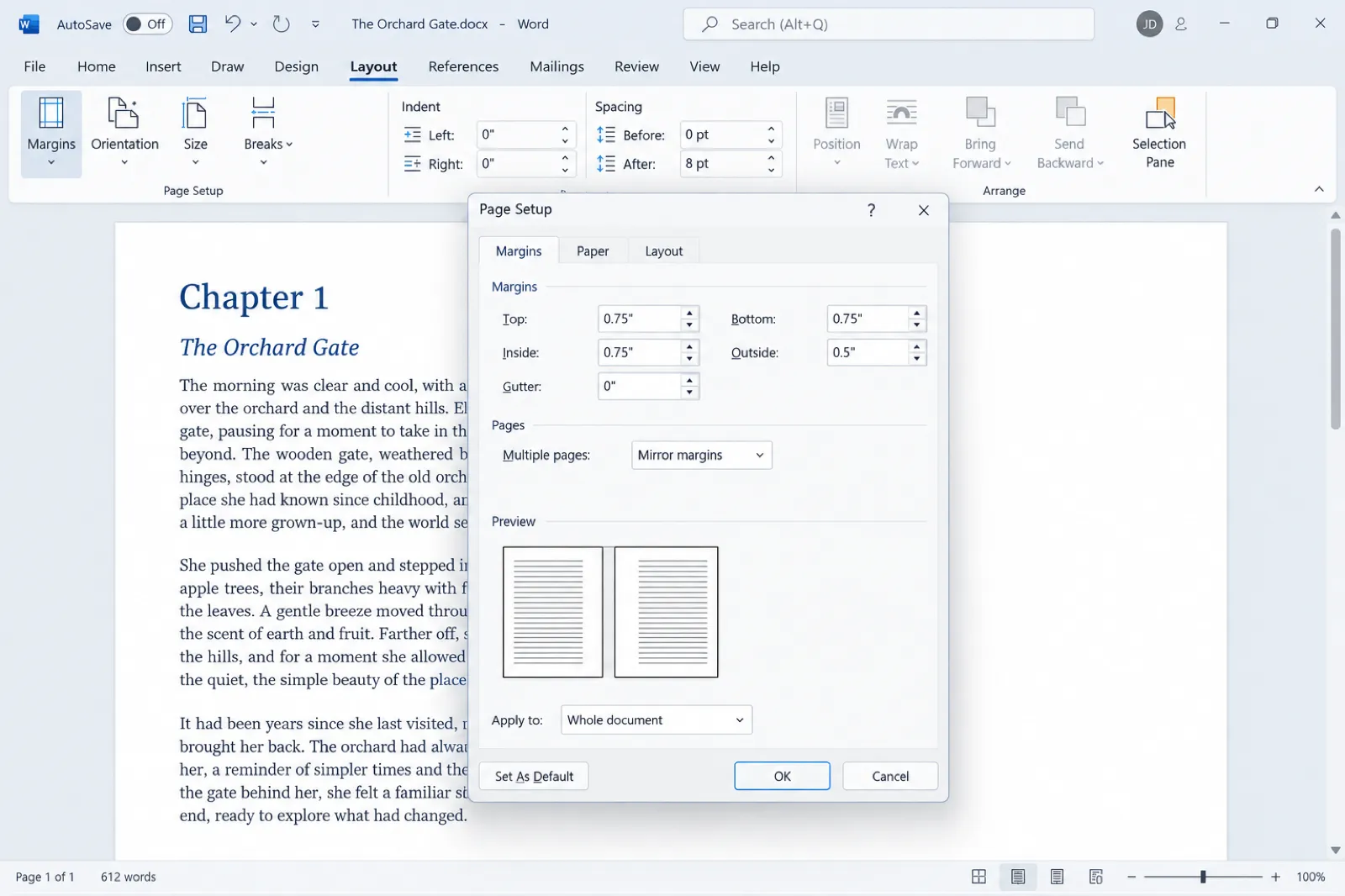
- Margins. Layout, then Margins, then Custom Margins. Under Multiple pages choose Mirror margins, apply to the whole document, and enter Top, Bottom, Inside and Outside from the checker above. KDP's guide is explicit: "Do not enter any value into the Gutter field." The Inside field is your gutter.
- Body text style. On the Home tab, right-click Normal, Modify, then Format, Paragraph: alignment Justified, first line indent 0.2 in, spacing before and after 0, line spacing Single. Choose your font and size here too, never by selecting text.
- Chapter titles. Use Heading 1, centred, with no indent and 60 pt of space before and after. Headings also build the table of contents and, later, the Kindle navigation.
- Section breaks. At the end of the front matter and of every chapter, Layout, Breaks, Next Page. Each chapter becomes its own section so its headers and page numbers can differ.
- Headers and page numbers. Double-click the header area. Untick Link to Previous so a section does not copy the one before it, tick Different First Page to keep the header off chapter opening pages, and tick Different Odd and Even Pages if you want the author name on one side and the title on the other. Use Page Number, Format Page Numbers to start at 1 where the main text begins.
- Proof with formatting marks on. Turn on Show/Hide to find stray breaks and empty paragraphs. KDP's checklist also asks you to flatten transparencies and turn off image downsampling.
- Export to PDF with fonts embedded. In Word for Windows, Save As PDF, then Options, and tick the PDF/A (ISO 19005-1) option, which embeds the fonts. Open the PDF and check the page size and the fonts listed under document properties before you upload.
Where Word goes wrong
- Placeholder text. KDP warns that leftover template text can cause an upload error or rejection. Search the document for the template's sample words before exporting.
- The page count moves. Your margins were set for one page-count band. Add a chapter or change the font size and you can cross 150 or 300 pages, which raises the minimum gutter. Re-check after every big edit.
- Headers on the wrong pages. Most header problems come from Link to Previous still being on in one section. Fix headers section by section, from the front.
- Uploading the DOCX. KDP accepts DOCX for a paperback without bleed, but it converts the file, and fonts and breaks can shift. Upload the PDF you checked.
Word suits authors who already write in it and want control. If you change your mind partway, the same .docx imports into Inkfluence AI with its chapters intact.
Route 3: Google Docs
Google Docs is where a lot of books are drafted, and it is fine for that. As a paperback layout tool it has two gaps you need to work around. Google's help lists the page setup options as orientation, paper size, margins and page colour, and it does not describe any mirrored inside and outside margin. Page setup is also unavailable in pageless format, so switch the document to Pages first.
Step by step
- Switch to Pages format. File, Page setup, then choose Pages. Set the paper size to your trim if it is offered in your paper size list.
- Set symmetrical margins at the gutter value. Because Docs has one left and one right margin for every page, and the binding is on the left of right-hand pages and on the right of left-hand pages, set both left and right to at least your inside minimum from the checker (for a 200-page book, at least 0.5 in; 0.75 in reads better). Top and bottom at 0.5 to 0.75 in.
- Style with headings. Use Heading 1 for chapter titles and Normal text for the body, with a first-line indent from Format, Align and indent, Indentation options. Insert, Break, Page break before each chapter.
- Add page numbers and headers. Insert, Headers and footers, and Insert, Page numbers. Use the different first page option to keep numbers off chapter openings if you want them clean.
- Download as PDF. File, Download, PDF Document. Open the PDF and check the page size matches your trim exactly and that the fonts are embedded (document properties, Fonts) before you upload.
The trade-offs
- Trim size. If your trim is not in Docs' paper size list, do not approximate it; KDP checks that the page size matches the trim you select. Download the file as .docx and set the exact size in Word, or import the .docx into a formatter.
- Symmetrical margins cost width. Setting both sides to the gutter value makes the outside margin wider than it needs to be. That is legal and readable, it just uses more pages than a mirrored layout.
- The ebook. Docs can download a Word file or an EPUB (File, Download). For Kindle, upload the DOCX or EPUB to KDP and check it in Kindle Previewer, which KDP recommends for both.
The most reliable Docs workflow: draft in Docs, download .docx, finish the layout elsewhere. Imported into Inkfluence AI, Heading 1 titles become chapters and steps 2 to 5 disappear.
Route 4: Canva
Canva is a design tool, not a word processor, and that decides what it is good for. Each page is a canvas you arrange by hand, and text does not flow from one page to the next. For a picture book, a coloring book, a journal or a workbook where every page is a designed layout, that is an advantage. For a 60,000-word novel it means placing every paragraph yourself.
Step by step
- Create a custom-size design in inches. With no bleed, use the exact trim (6 x 9 in). If anything prints to the edge, use KDP's bleed size instead (6.125 x 9.25 in for 6 x 9), which already includes the extra 0.125 in on the outside edge and top and bottom.
- Place margin guides. Turn on rulers and guides from the File menu, and drag guides to your margins from the checker. Remember the page sides: page 1 is a right-hand page with its binding on the left, page 2 is a left-hand page with its binding on the right. The gutter guide swaps sides on every page.
- Keep text and important art inside the guides. Only backgrounds and full-page art should run to the edge, and only in a bleed file.
- Use 300 DPI images. A picture that looks sharp on screen can still be below KDP's 300 DPI minimum at print size.
- Download as PDF Print without crop marks. Canva's PDF Print download has a "Crop marks and bleed" option. Leave it off: KDP asks for files with no crop marks or trim marks, and KDP's interior bleed sits only on the outside, top and bottom edges, never at the binding.
The trade-offs
- Canva's bleed is not KDP's bleed. Canva's help describes its print bleed as a fixed border that cannot be adjusted. KDP's interior bleed adds 0.125 in to the width and 0.25 in to the height only. Sizing the design to KDP's bleed dimensions yourself avoids the mismatch.
- Mirrored margins by hand. Nothing in a Canva design knows which pages are left or right. Duplicating a left page and a right page as two master layouts saves time.
- No reflowable ebook. A Canva PDF is fixed pages. For a Kindle edition of a text book you need an EPUB, DOCX or KPF from another route; picture books on Kindle are fixed-layout, which KDP accepts as EPUB or KPF.
- The cover wrap is separate. Canva will not size a spine for you; take the full-wrap dimensions from KDP's cover calculator, or work them out with our KDP cover size and spine width calculator.
If your book is a children's picture book or a coloring book, our guides to making a picture book with AI and selling AI coloring books on KDP cover the page counts, trims and art rules for those formats. Inkfluence AI's picture book exports pad a short book with blank pages to reach KDP's 24-page minimum and tell you how many were added, so you can add real pages instead if you prefer. Picture books are a paid feature.
Picture book, coloring book or workbook?
Make it in Inkfluence AI and export at 8.5 x 8.5, 8.5 x 11 or another KDP trim, with the page minimum and margins handled for you.
Start a bookFormatting the Kindle ebook (every route)
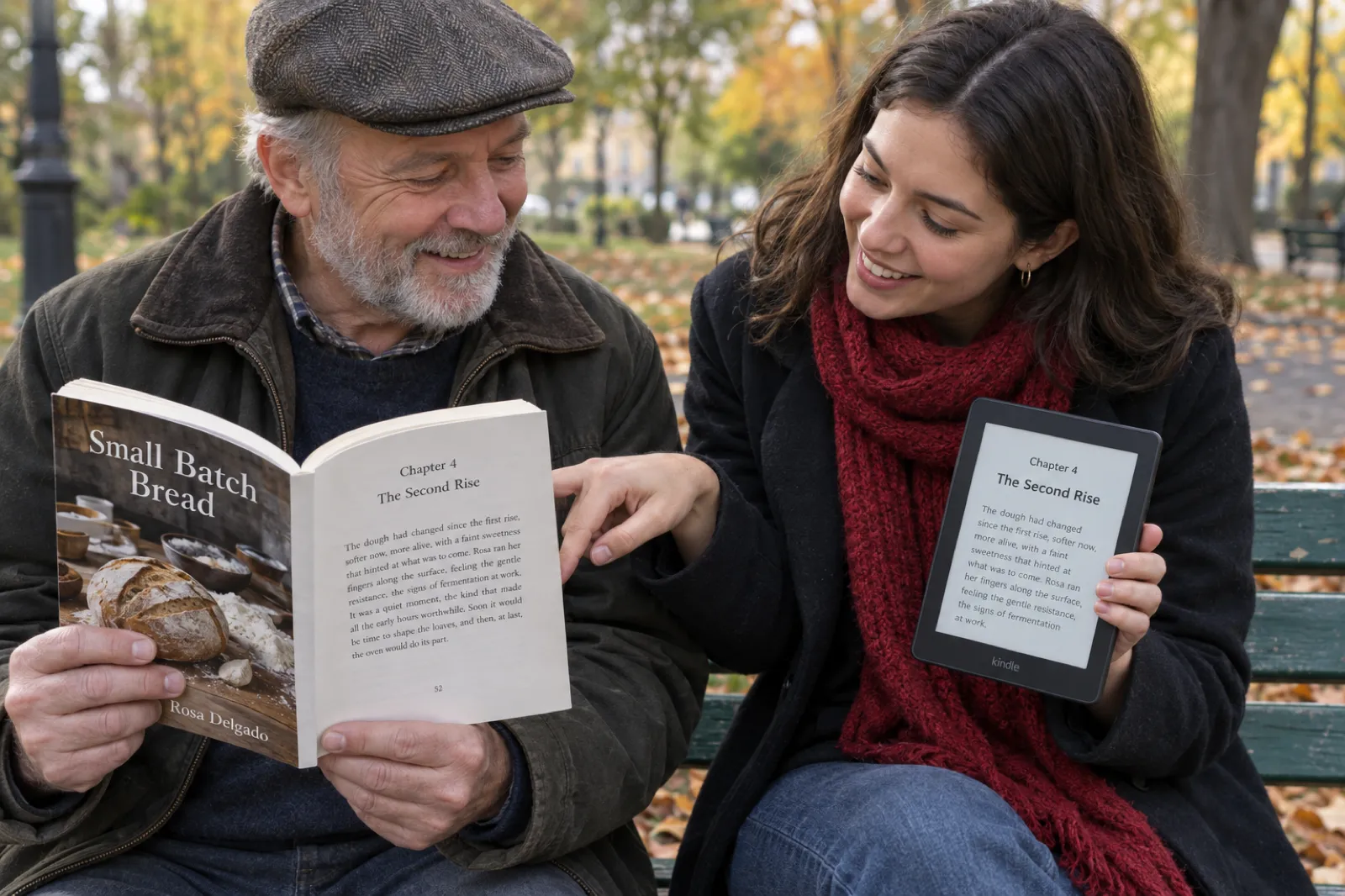
The Kindle edition is a different file with different rules, and most formatting mistakes on KDP come from treating it like the paperback. A Kindle ebook is reflowable: the reader picks the font and size, and the text re-wraps to fit the screen. KDP's eBook formatting guide puts it plainly: page numbers and page count do not apply, and ebooks do not have headers and footers.
What KDP accepts for Kindle
- EPUB, meeting the Kindle Publishing Guidelines. KDP recommends validating it with Kindle Previewer before upload.
- DOC or DOCX. KDP says most Word files convert well, but complex formatting may not; check the result in Kindle Previewer.
- KPF, the file Kindle Create produces.
- Not MOBI. KDP stopped accepting MOBI for reflowable ebooks on August 1, 2021, and for fixed-layout ebooks on March 18, 2025. The change applies to new uploads and to revisions of published ebooks; books already live from a MOBI need no action until you update them.
- PDF is accepted but a poor choice. KDP lists PDF as an additional format, only for nine languages, and converts it. A print PDF has fixed lines and pages, so it makes a weak reflowable book.
Ebook formatting rules that matter
- A table of contents. KDP's Word guide says Amazon requires every Kindle ebook to have a TOC. Build it from Heading 1 chapter titles so it links.
- Indents from paragraph settings, not tabs. KDP notes that tab spacing does not convert to Kindle; set a first-line indent (0.2 in in KDP's examples) in the style.
- Page breaks before chapters, so each chapter starts on a new screen.
- Shapes and text boxes as images. KDP advises inserting visuals like these as pictures.
- No running headers or page numbers. Remove them from the ebook file.
- A separate ebook cover. KDP's ideal ebook cover is 2,560 px tall by 1,600 px wide, in RGB (Kindle does not support CMYK). The print wrap is not the ebook cover.
One manuscript, two exports. Our guide to ebook formats explains EPUB, PDF and the rest, ebook export and publishing covers where each file goes, and how to sell ebooks on Amazon KDP covers pricing and royalties for the Kindle edition.
Why the gutter catches people out
Of all the numbers above, the inside margin is the one that changes, and it changes with something you are still editing: the page count. A paperback is glued at the spine, and the thicker the book, the more of each page curves into the binding. KDP's bands (0.375 in up to 150 pages, rising by 0.125 in at 300, 500 and 700 pages) are there so text does not disappear into that curve.
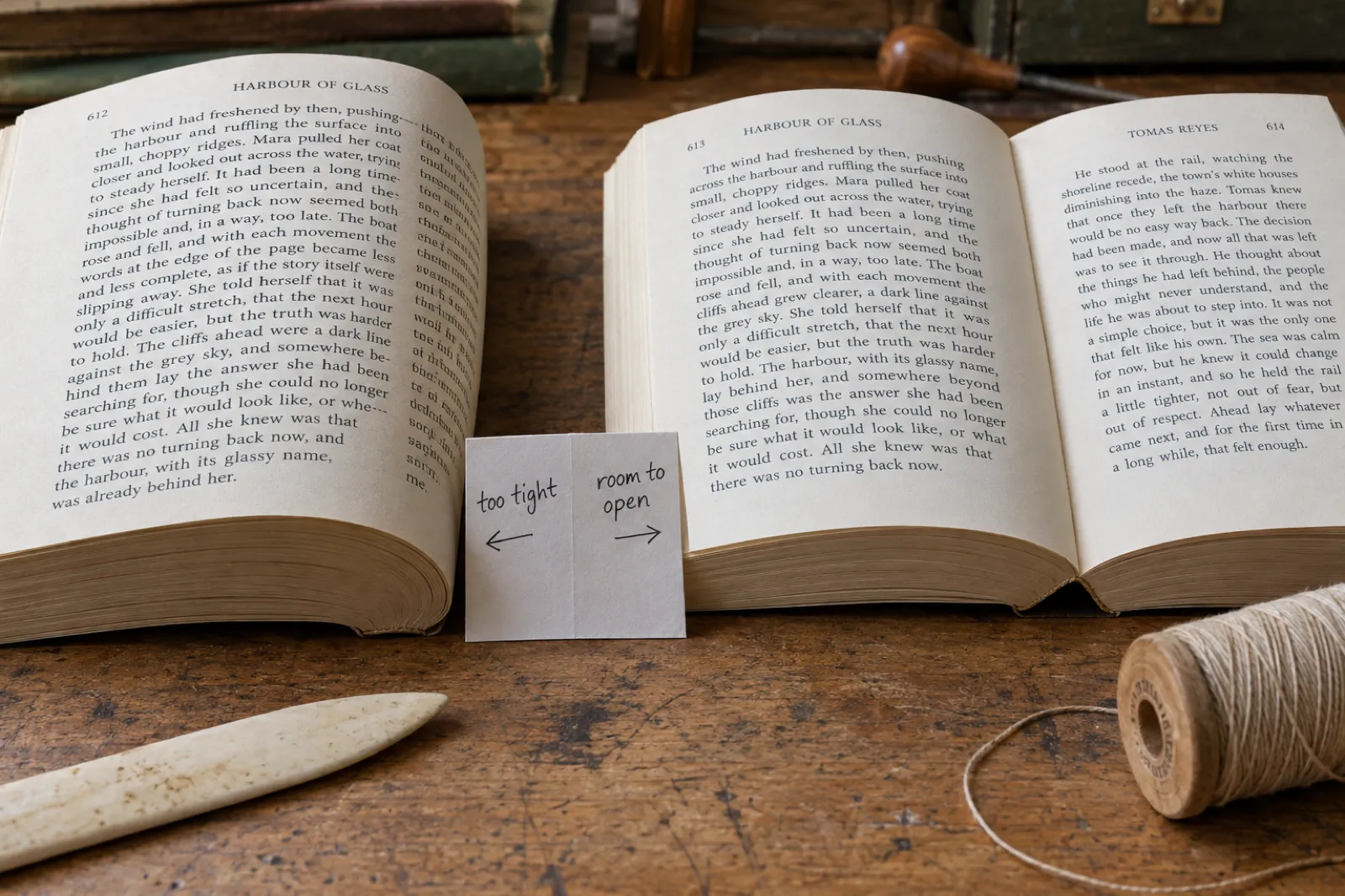
Three habits avoid nearly every gutter problem:
- Count the pages of the final PDF, not the manuscript. Word's page count at Letter size means nothing for a 6 x 9 book. Front matter, blank versos and the back matter all count.
- Set the gutter for the band above if you are close. A 290-page book that might grow should use 0.625 in now rather than 0.5 in.
- Leave headroom above the minimum. Italic letters, quotation marks and punctuation can sit slightly outside the text block. A margin set exactly on the minimum leaves no room for them.
To see how page count, trim and paper change your print cost and the spine of your cover, the KDP tools page collects our calculators, and the royalty calculator shows what each extra page does to your earnings per copy.
Notes by book type
Novels and memoirs
6 x 9 and 5.5 x 8.5 are common choices, with justified body text, first-line indents rather than spaces between paragraphs, and chapters starting on a new page. Watch for single lines stranded at the top or bottom of a page, and keep scene breaks consistent. If you are writing the book with AI, the AI novel generator for KDP writes and formats in the same place. For every trim size by book type, with page limits and print cost, see our KDP trim size guide.
Non-fiction and how-to guides
Headings, lists and tables do the work. Check that tables fit inside the text block at your trim (a table that fits at Letter size may not at 6 x 9) and that every heading stays with the paragraph after it. A practical how-to guide in our data has a median of about 9,200 words, which sits well inside KDP's first gutter band at a 6 x 9 trim. Our AI book writer for Kindle covers the writing side.
Workbooks and journals
Larger trims (7 x 10, 8 x 10, 8.5 x 11) give room to write. Lines for writing must be at least 0.75 pt thick, and grey fills at least 10%, or they may print too faintly. The workbook generator exports at those trims. A journal or planner of repeated blank or lined pages is usually a low-content book on KDP; our low-content books guide covers what that changes.
Children's picture books
Square trims such as 8.5 x 8.5 are a common choice. KDP still needs 24 pages, any edge-to-edge art means a bleed file, and text must stay inside the margins. See the AI children's book creator and our ranking of the best AI children's book creators. For trims, print costs and the upload itself, our guide to self-publishing a children's book on Amazon KDP walks through each step.
Coloring books
Usually 8.5 x 11, single-sided designs with a blank back page so markers do not bleed through, and line art at 300 DPI. Our guide on how to make a coloring book with AI walks through the layout.
Poetry
Poems break formatting rules on purpose, so check every line break in the final PDF, and in the ebook remember that long lines will wrap on a phone. Our guide to publishing a poetry book on Kindle covers the ebook side.
Pre-upload checklist
Run through this with the final files open, not the manuscript.
- Every page of the interior PDF is exactly the trim size, or exactly trim plus bleed if you chose Bleed.
- The page count is at least 24 (72 for standard colour) and within the maximum for your trim and paper.
- The inside margin matches the band for the final page count, with a little headroom.
- Outside, top and bottom margins are at least 0.25 in (0.375 in with bleed), including running heads and page numbers.
- All fonts are embedded and no text is smaller than 7 pt.
- Every image is 300 DPI or more at its printed size.
- Odd page numbers are on right-hand pages, and there are no runs of unexplained blank pages.
- No placeholder text, comments, crop marks or bookmarks remain, and the PDF is not locked.
- The paperback cover is a full-wrap PDF sized for your page count and paper, not the ebook JPG.
- The Kindle file is an EPUB, DOCX or KPF with a linked table of contents, no headers and no page numbers.
- The ebook cover is a separate JPG, ideally 2,560 x 1,600 px, in RGB.
- You have decided how to answer KDP's AI content questions; see our guide to the KDP AI disclosure policy.
After you upload, KDP's print previewer shows the book page by page and flags problems it finds, and Kindle Previewer does the same for the ebook. Use them on every upload, including revisions.
If KDP flags your file
KDP's help lists the common failure points for paperback interiors. The fixes are usually quick once you know which rule was broken.
| Problem | Usual cause | Fix |
|---|---|---|
| Text outside the margins or too close to the gutter | Inside margin set for a smaller page count; headers or page numbers too close to the edge | Re-check the band with the checker above, widen the inside margin, move headers in |
| Trim size does not match the file | Page size slightly off, or a bleed file uploaded with No Bleed selected (or the reverse) | Set the page size exactly; make the bleed answer match the file |
| Fonts not embedded | PDF exported without embedding | Re-export with font embedding on (Word: PDF/A option) |
| Low-resolution images | Images below 300 DPI at print size, or downsampled on export | Replace with larger images; turn off downsampling |
| Excessive blank or missing pages | Stray section breaks, empty paragraphs, pages lost on export | Show formatting marks, delete empty breaks, compare page count to the manuscript |
| Placeholder or template text | Sample text left from a template | Search for the template's sample words and remove them |
| Locked or encrypted file | PDF saved with a password or permissions | Export again without security settings |
If the email has already arrived, our guide to what to do when KDP rejects your book matches each common rejection email to its fix.
Already written? Bring it in
Import your Word, PDF, EPUB or text file, check it in Preview, and export the KDP package and Kindle EPUB when you are ready. The free plan lets you try the editor and a PDF export first.
Try Inkfluence AI freeAfter formatting: the rest of the launch
Formatting is one step of several. The cover comes next if you have not made it: the AI book cover generator builds the front and the full wrap, and our roundup of the best free AI book cover generators covers the free options. Then the listing: a book description generator for the blurb, KDP SEO for keywords, and choosing KDP categories. If you want a single physical copy before you publish, see how to print one copy of a book, and our ebook launch checklist covers launch week.
Frequently asked questions
How do I format a book for Amazon KDP?
Make two files. The paperback is a PDF at your exact trim size (plus 0.125 in wide and 0.25 in tall if anything bleeds), with an inside margin set by page count (0.375 to 0.875 in), at least 0.25 in on the other edges (0.375 in with bleed), fonts embedded and images at 300 DPI. The Kindle ebook is a reflowable EPUB, DOCX or KPF with a table of contents and no page numbers or headers.
What margins does KDP require for a paperback?
KDP sets the inside (gutter) margin by page count: 0.375 in for 24 to 150 pages, 0.5 in for 151 to 300, 0.625 in for 301 to 500, 0.75 in for 501 to 700 and 0.875 in for 701 to 828. Outside, top and bottom margins must be at least 0.25 in without bleed and at least 0.375 in with bleed. These are minimums; most books look better with more.
Does KDP have a Word template?
Yes. KDP offers Microsoft Word manuscript templates for paperback and hardcover, downloaded as a ZIP in which you pick your language and trim size. Blank templates have the page size and margins set; templates with sample content add formatted front matter and placeholder chapters. Delete every piece of placeholder text before you upload, because leftover template text can cause an upload error or a rejection.
Can I format a KDP book in Google Docs?
Yes, with two workarounds. Docs has no mirrored inside and outside margin, so set both left and right to at least your inside margin. If your trim size is not in the paper size list, download a .docx and set the size in Word or a formatter. Download the interior as PDF and check the fonts are embedded.
Can I use Canva to format a KDP book?
Canva suits picture books, coloring books and journals, less so long text, because text does not flow between pages. Set a custom size equal to your trim (or KDP's bleed size), place margin guides and mirror the gutter by hand, and download PDF Print without crop marks, which KDP does not allow.
Does KDP still accept MOBI files?
Not for new books or revisions. KDP ended MOBI support for reflowable ebooks on August 1, 2021 and for fixed-layout ebooks on March 18, 2025. Use EPUB, DOCX or KPF instead. Ebooks already published from a MOBI file need no action unless you update them.
Should I upload a PDF or a Word file for my KDP paperback?
KDP accepts PDF, DOC, DOCX, RTF, HTML and TXT for paperbacks without bleed; a bleed book must be a PDF. A PDF with fonts embedded is safer either way, because KDP converts a Word file and fonts, breaks and page count can shift.
What is the minimum page count for a KDP paperback?
24 pages for most paper types, and 72 pages for standard colour ink on white paper. The maximum depends on trim and paper: 828 pages for most sizes on white paper and 776 on cream, with 8.5 x 11 and 8.5 x 8.5 stopping at 590 on white.
Do I need bleed for my KDP book?
Only if something on an interior page should print to the edge of the paper, such as a full-page photo or a coloured background. If one page bleeds, the whole file must be set up with bleed: 0.125 in wider and 0.25 in taller than the trim, as a PDF, and you choose Bleed in KDP's print options. Text-only books are set up with no bleed.
Can I use the same file for the Kindle ebook and the paperback?
No. The paperback needs a fixed-page PDF with margins, page numbers and running heads. The Kindle ebook is reflowable: readers change the font size, so page numbers and headers do not apply, and KDP recommends EPUB, DOCX or KPF. Format one manuscript, then export two files from it.
From manuscript to KDP files in one export
Interior, cover wrap, Kindle EPUB and a READ ME with your trim, page count, spine and bleed answer.
Format my bookSources
Every external fact on this page was read on the source below on 13 October 2026. Inkfluence AI facts come from our product code and our measured print checks on that date.
- KDP: Set trim size, bleed, and margins (trim table, page ranges, bleed size, margin table), checked 13 Oct 2026
- KDP: Paperback submission guidelines (fonts, 7 pt minimum, 300 DPI, single pages, crop marks, flattening, 650 MB, common failure points), checked 13 Oct 2026
- KDP: Paperback and hardcover manuscript templates, checked 13 Oct 2026
- KDP: Format your paperback manuscript in Word (mirror margins, Gutter field, styles, section breaks, headers, TOC), checked 13 Oct 2026
- KDP: eBook manuscript formatting guide (no headers or page numbers, indents, page breaks), checked 13 Oct 2026
- KDP: Supported eBook formats (EPUB, DOCX, KPF, PDF languages, Kindle Previewer), checked 13 Oct 2026
- KDP: MOBI support for eBooks FAQ (reflowable ended August 1, 2021; fixed-layout ended March 18, 2025), checked 13 Oct 2026
- KDP: Prepare reflowable and print books with Kindle Create, checked 13 Oct 2026
- KDP: eBook cover guidelines (2,560 x 1,600 px, RGB), checked 13 Oct 2026
- Google Docs Help: Change page settings (page setup options, pageless format), checked 13 Oct 2026
- Google Workspace Updates: Export Google Docs files as EPUB, checked 13 Oct 2026
- Canva Help: Margins, rulers, bleed and crop marks (fixed print bleed, PDF Print with crop marks and bleed), checked 13 Oct 2026
Related reading
- AI Book Formatter and the best book formatting software
- How to Create a Print-Ready PDF Book
- How to Publish AI-Generated Books on KDP
- KDP Cover Size and Spine Width Calculator
- How to Self-Publish a Children's Book on Amazon KDP
- KDP Rejected My Book: Every Common Rejection Email and the Fix
- Amazon KDP Tools Guide and our KDP tools
- Self-publishing on Amazon KDP and the self-publishing guide
- The Real Cost of Publishing an AI Book
- Inkfluence AI for Kindle publishers and for first-time authors
- AI Manuscript Editor
- Book Copyright Page Template
- Do You Need an ISBN? Free vs Bought, Cost by Country

Founder, Inkfluence AI
Sam is the founder of Inkfluence AI. He built the platform to make book creation accessible to everyone - from first-time authors to seasoned publishers.
Helpful links
Ready to Create Your Own Ebook?
Start writing with AI-powered tools, professional templates, and multi-format export.
Get Started FreeRelated Articles
 Children's Books
 Children's Book Word Count and Page Count by Age (2026): Board Books to Middle Grade, with Real Picture-Book Data
How many words and pages a children's book needs, from board books to young adult, with every range sourced to a publisher or editor and dated, words per page from real picture books by age band, and a word-budget calculator that checks KDP's 24-page minimum.
 Publishing
 Do You Need an ISBN? Free vs Bought, Cost by Country, and Which Formats Need One (2026)
When a self-published book needs an ISBN and when it does not, what one costs in the US, UK, Canada, Australia, New Zealand, India, Germany, Italy and France (checked at each agency on 13 October 2026), free ISBNs from KDP, IngramSpark and Draft2Digital, and a picker that tells you how many you need.
 Publishing
 IngramSpark AI Policy (2026): What It Accepts, the Setup Question and the "Assisted By" Credit
IngramSpark accepts AI-drafted books with significant human editing and the "Assisted By - Generative AI" credit, and refuses works created solely with generative AI. Its exact wording, covers and translations, how it differs from KDP, a checker for your book, and an editing workflow.
Get ebook tips in your inbox
Join creators getting weekly strategies for writing, marketing, and selling ebooks.