
How to Create a Print-Ready PDF Book with AI (KDP Paperback Guide 2026)
Learn how to generate a print-ready PDF manuscript for Amazon KDP paperback publishing using AI. Covers trim sizes, bleed, gutter margins, cover specs, and a step-by-step export walkthrough.
Quick Answer
A print-ready PDF for Amazon KDP paperback requires a specific trim size (6 x 9 inches is most common), asymmetric gutter margins that increase with page count, embedded fonts, no bleed for text-only interiors, and a separate cover file at 300 DPI. Inkfluence AI generates the full manuscript, applies KDP-compliant margins automatically, and exports both the interior PDF and cover PNG in one click - no InDesign or Word formatting required.
Publishing a paperback on Amazon KDP is one of the most accessible ways to get a physical book into readers' hands. The barrier is not distribution - Amazon handles printing, shipping, and listing. The barrier is producing a manuscript file that meets KDP's exact specifications.
Most self-publishers hit the same wall: they finish writing their book, export a PDF, upload it to KDP, and get rejected. The margins are wrong. The gutter is too narrow. The fonts are not embedded. The cover dimensions do not match the trim size. Each rejection means another round of reformatting in Word or InDesign, adjusting settings they barely understand, and re-uploading.
AI book generators now handle the entire formatting pipeline. You write (or generate) your content, choose your trim size, and export a manuscript PDF that passes KDP's automated review on the first attempt. This guide explains exactly what KDP requires and how to produce it.
- KDP export tool: AI book writer with KDP export
- Full publishing guide: AI book publishing guide - generator to KDP
- Export formats: ebook export and publishing guide
- Cover design: AI book cover generator
- PDF tools: AI PDF generator
- KDP SEO: KDP keyword and category optimization
What "Print-Ready" Actually Means for KDP
A print-ready PDF is not just a regular PDF saved from Google Docs. It is a file formatted specifically for commercial printing, where physical paper is cut, folded, and bound into a book. Amazon's print-on-demand system has strict technical requirements because each copy is manufactured individually when a customer orders it.
Here is what KDP checks when you upload a paperback manuscript:
Trim size. This is the finished width and height of your printed book. KDP supports sizes from 5 x 8 inches to 8.5 x 11 inches. The most popular size in the US market is 6 x 9 inches - it feels natural in hand, fits standard bookshelves, and qualifies for KDP's regular (lower) printing cost tier. Any width above 6.12 inches or height above 9 inches is classified as "large trim" and costs more to print.
KDP Gutter Margin Requirements
The gutter is the inside margin where pages meet the spine. A thicker book needs a wider gutter because the pages curve more sharply at the binding. KDP specifies minimum gutter widths based on page count:
| Page Count | Minimum Gutter (Inside Margin) | Minimum Outside Margins |
|---|---|---|
| 24 - 150 pages | 0.375 in (9.5 mm) | 0.25 in (6.4 mm) |
| 151 - 300 pages | 0.5 in (12.7 mm) | 0.25 in (6.4 mm) |
| 301 - 500 pages | 0.625 in (15.9 mm) | 0.25 in (6.4 mm) |
| 501 - 700 pages | 0.75 in (19.1 mm) | 0.25 in (6.4 mm) |
| 701 - 828 pages | 0.875 in (22.2 mm) | 0.25 in (6.4 mm) |
The gutter must alternate sides - on right-facing (odd) pages, the gutter is on the left; on left-facing (even) pages, the gutter is on the right. This is called asymmetric or mirrored margins, and it is the single most common reason DIY formatting fails. Standard word processors apply uniform margins to every page.
Key Detail
Inkfluence AI sets print margins automatically based on your page count and selected trim size. The export engine prints a 0.75 inch inside margin (rising to 0.875 inch for books over 700 pages), which meets or exceeds every threshold in the KDP specification table above and matches the geometry of Amazon's own paperback templates, mirroring left and right gutters on alternating pages. You do not set margins manually.
Bleed. Bleed refers to content that extends past the trim edge so there is no white border when pages are cut. For text-only books (most non-fiction, novels), you typically do not need bleed. If your book has full-page images or colored backgrounds that touch the page edge, you need 0.125 inches (3.2 mm) of bleed on the top, bottom, and outside edges.
Embedded fonts. Every font used in your manuscript must be embedded in the PDF file. If fonts are not embedded, KDP's system may substitute them, causing layout shifts and visual inconsistencies. Professional PDF generators (including browser-based engines like Puppeteer/Chromium) embed fonts by default.
No crop marks or printer marks. Unlike commercial offset printing, KDP's print-on-demand system does not want crop marks, registration marks, or color bars in your PDF. The file should contain only the content as it will appear on the printed page.
Trim Sizes That Work Best
Choosing the right trim size affects printing cost, shelf appearance, and reader comfort. Here is how KDP's most popular options compare:
| Trim Size | Best For | Cost Tier | Inkfluence Export |
|---|---|---|---|
| 6 x 9 in | Non-fiction, business, self-help, general | Standard (lowest) | Trade 6x9 |
| 5.5 x 8.5 in | Novels, memoirs, literary fiction | Standard | Digest 5.5x8.5 |
| 5 x 8 in | Poetry, devotionals, short guides | Standard | Pocket 5x8 |
| 8.5 x 11 in | Workbooks, textbooks, cookbooks | Large (higher) | US Letter |
| 5.83 x 8.27 in (A5) | International markets, EU/AU audiences | Standard | A5 |
6 x 9 inches is the industry standard. It qualifies for KDP's lowest printing cost tier, fits standard bookshelves, and is the size readers expect when they order a non-fiction paperback. Unless your content specifically requires a different format, start here.
5.5 x 8.5 inches is a slightly smaller "digest" size common for novels and memoirs. It feels compact in hand and matches the mass-market paperback aesthetic that fiction readers recognise.
5 x 8 inches is pocket-sized - popular for devotionals, poetry, and short guides. The compact dimensions limit content per page, so your page count (and printing cost) increases.
8.5 x 11 inches is US Letter size, used for cookbooks, lesson plans, and any content with tables, worksheets, or large images. This is "large trim" on KDP - higher printing costs. Use it when the content genuinely requires the space.
The Cover File: Separate from the Manuscript
KDP paperback publishing requires two separate files: the interior manuscript (PDF) and the cover. This confuses many first-time publishers who try to include the cover as page one of their PDF manuscript. KDP will reject this - the cover is handled separately.
You have two options for the cover:
Option 1: Upload a cover PDF or image. Your cover file should be a single-page PDF or high-resolution image (PNG or JPEG) that includes the front cover, spine, and back cover as one wrap-around layout. The spine width depends on your page count and paper type - KDP provides a cover calculator that generates a template with exact dimensions.
Option 2: Use KDP's Cover Creator. Amazon provides a free tool where you upload a front cover image and it generates the spine and back cover automatically. This is simpler but offers less design control. If you use this option, you only need a front cover image at the correct trim dimensions and 300 DPI resolution.
For a 6 x 9 inch book, the front cover image should be 1800 x 2700 pixels (at 300 DPI). The Inkfluence cover designer produces covers at these exact dimensions alongside the manuscript PDF - you can generate from a prompt, upload your own artwork, or fine-tune typography and layout in the 5-tab editor. See our AI ebook cover generator comparison for alternatives.
AI Export vs Manual Formatting
Here is how AI-powered KDP export compares to the traditional manual workflow:
| Requirement | Inkfluence AI | Microsoft Word / Google Docs | Adobe InDesign |
|---|---|---|---|
| Trim size | Select from 5 presets | Custom page setup (manual) | Custom document setup |
| Asymmetric gutter | Automatic per page count | Mirror margins + section breaks | Master pages (manual) |
| Font embedding | Automatic (Chromium engine) | Save as PDF with embed option | Export preset required |
| Cover file | Exported alongside manuscript | Separate tool required | Separate document |
| Title page (no cover image) | Automatic text-only title | Manual removal of cover page | Manual layout |
| TOC with page numbers | Auto-generated, no hyperlinks | Update fields, remove links | Generate TOC, manual cleanup |
| Time to export | 30 seconds | 30-60 minutes | 15-30 minutes |
| Learning curve | None | Moderate | Steep ($22/mo subscription) |
Skip the formatting headache
Write your book, design a cover, and export a KDP-ready manuscript PDF + cover PNG in one click. 5 trim sizes supported, automatic gutter margins, embedded fonts, and no learning curve.
Step-by-Step: Creating a KDP Paperback with Inkfluence AI
Here is the complete workflow from book creation to KDP upload:
Step 1: Generate your book. Start a new project in Inkfluence AI. Enter your topic, select a genre and blueprint (the system has 20+ templates including self-help, business, cookbook, fiction, and more), and generate your chapters. Edit as needed in the chapter editor.
Step 2: Design your cover. Use the built-in cover designer to create or upload a cover. The AI cover generator produces designs sized for your selected trim, or you can upload your own artwork.
Step 3: Open the export dialog. Click "Export" in the editor. You will see five format tabs: PDF, KDP, EPUB, DOCX, and Audio. Select the KDP tab.
Step 4: Choose your trim size. The page size picker shows all five supported sizes. The 6 x 9 option is labelled as KDP-recommended. Select the size that matches your content type - 6 x 9 for most books, 8.5 x 11 for workbooks or cookbooks with large images.
Step 5: Configure content options. Expand the settings panels to adjust decorative elements (chapter ornaments, section dividers), headers and footers, and copyright page content. These are visual preferences - the structural formatting (margins, gutter, page dimensions) is handled automatically.
Step 6: Export the KDP package. Click "Export KDP Package." Two files download: {Your Book Title} - KDP Manuscript.pdf and {Your Book Title} - KDP Cover.png. The manuscript PDF is the interior file with correct trim dimensions and asymmetric gutter margins. The cover PNG is sized for KDP's Cover Creator.
Step 7: Upload to KDP. Log into your KDP account, create a new paperback title, enter your book details (title, description, keywords, categories). Use the book description generator for KDP-optimised copy and the KDP SEO guide for keyword research. Upload the manuscript PDF as your interior file. For the cover, choose "Launch Cover Creator" and upload the PNG, or upload a full wrap-around cover PDF if you have one.
Step 8: Review the KDP previewer. Amazon's online previewer shows exactly how your book will look when printed. Check the title page, table of contents, chapter beginnings, and page edges. Pay attention to text near the gutter - if any content feels too close to the binding, your margins may need adjustment.
Step 9: Set pricing and publish. Choose your list price, royalty option (60% for most paperbacks), and distribution territories. Click "Publish." Your book typically appears on Amazon within 72 hours. For post-launch strategy, see the ebook launch checklist and marketing strategy guide.
Common KDP Rejection Reasons and How to Avoid Them
Even with automation, it helps to understand what triggers KDP's automated manuscript review to flag your file:
Content in the bleed zone without bleed enabled. If you selected "no bleed" but have images or backgrounds that touch the page edge, KDP will flag this. For text-only books, ensure all content stays within the safe margin area. AI-generated manuscripts typically do not include full-page images, so this rarely applies.
Page count outside allowed range. Each trim size has minimum and maximum page counts. For 6 x 9, the range is 24 to 828 pages. A very short book (under 24 pages) must use a larger trim size or add front/back matter to meet the minimum.
Low-resolution images. Any images in your manuscript should be at least 300 DPI at print size. A 600-pixel-wide image looks fine on screen but prints blurry at 6 inches wide (only 100 DPI). If your book includes images, verify resolution before exporting. Most AI writing tools generate text-based content, so this applies mainly to imported images.
Mismatched trim size. The PDF page dimensions must exactly match the trim size you selected in KDP. If your PDF is 8.5 x 11 but you selected 6 x 9 in KDP's settings, the upload will fail. When using an AI export tool, the trim size is baked into the PDF - just make sure you select the same size in KDP's book setup.
Fonts not embedded. If your PDF references external fonts instead of embedding them, KDP may display your manuscript with incorrect typography. Puppeteer-based PDF generators (used by Inkfluence and similar tools) embed all fonts automatically. If you are exporting from Word, use "Save as PDF" with the "embed fonts" option checked.
Ink and paper options
KDP offers three interior ink types: black-and-white (cream or white paper), premium colour (white paper), and standard colour (white paper). Most text-based books use black-and-white on cream paper for readability and lowest print cost. Cookbooks, children's books, and photo-heavy content need colour. Choose ink type before uploading - it affects printing cost, minimum margins, and available trim sizes.
KDP Paperback vs Ebook: Publishing Both Formats
Many authors publish both a Kindle ebook and a KDP paperback. Amazon automatically links editions with matching titles and author names on the same product page, so a reader sees both the Kindle price and paperback price together. For the full end-to-end publishing workflow, see our AI book publishing guide.
The key difference in production is that ebooks use reflowable formats (EPUB or KDP's proprietary format) while paperbacks use fixed-layout PDFs. A tool that exports both formats from the same manuscript saves considerable time. With Inkfluence AI, you can export the same book as:
- KDP Package - Interior PDF + cover PNG for paperback publishing
- EPUB - For Kindle ebook upload (KDP accepts EPUB), Apple Books, Google Play, and other digital platforms
- PDF - Standard formatted PDF for direct sales, Gumroad, or your website. See AI PDF generator
- DOCX - Editable Word document if you need further manual formatting
- Audiobook - AI-narrated audio version for Google Play Books, Kobo or direct sale. See AI audiobook generator
Publishing both formats from a single source means your content stays consistent. Update a chapter in the editor, re-export both the KDP package and EPUB, and both editions reflect the change. For a deeper look at format options, see the ebook formats guide.
Pricing Your KDP Paperback
Paperback pricing on KDP works differently from ebook pricing. Your royalty is 60% of the list price minus the printing cost. The printing cost depends on page count, trim size, ink type, and marketplace.
| Example Book | List Price | Print Cost (est.) | Your Royalty (60%) |
|---|---|---|---|
| 200-page B&W, 6x9 | $14.99 | ~$3.75 | ~$5.24 |
| 300-page B&W, 6x9 | $17.99 | ~$4.85 | ~$5.94 |
| 200-page colour, 8.5x11 | $29.99 | ~$9.50 | ~$8.49 |
| 120-page B&W, 5x8 | $9.99 | ~$2.80 | ~$3.19 |
Research comparable books in your category to set a competitive price. Most non-fiction paperbacks in the 150 to 300 page range sell for $12.99 to $19.99. Fiction paperbacks typically range from $9.99 to $15.99.
Beyond KDP: IngramSpark and Other Print Options
Amazon KDP is the most accessible print-on-demand platform, but it is not the only option. IngramSpark distributes to over 40,000 retailers and libraries worldwide, making it a strong complement for authors who want bookstore and library placement.
IngramSpark accepts the same PDF format as KDP but has slightly different margin requirements and supports additional trim sizes. The print-ready PDF you generate for KDP will generally work for IngramSpark with minor margin adjustments. Both platforms require embedded fonts, proper trim dimensions, and separate cover files.
If your primary goal is Amazon sales, KDP is sufficient. If you want broader distribution (Barnes and Noble, independent bookstores, library systems), add IngramSpark as a second channel. Many successful self-publishers use both.
Checklist: Before You Upload to KDP
Use this checklist to verify your manuscript before uploading:
- Trim size matches your intended format (6 x 9 for most books)
- Gutter margins are correct for your page count (see table above)
- Outside margins are at least 0.25 inches on all non-gutter sides
- No cover image in the manuscript PDF (KDP handles covers separately)
- Title page, copyright page, and table of contents are present
- All fonts are embedded in the PDF
- Images (if any) are at least 300 DPI at print size
- No blank pages at the beginning or end (unless intentional)
- Page count falls within KDP's allowed range for your trim size
- Cover image is 300 DPI at the correct trim dimensions
- Book title and author name match between manuscript and KDP book details
For a comprehensive pre-publish checklist covering both ebook and paperback, see the ebook launch checklist.
Frequently Asked Questions
What file format does KDP accept for paperback manuscripts?
KDP accepts PDF files for paperback interiors. The PDF must have pages sized to your selected trim dimensions with embedded fonts. KDP also accepts Word (DOC/DOCX) files which it converts internally, but PDF gives you more control over the final layout.
Do I need bleed for a text-only book?
No. Bleed is only necessary when images or colored backgrounds extend to the page edge. Most non-fiction books, novels, and text-based content do not require bleed. Select "no bleed" in KDP's print options for text-only manuscripts.
Can I use the same PDF for both ebook and paperback?
Not directly. Ebooks use reflowable formats (EPUB) that adapt to different screen sizes. Paperbacks use fixed-layout PDFs with specific trim dimensions. You need separate files for each format, generated from the same source content. Tools like Inkfluence AI export both from a single project.
What is the best trim size for a first-time author?
6 x 9 inches. It is the industry standard, qualifies for KDP's lowest printing cost tier, and readers recognize it as a standard paperback size. Unless your content specifically requires a different format (workbook, children's book, poetry), start with 6 x 9.
How do I calculate the spine width for my cover?
Spine width depends on page count and paper type. KDP provides a cover calculator that generates a template with exact spine dimensions. For black-and-white interiors on white paper, a rough estimate is 0.002252 inches per page (so a 200-page book has approximately a 0.45-inch spine). Use the official calculator for precision.
Can AI-generated books be published on KDP?
Yes. Amazon requires authors to disclose AI-generated content during the publishing process. You must indicate whether AI was used to create text or images. AI-assisted content (where you use AI as a tool but provide creative direction and editing) is permitted. For full details, see our guide on publishing AI-generated books on KDP.
How long does it take for a KDP paperback to go live?
After you click "Publish," KDP reviews your files and typically makes the book available within 72 hours. During high-volume periods, it may take up to 5 business days. You can order proof copies before publishing to verify the physical print quality.
What is the minimum page count for a KDP paperback?
The minimum is 24 pages for most trim sizes. If your content is shorter, consider adding front matter (introduction, foreword, about the author) or choosing a smaller trim size that increases page count. A 5,000-word guide might be 20 pages at 8.5 x 11 but 35 pages at 5 x 8.
What is the difference between a print-ready PDF and a regular PDF?
A regular PDF uses arbitrary page dimensions (usually US Letter or A4), uniform margins, and may reference fonts externally. A print-ready PDF uses exact trim dimensions (e.g. 6 x 9 inches), asymmetric gutter margins appropriate for binding, embeds all fonts, and contains no crop marks or registration marks. KDP will reject PDFs that do not meet these specifications.
Can I publish a paperback and hardcover from the same PDF?
Generally yes. KDP uses the same interior PDF for both paperback and hardcover editions. The main difference is the cover - hardcovers use a case laminate or dust jacket wrap that has different dimension requirements. You may need to adjust the cover file but can reuse the manuscript PDF.
Related Reading
- AI book publishing guide: from generator to KDP
- How to self-publish on Amazon KDP
- How to publish AI-generated books on KDP
- AI PDF creation guide
- Best free text-to-PDF converters (2026)
- Text to PDF conversion: complete guide
- Complete AI book generator comparison
- Ebook export and publishing guide
Ready to publish your paperback?
Write, design, and export a KDP-ready manuscript in minutes. Free to start, no credit card required.
Start your book
Founder, Inkfluence AI
Sam is the founder of Inkfluence AI. He built the platform to make book creation accessible to everyone - from first-time authors to seasoned publishers.
Helpful links
Ready to Create Your Own Ebook?
Start writing with AI-powered tools, professional templates, and multi-format export.
Get Started FreeRelated Articles
 AI Writing
 Best AI for Editing a Book (2026): 9 Tools Compared by Editing Job
Which AI should edit your manuscript? We compare ProWritingAid, Grammarly, AutoCrit, Sudowrite, Novelcrafter, ChatGPT, Claude, the free checks in Google Docs and Word, and Inkfluence AI by the job each does best: grammar, line editing, story feedback, or editing and publishing in one place. Prices checked 2 October 2026.
 Self-Publishing
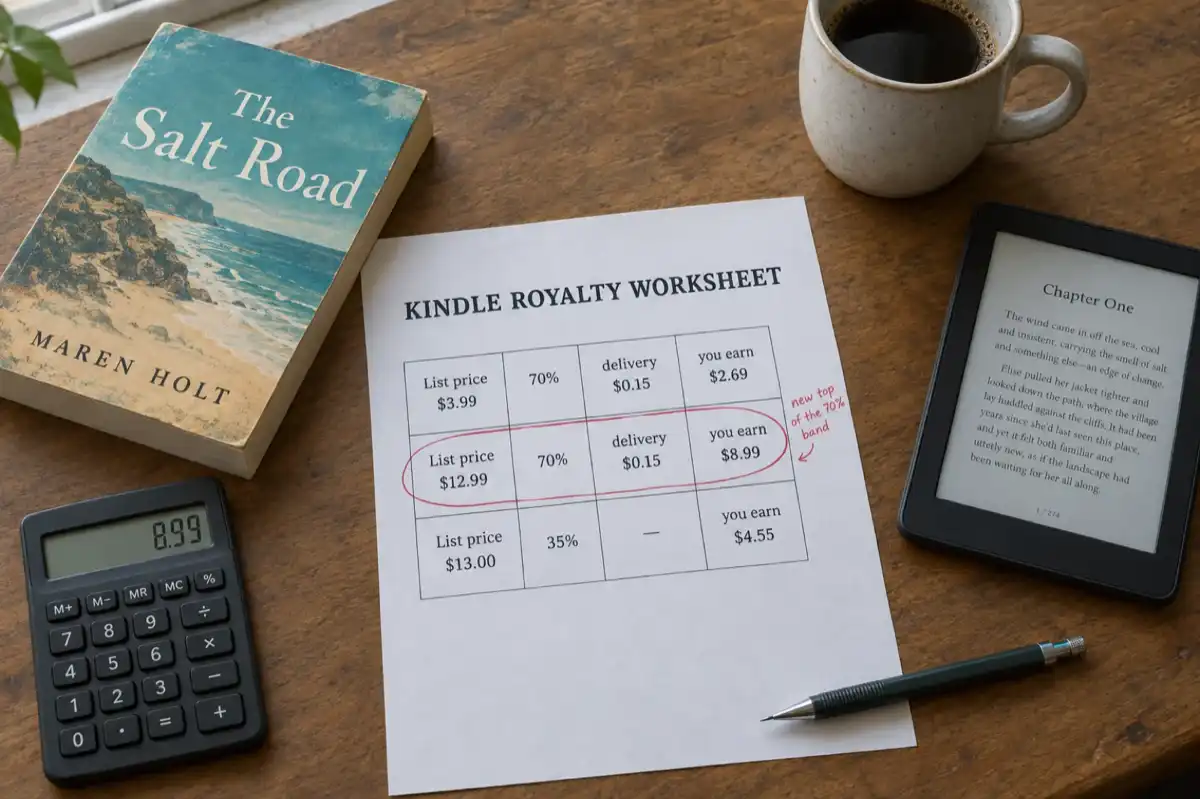
 KDP Royalties 2026: The 70% Band Now Runs to $12.99
Since 7 July 2026 Amazon KDP pays 70% on Kindle ebooks priced from $2.99 to $12.99, up from $9.99. What the change means for your price, how the delivery charge and the $13 cliff work, and what paperbacks, hardcovers and Kindle Unlimited pay, with worked examples.
 Guides
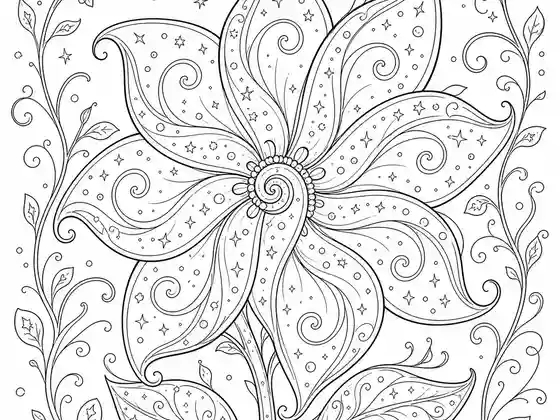
 Selling AI Coloring Books on Amazon KDP: The 2026 Rules, Specs, and Math
Are AI coloring books allowed on KDP? Yes, with disclosure. The part nobody covers: the AI workflow that passes review, style consistency across 30 pages, the interior specs that cause rejections, and the royalty ladder that decides your price.
Get ebook tips in your inbox
Join creators getting weekly strategies for writing, marketing, and selling ebooks.