
8 Best Free Text to PDF Converters in 2026 (No Watermark)
We tested 8 free text to PDF converters in 2026 on file size caps, formatting quality, watermarks, privacy, and book-length output. Honest comparison of what each tool delivers on the free tier, with the only option that handles a full book in one step.
Quick Answer
The best free text to PDF converters in 2026 are Inkfluence AI (turns raw text or outlines into a formatted book PDF with cover and chapters), Smallpdf and iLovePDF (fast in-browser conversion with ads), PDF24 and Sejda (fewer restrictions, better privacy), and Microsoft Word online or Google Docs (free if you already use them). Most "free" converters cap you at 2-3 files per hour, 15-20 MB files, or strip formatting. If you need a complete book-length PDF with chapters, headings, and a cover, a dedicated tool like Inkfluence AI is the only option that handles text → full book in one step. Last tested: April 18, 2026.
Searching for a free text to PDF converter usually gets you a dozen tools that all look the same. Paste text, click convert, download PDF. Simple. But the moment you try to convert a long document, a book chapter, or anything with real formatting, the cracks show: daily limits, watermarks, stripped headings, or the demand to "sign up to continue."
The free converter market is fragmented on purpose. Most tools are built as funnels for $9-$15/month subscriptions, so the free tier is deliberately limited in exactly the ways that make it painful for anyone doing real work. That's fine when you need a one-off PDF of a contract. It's a dead end if you're drafting an ebook, building a lead magnet, or preparing a manuscript for KDP self-publishing.
We tested 8 free text-to-PDF tools across three real jobs: a 5-page resume, a 30-page ebook draft, and a 90-page manuscript. Every tool was tested with the same source text so we could compare formatting fidelity, page breaks, heading preservation, and typography side by side. Where a tool offered a free trial instead of a free tier, we noted the trial length and what the final PDF looked like during the trial window.
If you only need a plain document as a PDF right now, the text to PDF converter on this site does it in your browser: paste text or Markdown, get headings, bullets and page numbers, nothing uploaded and no sign-up. The tools below are for when you need more than that.
The short answer: for a short, plain document, the best free text to PDF converter is whichever one you already have an account for. For a book-length document or anything that needs chapters, a cover, and a table of contents, you want a dedicated AI ebook generator or AI book writer rather than a converter, because converters only change file format and never add document structure.
How We Tested
We ran each tool through three test documents, scored on the same criteria, and timed how long it took to get a clean PDF out.
- Test 1: Plain resume (5 pages). Standard text with two fonts, a couple of tables, and a hyperlink. Measures formatting fidelity on small files.
- Test 2: Non-fiction ebook draft (30 pages, 8,200 words). Headings (H1-H3), bullet lists, a cover image, and a table of contents. Measures whether the tool preserves book-style structure.
- Test 3: Long manuscript (90 pages, 26,500 words). Novel formatting with chapter breaks, scene separators, and the occasional italic passage. Measures whether the tool can handle book-length files at all.
Scoring criteria: free limit (tasks per day/hour/month), max file size, whether headings survived the conversion, whether the tool added a watermark, whether the tool held any files hostage behind a paywall after conversion, and whether the final PDF was suitable for its use case without additional editing. For book-length files, we also checked for proper page numbers and chapter-level bookmarks.
Quick Comparison: Free Text to PDF Converters
| Tool | Free Limit | Max File Size | Book Formatting? | Best For |
|---|---|---|---|---|
| Inkfluence AI | 5 chapters + 5 a month | No practical cap | Yes (chapters + cover) | Full book PDFs from text or outline |
| Smallpdf | 2 tasks / day | 5 MB | No | One-off short documents |
| iLovePDF | ~5 tasks / day | 15 MB | No | Batch short files |
| PDF24 | Unlimited online | 100 MB | No | Large files, privacy-first |
| Sejda | 3 tasks / hour | 50 MB / 200 pages | Partial | Edit + convert in one flow |
| Adobe Acrobat (free) | 2 free converts / month | 100 MB | Partial | Clients who need Adobe format |
| Microsoft Word online | Unlimited with account | 10 MB upload | If styled in Word | Already using Word |
| Google Docs | Unlimited with account | 50 MB document | If styled in Docs | Already using Google Workspace |
Need more than a converter? Skip straight to a finished PDF.
Every tool in this table converts existing text to PDF. Inkfluence AI generates the text and exports the PDF in a single step, complete with cover, chapter headings, and a table of contents. Free plan, no credit card.
Try Inkfluence AI Free1. Inkfluence AI (Best for Text → Full Book PDF)
Inkfluence AI is the only tool on this list that treats "text to PDF" as a book-formatting job, not a one-click conversion. Paste a topic, an outline, or raw text, and it produces a full PDF with a cover, table of contents, chapter headings, and typographic styling that looks like a published book.
The distinction matters more than it sounds. A converter takes your input and matches the output to it, one for one. If you paste in a flat wall of text, you get a flat wall of text as a PDF, just in a different file format. Inkfluence AI reads the input as a source brief and builds the document structure around it: splitting content into chapters, generating a title page, adding page numbers, and applying consistent typography. If you're building a lead magnet, a workbook, or a full ebook, that gap is the entire job.
What you get for free:
- 5 free chapters to start and 5 more every month, enough to generate and export a complete multi-chapter PDF book
- Cover generator with stock image presets
- Automatic chapter structure from plain text or a short brief
- PDF export on the free tier (EPUB and DOCX come with paid plans or a credit pack)
- No watermark across your pages (free PDFs carry a small footer credit) and no "upgrade to download" for the PDF
- Edit in the built-in editor before exporting
Limitations:
- The free plan gives you 5 chapters to start and 5 more a month. Past that, you buy a credit pack or subscribe.
- Designed for book-style output. If you just need a styled PDF of a resume or invoice, a pure converter like Smallpdf is faster.
- Requires a free Google login or email signup. No credit card.
Verdict: Use this if your "text" is actually a book, ebook, guide, workbook, or lead magnet. It saves the hours you would otherwise spend formatting in Word or InDesign. For a plain 5-page document, overkill.
Real-world use case: A consultant we spoke to used Inkfluence AI to turn a 12-page Google Doc of client notes into a 40-page branded PDF guide with chapters, cover, and CTA page in under an hour. Formatting the same content in Canva the previous quarter had taken her three hours. See workflows for consultants and coaches for more like this.
2. Smallpdf (Best for Quick One-Off Jobs)
Smallpdf has been a staple in the free-converter space for years. Drop a .txt, .docx, or .rtf file, get a PDF. The conversion is clean and fast, and the formatting from Word documents is preserved reasonably well. In our tests the 5-page resume converted in under 8 seconds and came out with fonts and spacing identical to the source.
Where Smallpdf falls over is the 2-task-per-day cap. The counter is shared across every tool in the Smallpdf suite, not just the converter. Merge two PDFs and compress one, and you've used all three of your daily converts before you've even converted a document. This is the single most common complaint we hear from free users.
What you get for free:
- 2 PDF tasks per day across all Smallpdf tools combined
- Fast conversion in the browser, no install
- Clean PDF output without watermarks
- Mobile-friendly interface
Limitations:
- The 2-task cap is strict. Files larger than 5 MB fail on free.
- "Task" includes merges, splits, and compresses, not just converts. Easy to hit the ceiling.
- Files are uploaded to their servers. Smallpdf deletes them after an hour, but privacy-conscious users should note this.
- Aggressive upgrade prompts after every conversion.
Verdict: Good for a resume, a contract, or a short article you need to send as PDF right now. Not suitable for anything recurring or book-length.
3. iLovePDF (Best for Batch Short Files)
iLovePDF is a free text to PDF converter built around batch workflows. You can drop up to five short Word or text documents at once and get back the converted PDFs in roughly 40 seconds, which is the fastest end-to-end batch time we measured in this comparison. The free tier allows approximately 5 tasks per day, supports files up to 15 MB, and produces clean PDFs without watermarks.
iLovePDF is also the free converter most likely to keep your document's original heading hierarchy intact, which matters if you plan to use the PDF's built-in navigation panel in Adobe Reader or forward it as a PDF ebook. The flip side: hyperlinks sometimes get flattened during conversion, so always check one before sending the final file.
What you get for free:
- Approximately 5 free tasks per day
- Batch upload (convert several Word docs at once)
- 15 MB file size limit
- Mobile apps available
Limitations:
- Task limits reset on a rolling basis and exact thresholds are not published
- Files are stored temporarily on their servers
- OCR and advanced features are paywalled
- Book-length documents often exceed 15 MB when images are included
Verdict: Our pick if you need to convert several short documents in one session. Falls over the moment you have a long manuscript or an image-heavy ebook.
4. PDF24 (Best for Large Files and Privacy)
PDF24 is a German-made tool that stands out for two reasons: no hard daily limit on the online version, and a desktop app that runs fully offline. For book authors worried about uploading unpublished manuscripts to the cloud, the desktop version is genuinely useful. Our 90-page manuscript test converted in 14 seconds locally with zero network activity, which isn't something any other tool on this list can claim.
If privacy is a genuine concern (for example, you're drafting a memoir, a legal case study, or internal training content), the PDF24 desktop app is one of very few free converters that never sees your file. For cloud converters, always assume a copy of your document lives on the provider's servers for at least an hour. See our notes on print-ready PDF workflows for how pros handle confidential manuscript conversions.
What you get for free:
- Unlimited conversions via the web tool (within fair-use)
- Free desktop app for Windows that works offline
- 100 MB file size on the web version
- GDPR-compliant data handling
- 25+ PDF utilities alongside text-to-PDF
Limitations:
- Interface is cluttered compared to Smallpdf or iLovePDF
- Desktop app is Windows-only
- No book-specific formatting. Headings in Word translate, but layout polish is basic.
- No mobile app
Verdict: The best free option for large text files or anyone who does not want their content on a US server. Still a converter, not a book formatter.
5. Sejda (Best for Edit + Convert Workflows)
Sejda occupies an unusual middle ground: it lets you edit text directly in a PDF before or after conversion, which is useful if you are refining a draft in the same flow. The inline editor can swap a typo, change a header, or add a watermark without re-exporting from the source document. For writers who catch a mistake after converting, this alone saves ten minutes per fix.
Sejda's 200-page cap is the one that catches people out. A 60,000-word novel formatted in 12pt Garamond is about 240 pages. So Sejda works fine for ebooks, lead magnets, and shorter guides, but breaks on full-length novels. If you're writing longer, look at AI novel workflows that export directly to PDF without needing a converter in the middle.
What you get for free:
- 3 tasks per hour
- 50 MB or 200 pages per file
- Inline PDF editing after conversion
- Cloud import from Dropbox, Google Drive, OneDrive
Limitations:
- The 3-per-hour limit kicks in silently mid-session
- 200-page cap rules out most full-length books
- OCR is paywalled
Verdict: A good "last edit" tool. Convert, tweak a typo, export again, all without leaving the browser. Not a production pipeline.
6. Adobe Acrobat (Free Tier)
Adobe offers a free online text-to-PDF converter as a hook for Acrobat Pro. The output quality is the best of any converter on this list because it uses Adobe's native rendering engine. Fonts, spacing, and colour profiles come through identically to the source, which is why it's still the default in design agencies and legal firms that need pixel-perfect deliverables.
The catch: two free conversions per month. That's it. The free Adobe tier exists to prove the output quality and funnel you to a $19.99/month Acrobat Pro subscription. For a monthly client report or a single important deliverable, it's worth burning one of your two conversions. For any kind of recurring use, pair it with a free unlimited tool like Google Docs and save Adobe for the job that matters.
What you get for free:
- 2 free conversions per month
- Best-in-class PDF rendering (fonts, spacing, colour profiles)
- 100 MB file size
- Cloud storage integration
Limitations:
- 2 per month is almost nothing. For ongoing work you are pushed to Acrobat Pro at $19.99/mo or more.
- Adobe account required
- Data is stored in Adobe's cloud unless you opt out
Verdict: Use it for one monthly job where PDF quality really matters, like a client deliverable. Not practical otherwise.
7. Microsoft Word Online (Hidden Free Option)
If you already have a Microsoft account, Word online includes a "Save as PDF" option that produces clean, well-formatted PDFs from any Word document. No conversion site required. Most people forget this even exists because they grew up using the third-party converter sites, but Word's native export is usually better than those sites for Word-originating documents.
The reason Word's native PDF export beats the converter sites: it's reading the document's own internal structure rather than parsing a file format and guessing at the layout. Headings become PDF bookmarks automatically, tables render with proper borders, and embedded fonts travel with the PDF. The one weakness is image resolution, which can drop slightly on export. For image-heavy ebooks, check a printed sample before publishing to KDP.
What you get for free:
- Unlimited conversions with a free Microsoft account
- Fonts, styles, and tables preserved exactly
- Heading structure becomes PDF bookmarks automatically
- Integrated with OneDrive
Limitations:
- Requires the text to already be in Word format
- Online version has limited advanced features
- 10 MB upload limit on the free tier
Verdict: If you compose in Word anyway, this is the best free path. You control the formatting entirely and the PDF comes out professional.
8. Google Docs (The Other Hidden Free Option)
Google Docs has a built-in "Download as PDF" that most people forget about. The output is clean, the formatting preserved, and there are no daily limits. For a student writing an essay or a blogger repurposing a post into a downloadable PDF, this is the lowest-friction option on the list.
Google Docs also integrates with AI drafting workflows cleanly. Draft in Inkfluence AI, export to DOCX, open in Google Docs for final edits, export to PDF. The round-trip preserves styling as long as you stick to Google's default fonts. Our 30-page ebook test came through looking nearly identical to a Word export, with one exception: Google's "Comfortaa" and "Lora" web fonts don't embed into the PDF the same way commercial fonts do, so use those sparingly if the PDF will be printed.
What you get for free:
- Unlimited conversions with a free Google account
- Native PDF export with bookmarks and links intact
- Works on any device with a browser
- 50 MB document limit
Limitations:
- Font options are narrower than Word
- Advanced typography (ligatures, small caps) not supported
- Requires Google account and sharing permissions for collaborators
Verdict: The free converter most people already have and forget about. Great for everyday documents. Not designed for book-length layout.
What to Look for in a Free Text to PDF Converter
Every converter in this list does the same core job. The differences are in the edges, and the edges are usually where free users get stuck. Before picking a tool, check these five criteria.
- Daily/hourly task limits. Smallpdf caps at 2 tasks per day across all tools. iLovePDF rolls five tasks over a loose timeframe. Sejda allows 3 per hour. These caps matter more than the marketing pages suggest because they count every click, including compresses and merges, not just conversions.
- Max file size and page count. 5 MB is fine for a resume, useless for an image-heavy lead magnet. Sejda's 200-page cap kills most full-length novels. Always test with a file close to your real working size before committing.
- Watermarks on the free output. Reputable tools don't watermark, but some niche "free" converters stamp a logo or URL on every page of the output. Look at a complete PDF before you email it to a client.
- Where your file is stored. Cloud converters keep a copy of your document on their servers for a short window, usually one hour. For confidential content, this matters. Offline desktop apps like PDF24 never see your file.
- Output fidelity vs the source. Headings, links, tables, and embedded fonts don't always survive conversion. This is especially true when converting from Word or RTF to PDF through a third party tool. Always open the output and verify clickable links still click.
If none of the converters fit your use case, you're probably trying to do a book formatting job with a file-format tool. For that, skip the converters and use a dedicated AI book writer that exports to PDF natively. See also our full AI PDF creation guide for workflow recommendations.
Free Text to PDF by Use Case
The "best" free converter depends entirely on what you're converting. Here's what to use for the most common jobs.
Resumes, cover letters, and short documents
For anything under 10 pages, use whichever tool you already have an account for. Google Docs or Word online is fastest because there's no file upload step. If the source is plain text, Smallpdf converts in seconds but counts against your daily limit. Skip Sejda and Adobe for jobs this small: the overhead isn't worth it.
Ebooks and lead magnets (10-40 pages)
This is where most free converters start to feel painful. You need headings preserved, a cover image that doesn't get pushed to an orphan page, and ideally a table of contents. Google Docs handles this reasonably well if you styled the source carefully. For a polished output with minimal formatting work, Inkfluence AI's lead magnet generator produces print-ready PDFs with a cover and chapter headings in one step. If you're building for an email opt-in, also see AI downloadable PDFs for email list building.
Non-fiction guides, workbooks, and courses (40-120 pages)
Sejda's 200-page cap covers most of these, but the lack of cover and chapter automation still leaves you formatting manually. Google Docs works if you're patient with styling. For repeatable production, use a tool that generates the structure: AI workbook generator, AI course creator, or study guide generator.
Full-length novels and manuscripts (200+ pages)
Most free converters fail here. Sejda caps at 200 pages. Smallpdf can't handle the typical 15-20 MB file size. PDF24 desktop is the only converter that works reliably, but it doesn't add any book-style formatting. For a novel, draft directly in a tool that exports to PDF natively. See our guide to the best AI tools for writing long novels.
Print-ready books for KDP or IngramSpark
Print-on-demand platforms require specific trim sizes, gutter margins, and bleed settings that no generic converter will produce. If you upload a Google Docs PDF to KDP, Amazon's pre-flight will reject it. Use a print-ready PDF generator and follow the print-ready PDF guide for KDP. Also review the self-publishing guide before your first upload.
Common Mistakes When Converting Text to PDF for Free
We see the same five mistakes from people frustrated with free converters. Avoiding them saves hours.
- Pasting text into a converter that expects a file. Many converters accept only .docx, .rtf, or .txt files. Pasting raw text into the browser sometimes works, sometimes strips formatting silently. Always save to a file first.
- Expecting a converter to add book structure. A converter will not add chapter breaks, a table of contents, or a cover if those things aren't in the source document. If the source is one long block of text, the PDF will be one long block of text. Use an AI ebook generator if you need real document structure rather than a flat file-format swap.
- Using the free tier for recurring work. Free tiers are designed to be painful enough to push you to paid. If you're converting documents weekly, the cost of a single monthly subscription (or an Inkfluence AI plan) is almost always less than the time cost of managing free-tier limits.
- Not checking links and fonts in the output. Hyperlinks and embedded fonts break silently during conversion more often than any other element. Always open the final PDF and click a link before sending.
- Uploading confidential content to random converter sites. If you wouldn't email the document to a stranger, don't upload it to a converter site you don't know. Use PDF24 desktop, Word, or Google Docs, where the file stays in your account.
How to Choose a Free Text to PDF Tool
The right free converter depends on what your "text" actually is.
- Short one-off document (resume, letter, article): Smallpdf or iLovePDF is fastest. If you already use Word or Google Docs, use the native export and skip the converter entirely.
- Large file or privacy-sensitive: PDF24 desktop app. Runs offline, no file uploads.
- Book, ebook, or long-form guide: Neither Smallpdf nor PDF24 was built for this. Use a dedicated book-to-PDF tool or Inkfluence AI.
- Need a professionally formatted book PDF from raw text: Inkfluence AI generates the structure for you. You provide the topic or outline, it builds chapters and a cover.
- Recurring work at volume: Skip free tiers. A paid converter subscription or an Inkfluence AI Creator plan at $9.99/mo gets you out of the daily-limit friction entirely.
Where free converters break on book-length text
We convert book-length manuscripts to PDF at scale, so the pattern is clear: the gap in free converters shows up specifically on long, structured documents. A one-page memo converts cleanly anywhere. A 30,000-word book is where generic tools fall down. They flatten chapter structure into one long scroll, drop or mis-size the table of contents, break page numbering across sections, and reflow images off the pages they belonged to. The longer and more structured the document, the more a plain text-to-PDF tool costs you in cleanup afterward, which is why a converter that is fine for a receipt is rarely fine for a book.
What Free Converters Cannot Do
Every free converter in this list is a format change tool. Text goes in, a PDF in that same layout comes out. None of them do any of the following:
- Add chapter breaks, headings, or a table of contents to unstructured text
- Generate a cover or title page
- Apply book-specific typography (drop caps, running headers, page numbers by chapter)
- Split a single block of text into logical sections
- Write new content if your input is thin
If any of those are on your list, you are looking for an AI book writer or AI ebook maker, not a PDF converter. The two jobs are different, which is why most converter sites do not compete with tools like Inkfluence AI: they are solving different problems.
From blank page to export-ready PDF.
If you are stuck between writing the text and formatting the output, Inkfluence AI does both. Generate a full book, style it with a proper cover and chapter structure, and export to PDF free, or to EPUB and an AI-narrated audiobook on paid plans. Start free.
Create Your Book FreeFrequently Asked Questions
What is the best free text to PDF converter?
For short documents, Google Docs and Microsoft Word online are the best free options because they have no daily limits and preserve formatting. For longer files or privacy, PDF24 is the strongest. For full book-length PDFs with chapters and a cover, Inkfluence AI is the only free option that generates book structure, not just format conversion.
Can I really convert text to PDF for free with no limits?
Yes, but the truly unlimited free options require an account you probably already have. Google Docs and Microsoft Word online both include free PDF export with no daily caps. Dedicated converter sites like Smallpdf and iLovePDF all impose task limits on their free plans.
Is it safe to upload my document to a free PDF converter?
Most reputable converters (Smallpdf, iLovePDF, Adobe, PDF24) delete your files within an hour or two of conversion. For sensitive content, use an offline tool like the PDF24 desktop app or convert within Word or Google Docs where the file never leaves your account.
How do I convert a long book or manuscript to PDF for free?
Most free converters have file size or page limits that block book-length documents. Sejda caps at 200 pages, iLovePDF at 15 MB. For a full-length manuscript, use Microsoft Word, Google Docs, or Inkfluence AI, which has no page cap on the free tier.
Can a text to PDF converter create a book cover and chapters automatically?
No. Standard converters like Smallpdf or PDF24 only change the file format. They cannot add a cover, table of contents, or chapter headings to your text. To go from raw text or an outline to a formatted book PDF in one step, you need an AI book generator like Inkfluence AI.
Can I convert AI-generated text directly to PDF for free?
Yes. Text from ChatGPT, Claude, or Gemini can be pasted into Google Docs or Word online and exported as PDF for free. The drawback is that you still have to do the formatting yourself. If the goal is a polished book from an AI draft, generating and exporting in a single tool like Inkfluence AI removes a manual step and produces a better-looking PDF. See the best free AI book writing tools for 2026 for a full comparison.
Do free text to PDF converters work on mobile?
All eight tools in this list have mobile-friendly interfaces. iLovePDF and Smallpdf also ship dedicated iOS and Android apps. Mobile usage counts against the same task limits as desktop, so don't expect to reset your cap by switching devices. For mobile-first book creation, the free AI book writer runs fully in the browser without installing anything.
Do free text to PDF converters add watermarks?
Most reputable free text to PDF converters do not add watermarks to the output. Smallpdf, iLovePDF, PDF24, Sejda, and Adobe Acrobat's free tier all produce clean, unmarked PDFs. The tools that watermark are usually unknown niche converters running on ad revenue. Always open the final PDF and check a couple of pages before sending it to a client or uploading to KDP.
Do I need an account to use a free text to PDF converter?
Smallpdf, iLovePDF, PDF24, and Sejda allow conversions without an account, though signing up sometimes unlocks slightly higher daily limits. Adobe Acrobat requires a free Adobe account. Microsoft Word online and Google Docs require their respective accounts but those are accounts most people already have. Inkfluence AI requires a free email or Google signup but never a credit card on the free tier.
Is there an offline text to PDF converter?
The PDF24 desktop app for Windows is the only fully offline tool in this comparison. It processes files locally with no network activity, which is the strongest choice for confidential content such as legal cases, internal manuscripts, or unpublished memoirs. Microsoft Word and Google Docs also have offline modes that export to PDF without internet as long as the document is cached on the device.
What is the best free text to PDF tool for books and ebooks?
For a book-length PDF with chapter structure, a cover, and a table of contents, generic converters like Smallpdf or PDF24 fall short because they only change file format. Inkfluence AI is the only free AI ebook generator in this list that builds the book structure (chapters, cover, TOC) from raw text or a short outline in one step. For book formatting from an existing Word manuscript under 10 MB, Microsoft Word's native PDF export is the most reliable plain-converter option.
How do I convert text to PDF without losing formatting?
Native exports from Microsoft Word or Google Docs preserve formatting best because they read the document's internal structure rather than parsing a file format. Third-party converters like Smallpdf, iLovePDF, and Sejda sometimes flatten hyperlinks or break embedded fonts during conversion. Always open the output PDF and verify that clickable links still click and that fonts render correctly before sending the final file. If you are converting raw text without existing styles, an AI book writer that produces formatted output natively skips the conversion step entirely.
Related Resources
- Text to PDF Conversion: Complete Guide
- AI PDF Generator
- AI PDF Ebook Maker
- AI Outline to PDF / EPUB
- Ebook Outline to PDF
- How to Create a Print-Ready PDF Book with AI
- Best AI PDF Tools 2026
- AI PDF Creation Guide 2026
- Best Free AI Book Writing Tools 2026
- Free Ebook Creator
- AI Ebook Generator
- AI Workbook Generator
- Lead Magnet Generator
- Self-Publishing Guide (2026)
- PDF Workflows for Coaches
- PDF Workflows for Consultants

Founder, Inkfluence AI
Sam is the founder of Inkfluence AI. He built the platform to make book creation accessible to everyone - from first-time authors to seasoned publishers.
Helpful links
Ready to Create Your Own Ebook?
Start writing with AI-powered tools, professional templates, and multi-format export.
Get Started FreeRelated Articles
 AI Writing
 Sudowrite vs Novelcrafter (2026): Price, Built-in AI vs Your Own Key, Story Bible vs Codex
Sudowrite ($10 to $59 a month, AI built in) against Novelcrafter ($4 to $20 a month, AI from your own provider): price, how the AI is paid for, Story Bible against Codex, drafting, editing, export and series, read on both vendors' sites on 17 October 2026, with a picker.
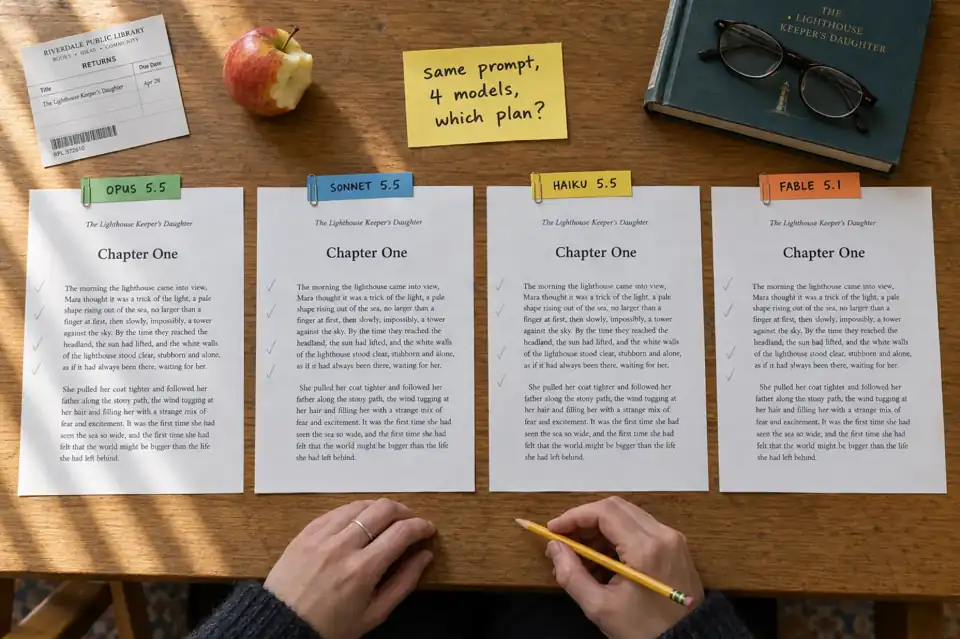 AI Writing
 Which Claude Model Is Best for Writing? Opus 5.5, Sonnet 5.5, Haiku 5.5 and Fable 5.1 Compared (October 2026)
Which Claude model should you write with in October 2026? Opus 5.5, Sonnet 5.5, Haiku 5.5 and Fable 5.1 compared on what Anthropic actually publishes: which plan includes each one, API prices, context and output limits, speed, and what each is built for. Plus the maths of fitting a whole book, and when a book tool is the better pick.
 AI Writing
 Best AI for Editing a Book (2026): 9 Tools Compared by Editing Job
Which AI should edit your manuscript? We compare ProWritingAid, Grammarly, AutoCrit, Sudowrite, Novelcrafter, ChatGPT, Claude, the free checks in Google Docs and Word, and Inkfluence AI by the job each does best: grammar, line editing, story feedback, or editing and publishing in one place. Prices checked 2 October 2026.
Get ebook tips in your inbox
Join creators getting weekly strategies for writing, marketing, and selling ebooks.