
PDF, EPUB, and DOCX: Which Format for What
Each export format serves a different purpose. Most authors need at least two formats to cover all distribution channels.
| Format | Best For | Layout | Plan Required |
|---|---|---|---|
| Direct sales, print, lead magnets, email delivery | Fixed - looks identical everywhere | All plans (including free) | |
| EPUB | Amazon KDP, Apple Books, Kobo, Google Play | Reflowable - adapts to reader settings | Creator and Premium |
| DOCX | Further editing in Word/Docs, print formatters | Editable document | Premium |
If you are publishing on Amazon only: Export as EPUB and upload to KDP. Amazon converts EPUB to their Kindle format internally.
If you are publishing everywhere: Export EPUB for ebook stores and PDF for direct sales, print-on-demand, and lead magnet distribution.
If you need further editing: Export as DOCX to continue in Microsoft Word, Google Docs, or professional typesetting tools like Vellum or Atticus.
Which format do authors actually pick? Our own export data, published in the export-format data study, shows PDF chosen roughly 30 times more often than EPUB, and the genre mix explains why: the practical, fixed-layout book types that dominate AI-assisted writing sit naturally in PDF, while reflowable EPUB matters most the moment a book heads to a retailer.
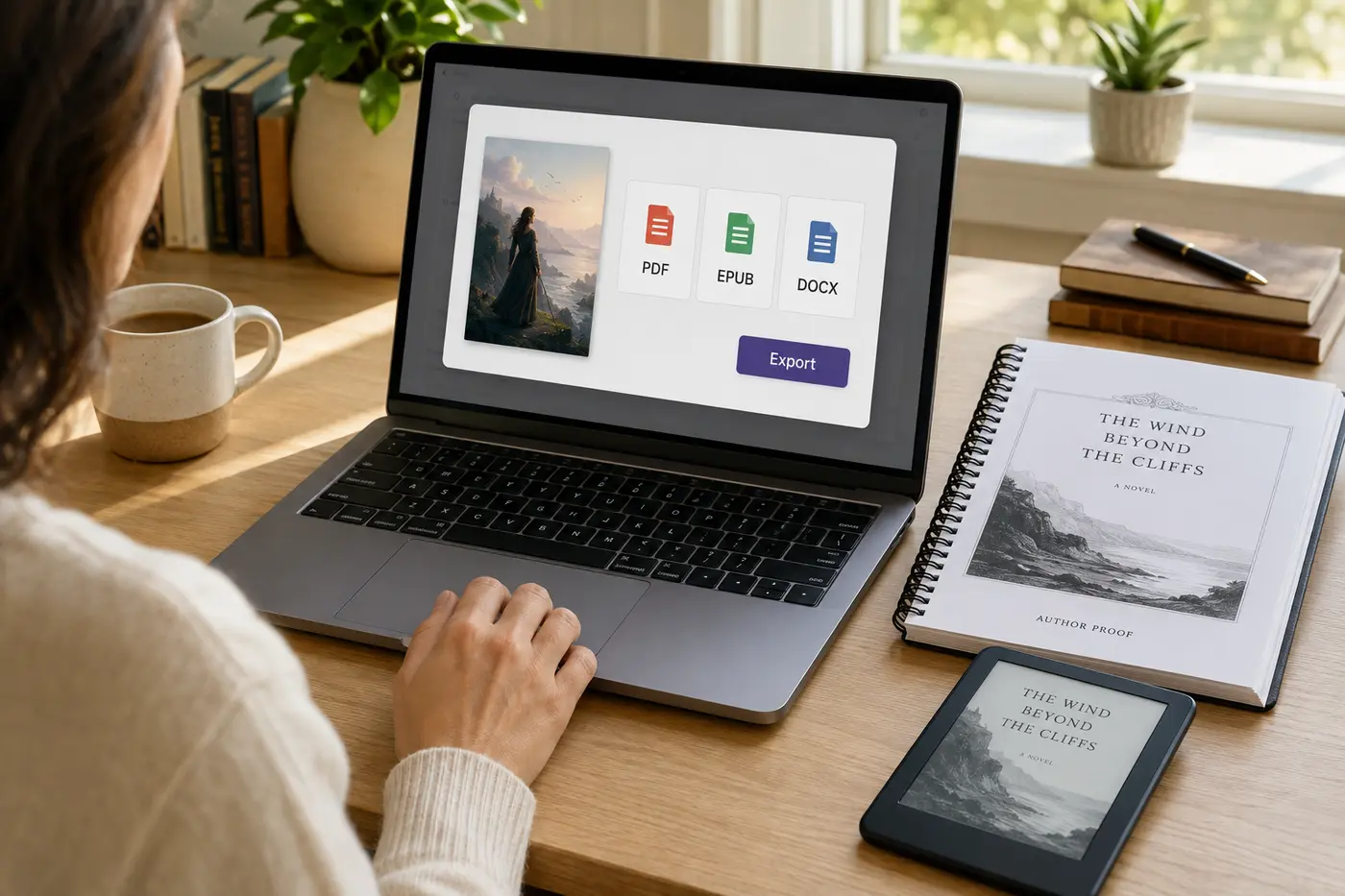
Fixed layout
Direct sales, lead magnets, print-at-home buyers, and KDP paperback. What you see is exactly what every reader gets.
EPUB
Reflowable
Kindle, Apple Books, Kobo, and every e-reader. Text adapts to the reader's screen and font size.
DOCX
Editable
Hand-off to editors, translators, or your own final pass in Word. The format for collaboration, not distribution.
Exporting as PDF
PDF is the most versatile format. The exported file looks identical on every device, screen, and printer.
What is included
- Cover page - Your book cover as the first page.
- Title page - Book title, subtitle, and author name.
- Copyright page - Standard copyright notice with your details.
- Table of contents - Clickable chapter links.
- All chapters - Full content with formatting, images, and headings preserved.
- Author bio (if configured) - An author page at the end of the book.
PDF formatting controls
- Chapter numbering - Numeric, Roman numerals, or none.
- Headers and footers - Book title, chapter title, page numbers.
- Page numbers - Multiple position options.
- Chapter decorations - Ornamental dividers on chapter title pages.
- Branding - Toggle on/off (paid plans only).
PDF use cases
- Lead magnets delivered by email (download link or attachment).
- Direct sales on your website (Gumroad, Payhip, Shopify).
- Print-on-demand via KDP paperback or IngramSpark. See KDP Paperback Export below for trim sizes and gutter margins.
- Course materials and supplementary content.
- Professional reports and whitepapers.
Exporting as EPUB
EPUB is the standard ebook format accepted by virtually every digital bookstore. The content reflows to fit the reader's device, screen size, and font preferences.
What is included
- Cover - Embedded as the first element and used as the store thumbnail.
- Metadata - Title, author, description, and language embedded in the file.
- Navigation TOC - Used by ebook readers for built-in chapter navigation.
- Inline TOC - A visible table of contents page within the book.
- All chapters - Content formatted for reflowable display.
EPUB considerations
- Content position depends on reader settings - font size, line spacing, and margins all affect layout.
- Images scale to fit the available width - avoid relying on exact image positioning.
- Complex formatting (multi-column layouts, precise positioning) does not translate well.
- Tables work but may require horizontal scrolling on small screens.
Where to upload EPUB
- Amazon KDP - kdp.amazon.com. Converts EPUB to Kindle format automatically.
- Apple Books - Via Apple Books Connect (formerly iTunes Connect).
- Google Play Books - play.google.com/books/publish.
- Kobo - Via Kobo Writing Life (kobo.com/writinglife).
- Aggregators - Draft2Digital, Smashwords, PublishDrive distribute to dozens of stores from a single upload.
Exporting as DOCX
DOCX export is for authors who need to continue editing in desktop word processors or use professional formatting tools.
When to use DOCX
- Professional editing - Send to an editor who works in Microsoft Word with Track Changes.
- Advanced formatting - Use tools like Vellum (Mac), Atticus, or Reedsy Book Editor for custom typography and layout.
- Print formatting - Professional typesetters often require DOCX or RTF as input.
- Collaboration - Share on Google Docs for real-time collaborative editing.
What is preserved
DOCX export preserves chapter structure, headings, body text, bold/italic formatting, images, and basic layout. Complex web-specific formatting may simplify during conversion. The exported file opens cleanly in Microsoft Word 2016+ and Google Docs.
Formatting Options and Controls
Inkfluence AI gives you control over how your exported ebook looks:
Chapter numbering
- Numeric - Chapter 1, Chapter 2, Chapter 3... Standard for most non-fiction.
- Roman numerals - Chapter I, Chapter II, Chapter III... Traditional, used in literary fiction and formal non-fiction.
- None - Chapter titles only, no numbering. Modern and clean, common in self-help and lifestyle books.
Headers and footers (PDF)
Configure what appears at the top and bottom of each page: book title, chapter title, author name, and page numbers. Common configurations: book title in the header, page numbers in the footer. Academic: chapter title in the header, page numbers bottom center.
Page numbers
Choose from multiple positioning options. Page numbers typically start after the front matter (title page, copyright, TOC). The cover page is never numbered.
Chapter decorations
Ornamental visual elements on chapter title pages that add a professional, polished look. Choose from several styles or disable entirely for a minimal aesthetic. Decorations appear between the chapter number/title and the chapter content.
Table of Contents
A well-structured table of contents is essential for both reader experience and platform requirements.
Automatic generation
Inkfluence AI automatically generates a TOC from your chapter titles. The TOC updates whenever you rename chapters or reorder them. You do not need to manually create or maintain it.
PDF TOC
Rendered as a formatted page with clickable chapter links. Readers click a chapter title to jump directly to that chapter. The TOC inherits your book's typography and formatting settings.
EPUB TOC
EPUB has two TOC systems: an inline TOC page (visible in the book content) and a navigation TOC (used by the ebook reader's built-in navigation). Inkfluence AI generates both. The navigation TOC lets readers use their Kindle/Kobo/Apple device's "Go to chapter" feature.
TOC best practices
- Use descriptive chapter titles that tell the reader what they will learn or experience.
- Keep titles concise - long titles wrap awkwardly in the TOC.
- Number chapters consistently (or not at all - pick one approach).
- Review the TOC in the export preview before downloading.
Copyright and Title Pages
Title page
The title page displays your book title, subtitle (if any), and author name. It appears after the cover and before the copyright page. The layout is clean and professional - centered text with appropriate spacing.
Copyright page
Automatically generated with: your name, the publication year, and a standard copyright notice. The copyright page protects your intellectual property and signals professionalism. Most readers skip it, but its absence signals amateur publishing.
Customization
You can edit the copyright text in your project settings to include: publisher name, ISBN (if you have one), edition information, disclaimer, or acknowledgments. Keep the copyright page brief - it is not the place for lengthy legal text.
Branding Control
Inkfluence AI offers different branding levels based on your plan:
Free plan
- Footer watermark on each page ("Created with Inkfluence AI").
- Closing branding page at the end of the book.
- Branding cannot be removed on the free plan.
Paid plans and credit purchasers
- No footer watermark.
- No closing branding page.
- Optional branding toggle - you can choose to include Inkfluence AI branding if you want (some users include it as an endorsement).
- The exported ebook looks like it was published by any professional publisher.
If you are using the exported ebook commercially (selling on Amazon, using as a paid lead magnet, distributing to clients), upgrading to a paid plan removes all branding for a fully professional output.
Previewing Before Export
Always preview your ebook before downloading. The export preview dialog shows exactly how the final file will look:
PDF preview
Navigate page by page through the complete document. Check: cover positioning, title page layout, copyright text, TOC formatting and links, chapter headings, image placement, headers/footers, page numbers, and the closing page.
EPUB preview
Preview your EPUB in simulated device frames: Kindle, tablet, and phone. This shows how the reflowable content will look at different screen sizes. Check: text reflow, image scaling, chapter navigation, and overall readability.
Preview checklist
- Cover image displays correctly at full resolution.
- Title, subtitle, and author name are correct on the title page.
- Copyright notice has the correct year and name.
- Table of contents lists all chapters in the correct order.
- Chapter titles and numbering are consistent.
- Images display at appropriate sizes and positions.
- Headers, footers, and page numbers are configured correctly.
- No formatting artifacts or broken layouts.
- The last page is clean (no orphaned text or awkward spacing).
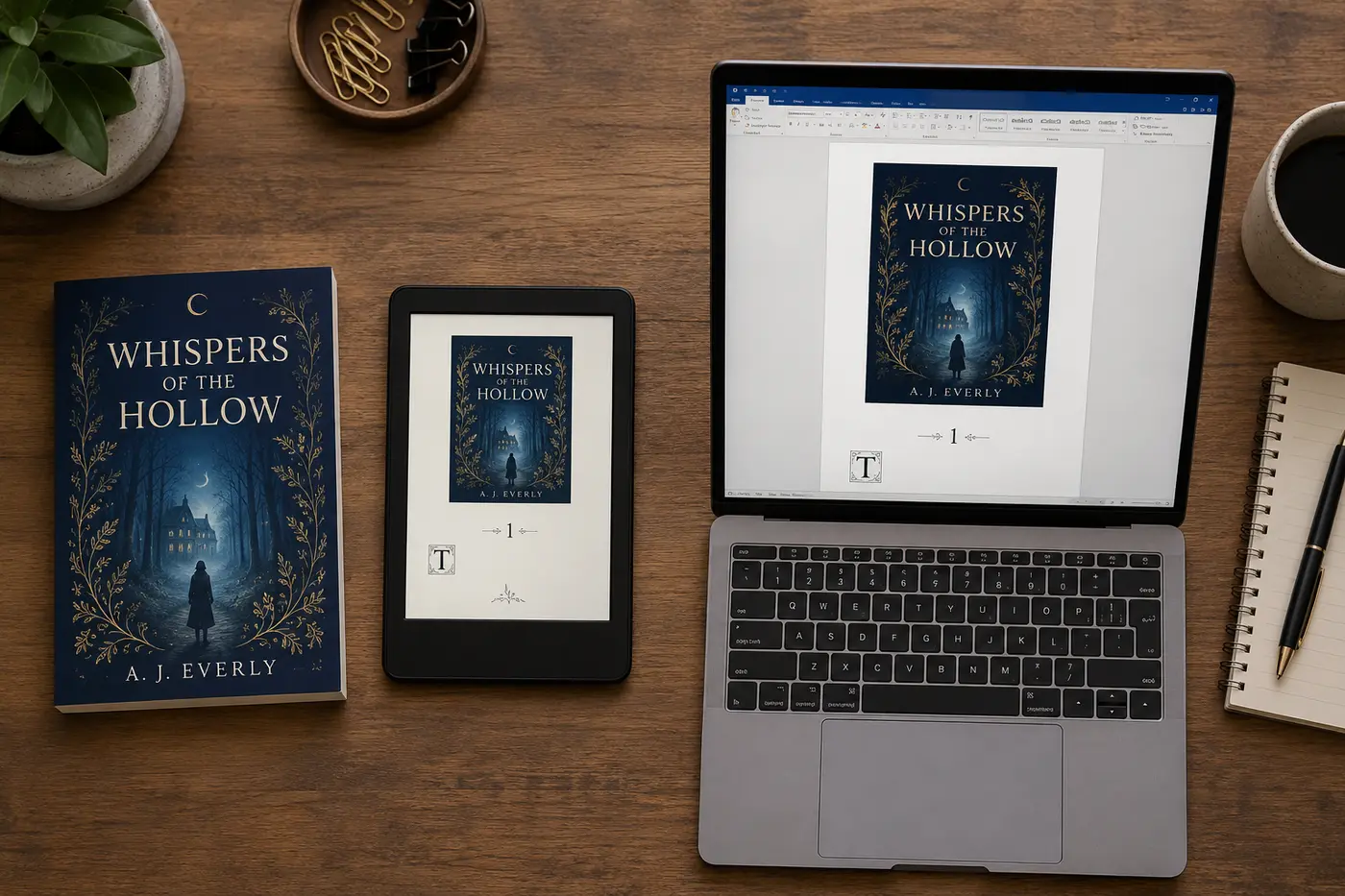
Multi-Platform Publishing Workflow
Publishing an ebook in 2026 means distributing across multiple platforms to maximize reach. Each platform has its own dashboard, file requirements, and royalty structure. Here is a clear workflow, from final manuscript to live listings everywhere. If you are unsure about exclusivity, read KDP Select vs wide distribution before launch.
Step 1: Prepare your assets
Before you upload anywhere, gather everything you need. Stopping mid-upload to find your cover file or write a description is inefficient and leads to mistakes.
- Finalized content - All chapters edited, reviewed, and proofread. The content you upload is what readers buy. Do not plan to "fix it later" - corrections on live books take 24-72 hours to propagate.
- Book cover at 2,560 × 1,600 pixels (JPEG or PNG, 72 DPI minimum). This is Amazon's recommended dimension for Kindle ebooks. Apple Books and Kobo accept the same size. The cover is the single biggest factor in click-through rate on any store.
- Book description - 150-300 words, keyword-rich, formatted with basic HTML (bold, line breaks) on Amazon. The description should answer: what is this book about, who is it for, and what will the reader gain.
- 7 keywords/phrases for Amazon KDP. These are backend search terms (not visible to customers) that help Amazon match your book to reader searches. Use specific phrases like "meal prep cookbook for beginners" rather than single words like "cooking."
- Category selections - KDP allows up to 3 categories. Choose the most specific categories where your book fits. Being #1 in a narrow category is more valuable than being #50,000 in a broad one. Use Amazon KDP categories for beginners if you need a step-by-step category workflow.
- Author bio - 50-100 words. Professional but human. If this is your first book, focus on your expertise in the topic rather than your publishing credentials.
Step 2: Export your formats
- EPUB for ebook stores - Amazon KDP, Apple Books, Kobo, Google Play. Export once; the same EPUB file works on all platforms. Amazon converts EPUB to their internal Kindle format during upload.
- PDF for direct sales, print-on-demand, and lead magnet distribution. PDF is also the required format for KDP paperback interiors (see KDP Paperback Export below).
- DOCX if you need further editing in Word or professional formatting in tools like Vellum or Atticus before publishing.
Step 3: Publish on Amazon KDP
Amazon is where most indie ebook sales happen. Upload your EPUB and cover on kdp.amazon.com. Walk through these decisions:
- Royalty option - 35% or 70%. The 70% option is available for ebooks priced $2.99-$12.99 and has a delivery fee (~$0.06/MB). For most ebooks, 70% at $4.99+ is the best choice.
- KDP Select (optional) - Enrolls your ebook in Kindle Unlimited (readers borrow and read for free; you get paid per page read). Requires 90-day Kindle exclusivity - you cannot sell the ebook on Apple, Kobo, or Google during enrollment. Good for fiction and niche non-fiction; less useful for business/professional books. Compare options in KDP Select vs wide distribution.
- AI content disclosure - If you used AI tools (including Inkfluence AI) to help write or create images, disclose it in the content declaration. See our Amazon KDP AI disclosure policy guide.
- Review time - 24-72 hours for first-time books. Updates to existing books are usually processed within 24 hours.
Step 4: Publish on other platforms
Unless you enrolled in KDP Select (which requires Kindle exclusivity), publish on these platforms too. This is your practical wide distribution path.
- Apple Books - Via Apple Books Connect (formerly iTunes Connect). Free, global distribution, 70% royalty at all price points. Strong in the US, UK, Australia, and Canada. Upload the same EPUB.
- Google Play Books - Via
play.google.com/books/publish. Reaches Android users worldwide. 52% royalty (lower than others). Google also sells your ebook via Google Search results, which is unique. - Kobo - Via Kobo Writing Life (
kobo.com/writinglife). Strong in Canada, UK, and Australia. 70% royalty above $2.99. Kobo Plus is their version of Kindle Unlimited. - Aggregators - Draft2Digital, PublishDrive, or Smashwords upload once and distribute to 20+ stores including Barnes & Noble, Scribd, OverDrive (libraries), and international platforms. They take a small percentage (typically 10%) but save you managing 10+ dashboards.
Step 5: Set up direct sales
Direct sales on your own website let you keep 90-95% of revenue instead of 30-70% through ebook stores. Upload your PDF to:
- Gumroad - 10% fee, instant delivery, custom pricing. Popular with creators and course builders.
- Payhip - 5% fee on the free plan. Good for ebooks, bundles, and memberships.
- BookFunnel - $20/month. Specializes in ebook delivery with reader-friendly download pages that detect the customer's device and provide the right format (EPUB for Kindle, etc.).
- Shopify - $39/month. Full storefront. Best if you are selling multiple products (books, courses, merchandise).
Direct sales work best when you have an existing audience - email list, social following, or blog traffic. Without traffic, the stores provide discovery that your website does not.
KDP Paperback Export (Print-Ready PDF)

Amazon KDP Print is the largest print-on-demand service for self-publishers. When a customer orders your paperback on Amazon, KDP prints a single copy on demand and ships it directly - no inventory, no upfront cost. But KDP Print has strict formatting requirements that differ significantly from a standard PDF export. Your interior manuscript must be a specific page size with asymmetric gutter margins, and your cover must be a separate file.
If you are figuring out how to self-publish a book on Amazon KDP step by step, the export stage is where most first-time authors get stuck. The ebook (Kindle) upload is straightforward - upload an EPUB and Amazon handles the rest. The paperback upload is more involved because physical printing has constraints that digital does not: page dimensions must match exactly, margins must account for binding, and the cover needs spine width calculations based on page count.
How KDP paperback export works
Inkfluence AI has a dedicated KDP export mode, separate from the standard PDF export. Instead of producing a single PDF with the cover embedded as the first page, it generates a two-file package:
- Interior manuscript PDF - All chapters with proper gutter margins applied, no cover page included. This is the file you upload as your manuscript on kdp.amazon.com. The PDF page dimensions match your selected trim size exactly (e.g. 6" × 9"), and left/right pages alternate which side the binding margin falls on.
- Cover PNG at 300 DPI - Your book cover exported at print resolution, sized to match your selected trim dimensions. You upload this separately on KDP. Amazon's Cover Creator then wraps it with a spine and back cover, or you can provide your own full wrap if you have one.
This two-file approach matches exactly what Amazon expects. Many authors trip up by uploading their standard PDF (which includes the cover as page one) - this results in the cover appearing twice in the printed book (once as the printed cover, once as the first interior page).
Trim sizes
Trim size is the finished dimensions of your printed book after the pages are cut. It affects everything: how the book feels in a reader's hands, how much text fits per page (and therefore your total page count), the spine width, and the printing cost. Inkfluence AI supports five page sizes for KDP export:
| Size | Dimensions | Best For | Notes |
|---|---|---|---|
| Trade (KDP standard) | 6" × 9" | Most non-fiction, self-help, business books | The default and most common trim on Amazon. If unsure, use this. |
| Digest | 5.5" × 8.5" | Fiction, memoirs, lighter non-fiction | Feels more like a "real novel." Popular in literary fiction. |
| 5" × 8" | Mass-market fiction, devotionals | Compact, portable. Higher page count due to smaller text area. | |
| A5 | 5.83" × 8.27" | International standard, workbooks | Common outside the US. Good for EU-focused publishing. |
| US Letter | 8.5" × 11" | Workbooks, manuals, image-heavy guides | Highest printing cost. Best for content that needs width. |
The safe default for most books is 6" × 9". It is the most common trim size on Amazon, works for both fiction and non-fiction, keeps printing costs manageable, and matches what readers expect when they order a trade paperback. Inkfluence AI defaults to 6×9 when you select KDP export; if you had a different page size selected (e.g. US Letter), it converts automatically.
Gutter margins
The gutter is the inside margin - the side of each page closest to the spine where the pages are glued or stitched together. When you open a physical book, the pages curve into the binding. The thicker the book, the sharper the curve, and the harder it is to read text near the spine. This is why Amazon KDP requires progressively wider gutter margins as page count increases.
Inkfluence AI sets the inside margin automatically based on your page count, using the same geometry as Amazon's own paperback manuscript templates. You do not need to set these manually:
| Page Count | KDP Required Minimum (Gutter) | What Inkfluence Prints (Inside) | Outside Margin |
|---|---|---|---|
| 1–150 pages | 0.375" (9.5 mm) | 0.75" | 0.5" |
| 151–300 pages | 0.5" (12.7 mm) | 0.75" | 0.5" |
| 301–500 pages | 0.625" (15.9 mm) | 0.75" | 0.5" |
| 501–700 pages | 0.75" (19.1 mm) | 0.75" | 0.5" |
| 700+ pages | 0.875" (22.2 mm) | 0.875" | 0.5" |
The printed inside margin is 0.75", the value Amazon uses in its own downloadable paperback templates, rising to 0.875" for books over 700 pages. That always meets or exceeds KDP's minimum for every page count. The outside margin (0.5") and top/bottom margins are also above KDP's 0.25" minimum, giving a comfortable reading experience that matches professionally typeset books. Left and right pages alternate which side the gutter falls on - left pages have the binding margin on the right, right pages on the left - matching how a physical book is bound.
AI content disclosure for KDP
If you used AI tools to help write your book (including Inkfluence AI), Amazon requires you to disclose this during the KDP upload process. Since 2023, KDP's content guidelines include a specific question about AI-generated content. You must indicate whether AI was used in generating text, images, or translations. This applies to both ebook and paperback uploads. Honest disclosure does not prevent your book from being published - Amazon simply requires transparency. See our complete guide to Amazon KDP's AI disclosure policy for the exact wording and disclosure workflow.
KDP paperback step-by-step checklist
Here is how to publish a paperback on Amazon KDP step by step using Inkfluence AI's export:
- Select your page size in the export dialog. 6" × 9" is recommended for most books. The KDP tab shows the available trim sizes as pill buttons.
- Click the KDP export button to generate the two-file package. Inkfluence AI produces the interior PDF (with gutter margins calculated from your page count) and cover PNG (at 300 DPI) in a single action.
- Log into kdp.amazon.com and create a new paperback (or add a paperback to an existing Kindle ebook listing).
- Upload the interior PDF as your manuscript. KDP will process it and flag any margin violations, image resolution issues, or page size mismatches.
- Upload the cover PNG separately, or click "Launch Cover Creator" to build a full wrap (front + spine + back) from your front cover image.
- Select ink and paper type: black and white on cream paper for fiction and most non-fiction, black and white on white paper for technical content, or premium color for illustrated books.
- Use KDP's Launch Previewer to scroll through every page. Check that margins are correct, text is not cut off, images are sharp, and the cover aligns properly.
- Choose matte or glossy cover finish. Matte is preferred for most books; glossy for image-heavy covers.
- Disclose AI usage in the content declaration section. Check the appropriate boxes for AI-generated text and/or images.
- Set your list price. KDP shows printing cost and estimated royalty per sale in real time. Paperback royalty is 60% of list price minus printing cost.
- Order a proof copy before making the book publicly available. The digital previewer is useful but not a substitute for holding the physical book.
For a detailed walkthrough with margin diagrams, a royalty calculator, and an AI-vs-manual formatting comparison, see our guide to creating print-ready PDF books with AI. For the full KDP publishing process covering account setup, categories, keywords, pricing strategy, and KDP Select enrollment, see our Self-Publishing on Amazon KDP guide. For comprehensive paperback formatting details including bleed settings, spine width calculations, ink and paper options, and ISBN choices, see our Paperback Publishing on KDP Print guide.
Common Export Mistakes
- Not previewing before export - Always check the preview. Formatting issues are easy to fix before downloading, painful to discover after uploading to Amazon. The export preview shows every page exactly as it will appear in the final file.
- Wrong format for the platform - Amazon, Apple, Kobo, and Google Play all prefer EPUB. Uploading a PDF to KDP as an ebook manuscript causes formatting issues (fixed layout instead of reflowable). Use EPUB for ebook stores, PDF for direct sales and print.
- Skipping the copyright page - A missing copyright page signals amateur publishing. Readers and reviewers notice. Inkfluence AI generates one automatically; keep it.
- Inconsistent chapter numbering - Starting with "Chapter 1" then switching to unnumbered chapters halfway through is confusing. Pick one approach (numeric, Roman, or no numbering) and apply it to every chapter.
- Forgetting to check images - Images that look fine in the editor may be too large (slow download on Kindle) or too small (pixelated in PDF/print). Check in the export preview. For print, 300 DPI is the minimum.
- Publishing with free plan branding for commercial sales - If you are selling the ebook, upgrade to remove the Inkfluence AI watermark and branding page. A "Created with..." watermark on a $9.99 product looks unprofessional and may lead to refund requests.
- Not disclosing AI usage on Amazon - KDP requires you to declare whether AI tools were used to create text or images. Failing to disclose can result in your book being removed. It takes 10 seconds to check the boxes honestly. See our KDP AI disclosure guide.
- Uploading to KDP without checking guidelines - KDP has specific content and quality guidelines. Books with spam-quality text, misleading metadata, or trademarked terms in the title get rejected. Review the guidelines before uploading.
- Not optimizing the book description - Your Amazon book description is your sales page. A generic one-paragraph summary does not sell. Write 150-300 words with keywords, reader benefits, specific takeaways, and a clear "start reading today" call to action. Use HTML formatting (bold, line breaks) for readability.
- Using the wrong cover dimensions - Amazon recommends 2,560 × 1,600 pixels for Kindle ebook covers. A cover that is too small looks blurry in Amazon's product gallery. A cover with the wrong aspect ratio gets cropped. Check dimensions before uploading.