
· KDP rules checked 22 Oct 2026
How to Format a Book for Kindle (2026)
A Kindle ebook is not a paperback on a screen. The reader chooses the font, the size and the device, and your text re-flows to fit. This guide covers what that means for your file: which format to upload, how to build a contents page Kindle can use, chapter and scene breaks, images and what they cost you per sale, fonts, the cover, and how to check it all before KDP does. Every Amazon rule here was read on KDP's own help pages on 22 Oct 2026.
By Sam May, Founder of Inkfluence AI
Short answer
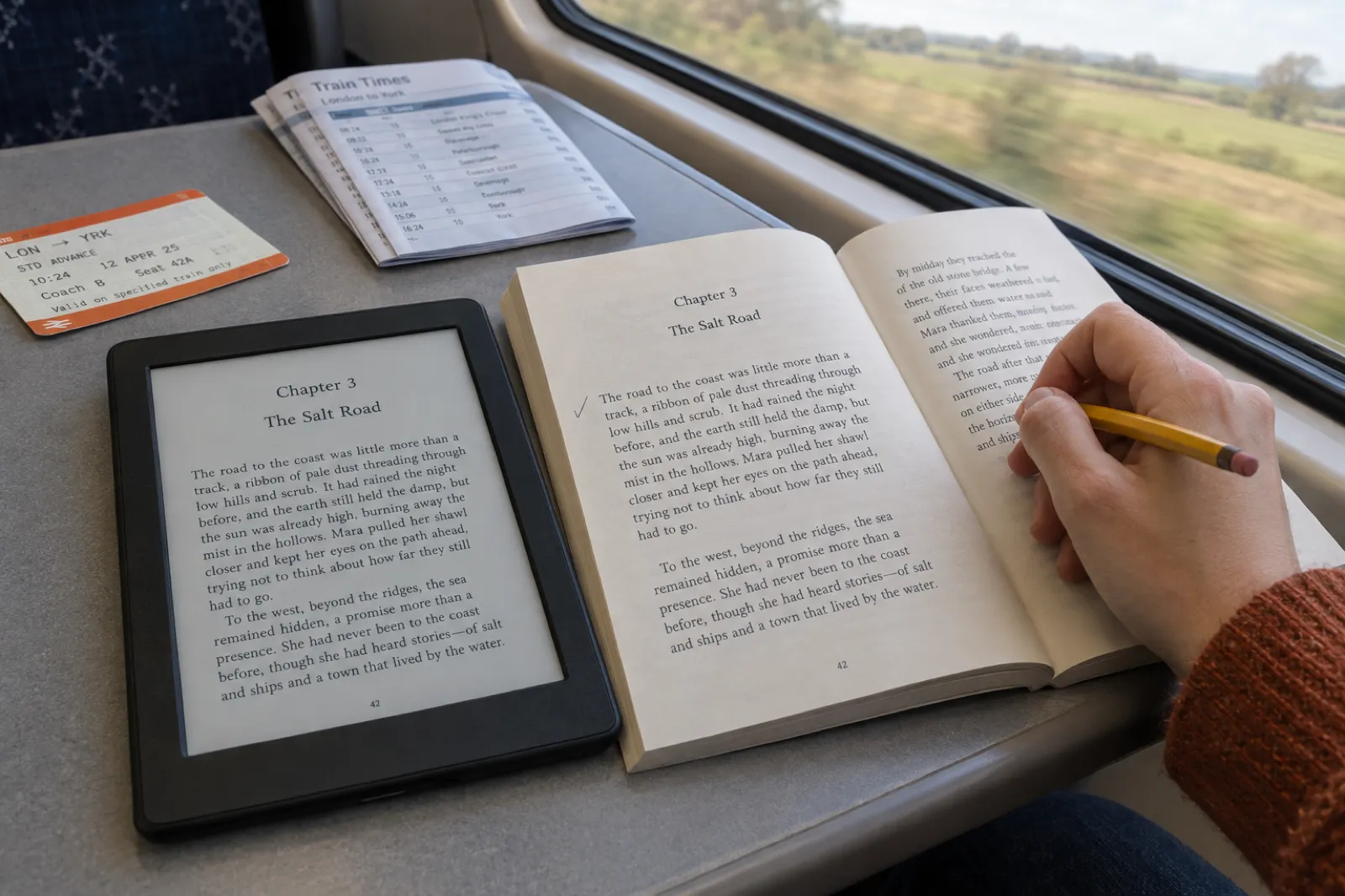
To format a book for Kindle, mark every chapter title with a heading style, build a linked table of contents from those headings, put a page break before each chapter, set indents in the paragraph style instead of with tabs, and remove page numbers, headers and footers. Upload a reflowable EPUB, a DOCX or a KPF from Kindle Create (not MOBI, and not a print PDF), add the cover as a separate 2,560 x 1,600 pixel image, and check the file in Kindle Previewer on e-reader, tablet and phone before you publish.
Kindle ebook formatting by the numbers
The handful of hard numbers in Amazon's Kindle rules, each from a KDP help page read on 22 Oct 2026.
2,560 x 1,600
Ideal ebook cover in pixels (height x width), RGB, JPEG preferred.
$0.15 / MB
Delivery cost per sale on Amazon.com at the 70% royalty. KDP's average is $0.06 a copy.
$2.99 to $12.99
List price band for 70% on Amazon.com since 7 July 2026 (was $9.99 at the top).
60% / 80%
Recommended screen width for photos / for images with text such as charts and maps.
2 levels
Of nesting in the Kindle table of contents (for example parts, then chapters).
300 files
Most HTML files an ebook may contain, each under 30 MB, per KDP's quality standards.
Kindle formatting checker
Tick what your file already does and paste your chapter headings, one per line (indent a line with two spaces or start it with a dash if it is a subsection). The checker lists what to fix, in order, with the reason for each. It runs in your browser; nothing is sent anywhere.
Result
Tick what applies
Fix these
Already right
What Kindle formatting actually means: reflowable text
A paperback is a set of fixed pages. You decide where every line breaks, what sits at the top of page 47, and how wide the margins are. A Kindle book has none of that. It is closer to a web page: a stream of text with structure (this is a chapter title, this is a paragraph, this is a picture) that the device lays out at the moment of reading. Change the font size and every line, screen and "page" changes with it.
That one fact explains almost every Kindle rule. There are no page numbers because there are no pages, and KDP's ebook formatting guide adds that ebooks have no headers or footers. A chapter starts on a new screen only if the file says "break here". A contents page works only if its entries are links. Fonts, sizes and spacing belong to the reader, so the file's job is to describe structure, not appearance.
The exception is fixed layout, where every screen is a designed page (children's picture books, comics, some cookbooks). That is a different kind of Kindle file, made with Kindle Create's comics and kids' tools or a fixed-layout EPUB, and most of this guide does not apply to it. If your book is mostly words, it should be reflowable. If you are making a picture book, see how to self-publish a children's book on Amazon and our picture book maker.
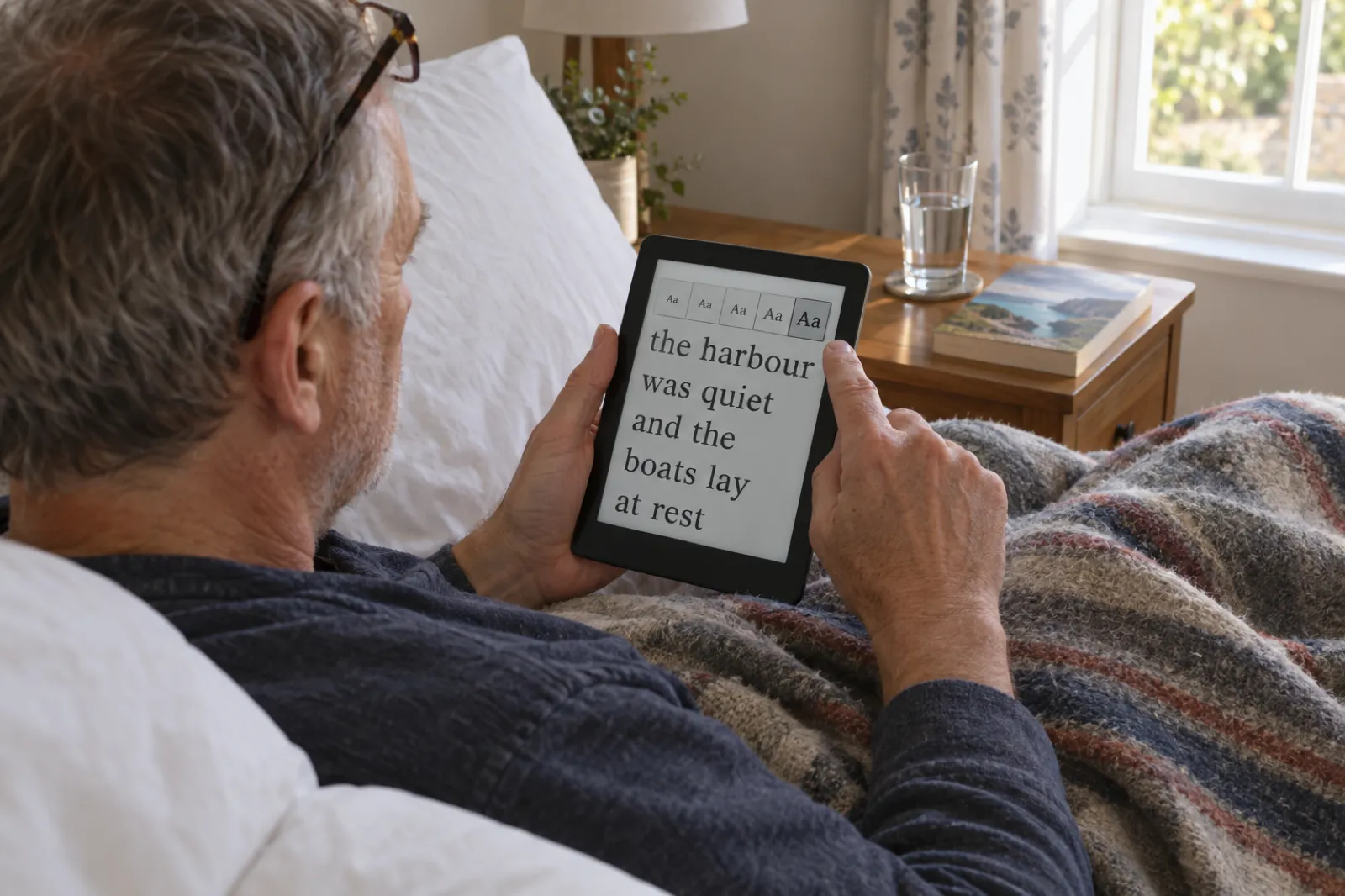
So the practical meaning of "format a book for Kindle" is: get the structure right, keep the styling light, and test on more than one screen. The paperback is a separate job with its own rules (trim size, margins, gutter, bleed), which our KDP formatting guide covers in full, with a margin checker. If you are setting up print by hand, the KDP paperback template page has the files.
Which file to upload: EPUB, DOCX or KPF
KDP's supported formats page (read 22 Oct 2026) lists three recommended manuscript formats for ebooks and a handful of additional ones. All three recommended formats work on Fire tablets, the Kindle apps and Kindle e-readers.
| File | KDP's status | Use it when | Watch out for |
|---|---|---|---|
| EPUB | Recommended, if it meets the Kindle Publishing Guidelines | You want the result to match your file closely, or you also sell on Apple Books, Kobo and Google Play | Validate it first; Amazon converts it, so check the converted book in Kindle Previewer |
| DOCX / DOC | Recommended | Your manuscript is already clean in Word, with real heading styles | KDP says most Word files convert well but complex formatting may not |
| KPF | Recommended | You formatted the book in Kindle Create | Kindle only: you need a different file for every other store |
| HTML, RTF, TXT | Additional formats | Rarely; mostly older workflows | Plain text loses all structure, including chapters |
| Additional, in 9 languages only | Almost never for a reflowable book | A print PDF has fixed lines; it converts into awkward, rigid text | |
| MOBI | Not accepted | Never: refused for reflowable books since 1 August 2021 and fixed layout since 18 March 2025 | Books already live from a MOBI are fine until you update them |
Our recommendation: upload an EPUB 3 if your tool can make a clean one, because you can check exactly what Amazon receives, and the same file works at every other ebook store. Upload a DOCX if you work in Word and your styles are tidy. Use KPF if you like Kindle Create's themes and only sell on Amazon. The ebook formats guide explains how EPUB, PDF and the rest differ, and KDP Select vs going wide helps decide whether Kindle-only is enough.
Headings and a linked table of contents
A Kindle book has two tables of contents, and readers use both. The first is the one you can see: a contents page near the front, with each chapter title as a tappable link. The second is invisible: a navigation file (the EPUB 3 nav document, or the older NCX) that feeds the Go To menu and the chapter list in the Kindle app. KDP's navigation guidelines call this logical table of contents especially important for books longer than 20 pages.
Both are built from your headings. That is why the single most useful thing you can do to a manuscript is apply a heading style to every chapter title. In Word, that means the Heading 1 style, which KDP's own formatting guide asks for; sections inside chapters get Heading 2. A title typed in bold 18-point body text looks the same on your screen but is just a paragraph to every tool that builds a contents page.
KDP's contents rules, in short
- Near the front, not the back. Place the visible contents page toward the beginning of the book.
- Every entry is a link. Readers tap an entry to go to that chapter. KDP's quality standards check that each one is clickable and lands in the right place.
- No page numbers. They are meaningless in a reflowable book and KDP asks you not to use them.
- No tables. Do not build the contents with a table to line things up.
- Two levels at most. Kindle supports two levels of nesting, such as parts and their chapters, or chapters and their main sections.
- Book order. Entries must follow the order of the book; Amazon requires the NCX to match it.
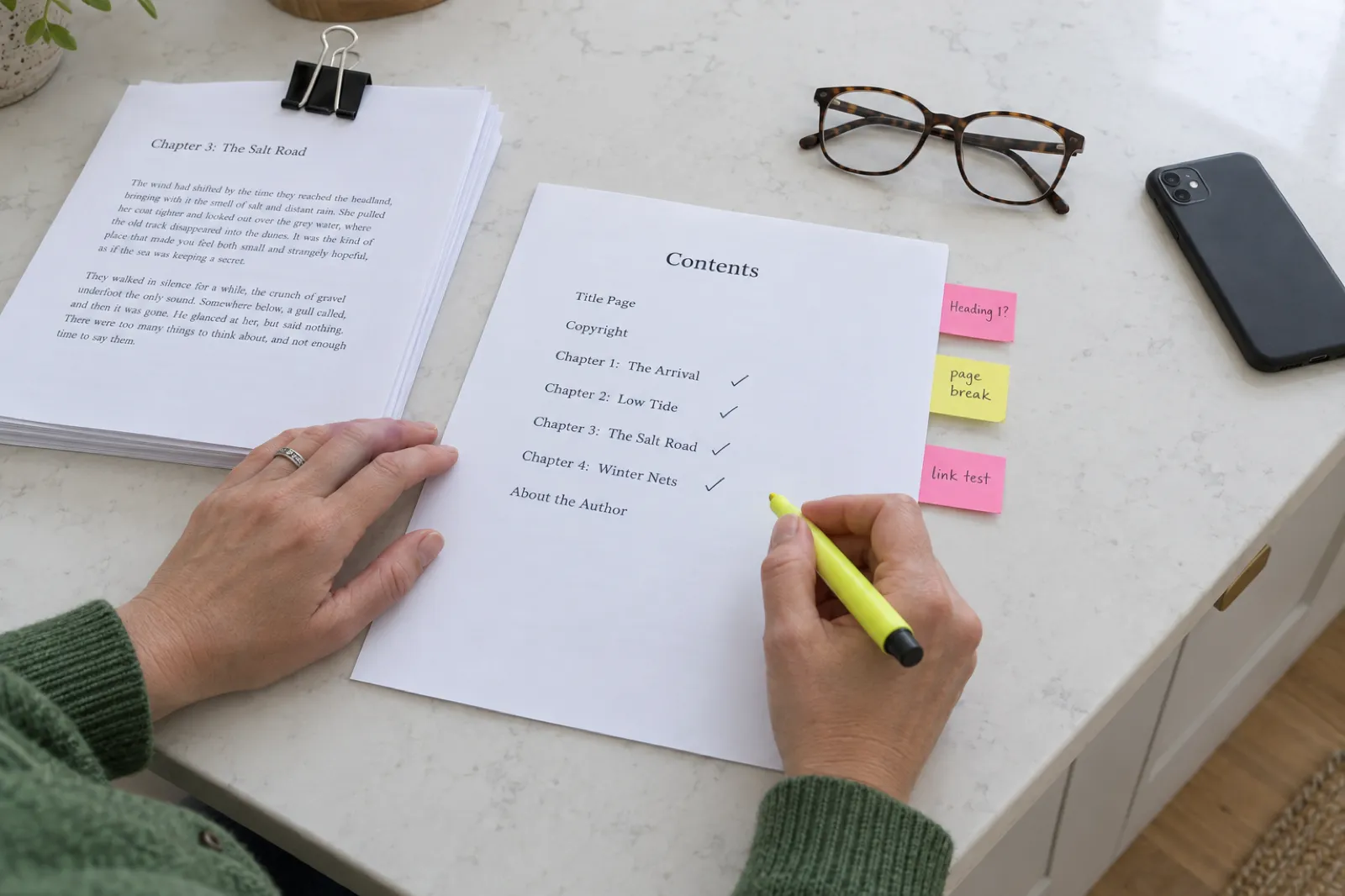
Keep chapter titles consistent. If chapter one is "Chapter 1: The Arrival", chapter two should not be "TWO" or "Low Tide" alone. A mixed list reads badly in the Go To menu and makes the book look unfinished. The checker above flags gaps in numbering, duplicates, typed page numbers and a third level of nesting. If you are still choosing titles, the title generator works for chapter titles too.
Chapter breaks, paragraphs, scene breaks and drop caps
KDP's text guidelines for reflowable books come down to one principle: describe the text, do not draw it. The device does the drawing.
Chapter breaks
Put a page break before every chapter (in Word: Insert, Page Break). KDP asks for page breaks after each chapter or section, so the next one opens on a fresh screen. Never use a run of empty paragraphs instead: on a phone at a large font size, ten blank lines might be two screens of nothing, and on a tablet they might not push the title off the screen at all.
Paragraph indents and spacing
Choose one way to separate paragraphs. Fiction usually uses a first-line indent with no space between paragraphs; non-fiction often uses a small space after each paragraph with no indent. Either is fine. Set it in the paragraph style: KDP's examples use a 0.2 inch first-line indent in the Normal style, and its text guidelines cap body indents at 4 ems. Do not press Tab or type spaces, because KDP says tab spacing does not convert to Kindle. Do not leave blank lines between paragraphs either; KDP asks you to avoid double spacing. The first paragraph of a chapter, and the first after a scene break, normally has no indent.
Body text size, alignment and colour
Leave the body text at the default size. KDP requires it (1em, with the default line height) so the reader's size setting works from a sensible starting point. Body text is justified by default on Kindle, so give headings an explicit alignment (centred or left) or they will be justified too. Do not colour the body text: KDP warns that light colours lose contrast on a white background and dark colours on a black one, which is what readers see in dark mode.
Scene breaks
A scene break in print is often just a blank line. In a reflowable book that blank line can land at the bottom of a screen, where it is indistinguishable from the end of the screen, and the reader runs straight from one scene into the next. Use something visible: a centred "* * *", a single centred asterisk or a small ornament. Kindle Create calls these separators and offers several. If you use an image ornament, keep it tiny and give it empty alt text so screen readers skip it.
Drop caps
Kindle supports drop caps, but KDP's own formatting guide warns that drop caps added in Word may not appear the way you want, and recommends Kindle Create for them. In an EPUB, the text guidelines ask for a drop cap sized in relative units (percentages or ems) with its top aligned to the body text. A drop cap is decoration: if it misbehaves on one device in Kindle Previewer, drop it and use small capitals for the opening words instead.
Fonts: embedded or not?
Amazon recommends the fonts already installed on Kindle devices and apps, and readers can switch publisher fonts on or off. If you embed a font, you must hold a licence that allows ebook embedding, which many desktop font licences do not. For most novels and non-fiction, do not embed a body font at all: readers have chosen theirs. Embed only when the font carries meaning, such as a display face for chapter titles, and test with publisher fonts off as well as on.
Footnotes, lists and tables
KDP requires footnotes to link both ways and converts them to endnotes on upload, so use your word processor's footnote tool, not typed superscript numbers. Keep tables simple and narrow, because a table that fits a laptop is crushed on a phone. Shapes and text boxes from Word should go in as pictures, as KDP advises.
Images: size, format, and what they cost you per sale
Images in a Kindle book have two jobs: look sharp on a large tablet, and not make the file so big that every sale costs you money. KDP's image guidelines for reflowable books set the quality side:
- Width. Photos and other pictures at least 60% of the screen width; images with text (graphs, diagrams, maps) at least 80%, so the text is legible on small devices.
- Format and colour. JPEG for photos, PNG for line art, in the sRGB colour profile. Kindle does not support CMYK, TIFF, animated GIFs or transparent areas (transparent backgrounds are turned white).
- No text as pictures. Text that can be separated from the artwork, captions and tables should be real text, not part of the image.
- Alt text. Every image needs a description; purely decorative ones can carry an empty one on purpose.
- Sharpness. Amazon flags books with blurry images, or images with illegible text, with a content quality warning on the book's detail page.
KDP publishes no single pixel size for interior images. A full-width photo around 1,600 pixels on the long side matches the cover's ideal width and stays sharp on large tablets; beyond that you add file size, not detail. Our guide to ebook images goes deeper on compression and placement.
The delivery cost at the 70% royalty
At the 70% royalty, Amazon deducts a delivery cost from the list price (less VAT) before working out your share: a rate per megabyte of the file as Amazon measures it, rounded up to the kilobyte, minimum one cent. The 35% royalty has none. KDP's average is $0.06 a copy, about 0.4 MB on Amazon.com: a text-only book. Images move the number.
| Marketplace | Delivery cost per MB (70% royalty) | A 1 MB book | A 20 MB photo book |
|---|---|---|---|
| Amazon.com | $0.15 | $0.15 | $3.00 |
| Amazon.co.uk | £0.10 | £0.10 | £2.00 |
| Amazon.de, .fr, .es, .it, .nl | €0.12 | €0.12 | €2.40 |
| Amazon.ca | C$0.15 | C$0.15 | C$3.00 |
| Amazon.com.au | A$0.15 | A$0.15 | A$3.00 |
| Amazon.in | ₹7 | ₹7 | ₹140 |
| Amazon.co.jp | ¥1 | ¥1 | ¥0 (no delivery cost from 10 MB) |
File size also sets the lowest price at the 35% royalty: on Amazon.com, $0.99 under 3 MB, $1.99 from 3 MB to under 10 MB, and $2.99 from 10 MB. For 70%, the list price must sit between $2.99 and $12.99 on Amazon.com (since 7 July 2026; £1.77 to £12.99 and €2.69 to €12.99), and at least 20% below the list price of any print edition. The KDP royalties guide works through the whole calculation, and the royalty calculator compares stores.
Image size and delivery cost estimator
Estimate your Kindle file size from your word count and images, and what delivery takes from each sale at the 70% royalty. It is an estimate: Amazon measures the converted file, which can differ from your upload.
Estimated file size
-
Delivery cost per sale
-
Royalty per sale
-
Front and back matter for a Kindle book
KDP says your ebook should include a title page with the title and author name. Beyond that, keep the front short. Amazon's "Look Inside" preview and the free sample a reader downloads both start at the beginning of the file, so every page of front matter is a page of your sample spent on something other than the story or the argument.
Front matter, in order
- Title page: title, subtitle, author.
- Copyright page: rights notice, edition, ISBN if you have one for the ebook, credits.
- Dedication (optional, one short line).
- Contents: linked, no page numbers.
- Foreword, preface or introduction, only if the book needs it.
Back matter, in order
- Afterword, acknowledgements or notes.
- A request for a review, in one or two sentences.
- About the Author, with a link to your site or list.
- Also by the author, with links to the books.
- Bibliography or glossary, for non-fiction.
Some authors move acknowledgements to the back so the sample reaches chapter one sooner. A print index with page numbers does not work in a reflowable book: link the entries or leave it out. For the wording of the copyright page, use our copyright page template, and see do you need an ISBN (KDP does not require one for Kindle ebooks). If the book was written with AI help, KDP asks about it at publishing time: KDP's AI disclosure policy explains what to declare.
The Kindle ebook cover file
The ebook cover is a separate image you upload in the cover slot on KDP, not a page in your manuscript and not your paperback's wrap. KDP's cover guidelines, read 22 Oct 2026:
- Ideal size: 2,560 pixels tall by 1,600 pixels wide, a 1.6:1 height-to-width ratio. KDP adds that 2,500 pixels tall gives the best quality on high-definition devices.
- Limits: at least 500 pixels on the longest side (smaller covers do not display on the website), no more than 10,000 pixels on either side, under 50 MB.
- File type: JPEG preferred; PNG, non-animated GIF and TIFF accepted; SVG not supported.
- Colour: RGB recommended. CMYK is accepted but converted to RGB, which can shift colours, so convert it yourself and check.
- Light covers: a narrow 3 to 4 pixel medium grey border stops a white cover vanishing into the white store page.
- Do not stretch a small image up to the size; it looks soft, and Amazon's quality checks can fail a cover that is too small.
If you upload a Word file, leave the cover out of it: KDP's formatting guide says not to include the cover in the manuscript, or it can appear twice. An EPUB normally carries the cover marked as its cover image inside the package, which is correct; KDP asks only that you do not add a second HTML cover page on top of it.
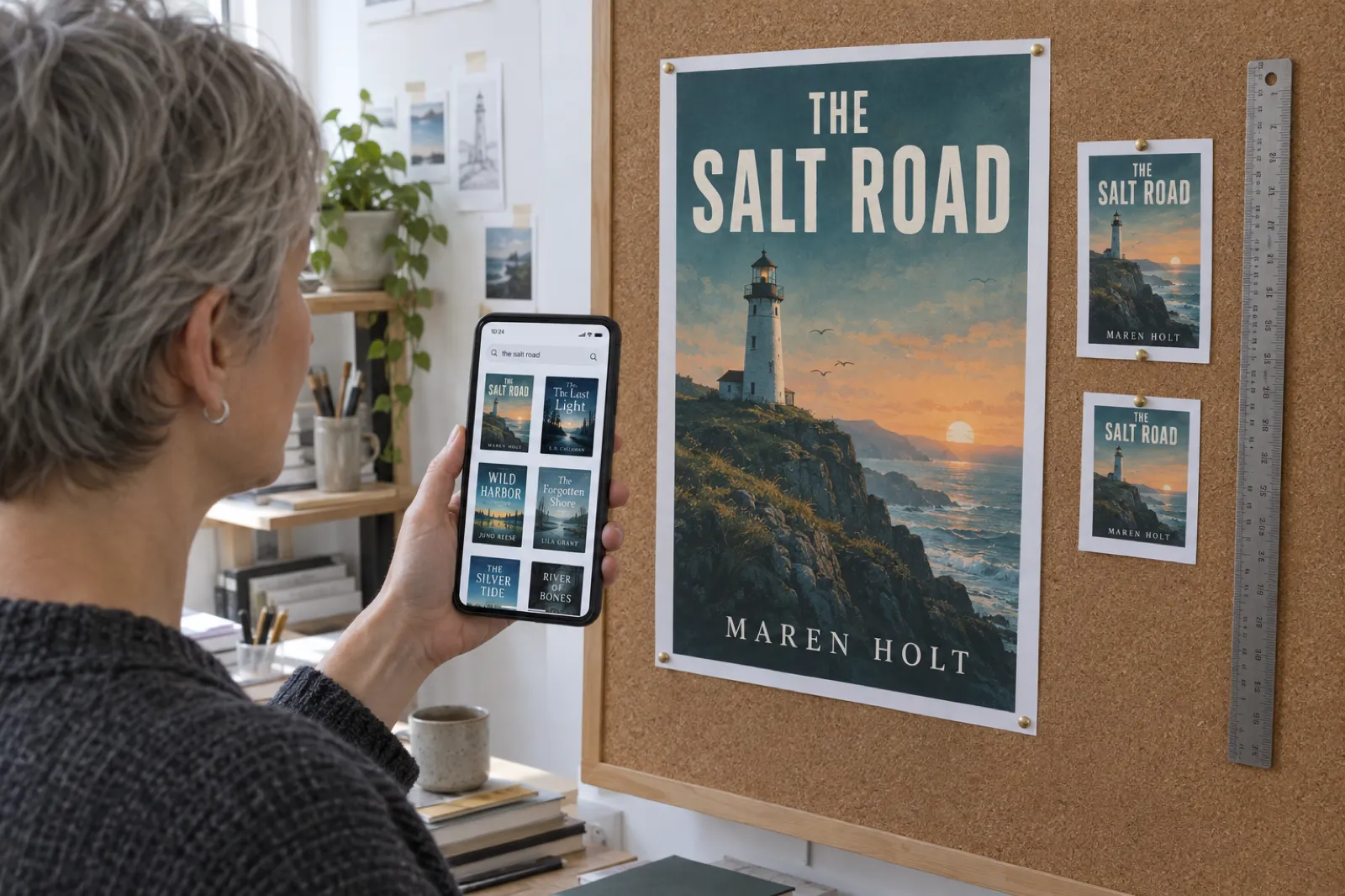
Design for the thumbnail first. The AI book cover generator makes covers at Kindle proportions, the book cover design guide covers the craft, and for the paperback wrap with spine and back, use the KDP cover size and spine calculator.
Preview with Kindle Previewer before you upload
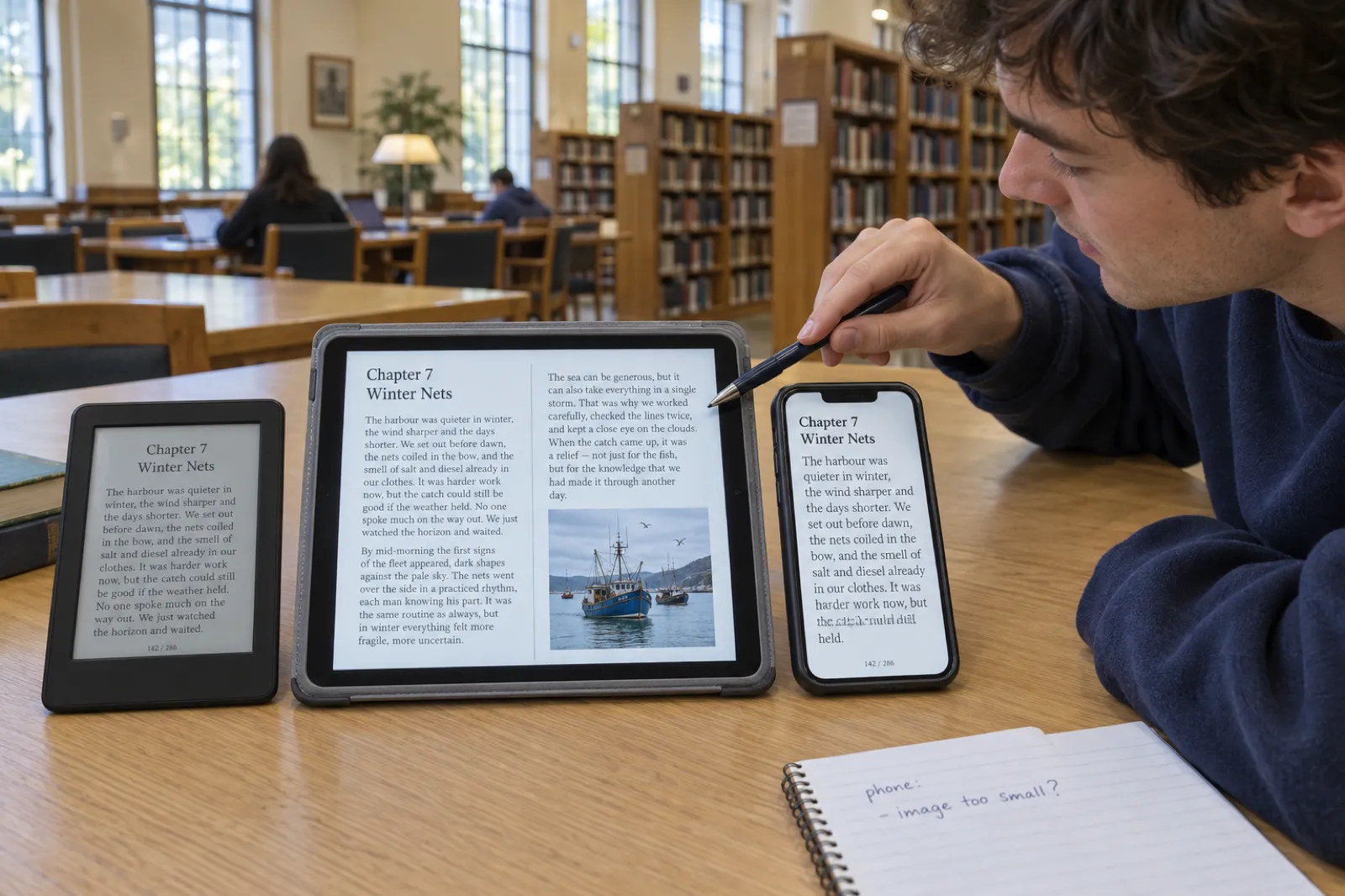
Kindle Previewer is Amazon's free desktop app for checking a Kindle book. The current version, Kindle Previewer 4, runs on Windows 10 (64-bit) or later and on Intel and Apple silicon Macs with macOS 12 or later. It opens EPUB, KPF, DOC and DOCX (Word support is limited to English-language content) and HTML, and shows the book as it will look on Fire tablets, the Kindle apps for Android and iOS, and Kindle e-readers, in portrait and landscape, with different fonts and sizes.
After upload, KDP's online previewer shows the converted book in tablet, phone and e-reader modes (the e-reader in greyscale), with a spell check and an image check that flags images likely to look blurry. Use Previewer before upload and the online previewer after it.
A ten-minute preview routine
- Open the contents page and tap every entry. Each should land on the right chapter title.
- Check the Go To menu shows the same list, in order.
- Page through two chapter openings at the default and largest sizes on the phone view.
- Find every scene break and check it is visible, including one that falls at a screen boundary.
- Look at every image on the phone view, then in greyscale on the e-reader view.
- Switch to dark mode on the tablet view and check no text has disappeared.
- Check the title page, the copyright page and the last page of the book.
Common Kindle formatting problems and the fix
KDP's quality standards list what its reviewers look for: missing or wrong content, typos, alignment errors, forced typefaces and colours, paragraph spacing and indentation, image quality, contents links that do not work, missing or badly nested headings, and poor contrast. Books with these errors can be suppressed (taken off sale) until fixed. The table maps the usual formatting causes of those problems to the fix.
| Problem | Usual cause | Fix |
|---|---|---|
| Contents entries do nothing when tapped | Contents typed by hand, or chapter titles not set as headings | Apply Heading 1, then insert an automatic contents page |
| Go To menu empty or missing chapters | No navigation file, or titles in bold body text | Use heading styles; export an EPUB with a nav document |
| Chapters start halfway down a screen | Blank lines instead of page breaks | Delete the blank lines; insert a page break before each chapter |
| Paragraphs flush left or unevenly indented | Tabs or spaces at the start of paragraphs | Find and replace tabs; set a first-line indent in the style |
| Text the reader cannot resize | A fixed font size on body text | Clear direct formatting; leave the body at the default size |
| Text invisible in dark mode | Body text forced to black or a colour | Remove the font colour from body paragraphs |
| Stray page numbers or a running title in the text | Headers and footers carried over from the print file | Delete headers, footers and page number fields |
| Blurry or illegible images | Small images stretched, or charts too narrow | Replace with larger originals; charts at full width |
| Images missing on Kindle | Images linked from the web, not packed into the file | Insert the image files themselves, then check in Previewer |
| Black boxes or white halos around images | Transparent PNGs | Flatten onto white before inserting |
| Cover shows twice | Cover pasted into the Word file as well as uploaded | Remove it from the manuscript |
| Language mismatch warning | File language differs from the KDP details page | Set the same language in both |
For rejection emails that are not about formatting (content, rights, metadata), see KDP rejected my book, which goes through each common email and the reply.
How to format for Kindle in Word or Google Docs
Word is still the most common route, and KDP accepts the DOCX directly. The work is mostly cleaning up.
- Start from styles. Set the Normal style to a first-line indent (KDP's example is 0.2 in), 0 pt before and after, single spacing. Use Heading 1 for chapters, Heading 2 for sections.
- Clear direct formatting from the body text so the styles take over, then re-apply italics where needed.
- Remove print furniture: headers, footers, page number fields and manual line breaks inside paragraphs.
- Find and replace tabs (^t) with nothing, and double paragraph marks (^p^p) with single ones, unless you have marked scene breaks with a symbol first.
- Insert page breaks before each chapter (Insert, Page Break).
- Insert the contents from References, Table of Contents, with page numbers turned off so the entries are links.
- Insert images in line with text, at their final size, and add alt text to each.
- Save as DOCX and open it in Kindle Previewer.
Google Docs handles the same steps with its own menus: apply Heading 1 from the style list, set the indent in the ruler or paragraph options and update Normal text to match, insert a contents block with blue links (not page numbers), and add page breaks from Insert, Break. Then download as a Word document (.docx) or as EPUB (File, Download), and check either in Kindle Previewer. Our manuscript import guide shows how to bring a Word or Docs file into Inkfluence AI with headings intact.
Kindle Create, Vellum and Atticus
Three formatting tools come up whenever authors ask how to format for Kindle. Facts below were read on each maker's pages on 22 Oct 2026.
Kindle Create
Amazon's own app, Windows and Mac
- Imports DOC and DOCX (from Word, Pages or Google Docs).
- Detects chapter titles; builds a contents page and the Kindle navigation.
- Themes (Modern by default) that cannot be edited; drop caps set by the theme; separators for scene breaks.
- Images must be JPG or PNG.
- Tables, lists, footnotes and inline images cannot be edited inside it.
- Exports KPF, accepted only by Kindle.
Vellum
Mac only (macOS 13 or newer)
- $199.99 for ebooks, or $249.99 for Vellum Press with paperbacks.
- One-time purchase, unlimited books.
- Validated EPUB 3 and EPUB 2 for Kindle, Kobo, Apple Books and others.
- Polished styles; you bring a finished manuscript.
Atticus
Windows, Mac, Linux, Chromebook, browser
- $147 one-time, updates included.
- Writing and formatting in one app.
- Exports EPUB, print PDF and DOCX.
- Runs anywhere, including offline in the browser.
Kindle Create suits a straightforward novel sold only on Amazon; its limits show with lists, tables and notes. Vellum produces beautiful books on a Mac; Atticus is the cheaper cross-platform choice. All three expect a finished manuscript. If you are choosing between the two paid apps, Atticus vs Vellum compares them side by side, and our best book formatting software ranking covers the wider field.
Formatting a Kindle book with Inkfluence AI
Inkfluence AI is our tool, and for most authors it is the shortest road we know from an idea or a draft to a Kindle-ready EPUB. It writes a full book from your idea or outline, or imports your Word, PDF, EPUB or text manuscript, lets you edit every chapter, and exports the ebook with the structure Kindle wants already in place. What the EPUB contains, checked in our code on 22 Oct 2026:
- A reflowable EPUB 3 with chapter titles as real headings, a linked contents page, a navigation document in book order, and a start-of-book marker so "go to beginning" lands on the text.
- Each chapter on a new screen, with indented or spaced paragraphs chosen to suit the genre, and no page numbers, headers or footers.
- No embedded font files. The book names its font, and Kindle readers keep their own font choice, as Amazon recommends.
- Photos packed into the file. Images in chapters, the introduction and the final thoughts are stored inside the EPUB, not linked from the web (the introduction and final thoughts were added on 22 October 2026).
- The cover marked as the cover image inside the package, and the language declared.
- Checked against EPUBCheck, the standard EPUB validator, in 20 test configurations every time our exporter changes, before the change ships.
Before you export, the EPUB preview shows your book in Kindle, tablet and phone frames, lists the file size (the number that drives the delivery cost above), and runs a store readiness check against the published rules of Amazon KDP, Apple Books, Kobo and Google: navigation, language, image formats and transparency, image size, alt text, heading order, file count and content file size. The preview works on every plan, including free.
Plans, plainly. The free plan writes up to five chapters and exports PDF only. EPUB, Word and the KDP package need any paid plan or credit pack: Creator is $9.99 a month, Premium $19.99 a month, and credit packs start at $9.99. The KDP package puts the paperback interior PDF, the full-wrap cover, a Kindle cover image and the Kindle EPUB in one zip with a READ ME. No per-book fee and no share of your royalties: see pricing.
What it does not do. We export EPUB, not KPF, and no fixed-layout EPUB, so a picture book on Kindle reflows rather than keeping designed spreads. There is no drop-cap setting in the EPUB. If you want Kindle Create's themes, export the Word file and import that into Kindle Create, which takes DOC and DOCX.
Related: the AI book writer for Kindle, outline to PDF and EPUB, ebook export and publishing, and Inkfluence AI for Kindle publishers.
Kindle formatting checklist, step by step
The whole process in order.
- Mark the structure. Heading 1 on chapter titles, Heading 2 on sections, one naming pattern throughout.
- Clean the body text. Indents in the style; no tabs, blank lines, fixed sizes, colours, headers, footers or page numbers.
- Break chapters and scenes. A page break before each chapter; a visible centred symbol for each scene break.
- Prepare the images. sRGB JPEG or PNG, no transparency, about 1,600 px for full-width photos, alt text, packed into the file.
- Assemble front and back matter. Title, copyright and linked contents at the start; About the Author at the end.
- Export the file. EPUB 3, a clean DOCX, or KPF from Kindle Create.
- Make the cover. 2,560 x 1,600 pixels, RGB JPEG, legible as a thumbnail.
- Preview. Kindle Previewer 4 on every device view, two font sizes, dark mode, every contents link.
- Check the size and price. Work out the delivery cost and price inside the royalty band you want.
- Upload and check again in KDP's online previewer.
Then publish. The account, listing, categories and pricing steps are in self-publishing on Amazon KDP, and how to sell ebooks on Amazon KDP covers what happens after launch. Planning the paperback too? Start at paperback publishing on KDP and choose a size from the KDP trim sizes guide.
Steps 1 to 7 in one export. Write or import the book, preview it on Kindle, tablet and phone, and export the EPUB with the contents, breaks and images in place.
Start freeKindle formatting: frequently asked questions
How do I format a book for Kindle?
Write the book with real heading styles for chapter titles, build a linked table of contents from those headings, put a page break before each chapter, set paragraph indents in the style rather than with tabs, and take out page numbers, headers and footers. Export a reflowable EPUB (or upload the DOCX, or a KPF from Kindle Create), make a separate cover image at 2,560 x 1,600 pixels, and check the file in Kindle Previewer on e-reader, tablet and phone before you upload.
What file format is best for a Kindle ebook?
KDP recommends DOCX, KPF and EPUB. A clean EPUB 3 gives you the most control over how the book converts, a DOCX is simplest if the manuscript is already tidy in Word, and KPF is what Kindle Create produces. MOBI is no longer accepted for new books or revisions, and PDF is accepted only in nine languages and converts poorly to reflowable text.
Does a Kindle book need a table of contents?
KDP's navigation guidelines call a logical table of contents especially important for books longer than 20 pages, and its quality standards check that every contents entry is clickable and goes to the right place. In practice, give every book two: a linked contents page near the start and the navigation file (EPUB 3 nav or NCX) that drives the Kindle Go To menu.
Should I put page numbers in a Kindle ebook?
No. KDP's ebook formatting guide says page numbers and page count do not apply to ebooks, and that ebooks do not have headers and footers. Readers change the font size, so a page number from your Word file would point at the wrong place. Contents entries should be links, not page numbers.
What size should images be in a Kindle ebook?
KDP asks that photos fill at least 60% of the screen width and images with text (charts, maps, diagrams) at least 80%, in sRGB, as JPEG or PNG, with no transparency and no TIFF. A JPEG about 1,600 pixels wide is a sensible ceiling for a full-width photo: it stays sharp and keeps the file small, which matters because each megabyte costs $0.15 a sale on Amazon.com at the 70% royalty.
How much does file size cost on Kindle?
At the 70% royalty, Amazon deducts a delivery cost before working out your share: $0.15 per MB on Amazon.com, £0.10 on Amazon.co.uk and €0.12 on the main euro stores, with a minimum of $0.01. A text-only novel costs a few cents a sale; a 20 MB photo book costs $3.00 a sale on Amazon.com, which can wipe out the royalty on a low price. The 35% royalty has no delivery cost.
What size is a Kindle ebook cover?
KDP's ideal is 2,560 pixels tall by 1,600 pixels wide, a 1.6:1 ratio, in RGB, preferably JPEG, under 50 MB. The minimum is 500 pixels on the longest side and the maximum 10,000 pixels on each side. It is a separate upload from the manuscript; the print wrap cover is a different file.
Can I embed fonts in a Kindle book?
You can, if you hold a licence that allows embedding, but Amazon recommends using the fonts already on Kindle devices and apps, and readers can switch publisher fonts off. Most novels and non-fiction read best with no embedded body font at all, which leaves the reader's chosen font in charge.
How do I check my Kindle formatting before publishing?
Open the file in Kindle Previewer 4 (free, for Windows and Mac) and page through it on the e-reader, tablet and phone views at several font sizes. After upload, use KDP's online previewer and its spell and image checks. Look at every chapter opening, every image, every scene break and every contents link.
Can I use the same file for my Kindle ebook and my paperback?
No. The paperback is a fixed-page PDF with margins, page numbers and running heads; the Kindle edition is a reflowable file with none of those. Keep one manuscript and export two files from it. Our KDP formatting guide covers the paperback side.
Sources
All checked 22 Oct 2026. Amazon changes KDP help pages without notice; if a number here and KDP's page disagree, KDP's page wins. Inkfluence AI facts come from our product code on the same date.
- KDP: Supported eBook formats: DOCX, KPF and EPUB recommended; HTML, RTF, TXT and PDF additional; PDF languages.
- KDP: MOBI support for eBooks: reflowable MOBI ended 1 August 2021, fixed-layout 18 March 2025.
- KDP: eBook manuscript formatting guide: no page numbers, headers or footers; Heading 1; page breaks; indents not tabs; drop caps; title page; cover not in the manuscript; footnotes.
- Kindle Publishing Guidelines: Navigation: HTML contents and logical contents (nav, NCX), links, two levels of nesting.
- Kindle Publishing Guidelines: Text (reflowable): default body size, fonts and licences, drop caps, indents, spacing, colour.
- Kindle Publishing Guidelines: Images (reflowable): screen widths, formats, sRGB, alt text, quality warnings.
- KDP: Cover image guidelines for Kindle eBooks and eBook cover guidelines: 2,560 x 1,600 px, limits, formats, RGB.
- KDP: eBook royalties: 70% formula, average delivery cost $0.06.
- KDP: Pricing page: delivery cost per MB by marketplace, minimums, rounding, print-price rule.
- KDP: List price requirements: 70% band $2.99 to $12.99 from 7 July 2026; 35% minimums by file size.
- KDP: Kindle Previewer: version 4, systems, file types, device views.
- KDP: Upload and preview book content: online previewer, spell and image checks, language mismatch.
- KDP: QA standards: quality issues, file limits, suppression.
- KDP: Kindle Create: import, themes, contents, images, limits, KPF.
- Vellum: prices, Mac only, EPUB output.
- Atticus: price, platforms, exports.
- Google Workspace Updates: Export Google Docs files as EPUB.
Amazon, Kindle, KDP, Kindle Create and Kindle Previewer are trademarks of Amazon. Vellum, Atticus, Microsoft Word and Google Docs are trademarks of their owners. Inkfluence AI is an independent tool and is not affiliated with or endorsed by any of them.
Related tools and guides
How to Format a Book for KDP
Paperback margins, bleed and the four formatting routes.
Self-Publishing on Amazon KDP
Account, listing, pricing and publishing, step by step.
KDP Paperback Template
Print templates for the paperback edition.
Ebook Formats Explained
EPUB, PDF, KPF and the rest, and where each goes.
Ebook Images
Sizing, compressing and placing images in an ebook.
KDP Royalties
70% and 35%, delivery costs and price bands.
AI Book Formatter
Kindle EPUB and print PDF from one manuscript.
AI Book Cover Generator
Kindle-proportioned covers that read as thumbnails.
KDP Rejected My Book
Every common rejection email and the fix.
Publishing Poetry on Kindle
Line breaks and stanzas in a reflowable book.
Ebook Income Calculator
Monthly and yearly earnings at your price.
KDP Tools
Every free tool for Amazon self-publishers.
A Kindle file that is right the first time.
Write or import your book, preview it on Kindle, tablet and phone, and export an EPUB with the contents, breaks and images already in place. Free to start; EPUB with any plan or credit pack.
Start your book on Inkfluence AI