

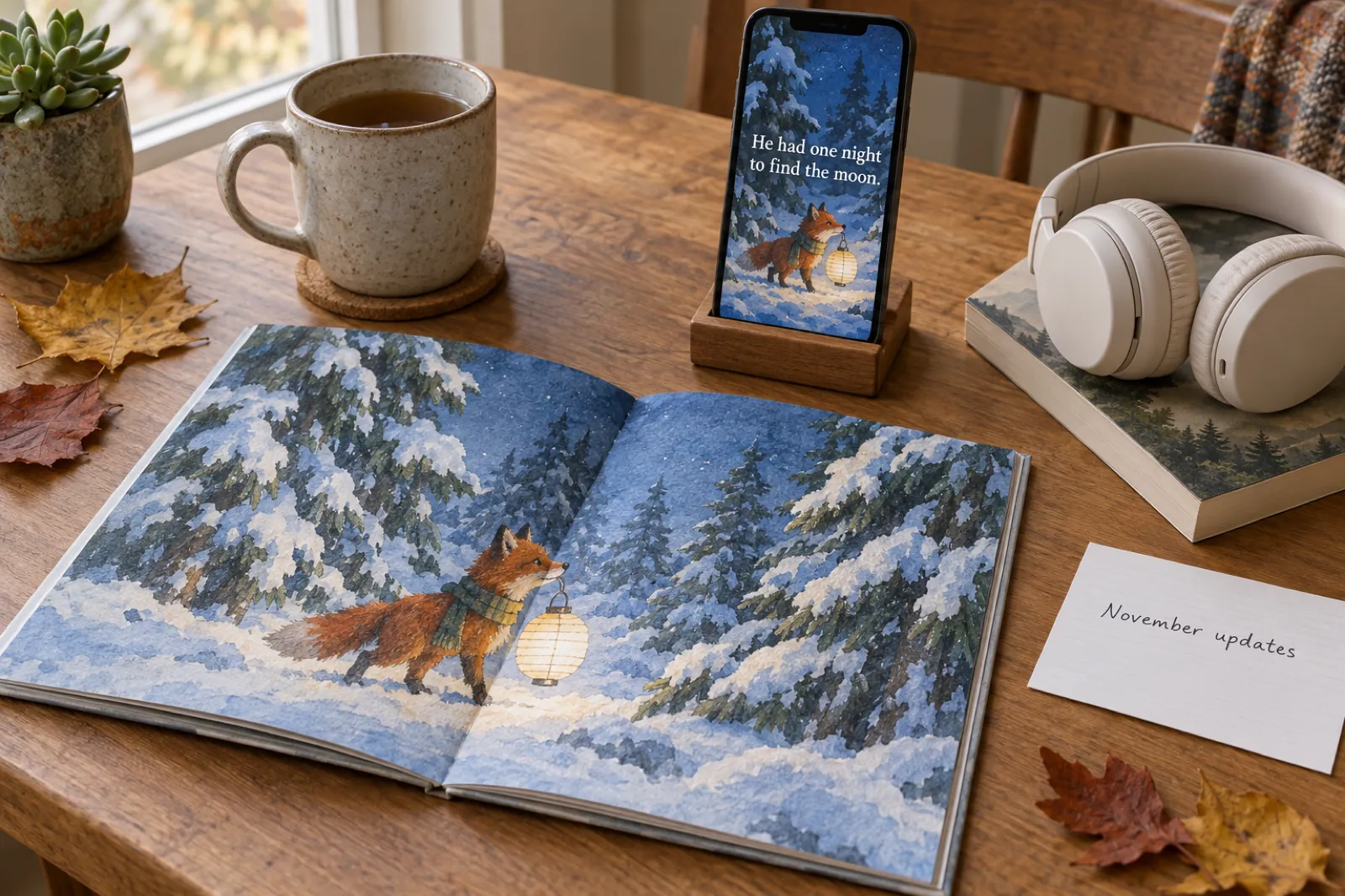
Your book can now become a short video, its pictures print at full size on Amazon, and its audiobook opens the way listeners expect, with your title, your name and your introduction. This page lists everything that has shipped since our October update: what each change does for you, which plan it is on, and the exact button to press.
Everything here is live in the web app at inkfluenceai.com today. If you only have a minute, the table is the short version. If you are deciding whether to upgrade, the Black Friday offer runs from 27 to 30 November.
| New | Plan | Where to find it |
|---|---|---|
| Turn your book into a video | Creator (20 a month), Premium (60) | Book menu > Make a video |
| Picture books and covers at print size | Automatic on every new painting | Export > KDP |
| Your own characters in picture books | Creator, Premium or credits | New book > Picture book > Have your own characters? |
| 56 narrators, and the introduction read aloud | Creator, Premium or credits | Book menu > Turn into Audiobook |
| The app in eight languages | Every plan | Settings > App language |
| Folders on My Books | Every plan | My Books > + New folder |
| Imports keep your front matter | Every plan | Dashboard > Import |
| Better PDF, Word and paperback files | Every plan (formats per plan) | Editor > Export |
| Writing tools that stay in your book's language | Every plan | Editor |
| Faster, surer saving on big books | Every plan | Editor |
Want to try them on your own book? Open your dashboard. Each section below says where to click.
Turn your book into a short video
Readers find books on TikTok, Instagram Reels and YouTube Shorts now, and most authors never post there because making a video is a whole new skill. The video studio turns your finished book into a short vertical video in about a minute: your book's own pictures, a narrator reading the lines aloud, captions that light up word by word, and an end card with your cover, title and where to buy it.
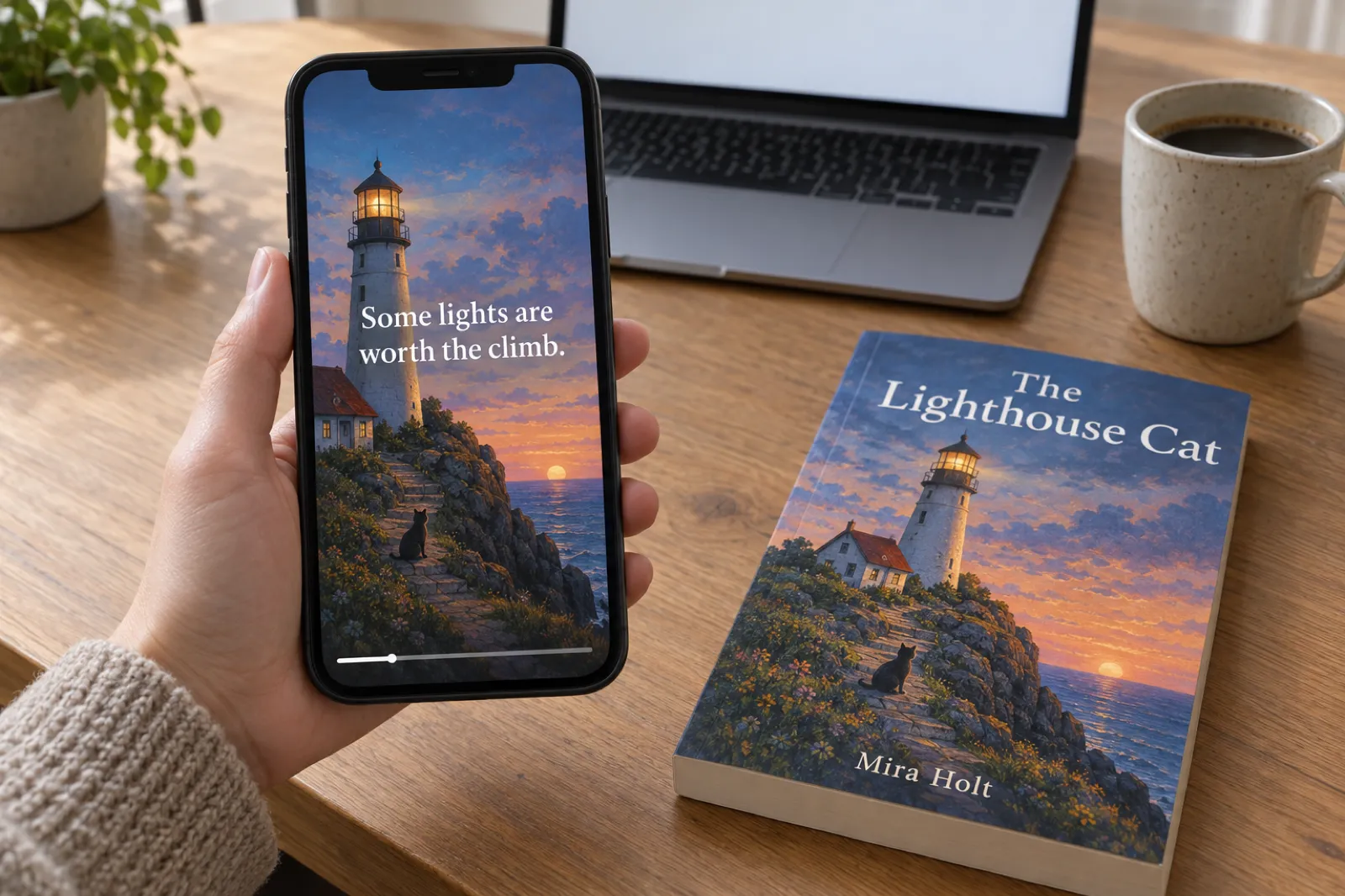
You do not have to write anything. When the studio opens, it has already read your book and written the words: a hook for the first two seconds (the moment most people decide whether to keep watching), three lines for the body and an end card. Every line is editable, and New line gives you a fresh one from the book. Each line comes with a picture from your book already picked to fit it, which you can swap for any other picture in the book or one you upload. Choose a look in the Style tab and a narrator in the Voice tab, press play to watch the whole video as a sketch, and click Make video when it looks right.
The finished file is an MP4 in the right shape for TikTok, Reels and Shorts. Download video saves it, and Copy caption gives you a ready-made caption for the post. Videos wait for you in My videos, so you can close the studio while one is being made.
Where to find it: Make a video is in the menu on every book, on the Publish page, as Video in the editor's tool bar, on your dashboard under Tools, and in the window that opens when a new book is ready. Plan: 20 videos a month on Creator, 60 on Premium. Our guide to making a book trailer and the BookTok guide for authors cover what to post and when, and how to make a read-aloud video covers picture books.
Your next post is already in your book
Open any finished book and choose Make a video: the words and pictures are picked for you.
Make a video of my bookPicture books and covers painted at print size
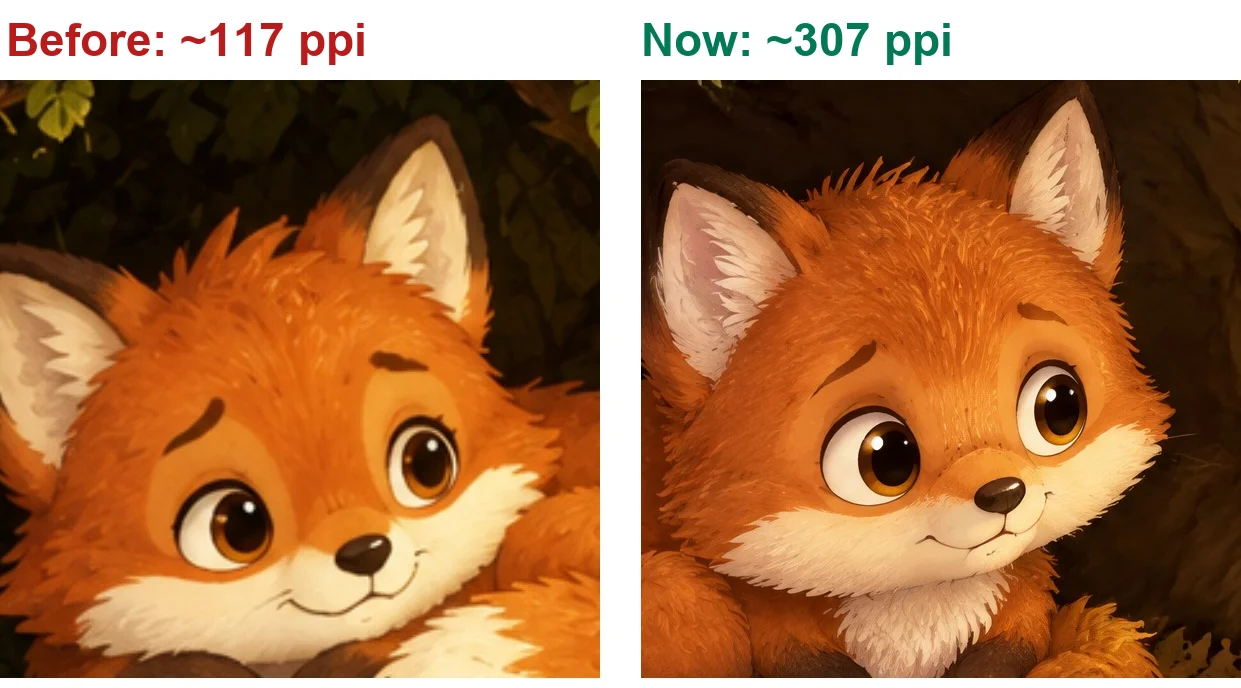
Amazon asks for pictures at 300 dpi, and it calls anything under 200 low resolution. Most AI pictures are about 1,000 pixels across, which is plenty for a screen and soft on paper: on a standard 8.5 inch square picture book, a 1,024 pixel page prints at about 117 dpi. Fur, line work and lettering lose their edges.
Since 16 November, every picture-book and ABC page Inkfluence paints is painted at print size and kept as two copies: a light one for the editor and previews, and a full-size one that only the Amazon KDP file uses. We measured a real exported book at about 307 dpi. Covers get the same treatment: AI covers are painted at full print size for a 6 x 9 inch paperback, and picture-book covers at the same size as their pages, so the wrap-around paperback cover is as sharp as the inside. Colouring pages already print at 300 dpi in the PDF since 31 October.
You do not need to do anything. The print copy is used automatically when you export for KDP, and nothing else changes: the editor stays as quick as it was. Pages painted before 16 November keep their original size; if you are about to order a proof, redraw a page in the editor and it comes back at print size. The full test, with file sizes and cover sharpness, is on our AI image generators for KDP comparison, and the KDP image size calculator gives the exact pixels for any trim if you bring your own art.
Your own characters, and sample books to flip through
If you already have characters, from an earlier book in a series, a family mascot, or a drawing your child made, you can now bring them into an AI picture, colouring or ABC book. When you start the book, click Have your own characters? Add a picture under the art styles and add one picture: your cover or a drawing of the characters works best. The character sheet is drawn from your picture, so every page shows your characters, painted in the style you picked. Name them in the idea box if you want their names used. In a colouring book they appear as line art in the colouring style you chose. Only use art you own or have the rights to.
Colouring books also follow your idea more closely now: the number of pages you ask for, adult themes when you ask for them, no invented cast when you only want patterns or scenes, lettering only where you ask for it, and ideas typed in other languages.
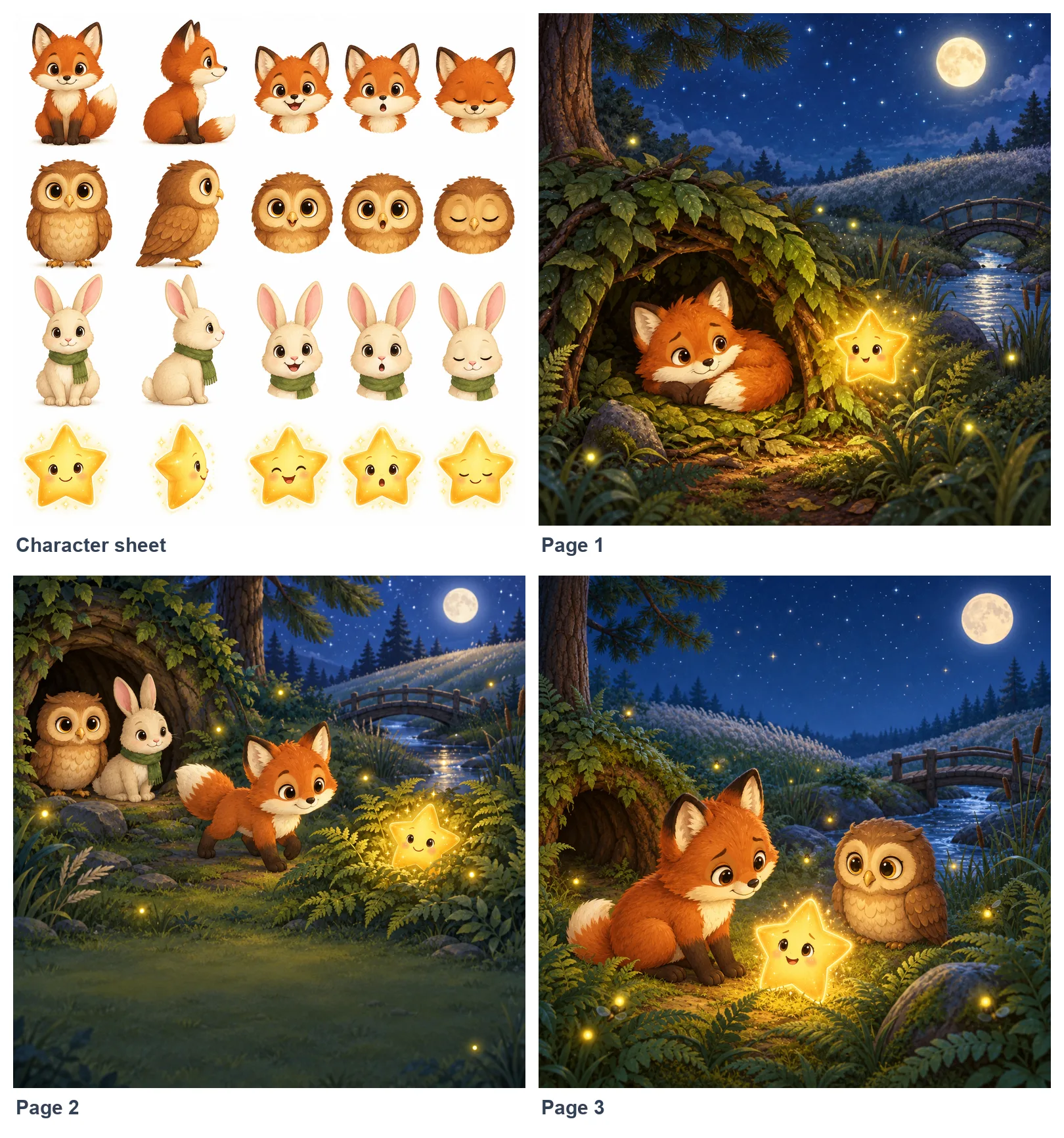
To see what you will get before you start, the examples page now has six whole books, story, ABC and colouring, with the character sheet and every page visible without clicking. Plan: AI-painted picture, colouring and ABC books need Creator or Premium, which include 20 or 50 images a month, or a credit pack. Start from the AI picture book maker or the children's book creator.
Audiobooks: 56 narrators, and your introduction read aloud
A listener expects an audiobook to open with the title and the author, then the introduction, then the chapters, and to end with the closing words. Until now the Audiobook Studio narrated only your chapters. Now it lists three more rows around them: the Opening (your title and author name), the Introduction and the Final Thoughts, using your own headings if you renamed them. They are ticked by default and recorded like chapters, and unless they run to several pages they use no audiobook credits. The opening reads the author name from Edit book details, so add it there if it is missing. Chapters you have already recorded stay exactly as they are; tick the new rows and click Record to add them.
There are also seven new narrators, for languages where your book used to fall back to an English voice: Swedish, Danish, Norwegian, Finnish, Czech and Catalan, and a European Portuguese voice alongside the Brazilian ones. That makes 56 narrators in 20 languages. A book you translate is narrated in its new language by a matching voice.
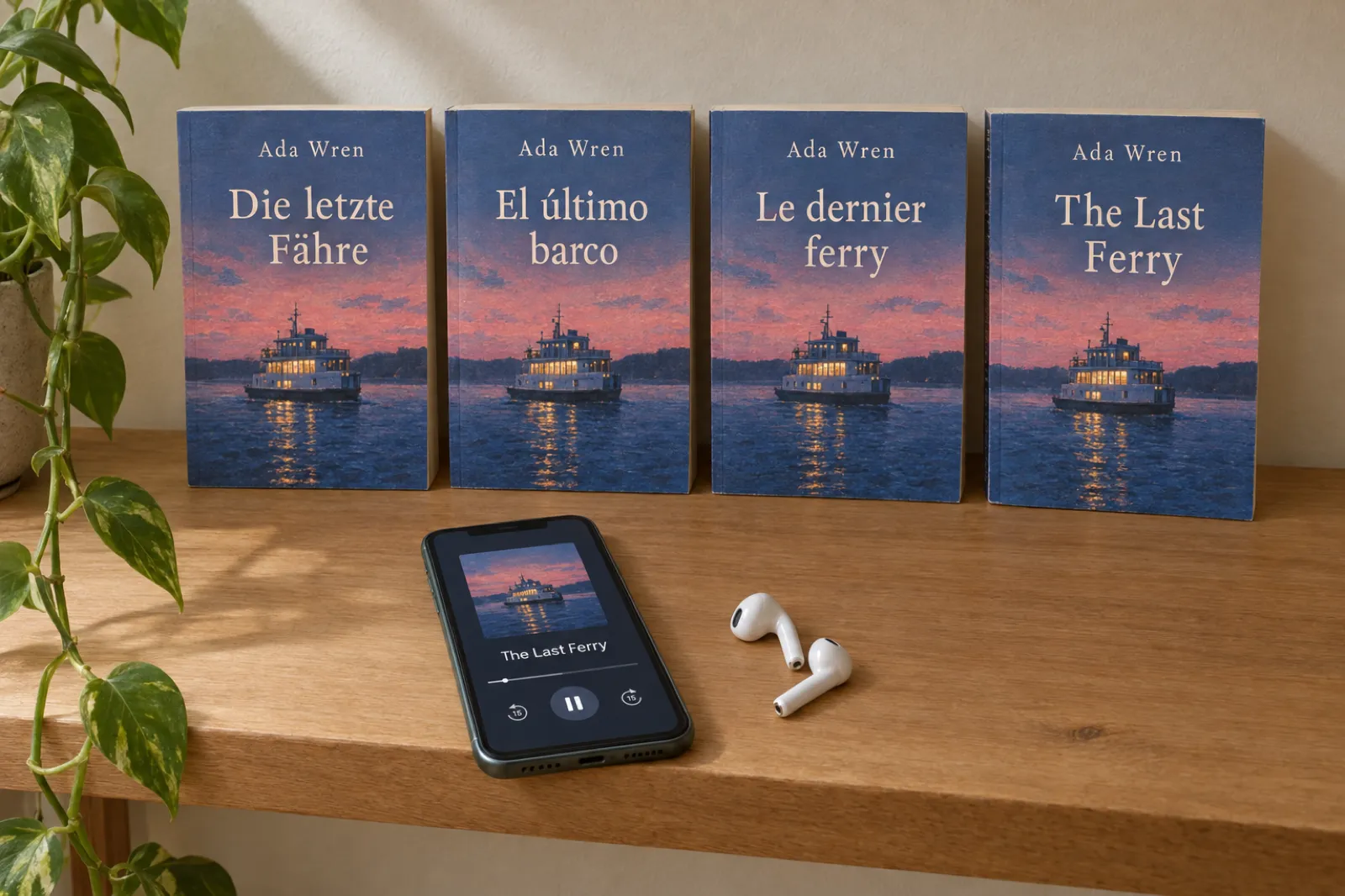
Choosing between 56 voices is easier when you can hear them side by side, so we recorded every one of them reading the same passage and put them on one page: the AI audiobook voice library. You can filter by language, accent and gender, switch between the HD version (Premium) and the Standard version (Creator) of the same narrator, and see which voices suit novels, business books, self-help and children's books. The Audiobook Studio's chapter list is tidier too, with cleaner tick boxes and a simpler line under each chapter showing who reads it.
Where to find it: Book menu > Turn into Audiobook. Plan: 15 audiobook chapters a month on Creator, 30 on Premium with the HD voices, or credits. More in how to make an audiobook with AI and where to sell an AI audiobook.
Hear your book in a narrator's voice
Open the Audiobook Studio and use Preview this chapter: the narrator reads the opening of your own chapter before you record anything.
Open the Audiobook StudioThe whole app in eight languages
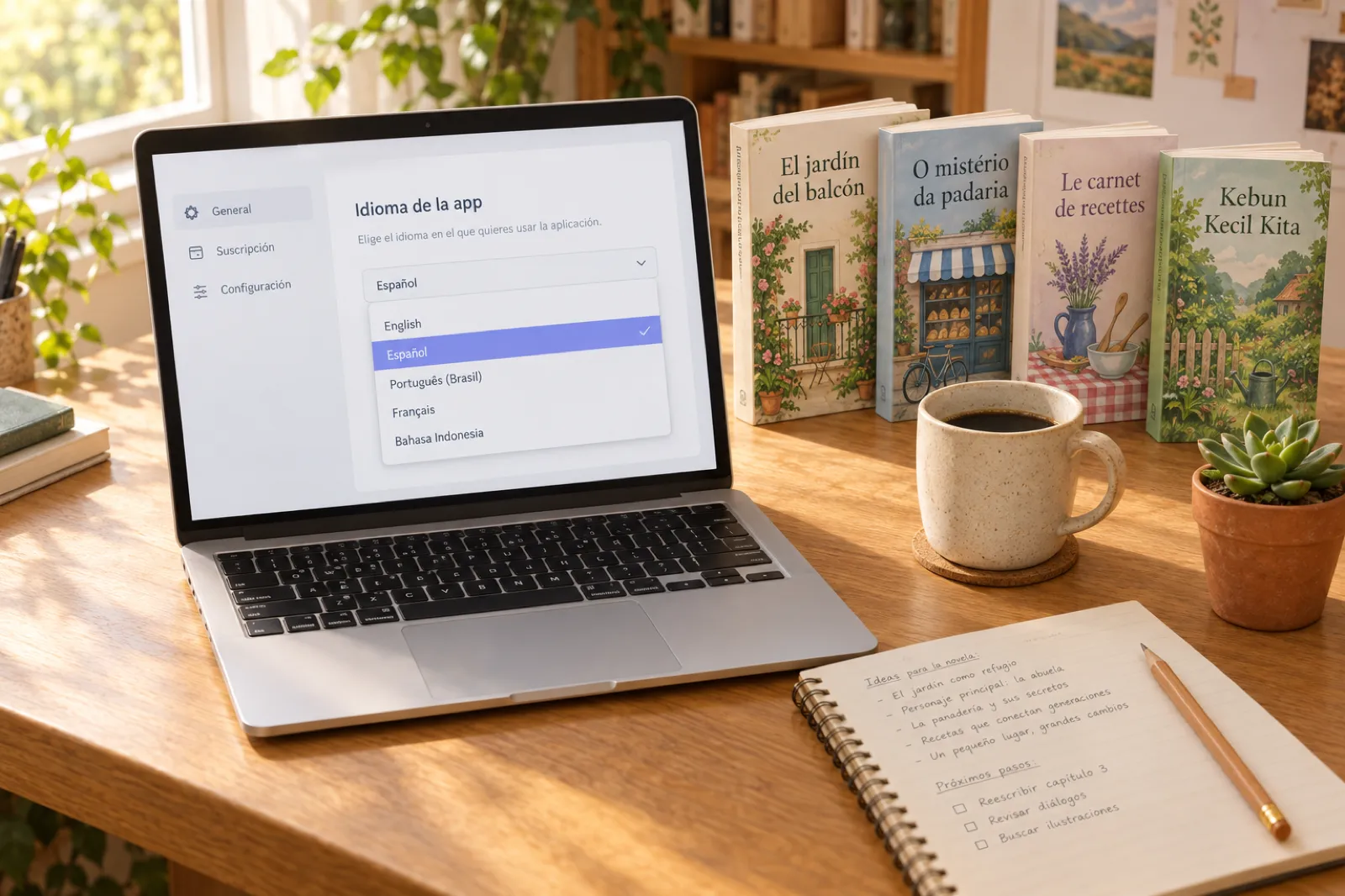
Inkfluence has written books in dozens of languages for a long time, but the app around them was English only. Since 3 November the whole app runs in Spanish, Portuguese, French, German, Italian, Dutch and Bahasa Indonesia as well as English: the menus, the dashboard, the editor, the cover designer, the audiobook and video studios, the export window and the checkout.
The app language is separate from your books' language. You can run the app in German and write a book in English, or the other way round, and each book keeps its own language for writing, covers, exports and narration. Where to find it: Settings > App language. Plan: every plan, free included. If you write in another language, our guide to writing a book with AI in your own language covers what works best.
Folders on My Books
If you write for clients, run a series, or simply have a lot of books, My Books can now be organised into folders: one per client, per series, per pen name or per year, whatever suits you. On a computer your folders sit down the left side, under All books, with + New folder at the bottom; on a phone or tablet, tap the Folder button above your books. On a computer you can also hide the folder list to give your covers more room.
A folder only groups books. Moving a book in or out of a folder never changes the book, deleting a folder never deletes its books, and every book always shows under All books. Plan: every plan. If you are building a series, how to write a book series with AI pairs well with this.
Imports keep your title page, dedication and copyright page
Many authors bring in a manuscript they have already written in Word, often with a title page, a dedication, a copyright page and a contents list before chapter 1. Imports now put each of those where it belongs instead of treating them as chapters:
- The title page fills in your book's subtitle and author name. Those lines are not repeated anywhere else.
- A dedication, or a foreword or preface written by you, goes into the book's opening section; acknowledgements go into the closing section.
- Your copyright page becomes the book's own copyright page text, the one you can edit in Export, so your wording and ISBN print in the right place.
- Word's contents list is left out, because every export builds its own contents with the right page numbers.
Anything that was not placed is listed in a short note in the import window, so you can see exactly what happened to it. Long documents without chapter headings now have their chapter titles found even when the book is very long, and pictures in a Word file keep the size they had in Word. Where to find it: Dashboard > Import. Plan: every plan. The KDP formatting guide explains how to set up a Word file so it imports cleanly.
Better PDF, Word and paperback files
A set of smaller changes adds up to more professional files:
- The copyright page goes at the front by default, where readers and stores expect it, with a Front / Back switch if you prefer it at the end. The contents now come before the introduction.
- Word (DOCX) exports now have a proper title page with your subtitle and a copyright page, following the same rules and switches as the PDF.
- The copyright page, byline and About the Author print in your book's language, so a Spanish book says "Todos los derechos reservados", not "All rights reserved".
- KDP paperbacks put the page numbers on the outside corner of every page, left on left-hand pages and right on right-hand pages, the way printed books do.
- Download PDF on a computer now gives you the same finished file as phones and the KDP export: a real PDF with page numbers in the contents and no browser header or footer.
Where to find it: Editor > Export. If you publish on Amazon, KDP trim sizes and the spine width calculator help you pick the paperback size before you export.
Writing tools that stay in your book's language
If you write in a language other than English, three things now follow your book's language without being told. The language you ask for in your idea wins, even when you type the idea in English ("a cookbook in French" is written in French). Smart Continue and chapter rewrites write in the book's language. And Remix, which turns a book into another format, keeps the source book's language. Combined with the new app languages, a German or Indonesian author can now work in their own language from the first screen to the finished file.
Faster, surer saving on big books
Saving is quicker on long books: the editor now sends only the chapters you changed, so a 200 chapter book saves as fast as a short one. The status at the top says Saving… until your work is safely stored and only then Saved, and if you close the tab while a save is on its way, the app sends it first and warns you if it needs a moment longer. Very long chapters, the kind you get from importing a whole manual or reference book as one chapter, now save in full. You should never have to split a chapter to make it fit.
Covers and smaller changes
- AI covers: the Describe the look box takes up to 1,000 characters on several lines, so you can describe a scene in detail. When the title is part of the AI picture, the text controls under it are clearer about what changes the next picture and what changes this one. See the AI book cover generator.
- Lead magnets end on your own offer, taken from your brief (your course, your call, your product), never an invented one. The lead magnet generator explains how to set the brief.
- Translated colouring books keep your choice to print the words under each design.
- The book-ready window, which opens when a new book finishes, has a new celebration with your book as the hero, and a shortcut to make a video of it.
- Deleting your account asks for your password in the window itself, which works in every browser.
Three ten-minute jobs to try this week
New features are only worth something once they are in your books. If you have a finished book in Inkfluence already, these three jobs each take about ten minutes and use what shipped this month.
1. Post your first book video
Open a finished book and choose Make a video. Before you change anything, press play and watch the sketch the studio drafted, then look hard at the hook, the line shown in the first two seconds. The hooks that keep people watching are a question the book answers ("What would you give up to get home?") or a moment lifted straight from a scene, not the book's title or a description of its genre. If the drafted hook is a summary, click it and replace it with the most surprising sentence in your first chapter.
Keep the three lines short enough to read in a glance, pick a picture for each that matches the words, and make the video. Post it with the caption the studio gives you, and add your book link to your profile, because most platforms do not make links in captions clickable. One video is an experiment; the authors who get readers from short video post several a week, so make three different hooks from the same book and see which one people watch to the end. Our BookTok guide for authors lists the formats readers already make, and the book promo video guide covers launches and cover reveals.
2. Check a picture book before you order a proof
If you made a picture book before 16 November and you are about to order a printed proof, open it in the editor and look at the pages you care about most: the cover, the first spread and the last. Redraw those pages and they come back painted at print size, with the same character sheet, so the characters still match. Then export for KDP and check the file in Amazon's print previewer, which flags low-resolution pictures before you publish. When you set up the paperback on KDP, pick the bleed option the READ ME FIRST file in your download names, or KDP will reject the file.
A printed proof is still the only real test of colour: deep blues and blacks often print a little darker than they look on a bright screen. Our KDP bleed and size guide and the printing cost calculator cover the rest of the paperback checks, and how to self-publish a children's book on Amazon walks through the whole listing.
3. Give your audiobook a proper opening
If you recorded an audiobook before this week, it starts straight at chapter 1. Open the Audiobook Studio and you will see the Opening, Introduction and Final Thoughts rows waiting, already ticked. First check Edit book details has your author name exactly as it should be spoken, because the opening reads it aloud. Then record just those rows: your chapters keep their audio and are not charged again. Download the book again afterwards, so the files you upload include the new opening and closing.
While you are in the studio, play the chapter list from the top with fresh ears. If a name or an invented word sounds wrong, fix how it is said once and every chapter that uses it picks up the change the next time it is recorded. If your book is in one of the seven new languages, a translated edition now gets a native narrator; see the voice library to hear them first.
Which plan suits which author
Most of this month's changes are on both paid plans, so the choice comes down to how much you make. As a rough guide:
- Creator suits an author working on one or two books at a time: 35 chapters a month is roughly four non-fiction books, enough images for a short picture book, 15 audiobook chapters (a typical novel) and 20 videos to promote them. Its narrators record in the quick Standard rendering.
- Premium suits anyone publishing often or making picture books and audiobooks: unlimited chapters, 50 images a month (a full picture book with room for redraws), 30 audiobook chapters with the warmer HD narrators, and 60 videos a month, enough to post every day.
- Credit packs suit a one-off project, such as a single picture book for a grandchild, with no subscription to remember to cancel.
If you are not sure, start on the free plan, write a few chapters, and decide once you have seen your own book take shape. The pricing page compares every limit side by side.
The Black Friday offer, 27 to 30 November
If you have been waiting to upgrade, this is the week to do it. From 27 to 30 November 2026, a new yearly plan is:
| Yearly plan | Usually | First year, 27 to 30 Nov | Includes |
|---|---|---|---|
| Creator | $89 | $59 | 35 chapters a month, 20 images, 15 audiobook chapters, 20 videos |
| Premium | $179 | $119 | Unlimited chapters, 50 images, 30 audiobook chapters with HD voices, 60 videos |
The offer is for new yearly subscriptions and renews at the normal yearly price after the first year. Monthly plans stay $9.99 and $19.99. Details are on the Black Friday page, and every plan is compared on the pricing page.
Start free today, upgrade on the 27th
Write your first chapters on the free plan now, and pick up a yearly plan at the Black Friday price when the offer opens.
Start a book freeWhat is on each plan
| Feature from this update | Free | Creator | Premium |
|---|---|---|---|
| Book videos | Examples only | 20 a month | 60 a month |
| Print-size picture pages and covers | With credits | Yes (20 images a month) | Yes (50 images a month) |
| Your own characters | With credits | Yes | Yes |
| Audiobook narration | Previews, or with credits | 15 chapters a month, Standard voices | 30 chapters a month, HD voices |
| App languages, folders, imports, saving | Yes | Yes | Yes |
| Export changes | Every format | Every format |
Frequently asked questions
What is new in Inkfluence AI in November 2026?
Since mid-October: book videos for TikTok, Reels and Shorts; picture-book pages and covers painted at print size (about 300 dpi) for Amazon KDP; your own characters in picture, colouring and ABC books; the whole app in seven more languages; folders on My Books; 56 audiobook narrators in 20 languages, with the title, Introduction and Final Thoughts now read aloud; imports that keep your title page, dedication and copyright page; and a Word export with a proper title and copyright page.
Are these features in the iPhone app?
Not yet. Everything on this page is in the web app at inkfluenceai.com, which works in any browser on a computer, tablet or phone. The iPhone app is updated separately.
Do I need to do anything to get 300 dpi picture books?
No. Every picture-book and ABC page painted since 16 November, and every AI cover, is painted at print size automatically. The Amazon KDP export uses the print copy; the editor and previews keep showing the lighter screen copy. Pages painted before then keep their original size; you can redraw any page in the editor to get a print-size version.
How many book videos can I make?
20 a month on Creator and 60 on Premium. A video is about 15 to 20 seconds, vertical, with your book's pictures, a narrator and word-by-word captions.
How do I change the language of the app?
Open Settings and choose App language: English, Spanish, Portuguese, French, German, Italian, Dutch or Bahasa Indonesia. It changes the menus, editor, studios and checkout. It does not change the language your books are written in, which you set for each book.
Does the audiobook now read the introduction?
Yes. The Audiobook Studio lists an Opening (your title and author name), the Introduction and the Final Thoughts around your chapters, ticked by default. They are recorded like chapters and, unless they are several pages long, use no audiobook credits. The opening needs an author name, set in Edit book details.
What is the Black Friday offer?
From 27 to 30 November 2026, a new yearly plan costs $59 for Creator (usually $89) or $119 for Premium (usually $179) for the first year. It applies to new subscriptions and renews at the normal yearly price.
Can I use my own characters in an AI picture book?
Yes. When you start a picture, colouring or ABC book, click Have your own characters? Add a picture under the art styles and add your cover or a drawing of them. The character sheet is drawn from your picture, so every page shows your characters in the style you picked. Only use art you own or have the rights to.
Related reading
AI audiobook voice library
All 56 narrators reading the same passage.
Best AI image generator for KDP
Seven tools tested at print size.
Example books
Whole picture, ABC and colouring books, every page.
Book trailer maker
Short videos that sell books.
Self-publishing news, November 2026
KENP, Etsy and Spotify changes this month.
KDP Christmas deadlines 2026
The dates for getting books out before the holidays.
What is next
The roadmap lists what has shipped month by month and what we are working on next. If there is something you would like Inkfluence to do, reply to our newsletter or email hello@inkfluenceai.com: much of this page started as a request from someone writing a book.
Founder, Inkfluence AI
Sam is the founder of Inkfluence AI. He built the platform to make book creation accessible to everyone - from first-time authors to seasoned publishers.
Helpful links

Ready to write your own book?
Write with AI, make it yours, and export PDF, EPUB and KDP-ready files from one project.
Keep reading
 Company
Inkfluence AI in Your Language: The Whole Book Writing App in Spanish, Portuguese, French, Indonesian, German, Italian and Dutch (2026)
The whole Inkfluence AI app now works in Spanish, Portuguese, French, Bahasa Indonesia, German, Italian and Dutch as well as English: menus, editor, covers, audiobook and video studios, Publish, settings and checkout. How to switch, what is translated, and how to write and sell a book in your language.
 Self-Publishing
Spotify Audiobook Redemption Codes: Authors Can Now Give Away 1,000 Free Copies (2026)
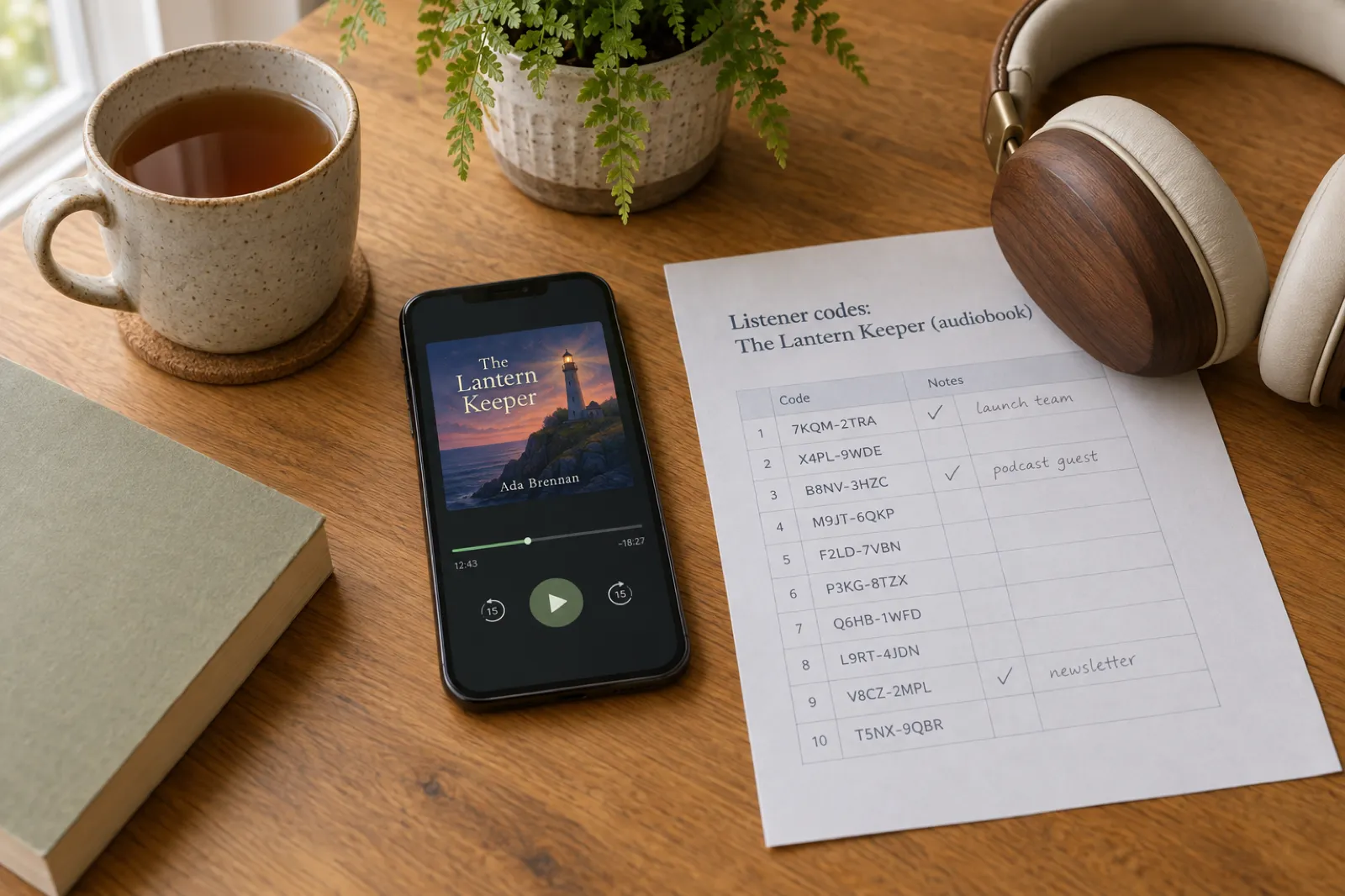
Spotify for Authors now lets you generate up to 1,000 free redemption codes per audiobook, up from 100. Listeners in 22 countries redeem them at authors-direct.com/spotify, with or without Premium. Codes earn no royalties. Here is how to generate them, how listeners redeem them, smart ways to use them, the review rules to respect, and how Spotify compares with ACX and Google Play promo codes.
 Self-Publishing
ACX's Legacy Royalty Model Ends This Year: What Audiobook Authors Need to Do (2026)
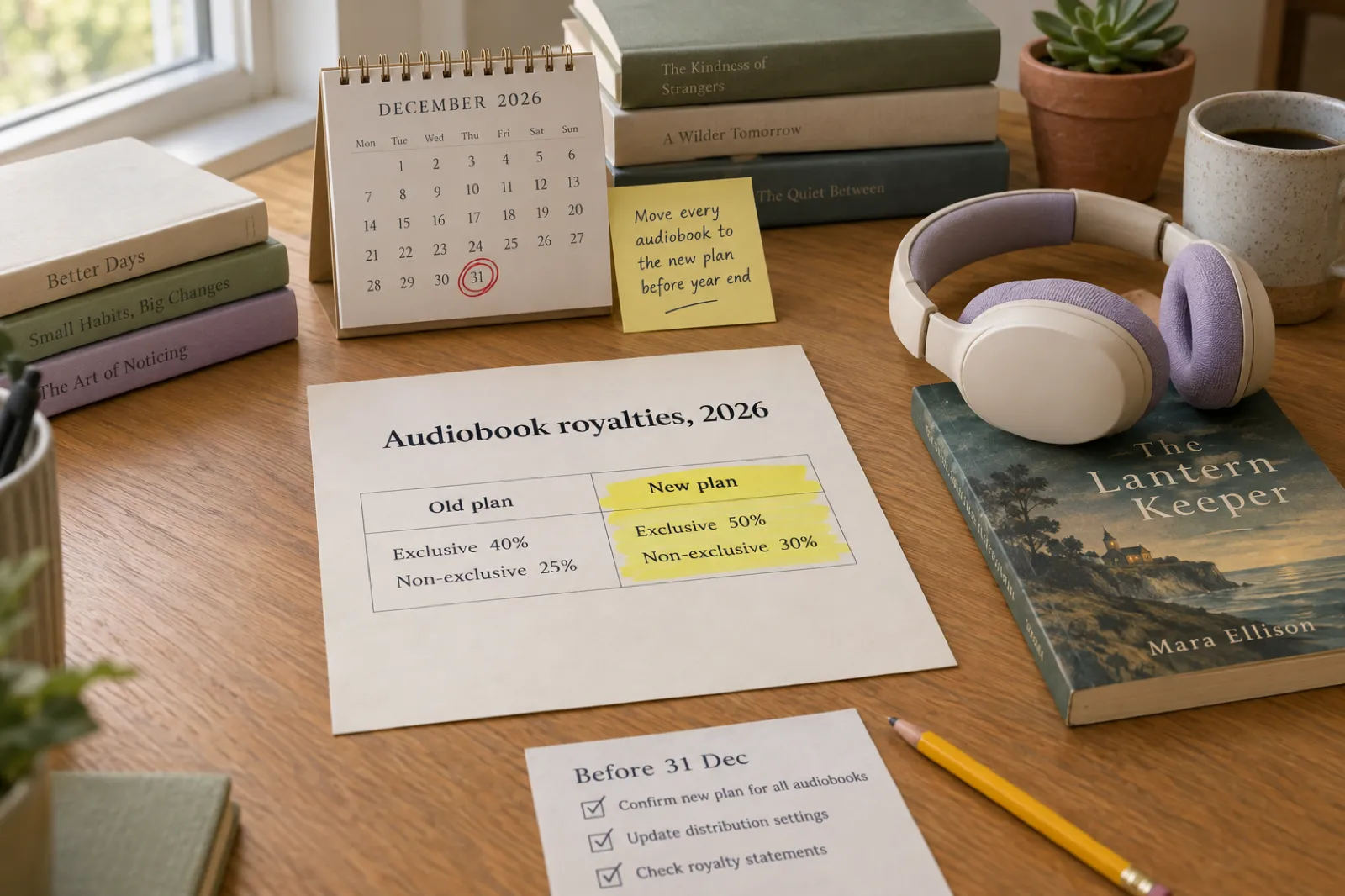
Audible is discontinuing the ACX legacy royalty model by the end of 2026. Every title has to move to the new model (50% exclusive, 30% non-exclusive) or stop distribution. Enrolment takes effect on the 1st of the following month, so November is the safe month to do it. Here is what changes, a worked example, the question ACX's own pages answer two ways, and a checklist.

Get ebook tips in your inbox
Join creators getting weekly strategies for writing, marketing, and selling ebooks. You also get our free PDF guide, Your First Book in a Weekend.