
Updated October 2026 · free calculator · KDP and Google help checked 28 October 2026
Google Docs to KDP: How to Format Your Book for Amazon
You wrote the book in Google Docs. Now Amazon wants a paperback PDF at an exact trim size with a gutter for the binding, and a Kindle file. This guide shows what Docs can do on its own, gives you the exact Page setup numbers for your trim and page count, and shows the shorter route when Docs runs out of road.
By Sam May, founder of Inkfluence AI
Can you publish a Google Docs book on KDP?
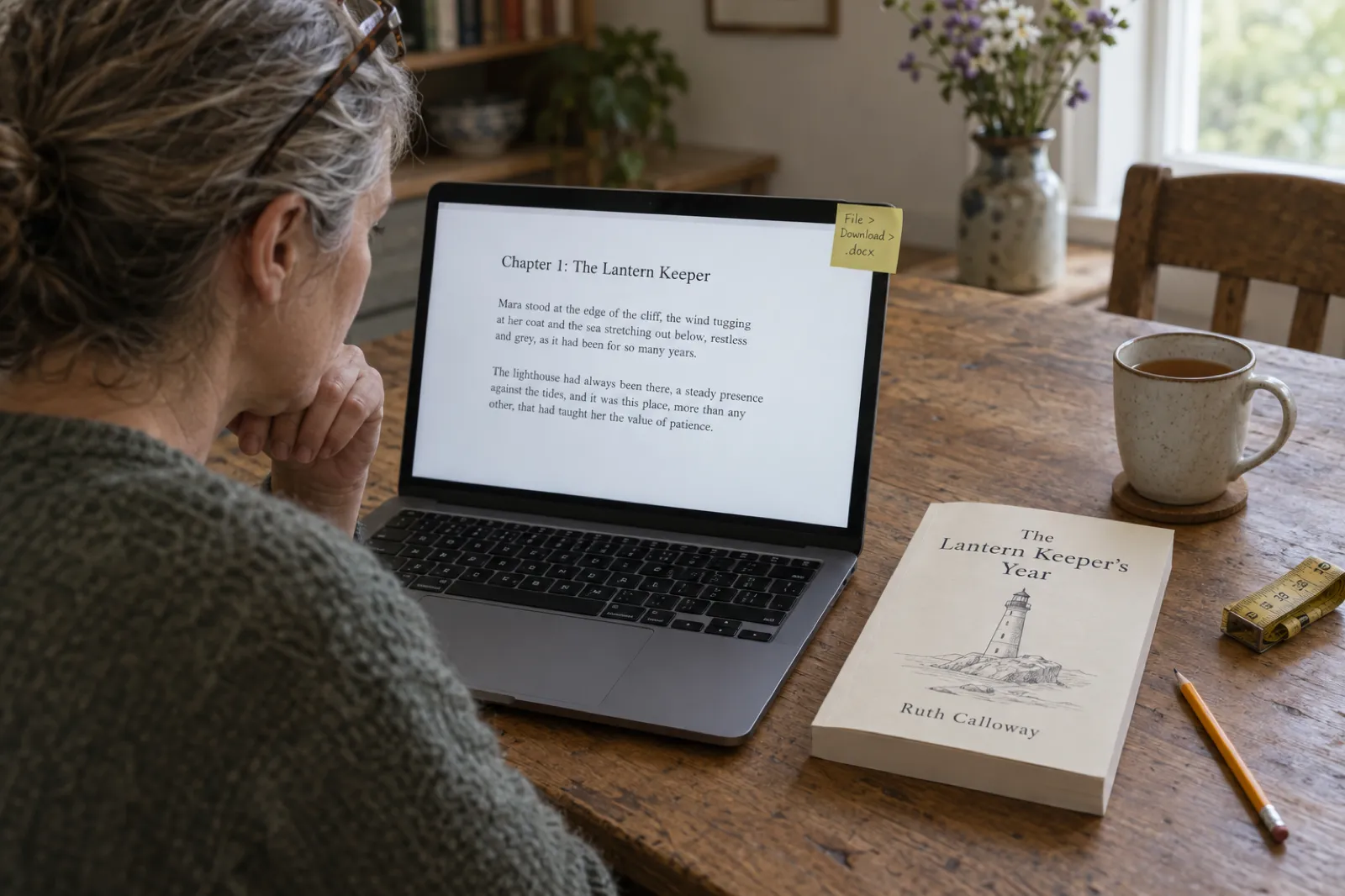
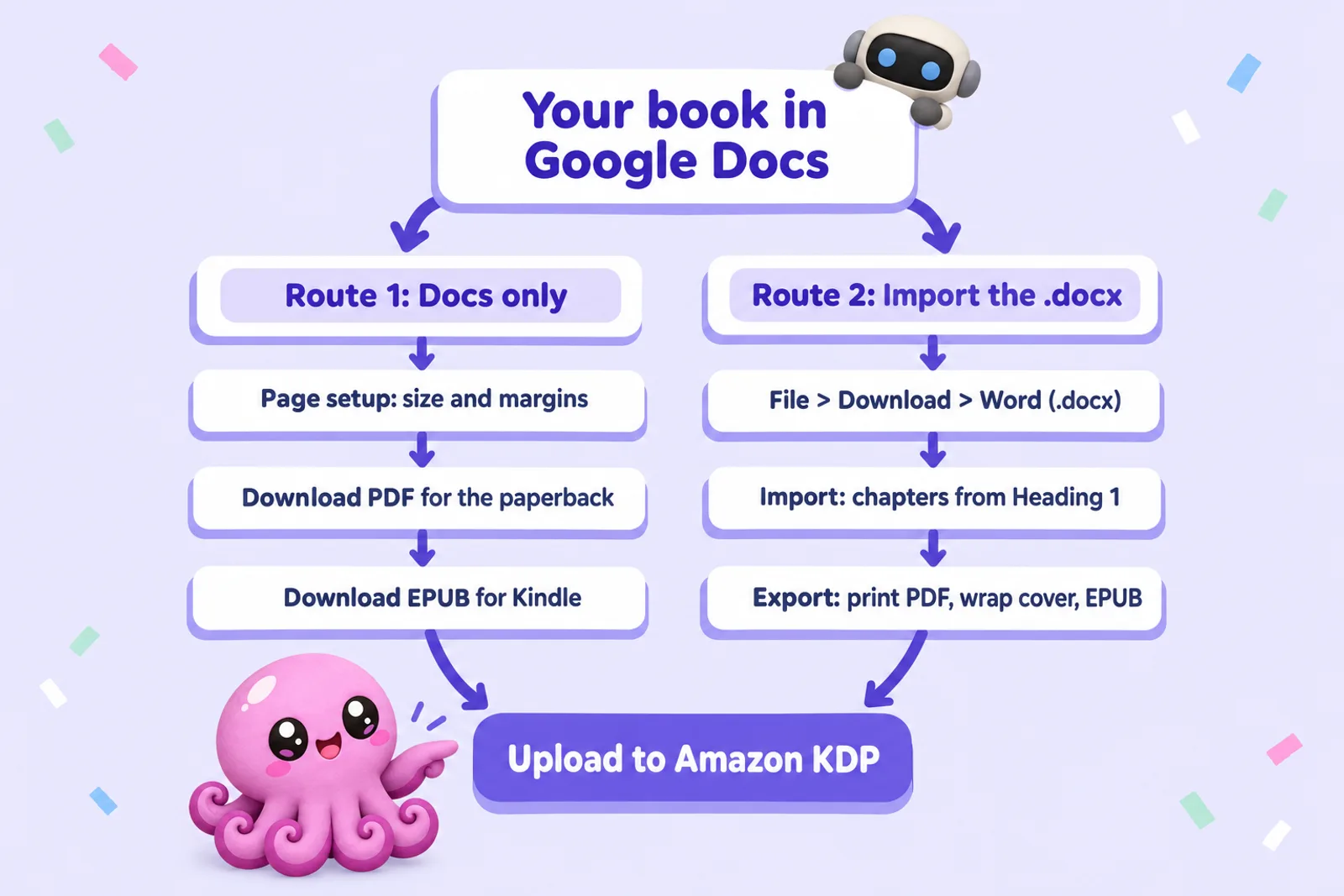
Yes. For the Kindle ebook, download the document as Microsoft Word (.docx) or EPUB and upload that; KDP lists both among its recommended formats. For the paperback, switch the document to Pages, set the paper size to your trim and the margins to KDP's minimums, then download a PDF. The catch is the binding: Google Docs uses the same left and right margin on every page, so both sides must be as wide as KDP's inside margin for your page count (0.5 in for a 200-page book). Docs also has no bleed and no 6 x 9 in paper size. If that is a problem, download the .docx and finish it in a book tool instead.
What Google Docs can and cannot do for a KDP book
Google Docs is a good place to write a book: free, every version saved, and readers can comment in the margin. It was not built to lay out a printed book, though. Here is each thing KDP checks, what Docs offers, and how far apart they are. The KDP column comes from Amazon's trim, bleed and margins and paperback submission guidelines; the Docs column from Google's own help on page settings and headers, footers and page numbers.
| What KDP checks | Google Docs | KDP requirement | Verdict |
|---|---|---|---|
| Page size | A fixed Paper size list. Letter (8.5 x 11 in), Statement (5.5 x 8.5 in) and A4 match KDP trims; 6 x 9 in and 5 x 8 in are not on it. | PDF page size equals the trim size (plus bleed if used). | Partly |
| Inside (gutter) margin | Left and right margins only, the same on every page. No mirrored or gutter setting. | 0.375 to 0.875 in on the binding side, by page count. | Workaround |
| Outside, top and bottom margins | Yes, typed in Page setup. | At least 0.25 in (0.375 in with bleed). | Yes |
| Bleed | No bleed setting; pictures stop at the page edge. | Page 0.125 in wider and 0.25 in taller, PDF only. | No |
| Headers and footers | Yes, with Different first page and Different odd and even. | Optional; keep them inside the margins. | Yes |
| Page numbers | Yes, Insert > Page elements > Page number, with a start page per section. | Even numbers on left pages, odd on right. | Yes |
| Chapters on a right-hand page | No setting. Page breaks only; you add blank pages by hand. | Not required, but expected in most print books. | Manual |
| Table of contents | Yes, Insert > Table of contents, with page numbers or links. | Page numbers in print; links in the ebook. | Yes |
| Print PDF | File > Download > PDF Document (.pdf). | Single pages, fonts embedded, images 300 DPI. | Check it |
| Kindle file | File > Download > EPUB Publication (.epub) or Microsoft Word (.docx). | DOCX, KPF or EPUB are the recommended formats. | Yes |
Two of those rows decide most books. The first is page size. Docs offers a fixed list of paper sizes, and Google's help describes no way to type your own, so a 6 x 9 in book (the most common KDP trim, and the KDP default) needs a page-size add-on from the Google Workspace Marketplace. Three Docs presets are real KDP trims: Statement is 5.5 x 8.5 in, Letter is 8.5 x 11 in, and A4 is 8.27 x 11.69 in. If your book suits one of those, you can skip the add-on. Our KDP trim sizes guide covers which size fits which kind of book.
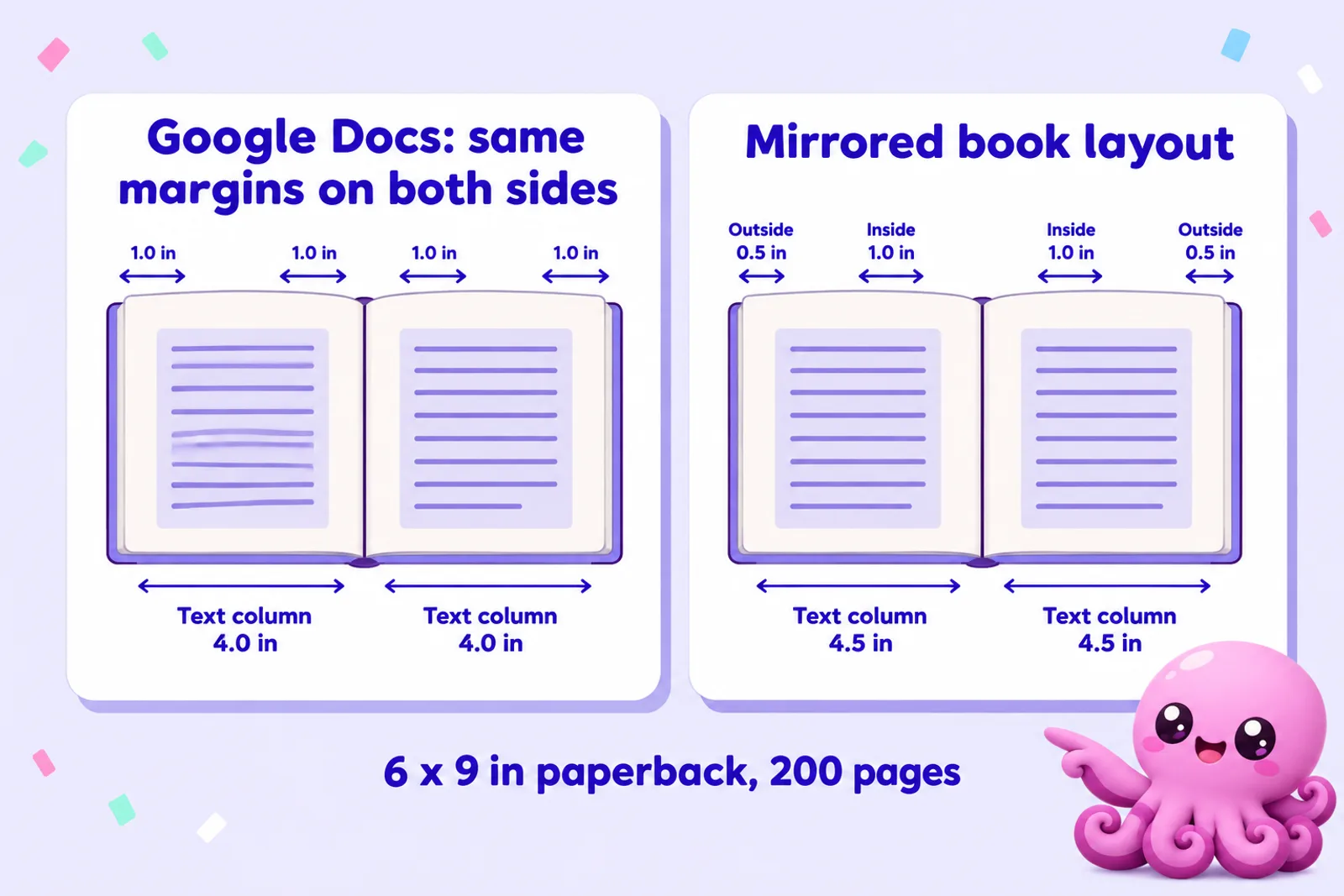
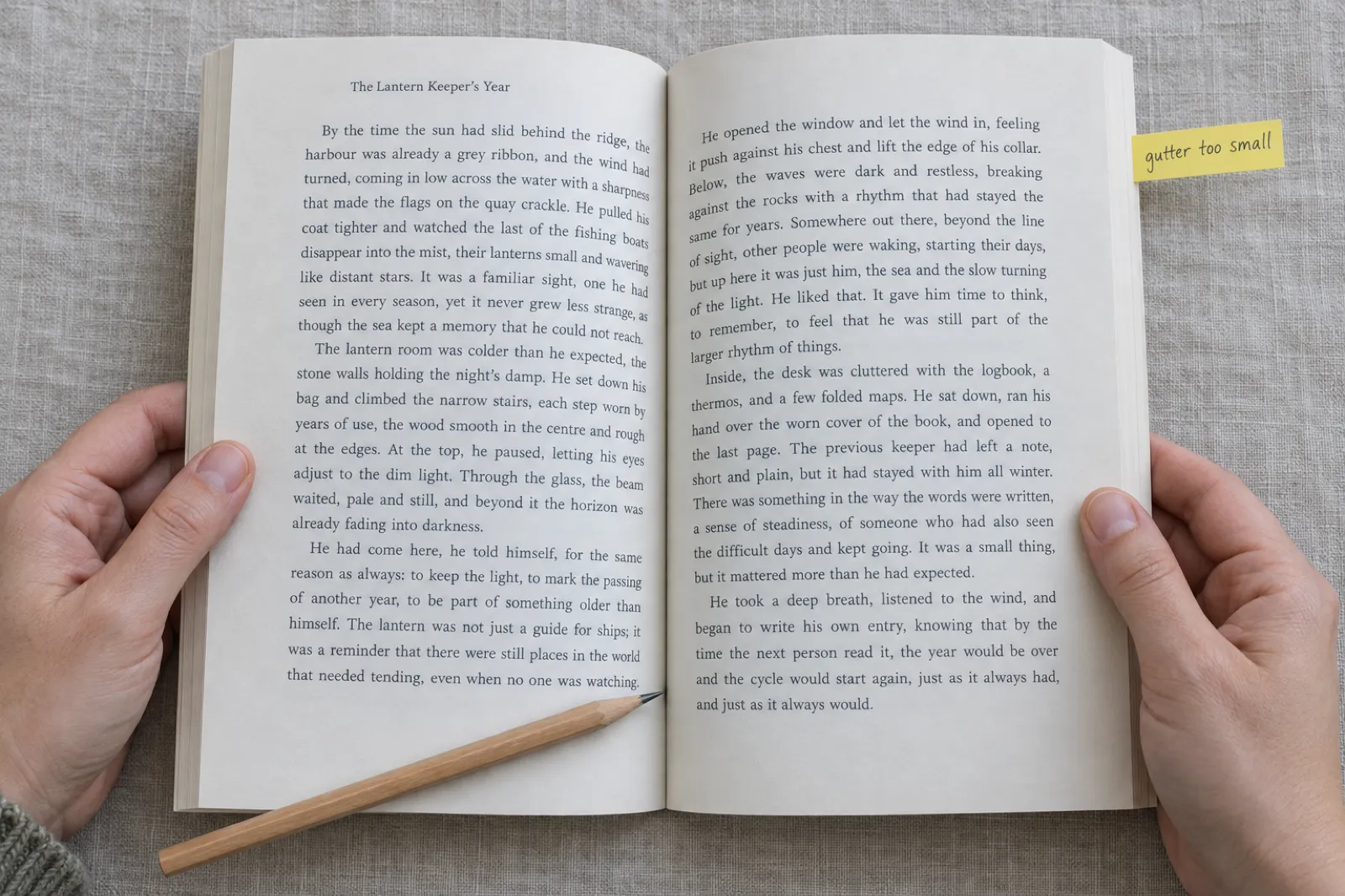
The second is the gutter. A printed book is bound on the inside edge, so the inside margin must be wider than the outside one or the words disappear into the spine. KDP sets a minimum inside margin that grows with the page count, because a thicker book curves more at the binding. Word and layout tools handle this with mirrored margins: the wide margin sits on the right of left-hand pages and on the left of right-hand pages. Google Docs has no mirrored margins. Every page gets the same left and right margin, so the only way to meet KDP's rule is to make both sides as wide as the inside margin. That passes KDP's check. The cost is a narrower text column and a few more pages, which the calculator below shows in numbers.
KDP margin and gutter calculator for Google Docs
Pick your trim size and type your page count. The calculator gives the paper size and the four margins to type into File > Page setup in Google Docs, using KDP's published margin table. It also shows what a mirrored layout would use, so you can see what the Docs workaround costs. It runs in your browser and nothing is sent anywhere.
Paper size in Docs
6 x 9 in
No Docs preset: needs a page-size add-on.
Margins to type in Page setup
Top
0.75 in
Bottom
0.75 in
Left
1 in
Right
1 in
KDP minimum inside margin for 151 to 300 pages: 0.5 in. Left and right are both set to the inside value because Docs cannot mirror them.
What the Docs workaround costs
Text column in Docs: 4 in. With mirrored margins (inside 1 in, outside 0.5 in) it would be 4.5 in, about 13% wider, so the Docs version runs roughly 13% more pages.
Header and footer margins
In the header and footer Options, keep both margins at least 0.25 in so page numbers and running heads stay inside KDP's minimum from the edge.
- Google Docs has no paper size preset for 6 x 9 in. You need a page-size add-on from the Google Workspace Marketplace to set it, or a preset trim (5.5 x 8.5, 8.5 x 11 or A4).
Google Docs Page setup for a 6 x 9 in KDP paperback, 200 pages, no bleed
File > Page setup > Pages
Paper size: 6 x 9 in (needs a page-size add-on)
Top: 0.75 in
Bottom: 0.75 in
Left: 1 in
Right: 1 in
KDP minimum inside margin for 151 to 300 pages: 0.5 in
Margins change the page count. After you download the PDF, check the real count; if it crosses 150, 300, 500 or 700 pages, run the calculator again, because the gutter steps up. Comfortable style: outside 0.5 in, top and bottom 0.75 in, inside = outside + KDP's gutter for the page count. Bleed adds 0.125 in to each. Source: KDP, Set Trim Size, Bleed, and Margins.
Ready-made Docs settings for the three KDP trims Docs has
These sizes are in the Docs Paper size list, so no add-on is needed. Values are for a 200-page book, no bleed, comfortable margins.
| Trim | Docs paper size | Top / bottom | Left / right | Text column |
|---|---|---|---|---|
| 5.5 x 8.5 in | Statement | 0.75 in | 1 in | 3.5 in |
| 8.5 x 11 in | Letter | 0.75 in | 1 in | 6.5 in |
| 8.27 x 11.69 in | A4 | 0.75 in | 1 in | 6.27 in |
6 x 9 in by page count
The gutter grows with the book. These are the left and right values to type in Docs for a 6 x 9 in paperback (with a page-size add-on), top and bottom unchanged.
| Pages | KDP tier | KDP minimum inside | Docs left / right, minimum | Docs left / right, comfortable |
|---|---|---|---|---|
| 120 | 24 to 150 pages | 0.375 in | 0.375 in | 0.875 in |
| 250 | 151 to 300 pages | 0.5 in | 0.5 in | 1 in |
| 400 | 301 to 500 pages | 0.625 in | 0.625 in | 1.125 in |
| 600 | 501 to 700 pages | 0.75 in | 0.75 in | 1.25 in |
| 780 | 701 to 828 pages | 0.875 in | 0.875 in | 1.375 in |
Would rather not do the margin maths?
Download your Doc as Word and import it into Inkfluence AI. Chapters come in from your Heading 1 titles, and the KDP export sizes mirrored margins from the real page count. Importing is free.
Import my bookHow to make a KDP paperback PDF in Google Docs, step by step
This is the Docs-only route for a text book without bleed. It works best on a copy of your manuscript, so the original stays easy to edit: File > Make a copy, and name it something like "Print edition". Menu names below are from Google's help pages, read on 28 October 2026.
- Switch the document to Pages. Open File > Page setup and choose the Pages tab, not Pageless. Google's help says page setup, headers, footers and page numbers are not available in pageless format, and switching to pageless hides any headers you already have.
- Style every chapter title as Heading 1. Select the title and pick Heading 1 from the style menu that normally says "Normal text". Use Heading 2 for sections inside a chapter. Headings drive the table of contents, the document outline on the left, the EPUB chapters and any later import, so this one step pays off three times. Our chapters guide helps if you are still deciding where chapters break.
- Set the body text. Pick a readable book font at 10 to 12 pt and set line spacing a little above single. Then, in the style menu, open the arrow next to Normal text and choose "Update 'Normal text' to match" so the whole book follows. Indent the first line of paragraphs with the ruler or Format > Align and indent > Indentation options, rather than with tabs or spaces.
- Set the paper size. In File > Page setup, open Paper size. For a 5.5 x 8.5 in book choose Statement, for 8.5 x 11 in choose Letter, and for 8.27 x 11.69 in choose A4. For any other trim, install a page-size add-on from the Google Workspace Marketplace and type the width and height from the calculator. Test the add-on's PDF before you rely on it.
- Type the margins. Still in Page setup, enter top, bottom, left and right from the calculator. Left and right are both the inside margin for your page count. If you do not know the page count yet, start with the 151 to 300 page tier and check again at the end. Click Set as default only if you want every new document to use these settings.
- Break pages between chapters. Click just before each chapter title and choose Insert > Break > Page break. Do not press Enter until the text moves down: a later edit shifts everything and leaves half-empty pages. If you want different headers or page numbering in the front matter, use Insert > Break > Section break (next page) after it instead.
- Add front matter. Title page, copyright page and, if you want one, a dedication, each on its own page. Our copyright page template has wording you can adapt, and do you need an ISBN explains what goes on that page. KDP's free ISBN for paperbacks is assigned during setup.
- Add page numbers. Insert > Page elements > Page number. In More options you can choose where numbering applies; Google's help says to add a section break if the option you need is missing. KDP wants even numbers on left-hand pages and odd numbers on right-hand pages, which happens automatically if page 1 is a right-hand page. KDP allows roman numerals in the front matter, but Google's help does not describe that option, so most Docs books simply start numbering at the first chapter.
- Add running heads if you want them. Double-click the top of a page to open the header, then Options. Different first page keeps the header off chapter openings, and Different odd and even (set Apply to Whole document) lets you put the author's name on left pages and the title on right pages, the way most novels do. Set the header and footer margins to the value the calculator shows.
- Insert the table of contents. Put the cursor on its own page after the front matter and choose Insert > Table of contents, picking the style with page numbers. After any edit, click the contents and use the refresh button so the numbers stay right.
- Make chapters start on the right (optional but expected). Docs has no setting for this, so do it last. Download a test PDF, find each chapter that starts on an even page, and add one page break before it. Every added blank page adds to your page count and print cost, and KDP lists "excessive blank pages" among common reasons a file fails review, so many authors skip this in a first book.
- Download the PDF. File > Download > PDF Document (.pdf). Open it and check the page size, the margins and the page count before you go near KDP. The checklist below covers what to look for.
Your cover is a separate file. KDP wants a single PDF with the back cover, spine and front cover side by side, and the spine width depends on the page count and paper. Our KDP cover size and spine width calculator gives the exact dimensions, and the KDP paperback template calculator adds the print cost for your page count. For the full picture of print books on Amazon, see paperback publishing on KDP Print.
How to turn a Google Doc into a Kindle ebook
The ebook is the easier half. A Kindle book reflows to fit whatever screen it is read on, so trim sizes, margins, headers and page numbers do not apply. What matters is clean structure: real headings, real page breaks, and a table of contents made of links.
KDP's ebook manuscript formats page recommends three formats: Microsoft Word (DOC/DOCX), which it says "most" files convert well from; Kindle Package Format (KPF), made with Amazon's free Kindle Create; and EPUB, as long as it meets the Kindle Publishing Guidelines, checked first in Kindle Previewer. Google Docs can produce two of those three directly. Google added EPUB export to Docs in March 2016, announcing it for authors and publishers.
- Work from the edit copy, not the print copy. The ebook does not want your print margins, page numbers or running heads. If you made a print edition copy, go back to the original.
- Check the headings. Every chapter title as Heading 1, every section as Heading 2. The document outline in the left-hand panel lists them; anything missing there will be missing from the Kindle navigation too.
- Insert a page break before each chapter. Kindle starts a new screen at each one.
- Use a linked table of contents. Insert > Table of contents, choosing the style with links rather than page numbers, because an ebook has no fixed pages.
- Keep images simple. One image per line, centred, no text wrapped around it. Text inside images cannot resize on a phone.
- Download. File > Download > EPUB Publication (.epub), or Microsoft Word (.docx). Open the file in Kindle Previewer and page through it on the phone and tablet views before you upload.
- Upload to KDP. In your Kindle eBook's Content page, upload the file as the manuscript and your front cover as a JPG. KDP converts the file and lets you preview it online.
Which file to upload is a judgement call: with the EPUB you see exactly what you send; with the Word file KDP does the conversion, which it says works for most books. If the preview of one looks wrong, try the other. For more on the ebook side, including fonts, images and the formats other stores take, see how to format a book for Kindle and our ebook formats explainer. If you plan to sell beyond Amazon too, publishing an ebook wide covers the other stores.
Where the Docs-only route breaks
Plenty of authors publish a first paperback straight from Docs. These are the points where it stops being worth the effort.
- The trim is not in the list. 6 x 9 in, 5 x 8 in and 5.25 x 8 in are the usual sizes for novels and non-fiction, and none of them is a Docs preset. An add-on can set them, but you are now trusting a third party with your print file.
- The book is long. Without mirrored margins, every extra inch of gutter is lost twice. At 600 pages on 6 x 9 in, comfortable Docs margins are 1.25 in on both sides, leaving a 3.5 in text column, against 4.25 in with mirrored margins. More pages also means a higher print cost per copy.
- Chapters must start on the right. Done by hand, this has to be redone after every edit that moves a page, which in a long book means most edits.
- Anything runs to the edge. Full-page photos, coloured backgrounds, picture books and coloring books need bleed, which Docs does not do at all. Our picture book bleed guide covers those books.
- Front matter numbering. KDP allows roman numerals for front matter and arabic numbers from chapter one. Google's help describes where numbering starts, not number styles, so a traditional book layout is hard to reproduce.
- Fonts. KDP says every font in the interior must be embedded. You cannot set that in Docs, so you have to check the downloaded PDF yourself, as described in the checklist below.
- You need two editions that match. A print copy and an ebook copy drift apart the moment you fix a typo in one.
None of these is a reason to stop writing in Docs. They are reasons to do the layout somewhere else. The four main routes (an AI formatter, KDP's Word template, Google Docs and Canva) are compared in how to format a book for KDP, and best book formatting software reviews the dedicated tools.
Keep writing in Docs, do the layout here
Import the Word file, check the chapter list, add a cover, and export one zip with the paperback interior, the full wrap cover and the Kindle EPUB, numbered by the KDP box each one goes in.
Start with my manuscriptThe faster route: download as Word and import it
Every book tool worth using imports a Word file, and Google Docs exports one in a click. That makes .docx the bridge between where you wrote and where you lay out. Below is the route through Inkfluence AI, our product, with the free and paid parts stated plainly. The same first two steps work for Kindle Create, Atticus or Vellum, which are compared further down.
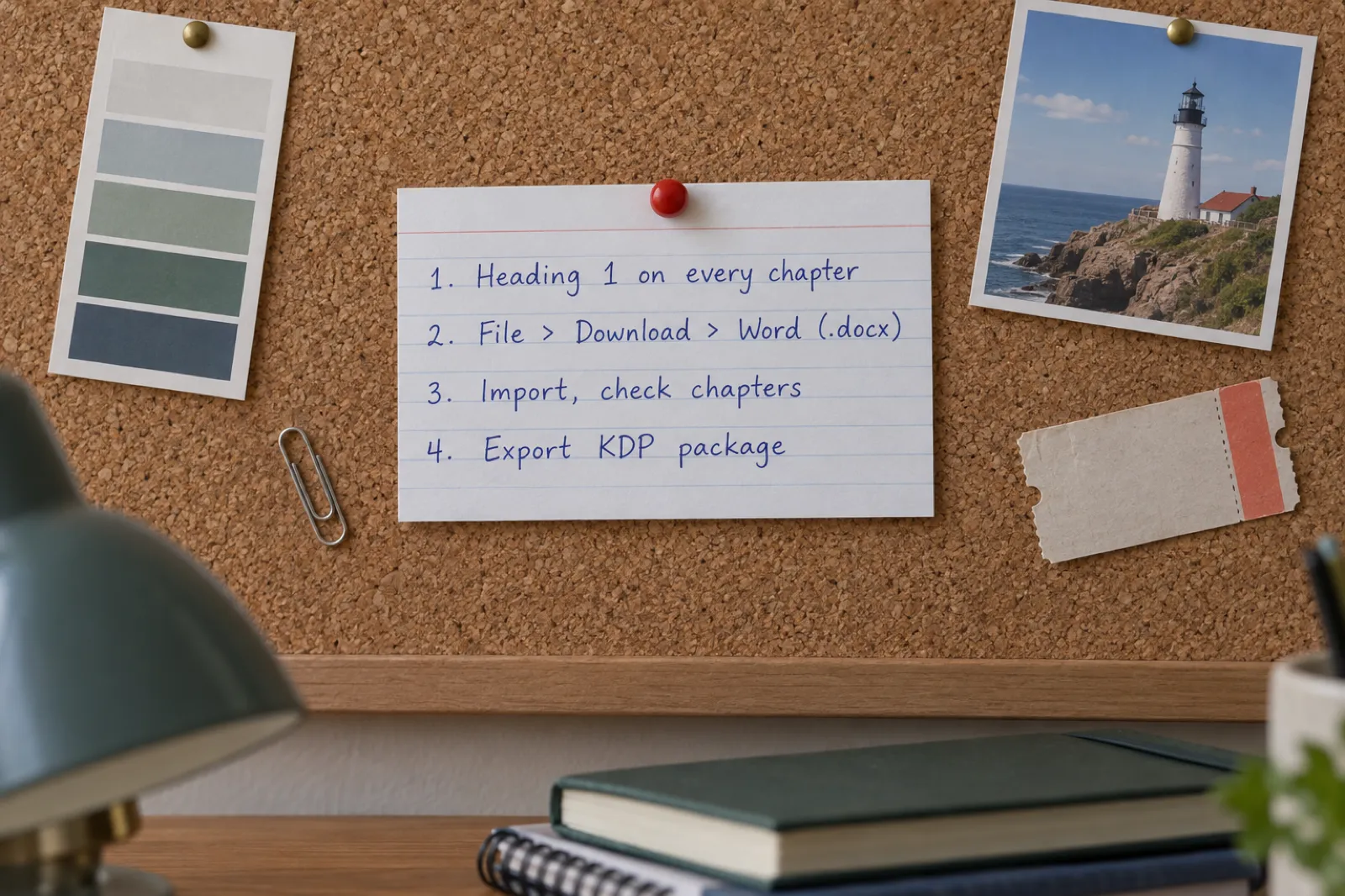
- In Docs, style chapter titles as Heading 1. This is what the import uses to split the book into chapters. Section titles inside a chapter can be Heading 2. If your book's title is at the top in the Title style, leave it: the import keeps it out of the chapter list.
- Download the Word file. File > Download > Microsoft Word (.docx). Images, lists, bold, italic and underline come with it.
- Import it. In Inkfluence AI, click New Book in the top right, then Import a document, or use the Import Content tile on the dashboard, or drop the file anywhere on the dashboard. The import window takes Word (.docx and .doc), PDF, EPUB, TXT and Markdown, and several files at once if your book is split into parts. It now shows a reminder for Google Docs users: File > Download > Microsoft Word (.docx), then drop it here.
- Check the chapter list. The import shows how many chapters it found and what is in each before anything is saved. Chapters split on Heading 1. If the document has no Heading 1 but does use Heading 2, those become the chapters. If it has no headings at all, the import looks for chapter titles in the text, and if it cannot find at least three it brings the book in as one chapter that you can split in the editor. Pictures are moved to storage, so a long illustrated manuscript still saves.
- Edit, then add a cover. The book opens in the editor, split into chapters. Fix anything the import mangled, then design or add a cover; the cover designer's Print tab adds the back cover and spine for the paperback. AI help with editing is there if you want it, and entirely optional for an imported book.
- Export for KDP. Click Export, open the KDP tab, choose a page size (5 x 8, 5.5 x 8.5, 6 x 9, 7 x 10, 8 x 10 and 8.5 x 11 in and A4 are all Amazon.com trims) and click Export KDP Package. One zip downloads with a READ ME FIRST file, the paperback interior PDF, the full wrap cover PDF, the Kindle cover JPG and the Kindle EPUB, each named by the KDP box it goes in.
What the KDP export does that Docs cannot
The interior PDF uses mirrored margins: the wide margin is on the binding side of every page, and the outside margin stays at 0.5 in with 0.75 in top and bottom. The inside margin is 0.75 in for books up to 500 pages, which is what KDP's own manuscript templates use and comfortably above KDP's minimum, and KDP's minimum plus 0.125 in for longer books. It is sized from the real page count after the book is rendered, and the same count sets the spine width on the full wrap cover. The help article exporting your book walks through each file and where it goes in KDP.
What is free and what is paid
- Free on every plan: importing your manuscript, editing it, and exporting a PDF of a book of up to five chapters. On the free plan that PDF carries a small Inkfluence AI credit in the footer and on a closing page, so use it to check the layout rather than to publish.
- Needs a paid plan or a credit pack: the KDP package, the EPUB export and the Word export, and exporting a book of any length. Creator is $9.99 a month, Premium $19.99 a month, and credit packs start at $9.99 for 15 credits; see pricing. On Creator or Premium there is no chapter limit on export. With a credit pack but no plan, the limit is your five free chapters plus the credits you hold.
- Not included anywhere: printing. We export the files; Amazon prints each paperback when a reader orders it.
If you would rather see the import before trying it, our three-minute import walkthrough shows a real Word manuscript coming in, and the importing help articles cover PDFs, EPUBs and several files at once. The AI book formatter page explains the layout side in more depth.
Google Docs vs Kindle Create vs Atticus vs Vellum vs Inkfluence AI
Every option here starts from the same Google Docs manuscript. Prices and platforms come from each product's own site, read on 28 October 2026; Kindle Create's details are from KDP's help. Where a vendor's site did not say, the table says "set in the app" rather than guessing.
| Tool | Price | Runs on | How the Docs book gets in | Paperback file | Ebook file | Trim and margins |
|---|---|---|---|---|---|---|
| Google Docs alone | Free | Browser | It is the manuscript | PDF download; margins set by hand, the same on both sides | EPUB or DOCX download | Three KDP trims as presets; others need an add-on |
| Kindle Create (Amazon) | Free | Windows, Mac | Download .docx, then import (KDP names Google Docs exports) | Paperback from the same project; title and chapter pages on the right | KPF | Resizes content and margins for the trim you choose |
| Atticus | $147 once | Windows, Mac, Linux, Chromebook, browser | DOCX import | Print-ready PDF | EPUB | Set in the app |
| Vellum | $199.99 ebooks, $249.99 with paperbacks, once | Mac only | .docx import | Print files with Vellum Press | Ebook files | Set in the app |
| Inkfluence AI (our product) | Free to import; KDP files on Creator $9.99/mo, Premium $19.99/mo or a credit pack from $9.99 | Browser | DOCX import, chapters from Heading 1 | KDP package: interior PDF with mirrored margins sized from the real page count, plus full wrap cover PDF | EPUB (in the package and on its own) | 5 x 8, 5.5 x 8.5, 6 x 9, 7 x 10, 8 x 10, 8.5 x 11, A4 |
Kindle Create is Amazon's own free tool and the natural next step for a text-only novel. KDP's help says it imports DOC or DOCX files "including exports from Word, Pages, and Google Docs", resizes content and margins for the trim you choose, and puts title and chapter pages on the right-hand side automatically. Its limits are in the same help page: tables, lists and footnotes cannot be edited inside it, and inline images cannot be edited either. KDP: Kindle Create.
Atticus costs $147 once, runs on Windows, Mac, Linux and Chromebook or in a browser, imports DOCX and exports a print-ready PDF and EPUB (atticus.io). Vellum is $199.99 for ebooks or $249.99 with paperbacks, one-time, Mac only, and imports any .docx file (vellum.pub, purchasing, importing). We compare each with Inkfluence AI in detail in Inkfluence AI vs Atticus and Inkfluence AI vs Vellum.
Which one? A short, text-only book in 5.5 x 8.5 or 8.5 x 11 in can stay in Docs. A novel going to 6 x 9 in with no budget fits Kindle Create. A Mac user who will publish many books may find Vellum worth the one-time price; on Windows or a Chromebook, Atticus is the closest equivalent. If you want the print interior, the wrap cover and the EPUB from one import, in a browser, with AI help for editing or for writing the next book, that is what Inkfluence AI is for.
Checks before you upload a Docs-made file to KDP
KDP reviews every file, and its submission guidelines list the usual reasons a print file fails. Run through these on the downloaded PDF, whichever route you took.
- Page size equals the trim. Without bleed, KDP says to set the page size to your trim, width by height. Open the PDF's document properties and check the page size reads, for example, 6 x 9 in, not Letter.
- Inside margin meets the tier. 0.375 in up to 150 pages, 0.5 in to 300, 0.625 in to 500, 0.75 in to 700, 0.875 in to 828. A KDP review that says "insufficient gutter" means this one.
- At least 0.25 in everywhere else. Top, bottom and outside, including page numbers and headers. With bleed, 0.375 in.
- Fonts embedded. KDP: "All fonts in the interior files should be embedded." In a PDF reader, open File > Properties > Fonts and check each font says Embedded or Embedded Subset.
- Images at 300 DPI. KDP's minimum. A picture that looks sharp on screen can print soft; check it at its printed size.
- Single pages. KDP requires single pages, not two-page spreads.
- At least 24 pages. KDP's minimum, and the page count is rounded up to an even number.
- Nothing left over. No comments, suggestions, placeholder text or highlights. Accept or reject every suggestion in Docs before you download.
- Not too many blank pages. KDP lists excessive blank pages as a common point of failure.
Then order a printed proof before you publish; it is the only way to see the gutter as a reader will. If KDP does send the file back, KDP rejected my book decodes each email. Two other things to settle on the KDP side: if any of the book's text or images were made with AI, KDP asks you to say so, which our KDP AI disclosure guide explains; and the KDP self-publishing guide covers the listing, pricing and categories. Publishing for a season? The KDP publishing calendar and KDP Christmas deadlines count back from the date.
How this page was made
Who: Sam May, founder of Inkfluence AI. More on the about page. Inkfluence AI is our product; it appears in the comparison with its real prices and limits.
Method: the KDP rules and the margin table in the calculator are from Amazon's help pages, and the Google Docs features from Google's help pages, all read on 28 October 2026 and linked below. Competitor prices are from each product's own site that day; Inkfluence AI's import, export and plan rules were checked against the app's code. The comfortable margin style (0.5 in outside, 0.75 in top and bottom, inside equal to outside plus KDP's gutter) is our recommendation, not a KDP rule; the minimum style is KDP's rule. Google Docs paper size presets were recorded on our KDP paperback template page on 22 October 2026. The photographs and diagrams were made for this page; the book in them is invented. AI tools helped with drafting, and every figure was checked against its source.
Sources
- KDP Help: Set Trim Size, Bleed, and Margins (trims, bleed, margin table)
- KDP Help: Paperback Submission Guidelines (page size, fonts, 300 DPI, page numbers, blank pages)
- KDP Help: Print Options (trim and page count ranges)
- KDP Help: eBook Manuscript Formats (DOCX, KPF, EPUB)
- KDP Help: Kindle Create (Google Docs exports, trims, right-hand chapter pages)
- Google Docs Editors Help: Change page settings (Pages and Pageless, paper size, margins, section breaks)
- Google Docs Editors Help: Use headers, footers, page numbers and footnotes
- Google Workspace Updates: Export Google Docs files as EPUB publications (7 March 2016)
- Atticus; Vellum, Vellum purchasing, Vellum importing
Amazon, Kindle, KDP and Kindle Create are trademarks of Amazon.com, Inc. or its affiliates; Google Docs is a trademark of Google LLC; Word is a trademark of Microsoft; Atticus and Vellum are trademarks of their owners. Inkfluence AI is independent and is not affiliated with or endorsed by any of them. Found something out of date? Tell us on the contact page.
Questions about Google Docs and KDP
Can you format a book for KDP in Google Docs?
What margins should I use in Google Docs for KDP?
How do I make a 6 x 9 book in Google Docs?
Can I upload a Google Doc straight to KDP?
Is the Google Docs EPUB export good enough for Kindle?
Why does KDP say my Google Docs PDF has insufficient gutter?
How do I start every chapter on a right-hand page in Google Docs?
What is the fastest way to get a Google Docs book onto KDP?
Does Inkfluence AI print my paperback?
Do I need bleed for a book written in Google Docs?
Related tools and guides
Calculator
KDP paperback template
Page size, spine width and print cost.
Guide
How to format a book for KDP
Four routes compared, with a margin checker.
Ebook
Format a book for Kindle
Headings, contents, images and previewing.
Video
Import your manuscript
A Word file coming in, in three minutes.
Cover
KDP cover size calculator
Full wrap and spine width for your page count.
Tools
KDP tools
Every free KDP calculator and checker in one place.
Your book is written. The layout is the easy part.
Download your Google Doc as Word and import it free. Check the chapters, add a cover, and export the paperback interior, the wrap cover and the Kindle EPUB in one zip when you are ready.