
How to Make an Ebook for Free (and From a PDF) in 2026
Every free way to make a real ebook in 2026: which free tool exports which format, what Amazon KDP accepts today, and how to turn a PDF into an ebook without wrecking the layout.
Quick Answer
Yes, you can make an ebook for free. Our pick is Inkfluence AI's free plan: write a book or import a Word file, EPUB or text-based PDF, edit it, and download a finished PDF ebook (free exports carry a small credit; EPUB needs a plan or credit pack). For a free EPUB, write in Google Docs, Apple Pages or LibreOffice and export one, or upload a Word file straight to Amazon KDP. Starting from a PDF? Go back to the original Word or Docs file if you have it.
Updated 9 October 2026. Every vendor fact below was checked on the vendor's own page that day.
Making an ebook costs nothing in 2026. The tools are free, Amazon charges nothing to publish, and a PDF or EPUB is just a file. What costs time is picking the wrong route: writing in a design tool that cannot make an EPUB, or feeding a PDF to a converter and getting a page of broken lines back.
This guide is the neutral version. It lists the free tools, says exactly which file each one gives you, and checks each against what Amazon KDP accepts today (MOBI is gone, KPF is recommended, PDF works in only nine languages). It also covers the part most guides skip: what really happens when you turn a PDF into an ebook, and when you should not try. If you want the full process from idea to launch, our step-by-step ebook creation guide covers topic, outline and promotion. This page is about the file.
The short answer: four free routes
Where you start decides the route. There are only four starting points that matter.
- You have an idea, or a few notes. Write the book somewhere that can export an ebook. Inkfluence AI lets you write (or draft chapters with help), edit and download a PDF ebook on the free plan. Google Docs, Apple Pages and LibreOffice Writer all export an EPUB from the File menu, also free.
- You have a Word file. Upload the DOCX to Amazon KDP, which converts it for Kindle. Or open it in Kindle Create (free from Amazon) to make a KPF, the file KDP recommends. Or import it into Inkfluence AI to edit, add a cover and export a PDF.
- You have a PDF. Find the file that made the PDF first. If there is none, a text-based PDF can go through Calibre (free) or be imported into Inkfluence AI and rebuilt as a new book. A scanned PDF needs OCR before anything else.
- You want a designed PDF to sell on Gumroad or Etsy, or give away as a lead magnet. You do not need an EPUB at all. Inkfluence AI, Canva and any word processor will give you a PDF.
The table below shows what each of those free tools actually produces, so you can see which route ends in the file you need.
Which free tool exports what (October 2026 table)
| Tool | Cost | Gives you | Reflowable EPUB? | Best for | Watch out for |
|---|---|---|---|---|---|
| Inkfluence AI (free plan) | Free; paid from $9.99 | PDF on the free plan; EPUB, DOCX and a KDP package with a plan or credit pack | Yes, on a plan or with credits | Writing, importing (DOCX, EPUB, PDF, TXT, Markdown) and finishing a book in one place | Free PDFs carry a small footer credit and a closing credit page; scanned PDFs are refused |
| Google Docs | Free | EPUB, PDF, DOCX and more | Yes | Plain text-led books | Use Heading styles or the chapters will not split |
| Apple Pages | Apple app for Mac, iPhone and iPad; Creator Studio subscription optional | EPUB (reflowable or fixed), PDF, Word | Yes, from portrait templates | Mac, iPhone and iPad writers | Landscape templates export fixed layout only |
| LibreOffice Writer | Free | EPUB (reflowable or fixed), PDF, DOCX | Yes | Windows and Linux users who want EPUB without an account | Set the split to "Heading" so each chapter is its own section |
| Microsoft Word | Microsoft 365 app | DOCX, PDF | Not built in; use the free WordToEPUB tool on Windows | KDP uploads (KDP accepts DOCX) | Complex layouts may not convert well |
| Reedsy Studio | Free core; $4.99 or $7.99 a month for extras | EPUB, print-ready PDF | Yes | Novels and memoirs typed from scratch | Browser-based; you write inside Reedsy's editor |
| Kindle Create | Free (Windows, Mac) | KPF from a Word file; Print Replica KPF from a PDF | KPF, not EPUB; for KDP only | Amazon-only books | The PDF path keeps the page layout and readers cannot resize the text |
| Calibre | Free, open source | Converts between EPUB, AZW3, DOCX, PDF and more | Yes | Converting files you already have | PDF is its weakest input format |
| Canva (free plan) | Free; Pro is paid | PDF Standard, PDF Print, images | No (designs are fixed pages) | Short, visual PDFs and lead magnets | Long text is slow to lay out page by page |
Checked against each vendor's own page on 9 October 2026. Prices change; see Sources.
Three things the table makes clear. First, an EPUB is free in several places, but only from a word processor or a dedicated writing tool, never from a design tool. Second, you do not need an EPUB for Kindle: KDP takes a Word file directly. Third, the tool you write in matters less than whether you use real headings. Every EPUB exporter on the list builds the table of contents and the chapter breaks from your heading styles. Bold, large text that is not a heading is just a paragraph to them.
We put Inkfluence AI first because it is the only free option on the list that covers all four starting points: you can write from scratch, bring in a Word file, an EPUB or a text PDF, edit the chapters, design a cover and download a finished book from one dashboard. The free plan has real limits, which we spell out in Where free stops: the free export is a PDF with a small credit, and EPUB or DOCX needs a plan or a credit pack. If you want a different comparison, we also keep a longer list of ebook creators and one for Mac ebook apps.
Which free route fits your file?
Open the line that matches what you have right now. Each one tells you the route, the file you will end up with and the one thing to watch out for.
I have nothing yet, just an idea
For Kindle, Apple Books or Kobo: write in Google Docs, Pages or LibreOffice with Heading 1 chapter titles and export an EPUB. Or write in Inkfluence AI and export an EPUB with a plan or credits.
To sell as a PDF or give away: start a book in Inkfluence AI, shape the chapters with the outline generator, and download the PDF free.
Watch out for: skipping the outline. A ten-line chapter plan saves more time than any tool.
I have a Word file or a Google Doc
For Kindle: upload the DOCX to KDP, or open it in Kindle Create and generate a KPF. Check it in Kindle Previewer first.
For Apple Books, Kobo or Google Play: export an EPUB from Google Docs, or run the DOCX through Calibre or WordToEPUB.
To sell as a PDF: import it into Inkfluence AI, add a cover and export the PDF. Images in Word files come across.
Watch out for: chapter titles typed in bold instead of styled as Heading 1.
I have a Pages document
Anywhere: File, Export To, EPUB, and choose reflowable for a novel or guide. Pages also exports Word for KDP.
Watch out for: landscape (page-layout) templates, which can only export a fixed-layout EPUB.
I have a PDF and I can select the text in it
First: look for the Word, Docs or Pages file that made it. That converts cleanly; the PDF will not.
No source file, going to Kindle: convert with Calibre and clean up, or import the PDF into Inkfluence AI, check the chapters and export an EPUB with a plan or credits.
No source file, selling as a PDF: import it, fix it in the editor, put a new cover on it and export the PDF free.
Watch out for: tables, two-column pages and footnotes. See what gets lost.
I have a scanned PDF (I cannot select the text)
Route: run OCR first to turn the page images into text, then treat the result like a text PDF and proofread every page. No converter on this list (including ours) can read a scan without OCR.
Watch out for: OCR errors in names, numbers and hyphenated words.
I have a Canva design
To sell or give away: download PDF Standard for screens or PDF Print for printing. You are done.
For Kindle or Apple Books: copy the text into a word processor and build a reflowable EPUB. A Canva PDF can go to KDP (in nine languages), but it converts worse than a Word file.
Watch out for: text placed inside images. It will not survive any conversion.
Which format you actually need
Four file types cover almost every case. Pick by where the book is going, not by what sounds most professional.
- EPUB is the reflowable ebook format. Text resizes and rewraps on any screen, which is what readers on phones and e-readers expect. Apple Books, Kobo and Google Play take EPUB, and KDP accepts it too if it meets the Kindle Publishing Guidelines.
- PDF is fixed pages: every reader sees the page exactly as you designed it. It is the right file for selling direct on Gumroad, Etsy or your own site, for lead magnets and workbooks, and for printing. It is the wrong file for a novel on a 6-inch e-reader.
- DOCX is a perfectly good upload for KDP. Amazon says most Word files convert well, with the caveat that complex formatting may not.
- KPF is what Kindle Create produces. KDP calls it a go-to method for avoiding formatting issues, because Amazon's own tool built it. It only works on KDP.
What about MOBI? Stop following guides that say "MOBI for Kindle". Amazon's own format page says: "Effective March 2025, we will no longer accept MOBI files for fixed-layout eBooks." For a normal reflowable book, upload DOCX, EPUB or KPF instead. Our ebook formats explainer goes deeper on the differences.
Most people need a PDF more often than they think. Across 20,010 exports on Inkfluence AI, PDF was chosen nearly 9 times in 10, far ahead of DOCX and EPUB; the reasons are in our PDF export data study.
| Where it will be sold or read | File to make | Free way to make it |
|---|---|---|
| Amazon Kindle (KDP) | DOCX, EPUB or KPF | Upload a Word file, or make a KPF in Kindle Create |
| Apple Books, Kobo, Google Play | EPUB | Export from Google Docs, Pages or LibreOffice |
| Gumroad, Etsy, your own site | PDF (add an EPUB if readers ask) | Inkfluence AI free plan, any word processor, Canva |
| Email list lead magnet | Inkfluence AI, Canva, Google Docs | |
| Print (paperback) | Print PDF at trim size, plus a wrap cover | Reedsy Studio, LibreOffice; see our print-ready PDF guide |
How to make an ebook for free, step by step
The steps below use Google Docs because it is free, runs on any computer and exports an EPUB in one click. The same rules apply in Pages and LibreOffice. Short notes for Word, Pages, Canva and Inkfluence AI follow.
1. Write with real headings
Set every chapter title to Heading 1 and every section inside a chapter to Heading 2, using the style menu, not bold text. The EPUB export uses those styles to split the book into chapters and to build the table of contents a reader taps on their device. This one habit fixes most "my ebook is one giant chapter" problems before they start.
2. Add the front matter
Before chapter one, add a title page (title, subtitle, your name), a short copyright line (the year and your name are enough for most self-published books), and an optional dedication. Leave the contents page out if you are making an EPUB: readers' devices build their own from your headings, and a typed contents list with page numbers means nothing on a screen with no fixed pages.
3. Put images in line with the text
Insert pictures "in line" so they sit between paragraphs. Floating images, text wrapped around pictures and text boxes are positioned for a fixed page; in a reflowable ebook they drift or vanish. Keep images to the width of the page and use JPEG or PNG.
4. Export the EPUB
In Google Docs, choose File, Download, EPUB Publication (.epub). Google has offered this export since 2016, and its current help pages list EPUB among the formats you can export. The file lands in your downloads folder, ready to open.
5. Check it on a real reader
Open the EPUB in Apple Books, in Calibre's free viewer, or in Kindle Previewer, which Amazon describes as "a free desktop standalone application" for checking how a book will look on Kindle. Look for three things: does each chapter start on a new screen, does the table of contents work, and do the images sit where you expect. Change the font size while you check; that is the test a reflowable book has to pass.
6. Make a cover
The cover is a separate image file, not a page in the document. For KDP, Amazon recommends 2,560 pixels high by 1,600 pixels wide, JPEG preferred, 5MB or smaller. More on free cover options below.
In Microsoft Word
Word saves DOCX and PDF; it has no built-in EPUB export. For Kindle you do not need one: save the DOCX and upload it to KDP, or open it in Kindle Create, which "works with .doc and .docx files exported from any source, including Microsoft Word, Apple Pages, Google Docs". For other stores on Windows, the free WordToEPUB tool from the DAISY Consortium turns a Word file into an EPUB 3. The heading rule from step 1 still applies.
In Apple Pages
Pages exports EPUB on Mac, iPhone and iPad. Pick a portrait (word-processing) book template so you can choose a reflowable EPUB, which is the right choice for novels and guides. Landscape (page-layout) templates export fixed layout only, which suits picture books and cookbooks but reads badly on a phone.
In Canva
Canva is a design tool, so it is very good at a designed PDF and the wrong tool for a reflowable ebook. Download PDF Standard for a book people read on screens, or PDF Print (300 dpi, with bleed and crop marks) for printing. If you also need an EPUB, write the text in a word processor and use Canva only for the cover.
In Inkfluence AI
Start a new book from an idea, or use Import content to bring in a Word file, EPUB, PDF or plain text. The editor shows the book as chapters, so the heading problem from step 1 is solved for you. Edit, pick a cover, then export. On the free plan you get a PDF with a small footer credit and a closing credit page; a plan or any credit pack unlocks EPUB, DOCX and the KDP package. If you want help drafting chapters, the free plan includes 5 chapters to start and 5 more each month; the AI side of that is covered in our free AI ebook writer guide.
Write it, import it, or finish it free
Start a book or bring in a Word file, EPUB or text PDF on the free plan. Edit the chapters, add a cover and download a PDF ebook today.
Make your ebook freeHow to make an ebook from a PDF
This is the question most guides answer with a converter link and nothing else. The honest answer has three parts: try not to convert at all, test whether your PDF can be converted, then pick a route knowing what will break.
First, find the source file
The best PDF conversion is no conversion. A PDF is a picture of pages: every line of text is pinned to a position on a fixed sheet. The Word, Google Docs or Pages file that produced it still knows which lines are headings, where paragraphs end and which picture belongs to which caption. Convert that file and almost everything carries over.
Calibre, the free converter most guides send you to, says it plainly in its own manual: "PDF documents are one of the worst formats to convert from. They are a fixed page size and text placement format." Its FAQ ranks 16 input formats from best to worst, and PDF comes last. So check your email attachments, your cloud drive and whoever designed the PDF before you start converting.
Inkfluence AI data
One in three files people bring into Inkfluence AI is a PDF
8,527 imports between 23 June and 9 October 2026. Word files are still the most common starting point.
Method: every project created by import from 23 June 2026 (the day the current PDF importer went live) to 9 October 2026, counted by file type. Free accounts alone show the same PDF share (2,199 of 6,637, 33%). Scanned PDFs are refused before a book is created, so they are not counted. Pasted text is saved as Markdown, which is why the two share a bar. Usage mix only.
That mix backs both halves of the advice. PDFs are a very common starting point, so it is worth knowing how to handle one. But Word files are more common still, and if a Word file exists behind your PDF, it is the better thing to start from.
Will my PDF convert? A 30-second test
Open the PDF and tick each line that is true.
All five ticked: convert it. Expect a short cleanup.
First one ticked, one or two others not: convertible, but plan an hour of fixing per few chapters, or find the source file.
First one not ticked: it is a scan. Run OCR first; nothing can convert it until then.
Route A: Calibre (free, Windows, Mac and Linux)
- Install Calibre from calibre-ebook.com and add the PDF to your library.
- Select it, choose Convert books, and set the output format to EPUB (or AZW3 for your own Kindle).
- Under PDF input, adjust the line un-wrapping factor if sentences come out broken across lines.
- Use Search and replace to remove running headers, footers and page numbers, which Calibre otherwise leaves in the middle of your text.
- Convert, open the result in the viewer and fix the chapter breaks.
Calibre's manual is unusually honest about the limits. It says "PDF is a really, really bad format to use as input" and lists what it cannot do: multi-column and image-based documents are not supported, vector images and tables are not extracted, links and tables of contents are not supported, fonts embedded without Unicode can come out garbled, and right-to-left text and maths fail. If your PDF is a novel in one column, Calibre does a fair job. If it is a workbook full of tables, it will not.
Route B: Kindle Create's PDF path makes a Print Replica
Kindle Create accepts PDFs, but read what it makes. Amazon's help page says "Kindle Create converts your PDF files into Print Replica eBooks", which keep the formatting and layout of the print edition but "don't allow the reader to resize text" and are only available on certain devices: Fire tablets and the free Kindle reading apps. Print Replica is not supported in Japanese. That suits a textbook, a cookbook or a heavily designed guide. It does not give you a normal Kindle book that flows on an e-ink Kindle.
Route C: upload the PDF straight to KDP
KDP lists PDF among its "additional accepted formats", with a hard limit: "We only support PDF files in the following languages: English, French, German, Italian, Portuguese, Spanish, Catalan, Galician, and Basque." Amazon still converts the PDF to a Kindle book, so the same column, table and header problems apply. Always preview the result before you publish.
Route D: import it into Inkfluence AI and rebuild it
Import is free on every plan, with no chapter cap on imported books. Drop a text-based PDF into Import content: Inkfluence AI reads the text, strips running headers and page numbers, finds the chapters and opens the book in the editor. From there you can fix anything the PDF mangled, rewrite sections, add a cover and export. A PDF export is free; EPUB, DOCX and the KDP package need a plan or a credit pack.
The limits, plainly. Scanned or image-only PDFs are refused with the message "No text found in PDF", so OCR them first. Images and the original cover do not come across from a PDF (they do from DOCX and EPUB imports), so the book gets a fresh cover you can change. And check the chapter breaks before you export, because a PDF has no real headings to go on. If your goal is turning a PDF into a new, longer or reworked book rather than a straight conversion, the PDF to ebook maker page shows that workflow.
What gets lost in any PDF conversion
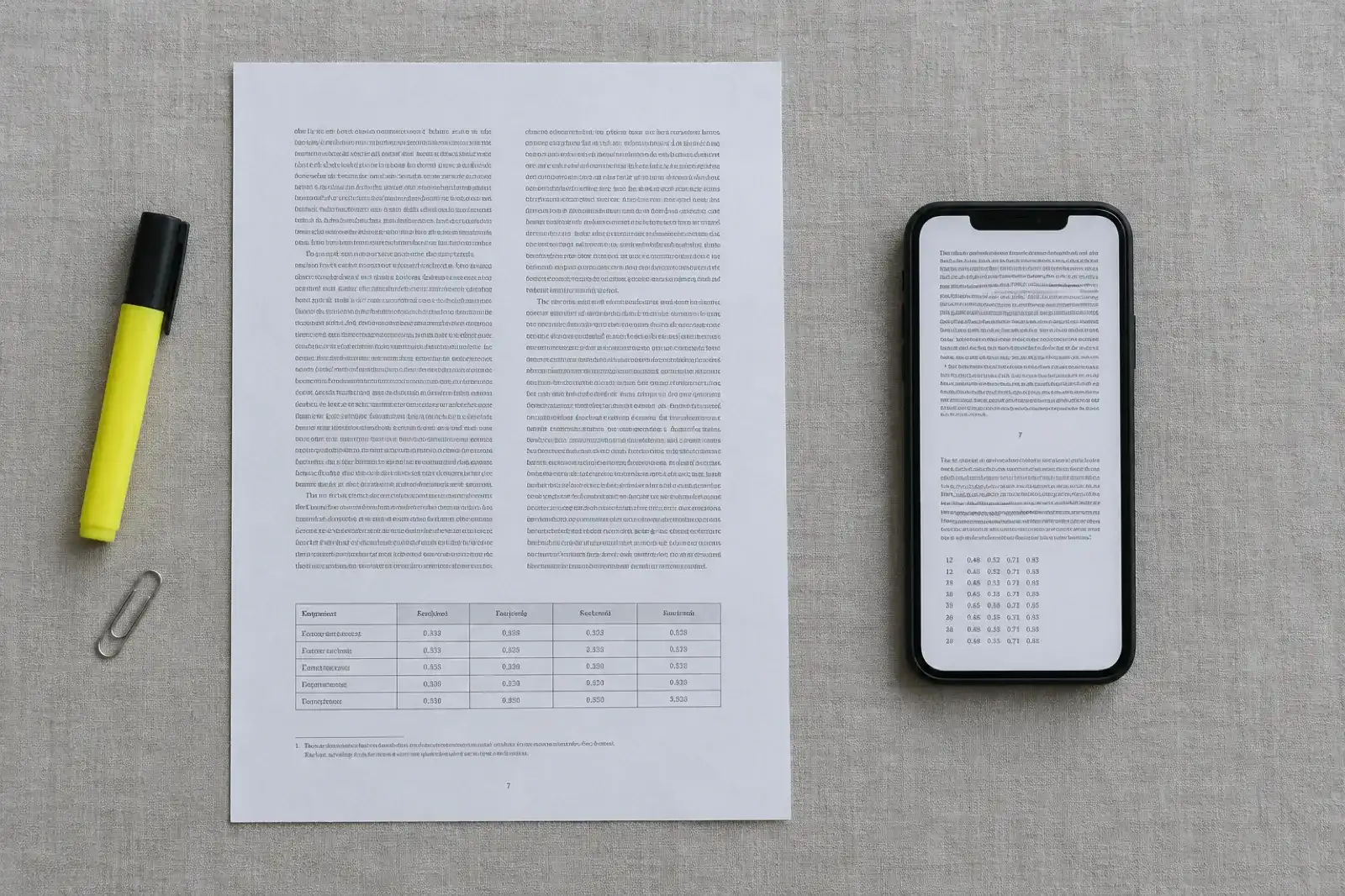
Whichever route you choose, these are the parts of a PDF that do not survive cleanly. Knowing them in advance turns a frustrating afternoon into a checklist.
| PDF element | Survives? | Fix |
|---|---|---|
| Body text in one column | Yes, mostly | Check for lines broken mid-sentence |
| Running headers, footers, page numbers | Left in the text by most converters | Remove them (Calibre: Search and replace); you do not want them in an ebook |
| Chapter headings | Often become plain paragraphs | Re-mark them as headings so the contents page works |
| Two or three columns | No: lines from both columns interleave | Find the source file, or retype the affected pages |
| Tables | No: they collapse into loose lines | Rebuild the table, or turn it into a short list |
| Footnotes | Land at the bottom of each old page, mid-text | Move them to chapter endnotes |
| Images and charts | Often lost or misplaced | Re-insert from the originals |
| Links and the PDF's own contents page | Usually lost | Delete the old contents page; let headings build a new one |
| Fonts | No, and that is fine | E-readers use the reader's chosen font |
Have a text PDF and no source file?
Import it free. Inkfluence AI strips the page furniture, finds the chapters and opens it in an editor so you can fix what the PDF broke.
Import your PDF freeFree cover options
An ebook cover is an image file uploaded next to the book, not a page inside it. Amazon's ebook cover page recommends 2,560 pixels high by 1,600 pixels wide, says JPEG is the preferred format, asks for 300 DPI and RGB colour, and sets the file size at 5MB or fewer. Make the cover at that size and it works on Apple Books and Kobo too.
- Canva's free plan has ebook cover templates at roughly the right shape. Resize to 1,600 by 2,560 and download JPG.
- Inkfluence AI gives every book a themed cover and includes a basic cover designer on the free plan, so you can set the title, author and colours. AI cover art is not on the free plan: it comes with paid plans and credit packs.
- Your own photo works better than you might expect for non-fiction, as long as the title is large enough to read at thumbnail size.
Whatever you use, shrink the cover to the size of a fingernail on your screen and check you can still read the title. That is how most buyers first see it. For more choice, see our roundup of ebook cover generators and the book cover generator page.
Publish or sell it for free
None of the main places to publish an ebook charge you to list it. They take a share when it sells.
- Amazon KDP. KDP describes itself as "free and simple tools to self-publish". Upload a DOCX, EPUB or KPF (or a PDF, in the nine supported languages) plus your cover JPEG. Our guide to selling ebooks on Amazon and the KDP step-by-step walk through the upload screens, and KDP royalties explained covers what you earn.
- Apple Books, Kobo and Google Play. Each takes an EPUB. Apple's Pages site links straight to publishing a book from Pages to the Apple Books store.
- Gumroad and Etsy. Both are built for selling a PDF download directly to readers. See selling ebooks on Gumroad and selling ebooks on Etsy for setup and fees.
- Your own site or email list. A PDF lead magnet is the most common free ebook of all; the lead magnet generator is built for exactly that.
Before you hit publish, run this five-point check:
- Every chapter starts on a new screen and appears in the table of contents.
- You changed the font size in the preview and nothing broke.
- Images sit next to the text they belong to.
- The cover is 1,600 by 2,560 pixels, under 5MB, and readable as a thumbnail.
- The title, author name and description match on the file and on the store page.
If the book was written with AI help and is going to Amazon, read KDP's AI disclosure rules before you upload.
Where free stops
Free gets you a real, sellable ebook. It does not get you everything, and it helps to know where each free option runs out.
- Time. The free word-processor route is free in money, not in hours. Expect to spend the most time on headings, images and checking the file on a device.
- Design. Google Docs and LibreOffice produce clean but plain EPUBs. Readers rarely mind in a novel; in a cookbook or workbook a plain layout shows. Our book formatting software comparison covers the paid step up.
- EPUB checks. Free exporters do not always produce an EPUB that every store accepts first time. If a store rejects your file, the error message usually names the problem; Calibre can often fix it with a round-trip conversion.
- Canva. PDF only for the book itself. Great for short visual guides, slow for anything long.
- Inkfluence AI's free plan. Import is free with no chapter cap, but AI help writing new chapters is 5 chapters to start and 5 more each month. Free exports are PDF only, with a small footer credit and a closing credit page. EPUB, DOCX, the KDP package, AI cover art and direct publishing to Etsy and Gumroad are not on the free plan.
When paying is worth it. If you only need one EPUB or DOCX, a one-time credit pack (15 credits for $9.99) unlocks EPUB, DOCX and the KDP export for your account and removes the footer credit, with no subscription. If you are making books every month, Creator at $9.99 a month adds 35 chapters a month and every export format. Full details are on the pricing page. If you are happy with a PDF, or with Google Docs for your EPUB, you do not need to pay anything. For a deeper look at which tools fit the whole job, see the ebook creation hub, or compare us head to head with Reedsy and Canva.
Start free, pay only if you need EPUB
Write or import your book, export the PDF free, and add EPUB or DOCX later with a one-time credit pack if a store asks for it.
Start your free ebookFrequently asked questions
Can I make an ebook for free?
Yes. Inkfluence AI's free plan lets you write or import a book and download it as a PDF ebook. For a free EPUB, export one from Google Docs, Apple Pages or LibreOffice Writer. For Kindle, upload a Word file to Amazon KDP, which accepts DOCX and charges nothing to publish.
How do I make an ebook in Google Docs?
Style each chapter title as Heading 1, insert images in line with the text, then choose File, Download, EPUB Publication (.epub). Open the file in Apple Books, Calibre or Kindle Previewer to check the chapters and contents before you publish.
Can I make an ebook in Canva and sell it on Amazon?
Canva exports PDFs (PDF Standard or PDF Print) and images. KDP accepts PDF only in nine languages, and a designed PDF converts to Kindle less cleanly than a Word file or EPUB. Canva is better for a PDF you sell on Gumroad or Etsy, or for the cover, with the text written in a word processor.
Can I make an ebook in Microsoft Word?
Yes. Save the book as a DOCX with Heading 1 chapter titles and upload it to KDP, or open it in Kindle Create to make a KPF. Word has no built-in EPUB export; on Windows the free WordToEPUB tool from the DAISY Consortium adds one.
How do I turn a PDF into an ebook for free?
Find the Word or Docs file that made the PDF and convert that instead. If there is none, make sure you can select the text, then convert it with Calibre or import it into Inkfluence AI and fix the chapters. Expect tables, columns and footnotes to need manual work.
How do I make an EPUB from a PDF?
In Calibre, add the PDF, choose Convert books, set the output to EPUB, adjust the line un-wrapping factor and remove headers and footers with Search and replace. Calibre's own manual warns that PDF is a poor input format and does not support multi-column or image-based PDFs. A scanned PDF needs OCR first.
Can I upload a PDF to Amazon KDP?
Yes, but only for books in English, French, German, Italian, Portuguese, Spanish, Catalan, Galician or Basque. Running a PDF through Kindle Create instead produces a Print Replica ebook, which keeps the page layout but does not let readers resize text and only works on Fire tablets and Kindle apps.
What is the best format for an ebook?
EPUB for Apple Books, Kobo and Google Play; DOCX, EPUB or KPF for Kindle; PDF for selling direct, lead magnets, workbooks and print. KDP no longer accepts MOBI for fixed-layout ebooks (since March 2025).
Can I make an ebook on my phone or iPhone?
Yes. Apple Pages on iPhone and iPad exports EPUB, and the Google Docs app on Android exports EPUB too. Typing a whole book on a phone is slow, so many people draft on a phone and finish the formatting on a computer.
Can AI make an ebook for free?
Yes, within limits. Inkfluence AI's free plan drafts 5 chapters to start and 5 more each month and exports a PDF. Our free AI ebook writer guide and the AI ebook generator page cover that route in detail.
Sources
All checked 9 October 2026.
- Amazon KDP, eBook manuscript formats (accepted formats, PDF languages, MOBI change, KPF and DOCX notes): kdp.amazon.com/en_US/help/topic/G200634390
- Amazon KDP, eBook cover requirements (2,560 x 1,600 px, JPEG, 5MB or fewer): kdp.amazon.com/en_US/help/topic/G6GTK3T3NUHKLEFX
- Amazon KDP, Prepare Print Replica books with Kindle Create: kdp.amazon.com/en_US/help/topic/GMUKXSTBCN6F2TGM
- Amazon KDP, Kindle Create and Word files: kdp.amazon.com/en_US/help/topic/G79CTKR8BX79E96L
- Amazon KDP, Kindle Previewer: kdp.amazon.com/en_US/help/topic/G202131170
- Amazon KDP home ("free and simple tools to self-publish"): kdp.amazon.com
- Calibre manual, Ebook conversion (PDF input limits): manual.calibre-ebook.com/conversion.html
- Calibre FAQ (input formats ranked, PDF last): manual.calibre-ebook.com/faq.html
- Calibre, About ("completely free and open source") and Download (Windows, macOS, Linux): calibre-ebook.com/about, calibre-ebook.com/download
- Google Workspace Updates, Export Google Docs files as EPUB publications: workspaceupdates.googleblog.com
- Google Docs Editors Help, export formats including EPUB: support.google.com/docs/answer/7068618
- Apple Support, Create a book in Pages and export EPUB: support.apple.com/108362
- Apple, Pages (Mac, iPad, iPhone; Creator Studio subscription; publishing to Apple Books): apple.com/pages
- LibreOffice Help, EPUB export: help.libreoffice.org
- Reedsy Studio (free core, EPUB and PDF export, paid tiers): reedsy.com/studio
- DAISY Consortium, Getting started with WordToEPUB: daisy.org
- Canva Help Center, download file types (PDF Standard and PDF Print): canva.com/help/download-file-types
- Inkfluence AI import mix: first-party count of projects created by import, 23 June to 9 October 2026 (method in the data box above). Export mix: PDF export data study.
Related guides

Founder, Inkfluence AI
Sam is the founder of Inkfluence AI. He built the platform to make book creation accessible to everyone - from first-time authors to seasoned publishers.
Helpful links
Ready to Create Your Own Ebook?
Start writing with AI-powered tools, professional templates, and multi-format export.
Get Started FreeRelated Articles
 Publishing
 Best Free AI Book Cover Generators (2026): What You Get for $0
Free AI book cover tools compared on what the free plan really includes: watermarks, export size, commercial rights, public galleries and sign-up. Every row checked on the vendor's own pages on 9 October 2026, with KDP cover specs and the AI disclosure rule.
 Guides
 How to Print One Copy of a Book (2026)
Every way to get a single printed copy of your own book in 2026: Amazon KDP proof and author copies, Lulu, IngramSpark, a copy shop or your home printer, with real costs, file rules, watermarks and timing.
 Guides
 Selling AI Coloring Books on Amazon KDP: The 2026 Rules, Specs, and Math
Are AI coloring books allowed on KDP? Yes, with disclosure. The part nobody covers: the AI workflow that passes review, style consistency across 30 pages, the interior specs that cause rejections, and the royalty ladder that decides your price.
Get ebook tips in your inbox
Join creators getting weekly strategies for writing, marketing, and selling ebooks.