
How to Make a Picture Book with Your Own Images (Watch It Done in 4 Minutes)
If the pictures already exist, the hard part of a picture book is done. What is left is the fiddly part: putting each picture on its own page at the right size, in the right order, with the words where they belong, and getting a file a printer, a store or Amazon will accept. In the video above James does exactly that with his own images: he picks the Picture book tile, chooses "I already have my pages", drops the images in, adds words to the first pages, sets a cover and exports the book, in under four minutes. This page follows the same steps and adds what a four-minute video has no room for: how to get drawings and paintings into files, what order the pages go in, what to plan before you draw, the words and the cover, and where the finished book can go.
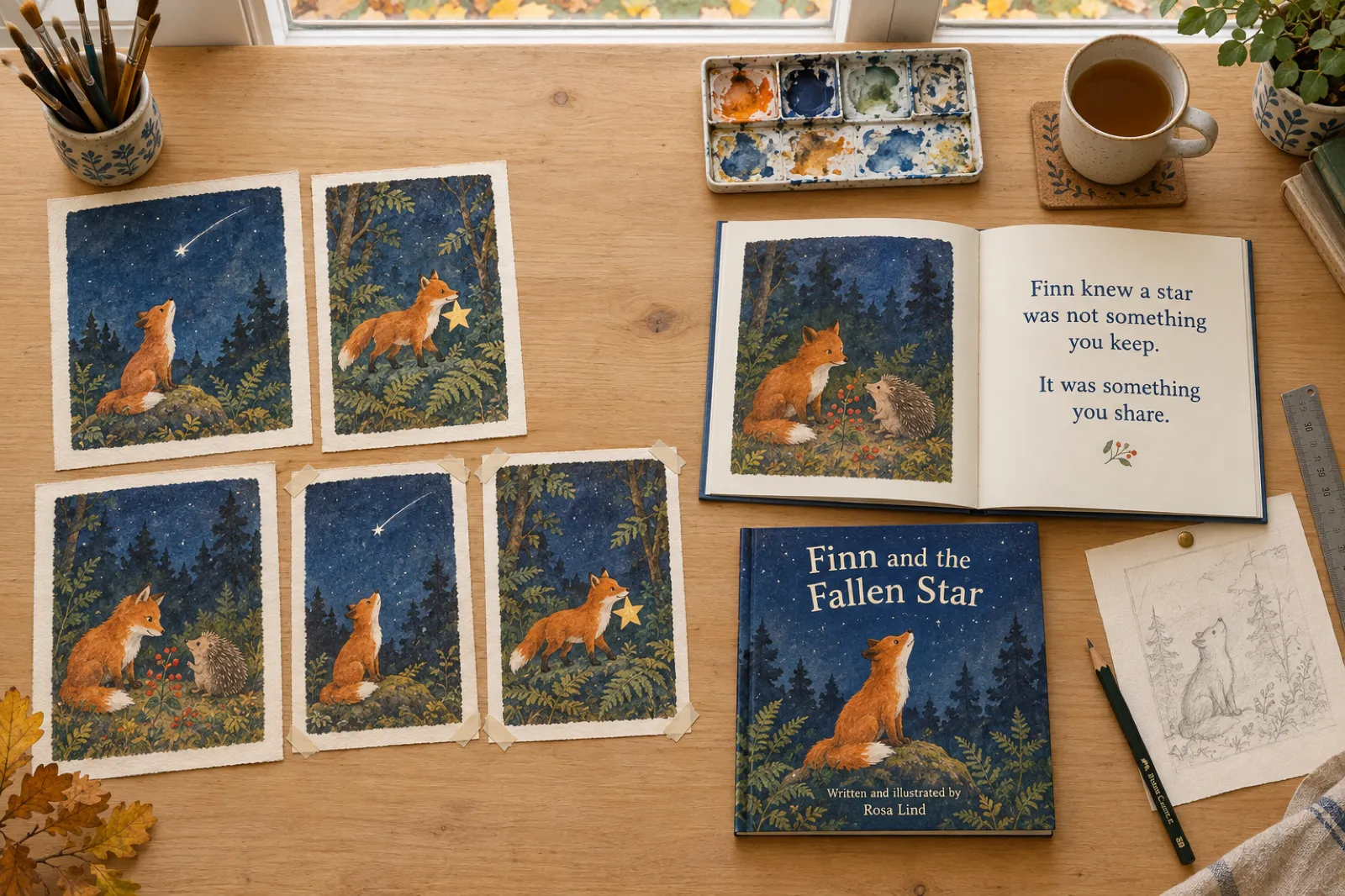
How do you make a picture book from your own images?
Save each picture as a PNG, JPG or WebP file named in story order (page-01, page-02 and so on). In Inkfluence AI choose the Picture book tile, then "I already have my pages" on step two. Type the title, pick a page size (Square 8.5 x 8.5 in, Portrait 8 x 10 in or Large portrait 8.5 x 11 in), drop the images in and click Create picture book: each image becomes one full page, exactly as it is. Then add any words in the editor, check the cover, and export a PDF (free), or a KDP package, EPUB or DOCX on a paid plan or with credits. For the print specs and a checker that tests your files first, see turn your illustrations into a picture book.
What the video covers, in order
- Open the dashboard and choose the Picture book tile
- Step two offers two routes: have the book written and illustrated for you, or "I already have my pages"
- Choose "I already have my pages", type a title ("When the Moon Went Dim") and the author
- Pick one of three page sizes, each with its dimensions shown
- Drop the page images in, then click Create picture book
- Preview the finished book, one image per page
- Add words to the first two pages and watch them appear in the preview
- Edit the cover: upload an image, pick one of over 400 stock images, or make an AI cover in one of the styles
- Export to PDF, KDP, EPUB or DOCX, or turn the book into an audiobook
Before you start: get your pages into image files
The app works with image files, one per page, so the first job happens away from the screen. How you get there depends on where the pictures are now.
- Paintings and drawings on paper. A flatbed scanner gives the cleanest result. A phone works well too if you shoot each picture flat from directly above, in even daylight from a window, with no shadow from the phone or your hand across it. Crop the table out afterwards so only the picture is left.
- Digital illustrations. Export each page as a PNG or a high-quality JPG at the full size you drew it. If you drew on a canvas with bleed, export the whole canvas; the bleed size guide for illustrators has the canvas sizes for each trim.
- Photos. Phone photos are often saved as HEIC on an iPhone, which the app does not take. Share or export them as JPG first, or change the camera setting to "Most Compatible" before you shoot.
- Artwork made in another app. Download it at the largest size the app offers. If an AI tool made it, keep a note of that, because Amazon asks about it when you publish (more on that below).
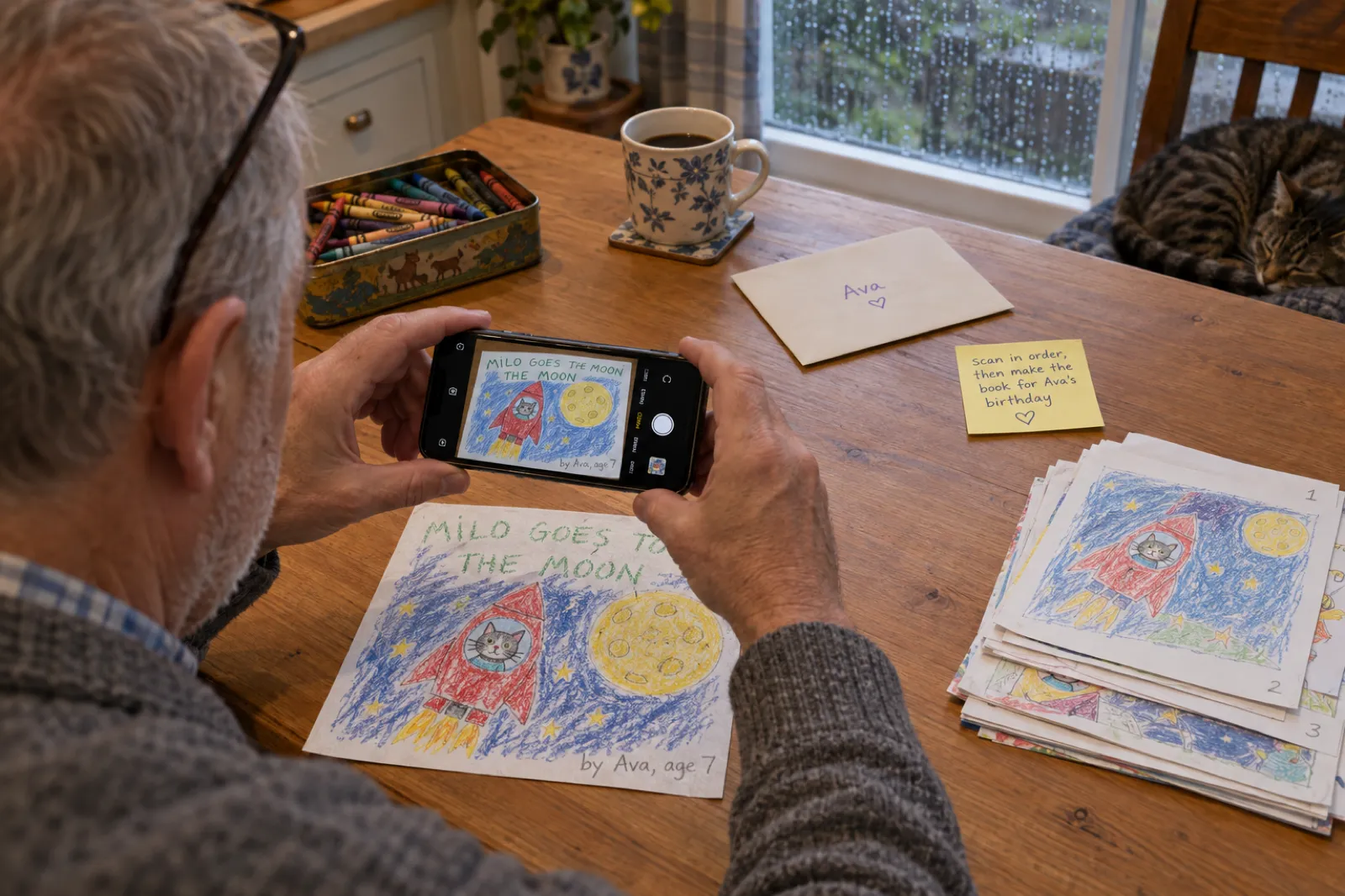
Name the files in story order. The app puts the pages in file-name order, and it reads numbers as numbers, so page-2 comes before page-10. Even so, the simplest habit is two digits from the start: page-01, page-02 up to page-24. Photos straight off a phone are named by the camera (IMG_4102, IMG_4103), which is the order you took them, not always the order of the story. Renaming takes a minute and saves dragging pages around later. The page-order checker below shows the order your file names will produce before you upload anything.
Check the size if you plan to print. Amazon KDP asks for images of at least 300 DPI, which you work out by dividing the pixels by the printed size in inches, as KDP's own example shows. For an 8.5 x 8.5 inch page that means roughly 2,600 pixels across. The app keeps your images at up to 2,800 pixels on the short side and never enlarges them, and it tells you if a picture is likely to print soft. You do not have to do the maths yourself: the free file checker on turn your illustrations into a picture book tests each image's shape and print size against the three page sizes in your browser.
Step by step, as in the video
1. Choose Picture book, then "I already have my pages"
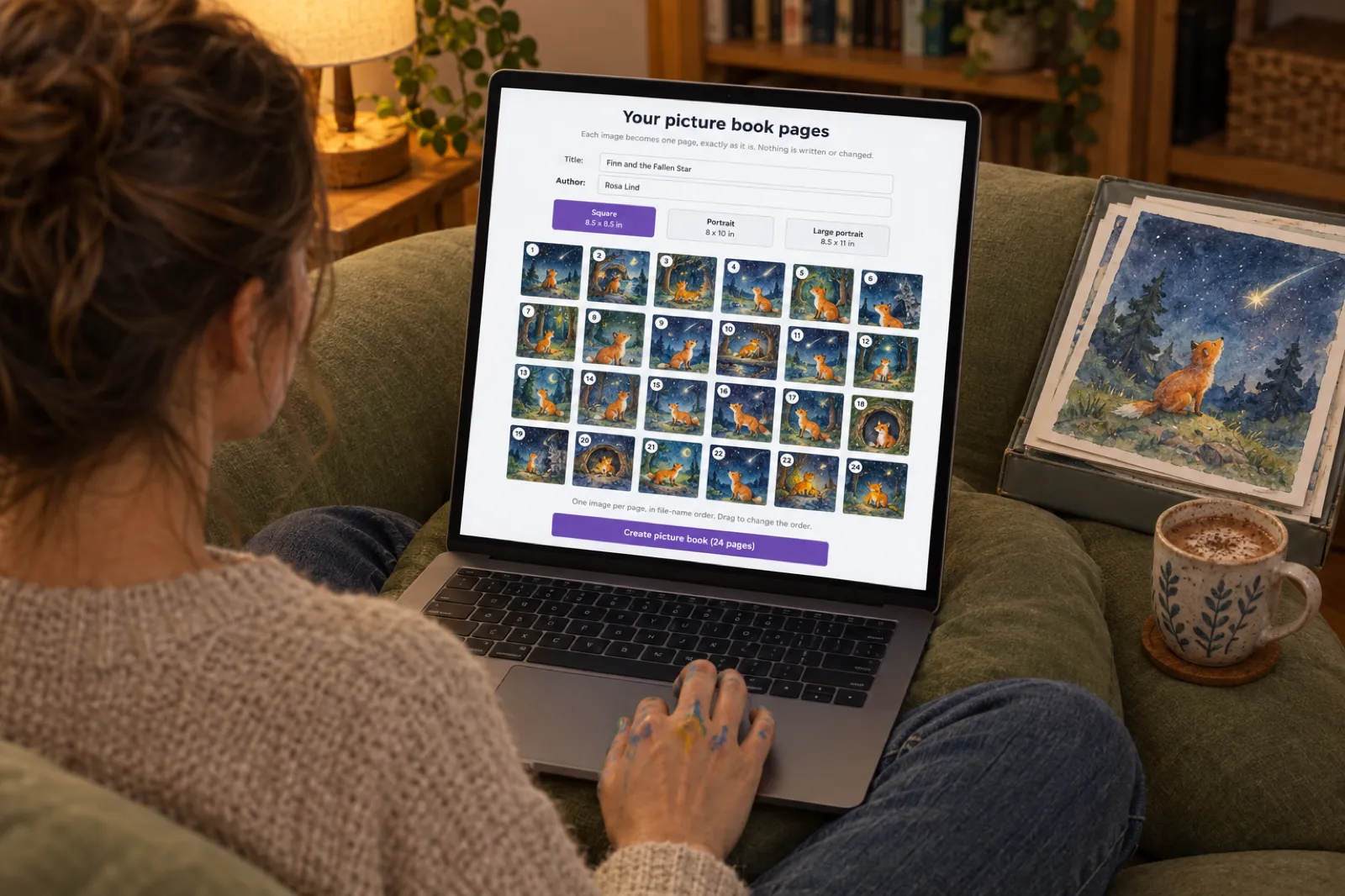
On the dashboard, choose the Picture book tile. Its description says what it does: "Written and painted for you, or from your own pictures." Step two then offers two routes at the top. "Write and illustrate it for me" is the default: you pick an example or type a story idea, choose a page count and one of eight art styles, and the book is written and painted for you; the picture book with AI video covers that route. For your own images, choose "I already have my pages". The heading changes to "Your picture book pages", with a line underneath that is the whole promise of this route: "Each image becomes one page, exactly as it is. Nothing is written or changed." If you switch back, anything you typed is kept.
2. Title, author and page size
Type the title. The box suggests "Milo and the Moon" as an example; James uses "When the Moon Went Dim". The author is optional, and if you leave it empty the name on your profile is used. Then choose a page size from three, each with its dimensions shown:
- Square, 8.5 x 8.5 in: the default, and the shape most picture books are.
- Portrait, 8 x 10 in: taller than wide, for pictures with tall subjects or lots of sky.
- Large portrait, 8.5 x 11 in: the largest page, close to a letter-size sheet.
Choose the size that matches the shape of your pictures, not the one you like best in the abstract. The size follows your images until you pick one, and if an image does not match the size you chose, it gets a note that its edges will be cropped, with a button to switch to the size that fits it. A square painting on a portrait page loses its top and bottom, which is rarely what you want for a picture you drew to the edge. The trim size table on the illustrations page has the exact pixel sizes for each.
3. Drop the images in, then fix the order
Drag the files onto the box that says "Drop your page images here", or click it to choose them. The hint under it covers the rules: "PNG, JPG or WebP. One image per page, in file-name order. Drag to change the order." A book takes up to 100 images and each file can be up to 50 MB. The app checks each file itself rather than trusting its name, and lists anything it cannot use, by name, with the reason: an iPhone HEIC photo, a GIF, an SVG or a PDF, or a file too large to open.
The pages appear as numbered thumbnails. Drag one to move it, or use the arrow buttons, and remove a page with its X. This is the moment to read the book through as a sequence: does the story start where you meant it to, is the quiet page before the big moment in the right place, and is the last picture the one you want a child to close the book on.
4. Create picture book
The button counts your pages: "Create picture book (24 pages)". Click it and the book opens in the editor, one picture per page, in the order you set. Making the book costs nothing on any plan, and no chapter allowance or credits are used. Every page prints edge to edge, with no page numbers, headers or titles on it, so nothing sits on top of your art that you did not put there. The first page also starts as the cover picture, which you can change in step 6.
Open the preview, as James does, and page through the whole book. This is the first time you see your pictures as a book rather than a folder of files, and it is where order problems and an odd crop show up. Go back to the editor to move or replace a page if something is off.
5. Add the words (if your pictures do not have them)
Pages start with no words. If your story is lettered into the artwork already, leave them that way and skip this step. Otherwise open a page in the editor and type, as James does on pages one and two, and the words appear in the preview straight away, printed over the picture. A few rules keep them readable:
- Keep them at least half an inch from the edges. The app reminds you of this, because the outer edge of each page is trimmed in print and a line close to it can be cut or look cramped.
- Put them on a calm part of the picture. Sky, grass, a wall or a table top. Text across a busy pattern or a character's face is hard to read and hides the art. If a picture has no calm area, a short line works better than a paragraph.
- Write for reading aloud. Picture books are heard more than read. A line or two a page, said out loud before you settle on it, is the usual rhythm for young children; older readers can take more.
- Let the page turn do some work. Ending a page on a question or a half-finished moment ("And behind the door was...") gives the next picture its reveal.
You can type the words yourself or draft them with the AI assistant in the editor. Words are also what an audiobook reads, so a book of pictures alone cannot be narrated until it has some.
6. The cover
The cover starts as your first page with the title over it, sized as a wraparound cover for your page size. Often that is exactly right, especially if the first picture introduces the main character. To change it, click Edit cover. You can upload a different image (a picture painted for the cover is the usual choice), pick from over 400 stock images by searching for what you want to see, or make an AI cover in one of ten styles on a paid plan or with credits, which is what James browses in the video. Whichever you choose, look at it small: buyers see a cover the size of a thumbnail first, so the title needs to be large and the main shape clear. The cover design guide goes further on type and thumbnails.
7. Preview and export
Open the export dialog and choose a format, as James does at the end of the video. Because these pages are pictures, the dialog hides the settings a picture book does not need, such as a contents page, chapter numbers and headers.
| Format | What it is for | Plan |
|---|---|---|
| Printing at home or a print shop, sharing, selling as a download | Free; on the free plan it ends with a short page saying it was made with Inkfluence AI | |
| KDP package | An Amazon paperback: a bleed interior at your trim size, plus the cover | Paid plan or credits |
| EPUB | E-readers, Kindle and stores that take ebooks | Paid plan or credits |
| DOCX | Opening the book in Word | Paid plan or credits |
| Audiobook | The page words read aloud; needs words on the pages | Creator 15 or Premium 30 chapters a month |
For Amazon, the KDP package does the part illustrators most often get wrong: it builds a bleed interior and, if the book is shorter than Amazon's 24-page minimum for a premium colour paperback, adds blank pages at the back (and a few before the first picture if needed) so it uploads. KDP's paperback submission guidelines set that 24-page floor for premium colour and 72 pages for standard colour, and they require any picture that runs to the edge to extend 0.125 inches past the trim, which is what the bleed interior handles. When you upload, choose "Bleed (PDF only)" and Premium Color ink. The full padding rules are on the illustrations page, and the KDP print guide walks through the upload.
8. Share it, sell it or give it
Where the book goes next depends on why you made it. The video mentions Etsy, Gumroad and Amazon; those are three of several good homes.
- Etsy and Gumroad. A printable picture book sells well as a digital download. On a paid plan you can publish straight from the book to a connected Etsy or Gumroad shop, which uploads the PDF by default, or the EPUB, or both, with the cover; the selling walkthrough video shows that on screen.
- Amazon. The KDP package for a paperback, and the EPUB for Kindle. The guide to self-publishing a children's book on Amazon covers the listing, categories and pricing.
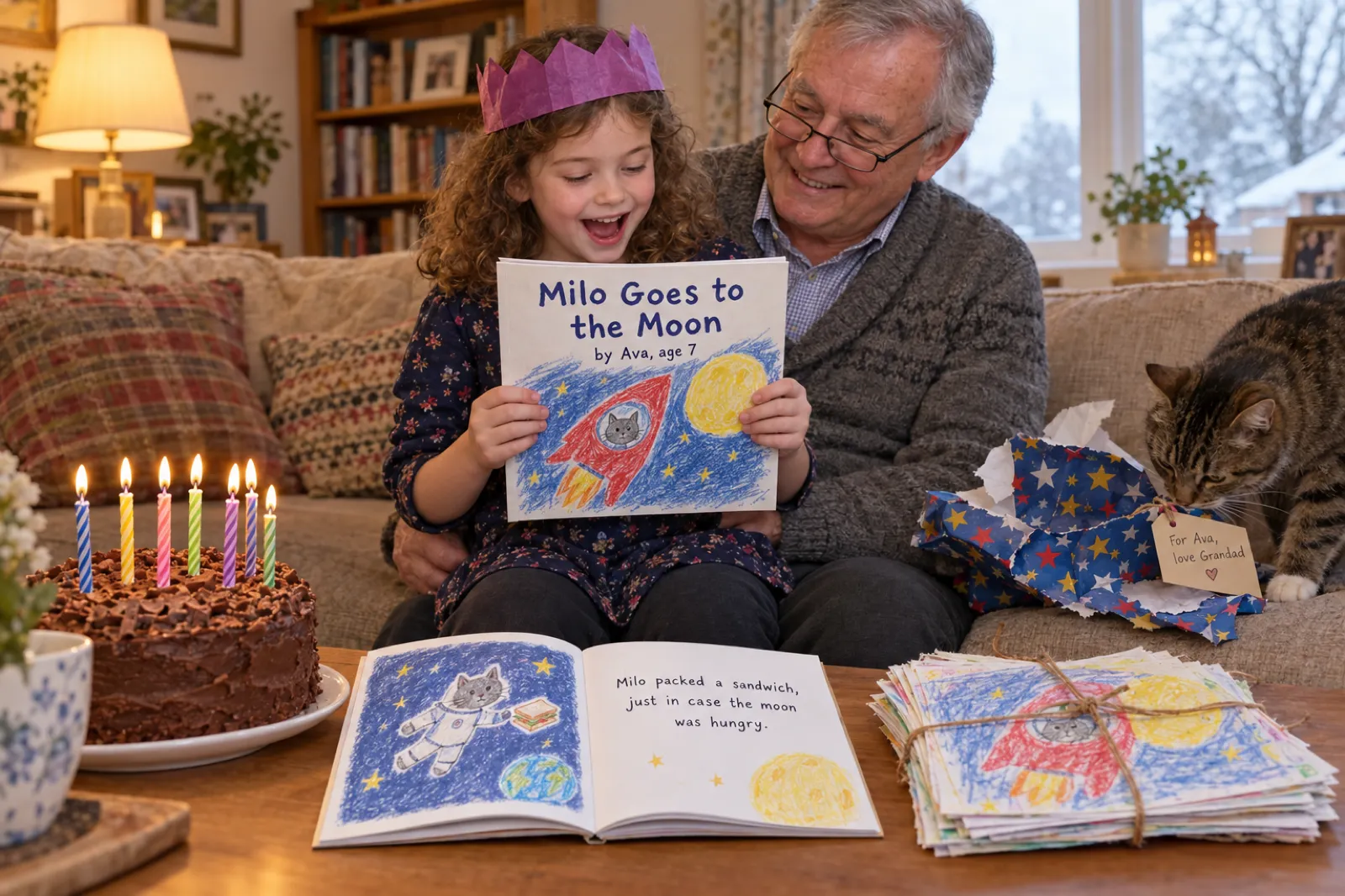
- One printed copy. A single copy for a child's birthday or a grandparent is the most common reason families do this. How to print one copy of a book compares the ways to do it from the PDF.
- A school or a group. A class book printed for every family, or a PDF shared with parents.
If you are selling, how to sell children's books compares what each store pays per copy and has a planner for pricing.
Page-order checker
Choose your page images, or paste their file names one per line, and see the order the pages will go in, the same way the app sorts them: by file name, with numbers read as numbers. It also flags files the app will not take and gaps in your numbering. Nothing is uploaded: the checker reads only the names, types and sizes, in your browser. To test the picture sizes and print quality, use the file checker on turn your illustrations into a picture book.
Plan the pages before you draw (or before you pick)
If you are still making the pictures, a little planning now saves rework later. If they are finished, the same questions help you choose which ones go in and in what order.
How many pages
Traditional picture books are almost always 32 pages, because printers fold large sheets into groups of pages in multiples of eight; Lerner Books explains why the count lands on 32, and that the title and copyright pages come out of it, leaving the story fewer. You do not have to follow it: print on demand handles other page counts, and the app takes anything from one page to 100. For an Amazon paperback the floor is 24 pages in premium colour, and the KDP package pads a shorter book with blank pages, so a story of twelve to twenty pictures is fine. For a story with rhythm, though, somewhere between 14 and 28 pictures gives room for a beginning, a middle with a problem, and an ending, without any page feeling rushed.
One picture, one page
Every image becomes one single page. The app does not join two images into a spread or split one wide image across two pages, so a picture you painted as a double-page spread has to be cut into a left half and a right half first, with the important parts kept away from the middle where the pages meet. Most people find it simpler to design each page to stand on its own, with the words on that same page.
Same shape, same size, room for words
Draw or crop every picture to the same shape, matching the page size you will choose, so no page gets cropped differently from the rest. Keep the important parts of each picture away from the outer edges, which are trimmed in print. And if the book will have words, leave a calm area on each page for them, about a third of the page for a young reader's two lines. Illustrators call this a text space; it is the difference between words that sit on the page and words that fight it.
Front and back
Think about the first and last pictures separately. The first page doubles as the cover picture to begin with, so a strong image of the main character there gives you a cover for free. The last page is what a child sees as the book closes: a quiet, settled picture usually works better than the busiest moment of the story. A painting made especially for the cover can be uploaded in step 6.
Who makes picture books from their own images
- Illustrators and author-illustrators with finished art who want a print-ready file without learning layout software. The artwork stays exactly as painted; the app does the trimming, the pages and the files.
- Parents and grandparents turning a child's drawings into a book for a birthday, or making a story about the family with photos. One printed copy is often the whole point.
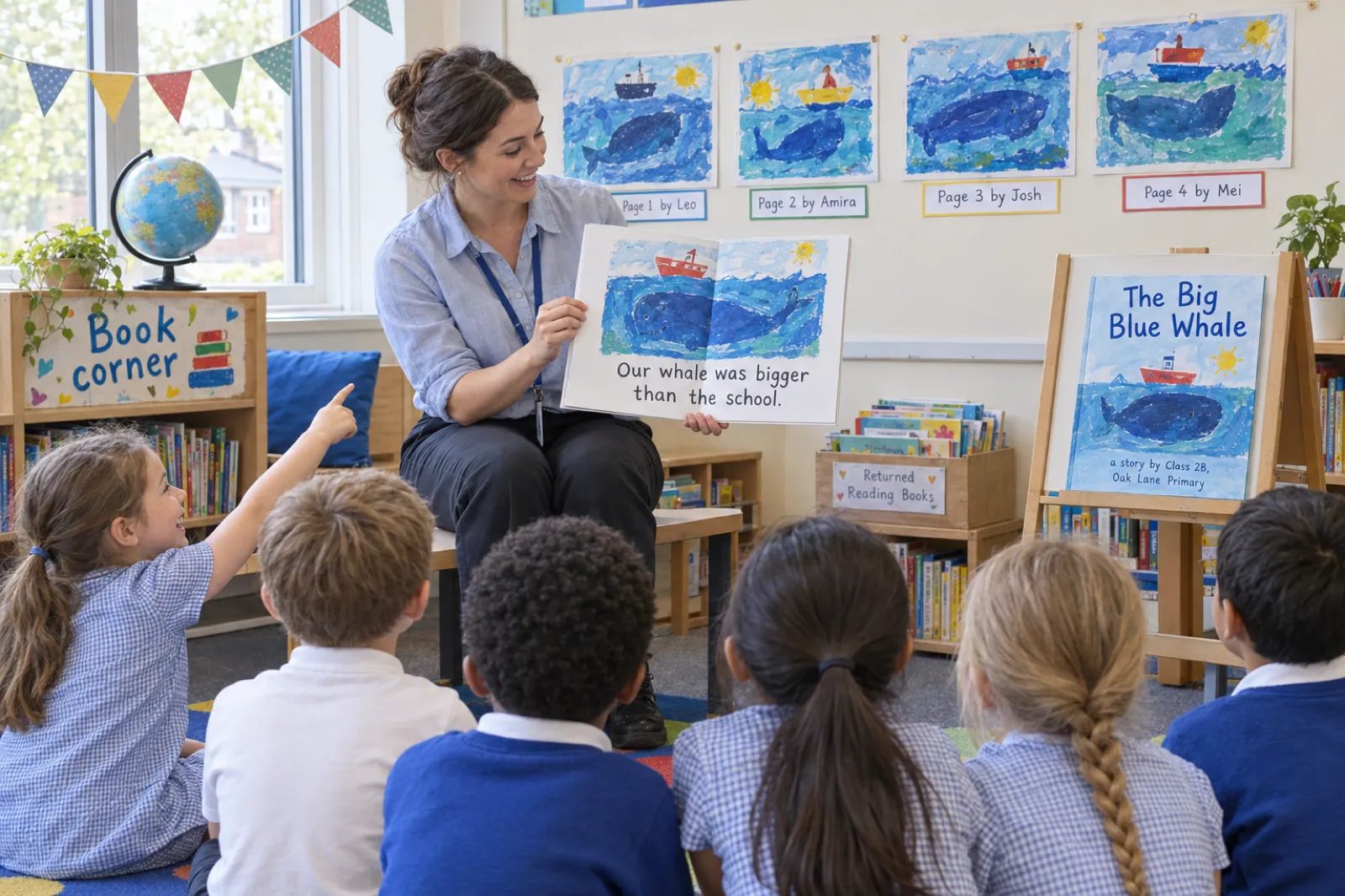
- Teachers making a class book with a picture from every child, printed for every family or shared as a PDF.
- Photographers making a photo story for young children: animals on a farm, a first trip to the seaside, a day at the fire station.
- People with artwork made in another app, including AI art tools, who want to arrange it as a book. The page is the same; the disclosure rules below are different.
- Authors who hired an illustrator and now have a folder of finished pages. The illustration cost guide covers that route from the start.
Your images, the rules and disclosure
Using your own pictures is the simplest position to be in, but three rules are worth knowing before you sell.
- Only use pictures you have the right to publish. Your own drawings, paintings and photos; work an illustrator has licensed to you; your child's drawings, with you deciding for them. Not pictures found online, characters from films or shows, or someone else's art. Etsy's creativity standards say digital items must be made or designed by the seller, and give a scan or PDF of someone else's work as an example of what does not qualify.
- Amazon asks about AI, not about you. KDP's content guidelines ask you to disclose AI-generated text, images and translations when you publish, and do not ask about content you created yourself and only refined with tools. Pictures you drew, painted or photographed are not AI-generated, and neither are words you wrote yourself. If an AI tool made the artwork, or wrote the story, say so. The KDP AI disclosure guide covers the details.
- Credit the artists. On a class book or a child's book, put the artists' names on the cover or the first page. It costs nothing, and it is what makes the book theirs.
Six mistakes that are easy to avoid
- Camera file names. IMG_4102 to IMG_4125 is the order you took the photos, not the order of the story. Rename to page-01, page-02 first, or check the order with the checker above.
- The wrong page size. Square pictures on a portrait page lose their top and bottom. Pick the size that matches your pictures, and use the switch the app offers when it flags a mismatch.
- Photos of drawings at an angle. A drawing shot from the side prints as a trapezoid with a shadow. Shoot from directly above in daylight and crop the table out.
- Small images for print. A picture saved from a messaging app or a website is usually too small for an 8.5 inch page. Use the original file, and run the file checker if you plan to print.
- Words on the busiest part of the picture. Text over a face or a pattern is hard to read. Put it on sky, grass or a wall, half an inch in from the edge.
- Selling art you do not own. Stores remove listings with someone else's characters or artwork, and Etsy does not count a scan of someone else's work as your design. Your own pictures, or licensed ones, only.
This video, or the other picture book guides?
The in-app help article How to create an illustrated picture book covers both routes in short form.
Full video transcript
Everyone, it's James from Inkfluence AI and I'm super excited to show you this today. I'm going to show you how to turn your own images into a picture book. Now, what I mean by this is if you have your own images, you can upload them to Inkfluence AI and it will format and create a picture book for you which you can then list on Etsy, Gumroad, Amazon or other online marketplaces. So, how do you do this? You first want to go to the Inkfluence AI dashboard and select picture book.
Now here on step two, Inkfluence AI gives you two options. Inkfluence AI can either write and illustrate your picture book for you. So you can select one of the examples or add in a custom prompt. You can choose your page count and then one of the art styles from the eight options and click generate my book down at the bottom. But what I'm going to show you today, which is something that we've recently released, is if you already have your own images, you then select I already have my pages. And what this means is you can upload your images to Inkfluence AI and it will format it into a book for you.
So what we're going to do is we're going to choose a title. Now, there is a custom one there, Milo and the Moon. As an example, we're going to go When the Moon Went Dim. The author is Jim. And then you can choose the page size from one of these three options. And it's got the dimensions underneath as well, just to help you out. When you've got that already, you can then drop your images in. So, here we've got these ready to roll. And as you can see, we've got my images uploaded to Inkfluence AI. So, we're then going to go create picture book. And Inkfluence AI will then format those images into a picture book for us.
And just like that, we've got a full picture book formatted based on our images through Inkfluence AI. If I go to preview, as you can see, we've got the whole book uploaded and formatted. Now, you might want to add text to this picture book, which you can do. So, for example, we might want to add some text on that first page there. And then we might also want to add some text on page two like so. So then when we go to the preview, as you can see, the text is beginning to populate our picture book as well.
You can then edit the cover like so. And you can upload your own image or choose from over 400 stock images or you can create your own image through AI from one of these styles here. When ready, you can then export your book. Select the format. So, PDF, KDP, EPUB, DOCX, or if you want to then turn your picture book into an audio book, you could create an audio book. And when ready, just click download the selected format and you'll have your picture book created, formatted, and downloaded all through Inkfluence AI.
Picture books from your own images: FAQ
How do I make a picture book from my own images?+
In Inkfluence AI, choose the Picture book tile, then "I already have my pages" on step two. Type a title, pick a page size (Square 8.5 x 8.5 in, Portrait 8 x 10 in or Large portrait 8.5 x 11 in), drop in one PNG, JPG or WebP image per page, and click Create picture book. Each image becomes one full page, in file-name order. Then add any words in the editor, check the cover, and export a PDF, a KDP package, an EPUB or a DOCX. The video above shows every step in four minutes.
Is it free to make a picture book from my own images?+
Making the book is free on every plan, and so is the PDF export; on the free plan the PDF ends with a short page saying the book was made with Inkfluence AI. The KDP package for an Amazon paperback, EPUB and DOCX need a paid plan or chapter credits, and publishing straight to Etsy or Gumroad needs a paid plan. Nothing about your pictures is changed whichever plan you are on.
What image files can I use?+
PNG, JPG or WebP, up to 50 MB each, and up to 100 images in one book. HEIC photos from an iPhone, GIFs, SVGs and PDFs are not accepted, so export or save those as JPG or PNG first. The app checks the file itself, not just its name, and lists any file it cannot use with the reason.
What order do the pages go in?+
File-name order, with numbers read as numbers, so page-2 comes before page-10. After the images are in you can drag any page to a new place, move it with the arrow buttons, or remove it. Naming the files page-01, page-02 and so on before you upload saves the reordering; the page-order checker on this page shows the order your file names will produce.
Does it work with drawings, paintings and photos?+
Yes, anything saved as an image: scanned paintings, phone photos of crayon drawings, digital illustrations, photographs, or artwork you made in another app. Each image is placed as it is, edge to edge, and nothing is redrawn or restyled. Photograph drawings flat, in even daylight, and crop the table out before you upload.
Can I add text to the pages?+
Yes, after the book is made. Pages start with no words; open a page in the editor and type, and the words print over the picture. Keep them at least half an inch from the edges and put them where the picture has a calm area, such as sky, grass or a wall. If your pictures already have the words painted in, leave the pages empty.
Which page size should I choose?+
Match the shape of your pictures. Square 8.5 x 8.5 in is the default and suits most picture books; Portrait 8 x 10 in and Large portrait 8.5 x 11 in suit tall artwork. The size follows your images until you choose one yourself, and any image that does not fit the size you pick gets a note that its edges will be cropped, with a button to switch to the size that fits. The file checker on the turn your illustrations into a picture book page tests your images before you start.
Can I publish it on Amazon KDP?+
Yes. Export the KDP package, which builds a bleed interior at your trim size and adds blank pages if the book is under Amazon's 24-page minimum for a premium colour paperback. Upload it to KDP with "Bleed (PDF only)" selected. KDP asks for images of at least 300 DPI, so a picture meant to fill an 8.5 x 8.5 in page wants roughly 2,600 pixels across.
Do I have to disclose AI if I use my own images?+
Not for the pictures. Amazon KDP asks you to disclose AI-generated text, images or translations; images you drew, painted or photographed yourself are not AI-generated. If you write the words yourself too, there is nothing to disclose. If you made the artwork with an AI tool elsewhere, or had AI write the text, KDP asks you to say so when you publish.
Can I sell it on Etsy or Gumroad?+
Yes, as a digital download. On a paid plan you can publish straight from the book to a connected Etsy or Gumroad shop, which sends the PDF by default, the EPUB, or both. Etsy only allows digital items you made or designed yourself, so sell your own artwork, not scans of someone else's.
Can I turn my picture book into an audiobook?+
Yes, once the pages have words. The audiobook reads the text on each page, so a book of pictures only has nothing to narrate; add the words in the editor first. Narrated chapters come with the paid plans: Creator includes 15 a month and Premium 30.
Can a class or a child make one?+
Yes, with an adult running the account. Teachers make class books from a painting by every child, and families turn a child's drawings into a birthday or holiday book. Photograph each drawing, number the files in story order, and credit the artists on the first page or in the title, such as "a story by Class 2B". Ask parents before sharing or selling a class book outside the school.
Related tools
Related reading
- KDP picture book bleed size for illustrators: canvas sizes, with a bleed calculator.
- How to make a children's picture book with AI: the written guide to the AI route.
- How to write a children's book: story, reading age and length.
- How to make a coloring book with AI: the other picture-first format.
- Images in ebooks: formats, sizes and how readers display them.
- Ebook formats: which file goes where.
- Ebook export and publishing: every export explained.
Your pictures are the book. Give them pages.
Name the files in story order, choose "I already have my pages", pick the size that matches your pictures, and click Create picture book. The book and the PDF are free.