
Updated November 2026 · EPUB, Kindle, Apple Books, Kobo · sources checked 13 November 2026
PDF to Ebook Converter: Turn a PDF Into an Editable EPUB or Kindle Ebook
A PDF is a picture of printed pages. An ebook is text that reflows on any screen. Import your PDF into Inkfluence AI and it reads the text, rejoins broken lines, strips page numbers and running headers, and finds the chapters, so you get a book you can edit and export as EPUB. This page also says plainly what converts badly, and when the Word file beats the PDF.
By Sam May, founder of Inkfluence AI
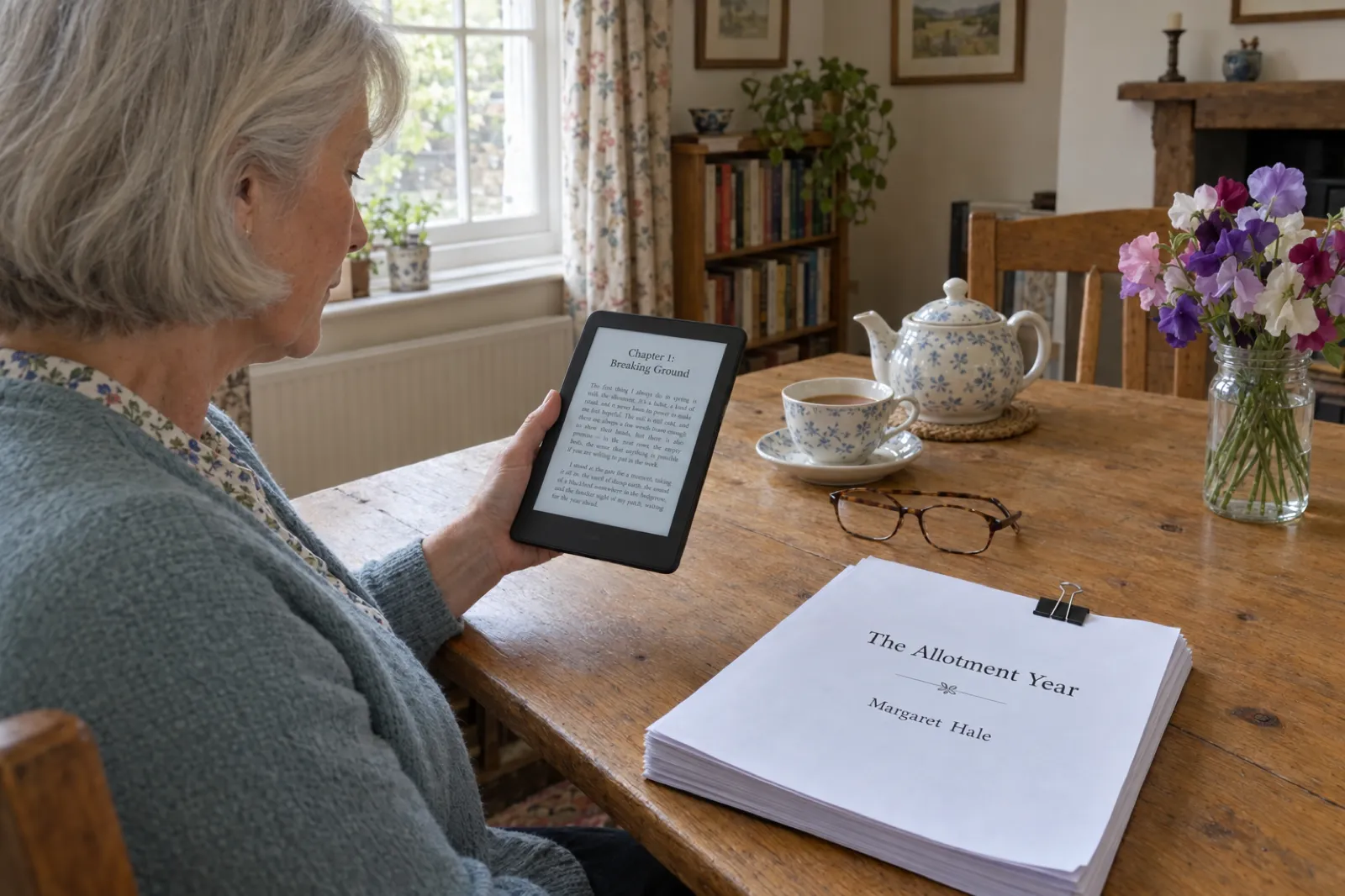
How do you turn a PDF into an ebook?
To make an ebook from a PDF, import the PDF, check the chapter list, fix what came through wrong, add a cover and export an EPUB. The EPUB is the file Kindle, Apple Books and Kobo expect; the PDF stays the right file for printing and direct sale. If you still have the Word or Google Docs file the PDF was made from, import that instead: Word's heading styles tell a converter exactly where each chapter starts, and a PDF does not. A scanned PDF has no text at all until you run OCR.
Calibre on PDF input
"one of the worst formats to convert from"
Calibre user manual
Kobo Writing Life uploads
DOC, DOCX, ODT, EPUB, MOBI
No PDF in Kobo’s list
Apple Books
EPUB only
Must pass EPUBCheck
EPUB 3.3
W3C Recommendation
Since May 2023
The best converter is the one you can keep editing in
Inkfluence AI is the best PDF to ebook converter when you want a book, not just a file. Most converters copy the PDF's layout into another format and hand you the mess. Inkfluence AI cleans the text, finds the chapters and opens the result as an editable book with a contents page, so you can fix it, add a cover and export EPUB, DOCX or a KDP package from the same place. Importing and exporting a PDF are free; EPUB and DOCX need any paid plan or a credit pack, and free exports carry a small Inkfluence AI credit. What it does and does not do.
Convert my PDFPDF to ebook route finder
Answer four questions about your PDF. The finder tells you which file to import, what to check afterwards, which file to export for your store and whether the free plan covers it. It runs in your browser; nothing is uploaded.
Why a PDF is the hardest file to turn into an ebook
PDF was built to make a page look identical everywhere. That is exactly what an ebook must not do. The open-source converter Calibre is blunt about it in its own manual: PDF documents are "one of the worst formats to convert from. They are a fixed page size and text placement format." It adds that complex, multi-column and image-based documents are not supported. Six things go wrong, and a good converter has to deal with each one.
No heading styles
A PDF knows a line is big and bold, not that it is a chapter title. The converter has to guess where chapters start.
Page furniture
Running headers, page numbers and footers sit in the text stream and end up mid-paragraph if nothing removes them.
Broken lines
Every line ends with a hard break, and words split with a hyphen at the margin ("let- tuce") need rejoining.
Reading order
Columns, sidebars and captions are stored in drawing order, which is not always the order a person reads them.
Scanned pages
A scan is a picture of text. Without OCR there is no text to convert at all.
Fixed page size
The PDF was laid out for one page size. An ebook has no pages: the text has to reflow on any screen.
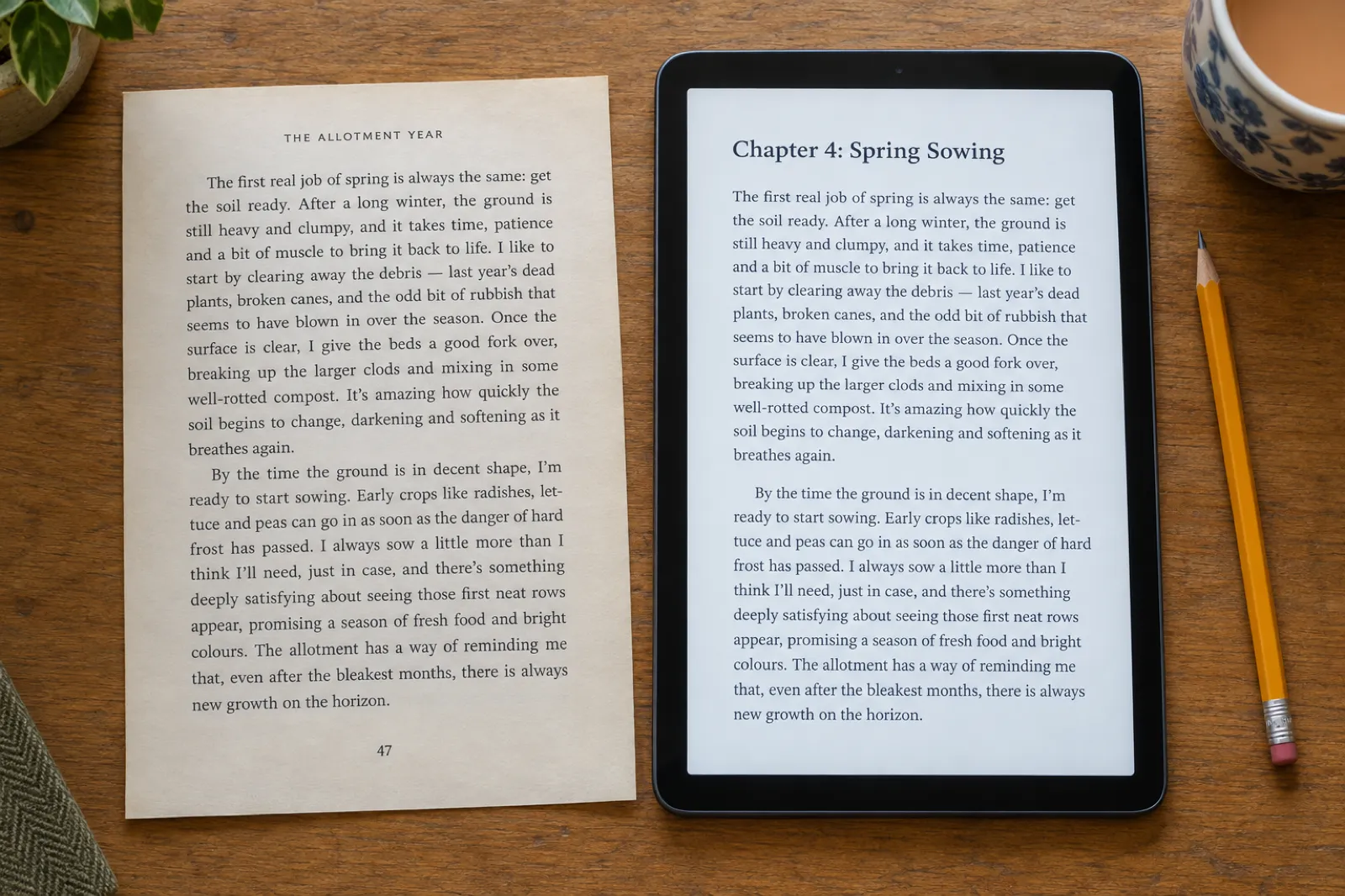
Kobo's help centre puts the reader's side simply: a reflowable ePub responds to bigger font sizes and wider margins, and "you can't do this with a PDF". On many e-ink readers you cannot zoom into a PDF, so small type can be unreadable. That is why the stores want EPUB, and why "upload the PDF and hope" rarely ends well.
How the conversion works in Inkfluence AI, step by step
- Open the import window. Click New Book, then Import content, or the Import content tile on the dashboard, or drag the PDF straight onto the prompt box. You can select several PDFs at once: they join into one book, in order.
- The text is read in your browser. Each page's text is pulled out of the PDF, page by page, with a progress count. A PDF with no text layer (a scan) stops here with a clear message, so you never get an empty book.
- A background clean-up does the hard part. It rejoins lines the page layout broke, removes page numbers and running headers, and works out where each chapter starts. You can watch it work through the book section by section.
- You choose what happens next. Open in Editor keeps your text exactly as written. Remix into a new book writes a different book from yours, such as a workbook or a shorter guide, and that does use your monthly chapters.
- Edit, cover, export. Fix anything the clean-up missed, add a cover (the PDF's own cover is not carried over, so the book starts with a fresh themed one you can change), then export.
One import takes up to about 3,000 pages of text; above that, import the book in two halves. A PDF that Inkfluence AI exported in the first place re-imports particularly cleanly, because it recognises its own layout. The short version of all this lives in the import help articles, and the manuscript import walkthrough has a three-minute video of the whole flow with a Word file.
Importing generates nothing, so it is free on every plan and uses none of your chapters. It is the same import that brings in Word, EPUB, Markdown and plain text files, covered in the AI manuscript editor.
Have the Word file? Import that instead of the PDF
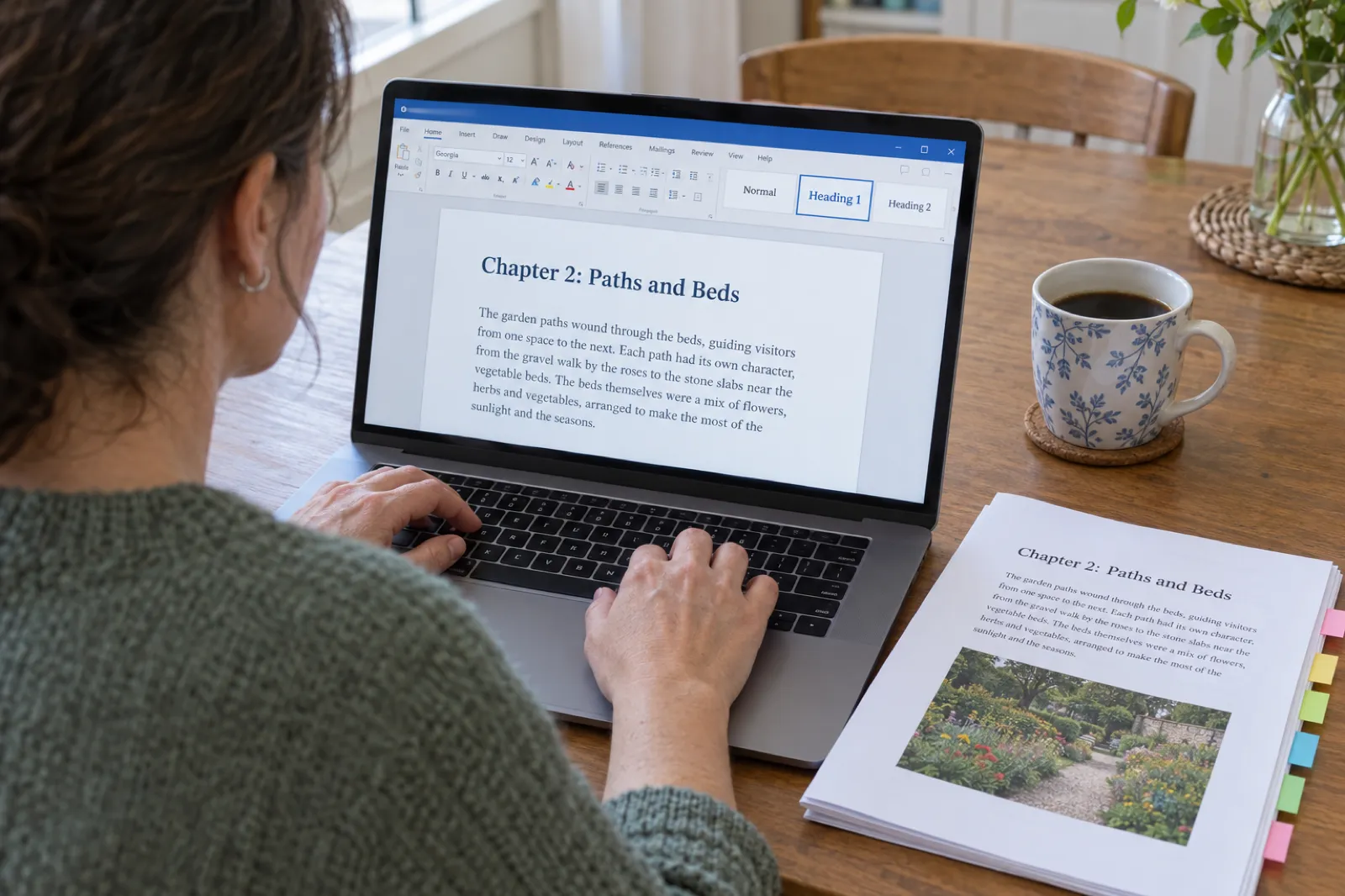
A PDF has no heading styles, only text in different sizes, so any converter has to infer where chapters begin. A Word file says so outright. That makes the Word file the better source every time you have it, and the difference is biggest on books with numbered sections: in a PDF, "1.1 Choosing a plot" looks a lot like a chapter title, and a 15-chapter manual can come through with dozens of chapters.
- Heading 1 on every chapter title. Each Heading 1 starts a new chapter and becomes its title. Making a line big and bold by hand does not count: it has to be the style.
- Heading 2 on section titles. They stay inside their chapter and show as headings in the ebook.
- Check the Navigation Pane. In Word, View then Navigation Pane lists every heading. If it reads like your contents page, the import will too.
- Google Docs works the same way. Set the styles, then File, Download, Microsoft Word (.docx). Our Google Docs to KDP guide compares that route with formatting in Docs itself.
Lost the Word file? Adobe Acrobat can export a PDF to Word (its free online tool has daily limits; Standard and Pro list Export PDF to Word), but the Word file it gives you has the same problem: no real heading styles. You would still be setting Heading 1 by hand. Importing the PDF directly and fixing the chapter list is usually quicker.
PDF to ebook converters compared
What each tool actually does with a PDF, read from each one's own pages on 13 November 2026. Inkfluence AI is our product; the others are described only from their documentation.
| Tool | What it does with a PDF | Editable book after? |
|---|---|---|
| Inkfluence AI | Reads the PDF, rejoins broken lines, removes page numbers and running headers, finds the chapters, opens an editable book | Yes: edit, add a cover, export PDF, EPUB, DOCX or a KDP package |
| Calibre | Desktop converter: PDF in, EPUB or AZW3 out | Only by editing the EPUB code; its manual calls PDF one of the worst inputs |
| Adobe Acrobat | Exports the PDF to a Word file | Yes, in Word; then you still have to build the ebook |
| Kindle Create | Turns a PDF into a Print Replica Kindle book | No: the layout is fixed and readers cannot resize the text |
| Draft2Digital | Does not take PDF uploads (Word, ODT, RTF or EPUB) | Convert first, then upload |
When Calibre is enough
A short, single-column PDF you only want on your own e-reader. Calibre is free and fast. For anything you will sell, expect to repair the EPUB by hand; its manual says plainly that PDF "is a really, really bad format to use as input".
When Kindle Create's Print Replica is right
Textbooks, cookbooks and photo-heavy books whose layout is the point. Kindle Create converts the PDF into a Print Replica ebook that keeps every page as designed. The trade-off, in KDP's words: readers cannot resize the text, and Print Replica is not supported in Japanese.
Which file each ebook store wants
The store decides the file. Upload rules read on each store's help pages on 13 November 2026.
| Store | Accepts | Best upload |
|---|---|---|
| Amazon KDP (Kindle) | EPUB, DOCX, KPF, plus PDF and others | EPUB or DOCX |
| Apple Books | EPUB | EPUB |
| Kobo Writing Life | DOC, DOCX, ODT, EPUB, MOBI | EPUB |
| Draft2Digital | DOC, DOCX, ODT, RTF, EPUB | DOCX or EPUB |
| Your own site, Gumroad, Etsy | Any file you like | PDF and EPUB together |
EPUB is the standard. EPUB 3.3 has been a W3C Recommendation since May 2023 (the current edition is January 2026), and it is the one file every major store takes. Apple requires every EPUB to pass the latest EPUBCheck, the official validator; we run our own EPUB exporter through EPUBCheck before every release.
KDP takes more formats than it recommends. Its format page lists DOC and DOCX, KPF from Kindle Create, EPUB, HTML, RTF, TXT and PDF, and notes that PDF is only supported in English, French, German, Italian, Portuguese, Spanish, Catalan, Galician and Basque. MOBI is no longer accepted for fixed-layout ebooks since March 2025. For the full Amazon route, see how to sell ebooks on Amazon and our KDP tools.
Not sure which format fits which job? Ebook formats explained covers PDF, EPUB, DOCX and KPF side by side, and the AI book formatter covers layout for Kindle, Apple Books and print. Store-by-store upload steps are in our guides to publishing on Apple Books and publishing on Kobo, and the export help articles show where each file is in the app.
Scanned PDFs: run OCR first
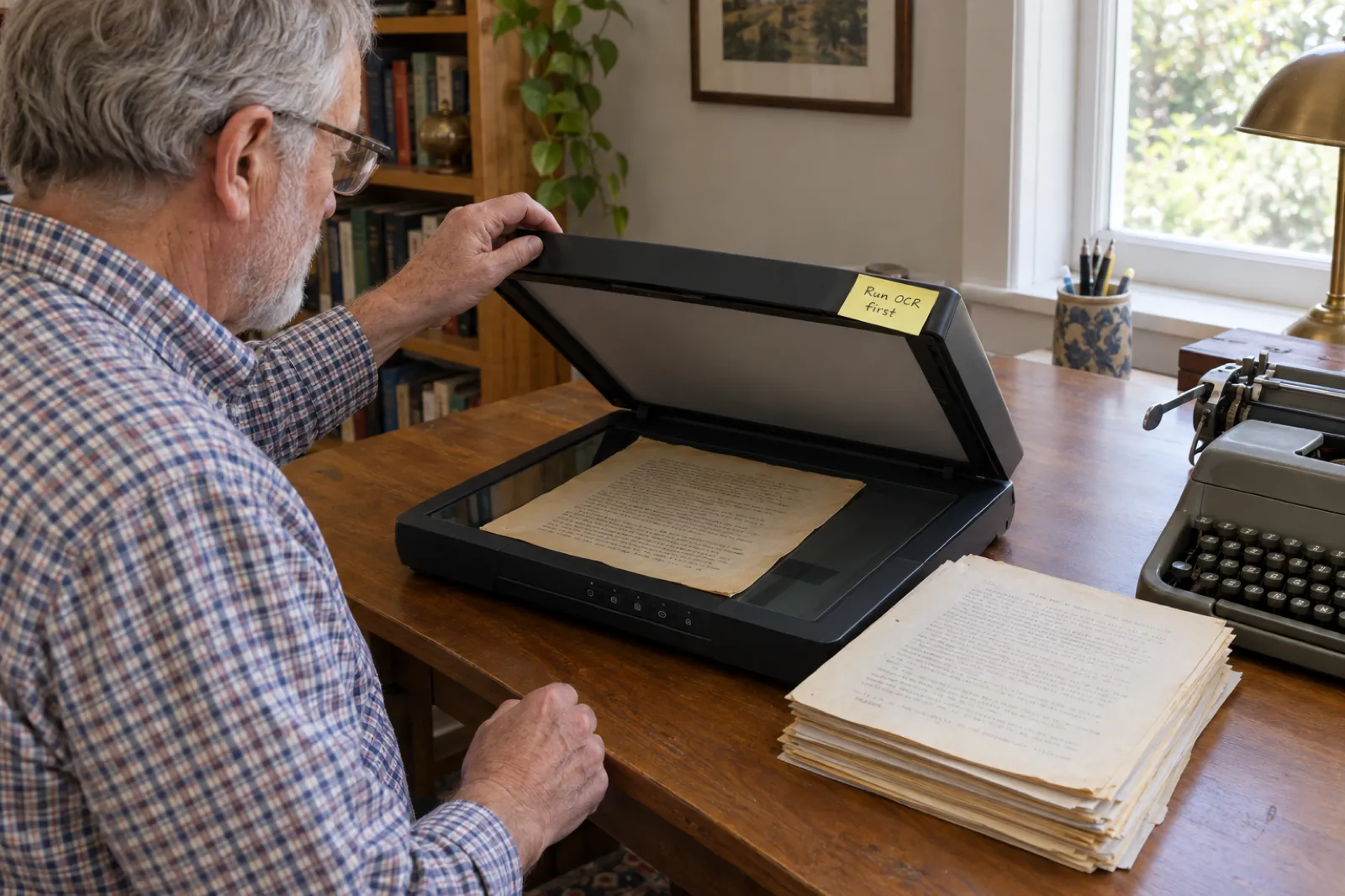
Select a word in your PDF. If you cannot, the PDF is a set of photographs of pages, and no converter can turn it into an ebook until text recognition (OCR) has turned the pictures back into text. Inkfluence AI checks for this the moment you import and stops with a message rather than giving you an empty book.
Many scanners and PDF editors include OCR. Run it, save a new PDF with a text layer, and import that. Then proofread with care: OCR confuses similar letters (rn and m, 1 and l), and Calibre's manual warns that the OCR text behind a scan "can be very different from what you see when you view the PDF file". An old typed manuscript may be quicker to fix in the editor than in the scan.
Why Inkfluence AI is the best PDF to ebook converter for a real book
A converter that only changes the file type leaves you with the PDF's problems in a new container. Inkfluence AI treats the PDF as the start of a book you will publish. Disclosure: Inkfluence AI is our product. Here is what it does, and where it stops.
- It cleans as it converts. Broken lines rejoined, page numbers and running headers removed, chapters found.
- You get a book, not a file. The result opens in an editor with a chapter list, where you fix anything the clean-up missed, proofread or rewrite passages with AI help, and add a cover.
- Every export from one place. PDF on every plan. EPUB, DOCX and the KDP package (a print-ready interior PDF and a full wrap cover) on any paid plan or with a credit pack, which also removes the small Inkfluence AI credit from free PDFs.
- More from the same book. On paid plans: AI covers (10 a month on Creator, 30 on Premium), audiobook narration (15 chapters a month on Creator, 30 on Premium), translations and Remix into a new format. See the AI ebook generator and the audiobook generator.
- What it does not do. It cannot read scanned pages without OCR. It does not keep the PDF's exact page design: for that, Kindle Create's Print Replica is the tool. It does not print or ship books. And paid plans have monthly allowances, not unlimited everything; the pricing page lists them.
If the PDF is not your book yet, but notes, a course or a guide you want to turn into one, the PDF ebook maker goes the other way: it writes a new book and exports a polished PDF. And to edit the imported book with AI, the chapter review and editorial letter work on imported text too.
Seven conversion problems, and how to fix each one
Even a clean PDF import leaves a few things to tidy. These are the ones that come up most, in the order you are likely to meet them, with the fix in the editor.
Too many chapters
Numbered section headings, a "Key points" box or an epilogue subheading were read as chapter starts. Merge each one back into the chapter before it. If there are dozens, it is faster to find the Word file, or to set Heading 1 on the real chapter titles in a Word export and import that.
The whole book in one chapter
The chapter titles looked like body text, so nothing marked a break. Add chapters in the editor and move the text across, or, for a long book, rebuild the headings in Word and import the .docx instead.
A stray header or page number
Running headers that change from chapter to chapter, or page numbers written as words, can slip through. Skim each chapter for the book title or the author name in odd places and delete the leftovers.
Odd characters
Some PDFs store "fi" and "fl" as single joined characters, or use a symbol font for bullets and quotes. Read the first page of each chapter and replace anything that looks wrong before you export.
Tables that came through as lines
A PDF table is text placed in a grid, not a table. Small ones are quickest to retype as a short list; a recipe's ingredients read better as a list on a phone anyway.
Footnotes in the middle of the text
Footnotes sit at the bottom of a printed page, so they can land between two paragraphs. Move them to the end of the chapter as numbered notes, which is how most ebooks handle them.
Missing pictures
Photos and diagrams are not lifted out of a PDF import. Save the ones you need from the original files, add them back in the editor where they belong, and give each one a short description for readers who use a screen reader. Our notes on images in ebooks cover sizes and placement.
Not just converted: turn the PDF into a different book
Sometimes the PDF is not the book you want to publish but the material for it: a course handout, a long report, a set of lecture notes, an old guide that needs a new shape. After the import, Remix into a new book writes a fresh book from your text in another format, and leaves the original untouched.
- Course notes to a workbook. Exercises and space to write in each chapter; see the workbook generator.
- Lecture slides or handouts to a study guide. Summaries, key terms and practice questions; see the study guide generator.
- A long report to a short lead magnet. Five tight chapters to give away for an email address; see the lead magnet generator.
Remix writes new chapters, so it uses your monthly chapter allowance: 5 a month on the free plan, 35 on Creator, unlimited on Premium. A plain import uses none. Translating an imported book into another language is a paid feature, on Creator, Premium or with credits.
Worked example: a 180-page PDF memoir to a Kindle ebook
An invented example, to show each decision and what it costs. Margaret, 68, had a local print shop lay out her allotment memoir, The Allotment Year, as a PDF for 40 copies for family. The original Word file was on a laptop that has since died. Now she wants it on Kindle.
1. The import (ten minutes, free)
She drops the PDF on the prompt box. The text is read, the clean-up runs, and the chapter list shows 14 chapters, one more than her contents page: the epilogue's subheading came through as a chapter. She merges it back in the editor.
2. The clean-up (an evening, free)
She reads the first page of each chapter on the editor, re-adds six garden photos where they belong and adds alt text. The print shop's cover was not carried over, so she uses a photo of her own allotment on a themed cover.
3. The EPUB ($9.99 once)
EPUB needs a paid plan or credits. She is publishing one book, so she buys 15 credits for $9.99 instead of a subscription; holding credits unlocks EPUB, DOCX, the KDP package and exports without the credit line. She opens the EPUB on her own e-reader, then uploads it to KDP with the cover.
4. What she did not have to do
Rebuild the book in Word, set 13 headings by hand, or repair an auto-converted EPUB line by line. Had the Word file survived, step 1 would have been exact and step 2 shorter.
After converting: a ten-point checklist before you upload
- 1The chapter list matches the contents page of the original book.
- 2No page numbers or running headers left inside paragraphs.
- 3Paragraphs are whole: no line breaks in the middle of sentences.
- 4Words split at the margin are joined again (look for a hyphen followed by a space).
- 5Section headings sit inside their chapter, not as chapters of their own.
- 6Front matter (title page, copyright, dedication) is at the front, not in chapter 1.
- 7Images you need are re-added where they belong, with alt text.
- 8The cover is set at the size the store asks for.
- 9You opened the EPUB on a phone or e-reader before uploading.
- 10You have the rights to publish the text: your own book, or one you hold the rights to.
Publishing to more than one store? How to publish an ebook wide covers Apple, Kobo and the rest, and the royalty calculator shows what each store pays per copy. Selling the file yourself, the Gumroad fee calculator and Etsy fee calculator do the per-sale maths.
PDF to ebook: frequently asked questions
What is the best PDF to ebook converter?
For a book you want to keep editing and publish as a proper reflowable ebook, Inkfluence AI: it reads the PDF, cleans up the text, finds the chapters and opens an editable book you can export as EPUB, DOCX or PDF. Calibre is free but converts the layout literally, and its own manual calls PDF one of the worst formats to convert from. Kindle Create keeps the PDF exactly as it is, as a Print Replica book readers cannot resize.
How do I make an ebook from a PDF?
Import the PDF into Inkfluence AI (New Book, then Import content, or drag it onto the prompt box). It reads the text, rejoins broken lines, removes page numbers and running headers and finds the chapters. Check the chapter list, fix anything that came through wrong, add a cover, then export EPUB for Kindle, Apple Books and Kobo, or PDF for direct sale.
Can I convert a PDF to EPUB for free?
You can import a PDF, edit it and export a PDF for free on Inkfluence AI. EPUB and DOCX exports come with any paid plan (Creator is $9.99 a month) or a credit pack (15 credits for $9.99). Calibre converts PDF to EPUB for free, but the result usually needs hand repair.
Can I upload a PDF straight to Amazon KDP?
KDP lists PDF among the formats it accepts, but not in its table of recommended formats. A PDF converted by KDP often reads badly on a Kindle. Upload an EPUB or DOCX instead. If the book must keep its exact page layout, Kindle Create can turn the PDF into a Print Replica ebook, at the cost of fixed text that readers cannot resize.
Will the chapters come out right?
Usually, but check them. A PDF has no heading styles, only text in different sizes, so chapter starts are inferred. The common slip is numbered section headings (1.1, 2.3) being promoted to chapters. If you still have the Word file the PDF came from, import that instead: with Heading 1 on chapter titles and Heading 2 on sections, the split is exact.
Can I convert a scanned PDF?
Not directly. A scanned PDF is a picture of each page with no text inside, and the import stops with a message saying so. Run OCR (text recognition) on it first, then import the result, and proofread carefully: OCR misreads characters, and Calibre notes that OCR text behind a scan can differ from what you see.
Does converting a PDF to an ebook keep the images?
Not the PDF cover: a PDF import starts with a fresh cover you can change. Inside the book, re-add the images you need in the editor where they belong. Word imports carry their inline images across, which is another reason to import those files when you have them.
Is there a limit on PDF size?
One import takes up to about 3,000 pages of text. Above that, import the book in two halves. You can also select several PDFs at once and they import as one book, in order, which helps when a book is split into one file per chapter.
Does importing a PDF use my free chapters?
No. Importing copies your text in and generates nothing, so it uses none of your monthly chapters. Import and Remix, which writes a new book from yours, does use them.
Is the free PDF export watermarked?
Free PDF exports carry a small Inkfluence AI line in the footer and a closing page; there is no watermark across your text. Any paid plan or credit pack removes them.
Sources
All read 13 November 2026. If a store's own page and this one disagree, the store's page wins.
- Calibre user manual: Ebook conversion, section "Convert PDF documents".
- KDP: Supported eBook formats and Prepare Print Replica books with Kindle Create.
- Apple Books for Authors: Prepare your book (EPUB, EPUBCheck).
- Kobo Writing Life: Setting up a new eBook and What is an ePub?
- Draft2Digital FAQ (upload formats).
- Adobe Acrobat pricing and the free PDF to Word tool.
- W3C: EPUB 3.3 and its publication history.
Calibre, Adobe Acrobat, Kindle Create, Amazon KDP, Apple Books, Kobo and Draft2Digital are trademarks of their owners. Inkfluence AI is independent and not affiliated with any of them.
Related tools and guides
How to Import Your Manuscript
Video walkthrough with a Word file.
PDF Ebook Maker
Write a new book and export a polished PDF.
Free AI PDF Creator
Guides and reports as PDFs, free.
Free Ebook Creator
What the free plan gives you.
How to Create an Ebook
From idea to published file.
AI Book Cover Generator
A new cover for the converted book.
How to Write a Book
Eleven steps from idea to published.
Créer un ebook gratuit
The free plan, for French authors.
Write a Book With AI
From an outline to drafted chapters.
Your PDF is one import away from an ebook
Import it free, check the chapters, add a cover and export the EPUB when you are ready to publish.
Import my PDF free