By Sam May · Founder of Inkfluence AI ·
Free · No sign-up · Nothing uploaded · Updated September 2026

Text to PDF, in your browser

Paste text or Markdown. Get a clean PDF with headings, bullets and page numbers in under a second. Nothing leaves your device. When the text needs more pages than you have, AI writes the rest.

Jump to the converter

Live tool

Make a PDF from text

Lines starting with # become headings, - or * become bullets, a blank line starts a paragraph.

Built on your device. Nothing is uploaded.

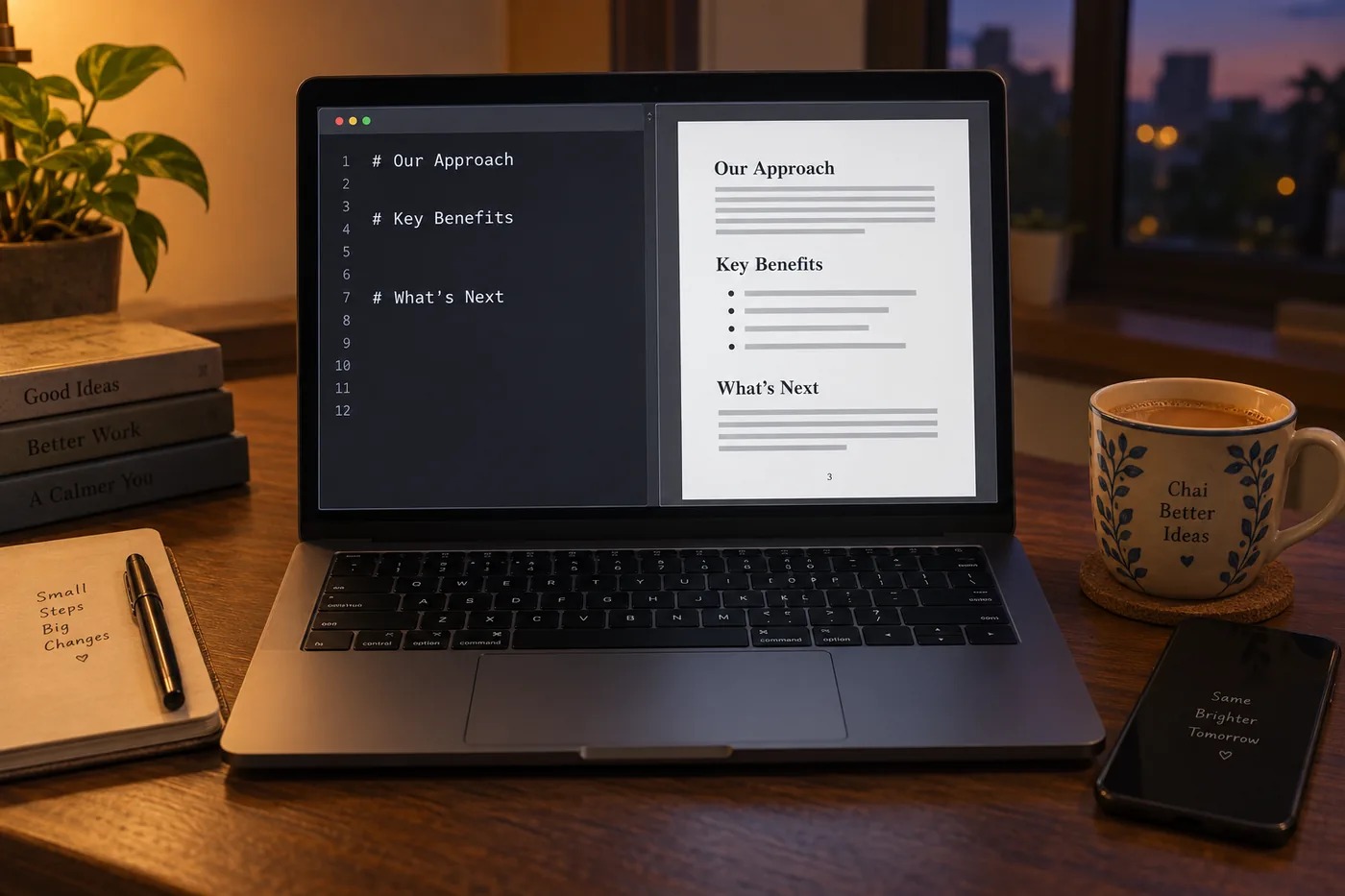
A laptop on a wooden desk showing the text to PDF converter: pasted text with # headings on the left, the finished PDF on the right with a heading, two paragraphs, a bullet list and a page number in the footer; a phone and a cup of chai beside it, evening light.
Paste on the left, PDF on the right, no upload in between.

Quick answer

A text to PDF AI search usually wants two different things: a file, now, from text you already have; and a document that does not exist yet. The converter above does the first, in your browser, free and without an upload. The free AI PDF creator does the second: it writes the document from a topic, formats it, adds a cover and exports it. Most people who paste text here have a chapter, an outline or a half-finished guide, which is why the button under the converter hands the text to the editor, where AI writes the remaining pages.

The questions people ask first

What is the fastest way to turn text into a PDF?

Paste it into the converter on this page and click Make PDF. The file is built in your browser in under a second, with headings, bullets and page numbers if you want them. Inkfluence AI hosts it free with no sign-up.

Is it safe?

Nothing is uploaded. The PDF is built on your device by a small library that loads with the page, so the text never reaches a server. Inkfluence AI cannot see it.

Does it do Markdown?

Headings (#), bullets (- or *) and numbered lines. Bold, tables and images are not rendered here; the Inkfluence AI editor imports Markdown files with those intact.

What if I need more than a conversion?

Hand the text to the editor: AI writes the remaining chapters, adds a cover, and exports PDF, EPUB and DOCX. In Inkfluence AI data, every plain-text import that was exported came out as a PDF.

How to convert text to PDF in five steps

The first three take a minute. The last two are why this page is on a book-writing site.

1

Paste your text

Plain text or Markdown. Lines starting with # become headings, lines starting with - or * become bullets, a blank line starts a new paragraph.

2

Pick the page and the type

A4 or US Letter, serif or sans-serif, 11 to 13 point, and whether you want a title page and page numbers.

3

Make the PDF

The file is built in your browser and downloads at once. Nothing leaves your device, there is no queue, and there is no limit.

4

Check it once

Open the PDF and read the first and last page. Headings should sit at the top of a page where you meant them to, and the footer should count pages.

5

Let AI write the rest, if you want

If the text is a chapter, an outline, or a lead magnet that needs more pages, hand it to the editor: AI writes the remaining chapters and exports the finished PDF with a cover.

What the converter does with your text, exactly

A converter that claims to do everything usually does it badly. This one does text, headings and lists well and says what it leaves to the book formatter.

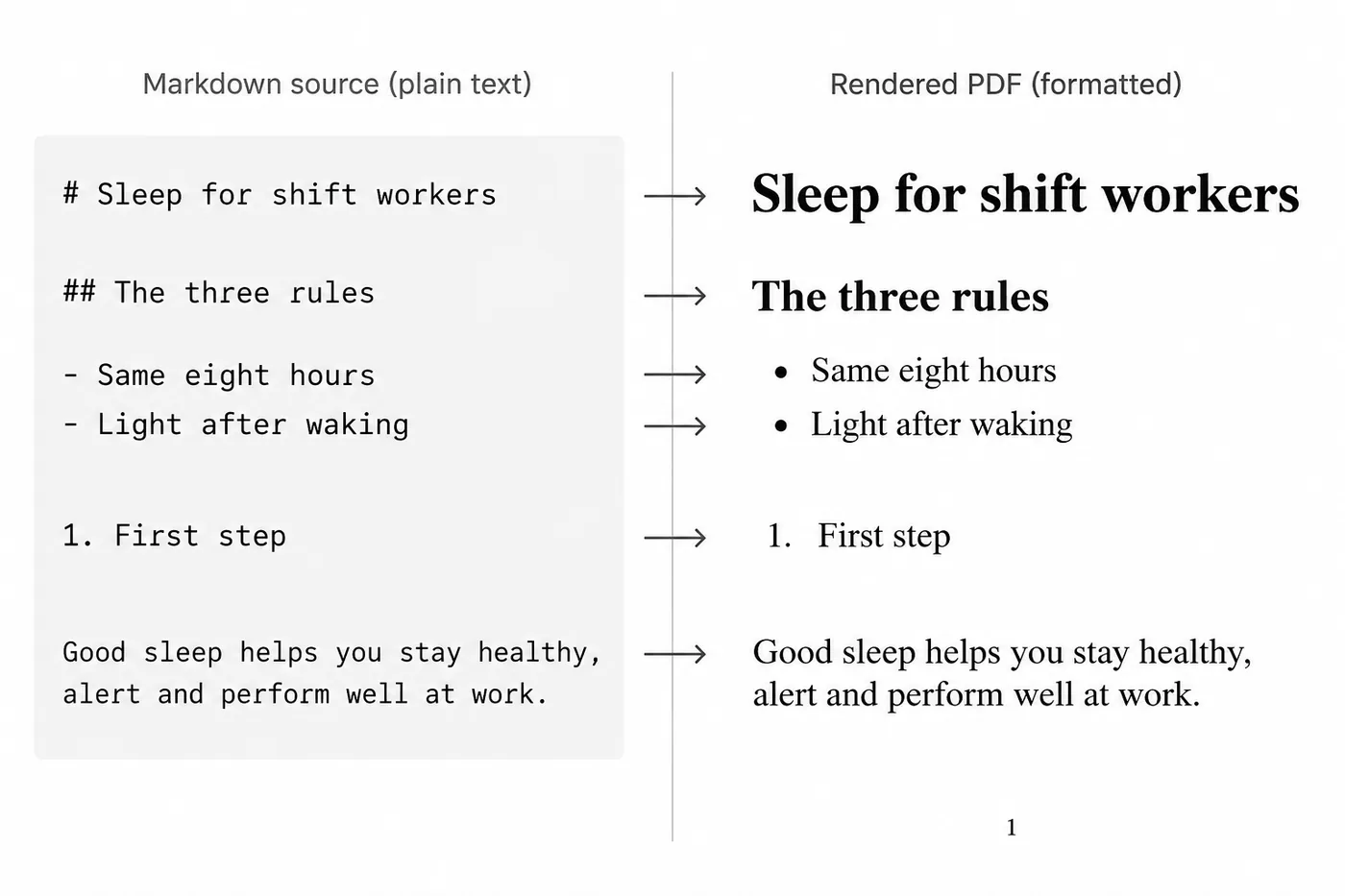
A clean two-column graphic on white: left column shows Markdown marks typed in monospace (a # line, a ## line, two - lines, a 1. line, a blank line then plain text); right column shows the same content as it appears in the PDF: a large heading, a smaller subheading, two bullets, a numbered line and a paragraph, with a small page number 3 at the bottom.
Each mark on the left becomes the element on the right. Nothing else is interpreted.
Element How to get it
Paragraphs A blank line between paragraphs; single line breaks are joined
Headings # Heading 1, ## Heading 2, ### Heading 3 at the start of a line
Bullet lists Lines starting with - or *
Numbered lists Lines starting with 1. 2. 3. are kept as typed
Title page Optional: the title and an author line on their own first page
Page numbers Optional footer, centred, on every body page
Page size A4 (210 x 297 mm) or US Letter (8.5 x 11 in), 20 mm margins
Type Serif or sans-serif, 11, 12 or 13 point, 1.4 line spacing
Not supported here Images, tables, bold and italic, links, non-Latin scripts (Arabic, Hindi, Chinese); use the editor for those

Our data

What people bring in as text, and what they take out

Inkfluence AI imports documents for free, so we can see what text people arrive with. Of 5,278 imported books on 10 September 2026, here is the format split, how many were exported, and how often the export was a PDF.

Imported as Books Exported Of those, PDF What it usually is
Word (DOCX) 3,028 19.6% 73.6% The manuscript that was written elsewhere and needs a book-shaped PDF
Markdown (MD) 1,359 13.1% 87.6% Notes, AI chat output and docs; nearly every export is a PDF
EPUB 383 76.5% 64.2% Already a book; imported to re-export, often as a print PDF
PDF 323 17.3% 91.1% Rebuilt from a PDF that had no source file left
Plain text (TXT) 185 11.4% 100% Every single TXT import that was exported came out as a PDF

Two things stand out. Plain text and Markdown go to PDF almost without exception: 100% of exported TXT imports and 87.6% of exported Markdown imports left as a PDF, which is exactly the job this page does in one step. And EPUB imports export at 76.5%, four times the rate of Word imports, because an EPUB is already a finished book and people bring it in to get a print PDF. A Word manuscript is usually still being written. The page on the free AI PDF creator holds the wider export figures, and the PDF export data post explains why PDF wins.

Text to PDF: this page, upload converters, Docs, ChatGPT, the editor

The column that matters is the first one. Most free converters upload your document before they do anything with it.

Tool Uploads your text Sign-up Watermark Limit Markdown What comes next
This page No, runs in the browser No No None Headings and lists Hand the text to AI to finish the document
Online converters with upload Yes, to their server Often after one file Sometimes on free Files per day or size Rarely Nothing; you leave with a file
Google Docs or Word Yes, to your account Account No None Partly, with paste Manual formatting, then Download as PDF
ChatGPT Yes Account No Message limits Writes it Produces a file inconsistently; formatting varies
The Inkfluence editor Yes, to your account Free account Small footer credit on free 5 chapters free, then plans Full import Chapters, cover, EPUB and DOCX as well as PDF

A fair word for Google Docs and Word: for a document with images, tables and a specific layout, they remain the right tool, and both export a PDF. What they do not do is take a pasted block of text and hand back a structured PDF in one click, or write the pages you have not written yet. The converter round-up compares the upload tools one by one.

What is free here, and what the plans add

Option Price What you get Output For
This page $0 Unlimited text to PDF, in the browser PDF Anyone with text that needs to be a file in the next minute
Free plan $0 5 chapters to start plus 5 every month, free import PDF A lead magnet or a short guide with a cover
Creator $9.99 per month 35 chapters a month PDF, EPUB, DOCX A full ebook for sale, footer credit removed
Premium $19.99 per month Unlimited chapters PDF, EPUB, DOCX Several documents a month, or a series

Prices in US dollars. Import of DOCX, Markdown, PDF, EPUB and TXT is free on every plan and uses no credits. Details on the pricing page.

Worked example: a 1,800-word guide becomes a lead magnet

The text. A physiotherapist in Pune has 1,800 words in her notes app: seven stretches for people who sit all day, written for patients. She wants to give it away for an email address on her website by tonight.

The conversion. She pastes the notes here, adds a # before each stretch name, ticks the title page, leaves page numbers on, picks A4 and serif. Make PDF. Five pages, downloaded in under a second, nothing uploaded. Total time including the headings: four minutes.

What she notices. The PDF reads like a handout, not a product. No cover, no introduction, no "what to do next" page, and the stretches would work better as a two-week plan with a checklist.

The hand-off. She clicks Write the rest with AI. The title and the opening land in the dashboard as the idea; she picks a short guide of six chapters. The AI writes an introduction, turns each stretch into a chapter with a why and a common mistake, and adds a checklist page. She pastes her seven original descriptions back over the AI's where hers were better, generates a cover in the cover generator, and exports the PDF. The free plan covered it: five chapters up front, one more from the monthly five.

What it cost. Nothing. The handout took four minutes; the lead magnet took about forty. The lead magnet generator page describes the second half in more detail, and the description generator writes the landing-page blurb.

The checklist before you send the PDF

Six checks, thirty seconds. The ebook formats guide covers what happens when the PDF has to become an EPUB as well.

  • Headings marked with # so the PDF has a structure a reader can scan, not one long wall.
  • A blank line between paragraphs, because single line breaks are joined.
  • A4 for India, the UK, Europe and most of the world; Letter for the USA and Canada.
  • Page numbers on if the PDF is longer than three pages or will be printed.
  • The first and last page opened once before sending.
  • Non-Latin text (Arabic, Hindi, Chinese, Cyrillic accents beyond the basic set) routed to the editor, not this tool.

From pasted text to a document people keep: the full guide

"Text to PDF" sounds like one job. It is three: getting a file, getting a file that reads well, and getting a document worth sending. The converter on this page does the first two. The rest of this guide is about the third, and about the moment when a converter stops being the right tool.

Why a PDF, and not the text itself

A PDF looks the same on every phone, laptop and printer. It cannot be edited by accident, it carries its own page breaks, and every email client and chat app opens it. That is why it is the format people trust for anything they send to someone else, and why, in our data, plain text imports leave as PDFs every single time.

What "AI" means on a converter page, honestly

Converting text to PDF needs no AI, and pages that say otherwise are selling the word. The conversion here is plain code that runs on your device. The AI on this site does something a converter cannot: it writes the pages that are missing. Keep the two apart in your head and you will pick the right tool every time.

Structure before type

Readers scan before they read. A document with five headings is read; the same text as one block is skimmed and closed. Before you press Make PDF, put a # in front of every line that names a section. It is the highest-value ten seconds in this whole process.

Markdown, the minimum you need

You do not need to learn Markdown. You need four marks: # for a heading, ## for a subheading, - for a bullet, and a blank line between paragraphs. Numbered lines stay as you typed them. That is the whole syntax this converter reads, and it is enough for a report, an essay, a handout or a chapter.

Text from an AI chat

Chat assistants write in Markdown, which is why their answers paste here with headings and bullets already in place. Delete the asterisks around bold words if you do not want them printed; the converter keeps them as characters. Markdown is our second most imported format, 1,359 books, and almost all of it started life in a chat window.

Text from Word or Google Docs

Both export a PDF themselves, so use this page when the document is short and you want it structured fast, or when you do not want to open the app. For a long manuscript with styles, import the DOCX into the editor instead: every Heading 1 becomes a chapter and the export is a book, not a print-out.

Text from a phone

Most of the people who search for text to PDF do it on a phone, often to send a document over WhatsApp. Notes app, select all, copy, paste here, Make PDF; the file lands in your downloads and shares from there. No app to install, no account to make.

A4 or Letter

A4 is the page size of India, the UK, Europe, Africa, Australia and most of Asia. Letter is the USA and Canada. If your reader will print, match their paper; if they will read on a screen, either works and A4 gives a slightly taller page. This page defaults to A4 because most of its readers do.

Serif or sans-serif

Serif for anything long that will be read as pages: essays, chapters, guides. Sans-serif for anything short that will be scanned on a screen: checklists, handouts, notes. Twelve point suits both; go to eleven for a dense report and thirteen for older readers or a phone screen.

The title page

A title page turns a print-out into a document. Tick it when the PDF will be sent to someone who did not ask for it, or kept; leave it off for a one-page note. The author line is where your name, company or website goes, and it is the only place a reader will look for it.

Page numbers

On for anything over three pages or anything printed. They cost nothing and they let a reader say "page four" back to you. The footer is centred and small, and it is the only thing this converter adds that you did not type.

Where the pages break

The converter will not leave a heading alone at the bottom of a page; it moves it to the next one. Paragraphs break where they fall. If a break lands badly, add or cut a sentence above it, or promote a subheading to a heading, and make the PDF again. There is no limit, so iterate.

Privacy, and why "no upload" matters

Most free converters send your file to a server, convert it there, and keep it for a while. For a recipe that is fine; for a contract, a medical note or a manuscript it is not. This converter never sends the text anywhere. You can check: turn off your connection after the page has loaded and it still works.

Non-Latin scripts

The library that builds the PDF in your browser carries only the standard Latin fonts, so Devanagari, Arabic, Chinese, Thai and similar scripts cannot be drawn and would appear as boxes. The page warns you when it sees them. For those, paste the text into the editor, where the export runs with the fonts it needs. Accented Latin letters are fine here.

Bold, italics, links and tables

Not rendered here, on purpose: half-supporting them produces worse documents than not supporting them. The editor imports Markdown and Word with all of it intact, and its formatter handles tables and images in the exported PDF.

When the text is a chapter

One chapter is a fine PDF for a beta reader or a class. The moment there are two, you want a table of contents, consistent chapter openings and page numbers that run across the whole book. That is the editor's job, and the AI book writer page shows what it does with a manuscript that is still growing.

When the text is an outline

An outline as a PDF is a plan you can print. An outline handed to the AI is a first draft by tonight. The outline generator builds one from a topic if you do not have it, and the outline to PDF and EPUB page walks the whole route from headings to finished book.

When the text is a lead magnet

A lead magnet is judged in the first ten seconds after download: cover, title page, a promise, then the content. The converter gives you the content as a PDF; the lead magnet generator wraps it in the rest. The worked example above is exactly this route.

When the text is an ebook

An ebook for sale needs a cover, front matter, an EPUB for Kindle and Kobo as well as the PDF, and a description for the store page. The AI ebook generator does all four from a topic; the PDF ebook maker page is the PDF-first version of the same route.

When the text is a workbook or a journal

Workbooks need space on the page: prompts, lines, boxes. A text converter cannot draw those. The workbook generator lays out exercise pages, and the journal templates do the same for prompts and blank lines.

When the PDF is for Amazon KDP

KDP checks trim size, mirrored margins, bleed, embedded fonts and a separate cover file with a spine. None of that is a converter's job. The print-ready PDF guide lists what KDP rejects and the editor's KDP export produces the package; the royalty calculator tells you what the book earns per sale.

The title matters more than the type

If the PDF is going to strangers, the title decides whether it is opened. The title generator gives twenty options from a topic; pick one before you paste, and put it in the title field so the file name and the title page match.

What the hand-off button passes across

The title and the first few hundred characters of your text, as the idea for a new document in the dashboard. Nothing else, and only when you click. From there you choose a document type and a length, and the AI writes the remaining chapters; your original text can be pasted into any chapter and kept word for word.

Editing after the AI has written

The first draft is clean and generic; the second draft is yours. Put your own cases, numbers and phrasing back in, then run the chapter review, which quotes the weakest lines and proposes replacements. Three reviews a day are free.

Exporting from the editor

PDF on every plan, EPUB and DOCX on Creator and Premium. The free plan adds a small footer credit to the exported book; the paid plans remove it. PDF is what most people take: roughly nine in ten creators choose it, as the free AI PDF creator page shows from more than 20,000 export choices.

Sending the PDF

Email attachments and WhatsApp both take a PDF of this size without complaint. For a lead magnet, host the file and send a link so you can update it later; for a handout, attach it. Name the file with the title, not "document.pdf".

Selling the PDF

A PDF sells on Gumroad, Etsy and your own site with no gatekeeper, in any country that can take the payment. The Etsy and Gumroad guide compares fees and payouts; the ebook niches page says what sells.

Turning the PDF into audio

A document in the editor can also be narrated, one audio file per chapter, in 49 voices across 14 languages. That is a second product from the same text. The audiobook generator page explains the plans.

Translating the PDF

A document in the editor can be translated into 59 languages as a new book with the chapters kept. Translate after the text is final, not before, or you pay for the edits twice.

Rebuilding a PDF you no longer have the source for

Import the PDF into the editor; it reads the text and splits it into chapters by heading size. Numbered subheadings sometimes come in as chapters and need merging, which takes a minute. 323 books here started life that way.

The one-minute version

Paste. Put a # before each section name. A4 unless the reader is in North America. Page numbers on. Make PDF. Open it once. If it should be longer, click Write the rest with AI. Everything on this page is free; the plans exist for the day the document becomes a book.

Five mistakes people make with text to PDF tools

1. Uploading a private document to a converter you have never heard of

Most "free" converters upload the file to their server first. This page builds the PDF on your device; the text never leaves your browser.

2. Pasting a document with no headings

The PDF comes out as one block. A # at the start of each section line takes five seconds and is the difference between a document and a wall.

3. Choosing Letter for a reader outside North America

A4 is the default nearly everywhere else. A Letter PDF printed on A4 paper loses its bottom margin.

4. Using this tool for a whole book

A book needs chapters, a table of contents, a cover, and usually EPUB as well. Paste a chapter here; paste a book into the editor.

5. Expecting bold, tables or images

This converter does text, headings and lists. Anything richer belongs in the editor, which imports Word and Markdown with formatting.

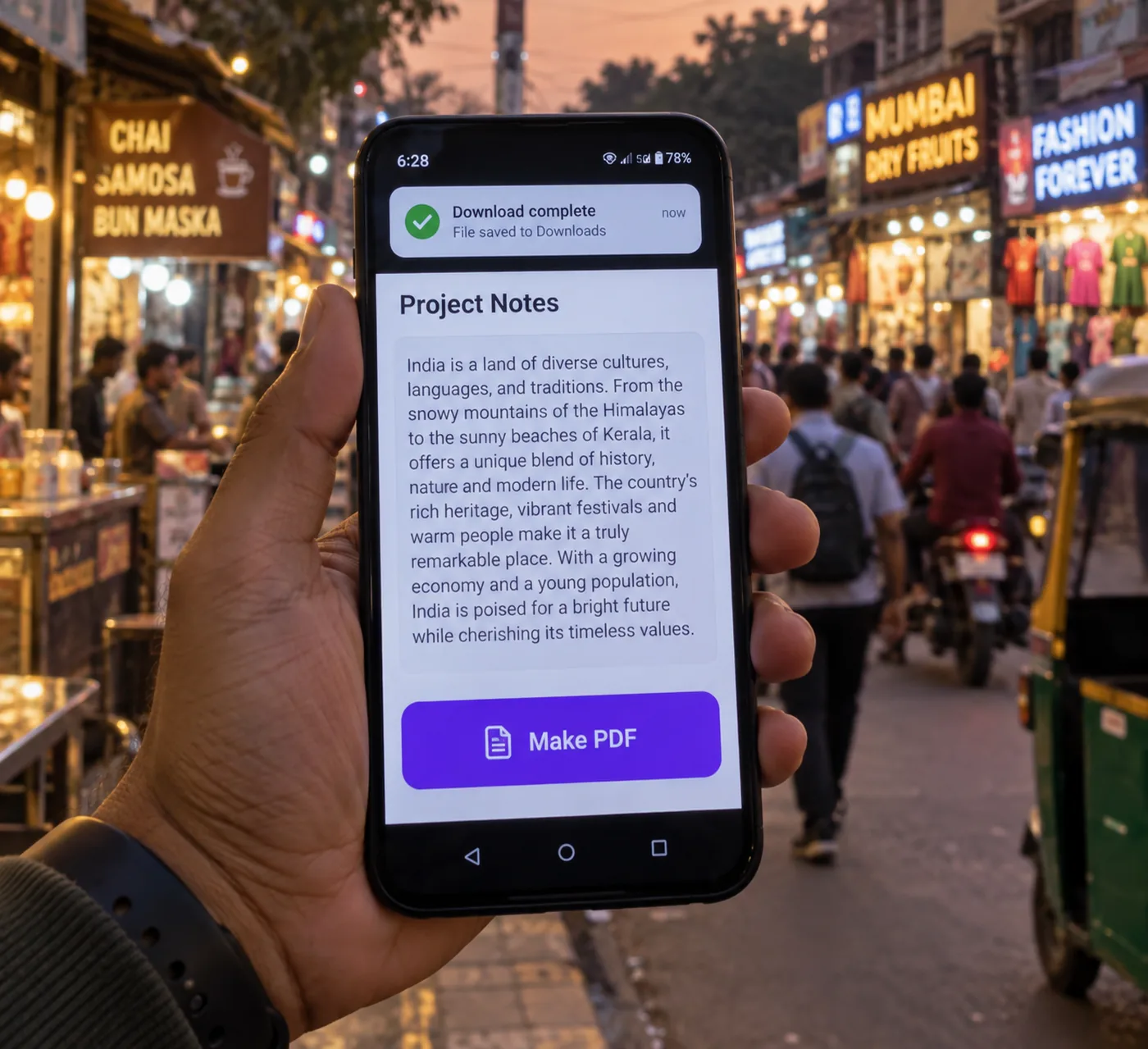
A hand holding a phone on a busy street at dusk; the screen shows a pasted block of text with a heading line, a large Make PDF button, and a downloaded-file notification at the top; shop lights and traffic blurred behind.
Most text to PDF searches happen on a phone. The converter works there too, no app.

Sources and method

Import data. 5,278 books imported into Inkfluence AI, counted on 10 September 2026 by the file extension of the imported document. "Exported" means at least one export in any format; "of those, PDF" means the most recent export was a PDF. This page is the home of these figures; other pages cite them.

Export share. The "nine in ten choose PDF" figure is the free AI PDF creator page's, measured across more than 20,000 export choices; it is cited here, not recounted.

The converter. Runs in the browser on an open-source PDF library; no text is transmitted. Fonts are the library's standard Latin set, which is why non-Latin scripts are routed to the editor.

Plans and limits. As described on the pricing page, checked in September 2026. Page sizes from ISO 216 (A4) and ANSI (Letter).

Frequently asked questions

Is this text to PDF converter really free? +
Yes, and unlimited. It runs entirely in your browser, which is why there is no sign-up, no queue, no file cap, and nothing added to the page but your optional page numbers. The paid plans are for the editor, where AI writes and formats whole documents; the converter on this page does not touch them.
Does my text get uploaded anywhere? +
No. The PDF is built on your device by a small open-source library that loads with the page. There is no server, no upload, and nothing to delete afterwards. If you paste it and close the tab, it is gone.
What is the "AI" part if the converter runs in my browser? +
The conversion is plain code, and we say so. The AI is what comes after: if your text is an outline, a chapter or a half-written guide, the editor can write the remaining chapters in the same voice, add a cover, and export the finished document. The button under the converter hands your text across.
Can I use Markdown? +
The common parts. Lines starting with #, ## or ### become headings, lines starting with - or * become bullets, numbered lines are kept as typed, and a blank line starts a paragraph. Bold, italics, links, tables and images are not rendered; the characters are kept as text.
What page sizes and fonts are available? +
A4 and US Letter, 20 mm margins, serif or sans-serif, 11, 12 or 13 point, 1.4 line spacing, an optional title page and optional page numbers. That covers a handout, a report, a chapter, an essay or a lead magnet without a layout tool.
Why does my Hindi, Arabic or Chinese text come out as boxes? +
The in-browser converter ships only the standard Latin fonts, so scripts outside them cannot be drawn. For those, paste the text into the editor and export from there; the export runs on a server with the fonts it needs. Accented Latin letters such as é, ü, ñ and ç are fine here.
How long a text can I convert? +
As long as your browser can hold. A 5,000-word article makes about a 12-page PDF in under a second. Very long documents work, but at that length you usually want chapters and a table of contents, which is the editor.
Can I convert a Word or Markdown file instead of pasting? +
Open the file and paste its text here, or import the file itself into the editor, which accepts DOCX, Markdown, PDF, EPUB and TXT and splits it into chapters. Import is free and uses no credits. In our data, Word is the most imported format, with 3,028 books, and Markdown second with 1,359.
Will the PDF have a watermark or a footer? +
Not from this page. The free plan in the editor adds a small footer credit to exported books, which the paid plans remove; this converter adds nothing but your optional page numbers.
Does it work on a phone? +
Yes. Paste, tap Make PDF, and the file lands in your downloads. On Android the PDF opens in the viewer straight away; on iPhone it opens in Safari and you can save it to Files or share it.
Can I sell a PDF I made here? +
It is your text and your PDF; nothing on this page claims any rights over it. If you want a document that looks like a product, with a cover, a table of contents and consistent chapter pages, build it in the editor, where commercial rights are included on every plan including free.
What is the difference between this and the free AI PDF creator? +
This page converts text you already have; the free AI PDF creator writes the document for you from a topic, then formats and exports it. Use this when the words exist, and that when they do not.
Can I make a book-shaped PDF for Amazon KDP with this? +
Not from this page. KDP wants a specific trim size, mirrored margins, embedded fonts and a separate cover file. The editor produces that package; the print-ready PDF guide explains what KDP checks.
Why is A4 the default? +
Because most of the world uses it. Readers of this page come mainly from India, the UK, Nigeria, South Africa, Pakistan and the USA; only the last prints on Letter. Switch the size if your readers are in North America.
Does the converter keep my line breaks? +
Single line breaks inside a paragraph are joined, the way a word processor reflows text. A blank line starts a new paragraph. If you need hard breaks preserved, put a blank line between them.
Is there a limit to how many PDFs I can make? +
No. Make ten versions until the headings land where you want them. There is no count because there is no server to count.
What happens when I click "Write the rest with AI"? +
Your title and the start of your text are passed to the dashboard as the idea for a new document. You choose the length and type, and the AI writes the remaining chapters. The first 5 chapters are free; the finished document exports as a PDF with a cover.

Need more pages than you have?

Hand the text to the editor. AI writes the rest, adds a cover, exports the PDF. 5 chapters free, no card.

Start free