
Fonts not embedded in your PDF: what it means and how to fix it
You finished the book, exported the PDF, uploaded it, and the printer sent it back: fonts not embedded. It is one of the most common reasons a self-published interior or cover is refused, and one of the most fixable. This guide explains what the message really means, three ways to find the fonts at fault, why they went missing, and the exact fix in each program authors use, from Word and Google Docs to InDesign, LaTeX and a finished PDF you no longer have the source for. Every printer rule here was read on the printer's own pages on 19 November 2026.
The short answer
"Fonts not embedded" means your PDF names a font without carrying the font file, so the printer cannot reproduce your text exactly. KDP, IngramSpark and Lulu all require every font to be embedded, either fully or as a subset. To check, drop the file into the free PDF font checker or open File, Properties, Fonts in Acrobat. To fix it, export the PDF again from the program you wrote the book in with a print setting (PDF/A in Word for Windows, "Best for printing" on a Mac, "PDF Print" in Canva, a PDF/X preset in InDesign or Affinity), and swap any font whose licence forbids embedding. Type 3 fonts, common in PDFs printed from a web browser, are embedded but flagged by some print checkers; the fix is to export again with ordinary installed fonts, because no tool can turn Type 3 back into a real font.
What "fonts not embedded" actually means
A PDF can hold a font in one of two ways. It can carry the font itself, the same file that sits in your computer's font folder, packed inside the PDF. Or it can simply write down the font's name and trust that whatever opens the file will have that font installed. The second way makes smaller files and works fine on screen, because your own computer has the font. It fails at the printer, because the press is not your computer.
When a printer's system opens a PDF with a font that is only named, it has two bad choices: swap in a different font, which changes your line breaks and can push text onto different pages, or stop. Print-on-demand services stop. They reject the file and ask you for one that carries its fonts, which is what "fonts not embedded", "unembedded fonts" or "missing fonts" means in their emails and previewers.
Two related ideas are worth knowing before you start fixing:
- Subsets count as embedded. Most programs embed only the letters your book uses, which keeps the file small. Acrobat lists those fonts as "Embedded Subset", and the font name gets six capital letters and a plus sign in front, such as
ABCDEF+Garamond. KDP, IngramSpark and Lulu all accept subsets. KDP's print-ready PDF page does recommend full embedding where you have the choice. - The 14 base fonts are the usual trap. PDF readers have always been expected to have 14 standard fonts (Times, Helvetica and Courier in four styles each, plus Symbol and ZapfDingbats). Some PDF settings therefore leave them out. IngramSpark's File Creation Guide warns that Acrobat's default "Standard" setting does not embed the base 14 fonts "and may cause a file to be rejected". If your book is set in Times New Roman or Arial and still fails, this is often why.
There is a third case that looks like the first from the author's side: Type 3 fonts. They are inside the PDF, but stored as a set of drawings rather than as a real font. KDP passes them in practice; some stricter print checkers report them as "not embedded". They get their own section below, because the fix is different.
Three ways to check which fonts are the problem
Before you change anything, find out exactly which fonts are failing and how. A PDF with one unembedded font needs a different fix from a PDF where every font is Type 3.
1. The free Inkfluence PDF font checker (quickest)
Open the PDF font checker and drop in your interior or cover PDF. It reads the file inside your browser, so an unpublished manuscript never leaves your computer, and it lists every font with one of four labels: embedded, embedded subset, Type 3 or not embedded. Above the list it gives a plain verdict for KDP, IngramSpark, Lulu and stricter print checkers, so you know straight away whether the file needs work and for which printer. It also shows the page size, which is a handy second check against the trim size you chose.
Check your PDF in ten seconds
Free, no sign-up, and the file is read in your browser, never uploaded. You get every font, its status, and a verdict for KDP, IngramSpark and Lulu.
2. Adobe Acrobat or Acrobat Reader
This is the check every printer's help page describes. Open the PDF, choose File, Properties (Ctrl+D on Windows, Cmd+D on a Mac) and open the Fonts tab. Each font should have "(Embedded)" or "(Embedded Subset)" after its name. A font with neither tag is not embedded. A font shown with "Type: Type 3" is embedded as drawings. The free Acrobat Reader shows the same tab, so you do not need the paid version just to look.
One limit: Acrobat lists the fonts used across the whole document, not which page they are on. If a single unembedded font shows up, search the source file for text in that font. It is often a page number style, a symbol, a bullet, or a single line pasted from a website.
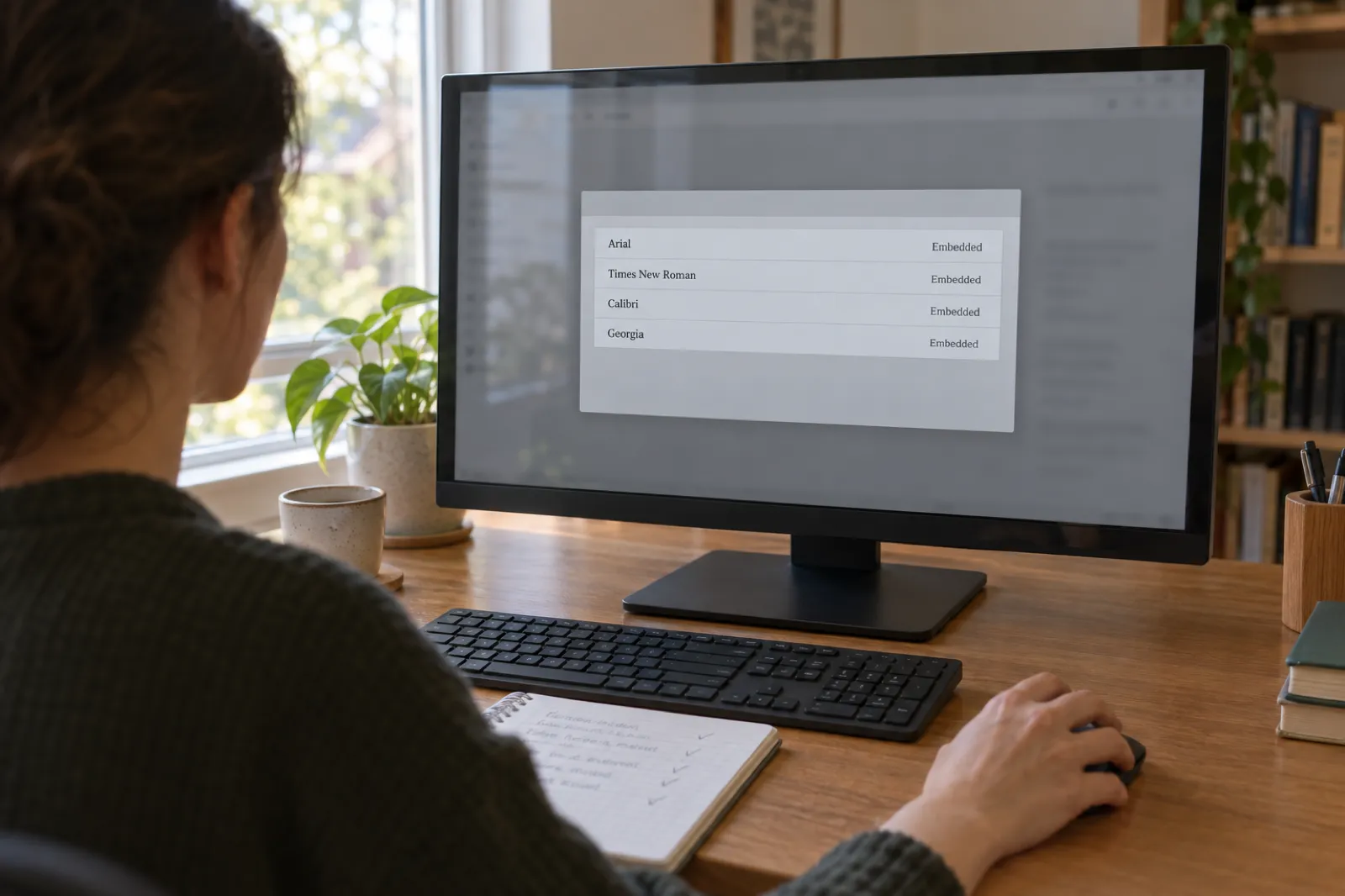
3. pdffonts on the command line
If you are comfortable in a terminal, pdffonts from the free poppler tools (on a Mac, brew install poppler; on Linux it is usually already installed) prints a table of every font in seconds:
pdffonts my-book-interior.pdfRead three columns. type says what kind of font it is. emb says whether it is embedded, and must read "yes" on every row. sub says whether it is a subset, which is fine either way. Here are three real results from test files we made while building the checker. First, a file where nothing is embedded, the kind every printer rejects:
name        type       encoding  emb sub uni
----------- ---------- --------- --- --- ---
Helvetica   Type 1     Standard  no  no  no
Garamond    TrueType   WinAnsi   no  no  no
Second, a book page printed from a web browser using web fonts. Every font is embedded ("yes"), but every one is Type 3:
name                     type     encoding  emb sub uni
------------------------ -------- --------- --- --- ---
AAAAAA+Roboto-Bold       Type 3   Custom    yes yes yes
BAAAAA+Roboto-Regular    Type 3   Custom    yes yes yes
CAAAAA+Gelasio-Regular   Type 3   Custom    yes yes yes
Third, the same page and the same three fonts, printed with ordinary installed copies of the fonts instead of web fonts. Same layout, same words, but now they are real TrueType fonts that every checker accepts:
name                     type          encoding    emb sub uni
------------------------ ------------- ----------- --- --- ---
AAAAAA+Roboto-Bold       CID TrueType  Identity-H  yes yes yes
BAAAAA+Roboto-Regular    CID TrueType  Identity-H  yes yes yes
CAAAAA+Gelasio-Regular   CID TrueType  Identity-H  yes yes yes
That pair is the whole Type 3 story in six lines: the fonts did not change, the way they were delivered to the program making the PDF did.
Why fonts go missing from a PDF
Nearly every case comes down to one of six causes. Knowing which one you have tells you which fix to use.
1. The program saved the PDF with a setting that skips fonts
Some PDF settings deliberately leave out common fonts to keep files small, on the assumption that every computer has them. Acrobat's "Standard" preset is the classic case: IngramSpark warns that it does not embed the 14 base PDF fonts (Times, Helvetica, Courier, Symbol, ZapfDingbats and their styles).
2. The font's licence forbids embedding
Every font file carries a flag that says whether it may be embedded. A font marked "Restricted License" cannot be embedded by a well-behaved program, so it is left out or swapped. KDP says fonts that do not allow commercial use can block embedding and printing.
3. The font is not on the computer that made the PDF
A Word file written on one computer and exported on another, or a shared document opened where the font is missing, gets a substitute font or a reference to a font that is not there. The PDF cannot carry a font the exporting computer does not have.
4. A print-to-PDF driver or online converter cut corners
Virtual printers and free conversion sites vary a lot. Some reference standard fonts instead of embedding them; some turn anything unusual into Type 3.
5. It was made in a browser from web fonts
When a web page prints to PDF, fonts loaded from a font service often arrive as variable fonts that the browser cannot embed directly, so it writes Type 3 fonts instead. They are technically embedded, but some print checkers report them as not embedded.
6. It is a screen-only or bitmap font
Lulu warns that some fonts are screen fonts and "cannot be used for print". LaTeX's older bitmap fonts end up as Type 3. Both carry the letters as pictures, not as a print font.
A quick way to tell them apart: if every font fails, suspect the export setting or a browser. If one font fails, suspect its licence or a font that is not installed. If every font is Type 3, the PDF almost certainly came from a browser or a web-based tool.
Rather not fight the export settings?
Import your Word, PDF or EPUB manuscript into Inkfluence AI and export a KDP paperback interior with every font embedded as TrueType, margins sized to your page count, and a matching full-wrap cover.
How to fix it in each program
The reliable fix is almost always the same shape: go back to the program that made the book, change one setting or one font, and export a new PDF. Patching the finished PDF is possible (covered in the next section) but it is the fallback, because a PDF tool can only embed a font that is installed on your computer and licensed for embedding. After each fix, run the new file through the font checker before you upload it.
Microsoft Word for Windows
- Choose File, Save As (or File, Export, Create PDF/XPS) and pick PDF as the type. Use this rather than printing to a PDF printer, because Save As gives you the options below.
- Leave "Optimize for" on Standard (publishing online and printing), not "Minimum size".
- Click Options and tick ISO 19005-1 compliant (PDF/A). PDF/A requires every font to be embedded, so Word embeds every font it is allowed to.
- Save, then check the result. If one font is still missing, Word was not allowed to embed it: see font licences.
A note that confuses many authors: File, Options, Save, "Embed fonts in the file" embeds fonts into the .docx, so the document looks right when someone else opens it in Word. It helps if you send the Word file to a designer, but it is not the setting that controls the PDF. KDP's print-ready PDF page points out that Word does not embed fonts by default and asks you to embed them "in your native file prior to submission", so tick both if you are handing the file on. IngramSpark's guide lists Word among the programs it does not offer technical support or templates for; what its system reads is the PDF, so the font checks above are what matter.
Microsoft Word for Mac
Choose File, Save As, set File Format to PDF, and pick Best for printing. The other option, "Best for electronic distribution and accessibility", makes the PDF through a Microsoft online service. It produces better tagged files for screen readers, but authors regularly report it swapping uncommon fonts for standard ones, which is the last thing you want in a print file. If Best for printing still leaves a font out, try File, Print, PDF, Save as PDF, which uses the Mac's own PDF engine, and check the result again.
Google Docs
File, Download, PDF Document (.pdf) embeds the fonts it uses in most cases, because Google renders the document with its own copies of the fonts in its menu. When the checker flags a font in a Google Docs PDF, it is usually text pasted from elsewhere that kept a font Google does not have, or a symbol drawn from a fallback font. Select all, set the body to a font from the Docs font menu, and download again. Google Docs has no bleed setting and no mirrored margins, so for a book with pictures to the page edge you will need another tool; our KDP paperback template gives Google Docs page settings for books without bleed.
Canva
Use Share, Download, PDF Print rather than PDF Standard. Leave Flatten PDF off unless a print checker still refuses the file: flattening turns everything, text included, into pictures, so there are no fonts left to embed or to fail. That passes any font check, but the text stops being searchable and small type can print slightly softer. If you uploaded your own font to Canva, check that its licence allows embedding in a commercial PDF before you rely on it in a book.
Apple Pages
Choose File, Export To, PDF and set Image Quality to Best. Pages embeds the fonts installed on your Mac that allow it. If one is missing, look for it in Font Book: a font with a warning, or one that came from a download site with a personal-use licence, is the likely cause. Pages has no bleed setting, so it suits text-only interiors.
Printing to PDF from a browser (Chrome, Edge, Brave, Safari)
Browsers embed fonts when they print to PDF, but not always as real fonts. Fonts that a web page loads from a font service usually arrive as variable fonts, one file that covers every weight, and Chrome's PDF engine cannot embed a variable font directly, so it writes a Type 3 font instead (a Chromium developer explains why). The fix is to print with fonts installed on your computer as ordinary single-weight files, or to export from the program you wrote the book in instead of a browser. If the PDF came from an online book tool that prints through the browser, ask the tool whether its print files carry real fonts, and check them yourself in the checker.
Adobe InDesign
Use File, Export, Adobe PDF (Print) and choose the [PDF/X-1a:2001] preset, which IngramSpark recommends and which KDP prefers. PDF/X-1a requires every font to be embedded. Before exporting, open Type, Find Font to see every font in the document, and watch the Preflight panel at the bottom of the window: a font that is missing on your computer, or one whose licence does not allow embedding, shows up there before it reaches the PDF. Use File, Package if you are handing the job to someone else, so the fonts travel with it.
Affinity Publisher
Use File, Export, choose PDF, and pick a PDF/X preset such as PDF/X-1a, or PDF (press ready) if your printer has not asked for PDF/X. The Preflight panel warns about missing fonts before you export. If a font's licence forbids embedding, Affinity cannot embed it; change the font in the document rather than reaching for an export setting.
Vellum and Atticus
Both book-formatting programs build print PDFs with their bundled fonts embedded, so font errors are rare. When one does appear, it is almost always a font you added yourself, or a symbol, emoji or non-Latin character that the chosen book style's font does not contain and that the program filled from somewhere else. Remove or replace the character, or switch that element to a font you know embeds, and generate the PDF again.
LaTeX (pdfLaTeX, XeLaTeX, LuaLaTeX)
The classic LaTeX problem is Type 3 fonts: pdfLaTeX with the T1 font encoding and no outline version of Computer Modern installed falls back to bitmap fonts, which arrive in the PDF as Type 3. Add the Latin Modern fonts to your preamble, or install cm-super, and rebuild:
\usepackage[T1]{fontenc}
\usepackage{lmodern}
If pdffonts then shows Times or Helvetica as not embedded, older TeX installations skip the base 14 fonts by default. Switching that on once fixes every future build:
updmap-sys --setoption pdftexDownloadBase14 trueXeLaTeX and LuaLaTeX use your installed OpenType fonts directly and embed them, so they rarely hit either problem.
Starting a new book?
Write it with Inkfluence AI and the paperback file comes out right the first time: fonts embedded, gutter sized to your page count, and a full-wrap cover sized to the same page count.
Fixing a finished PDF when you cannot export again
Sometimes the source is gone: a designer delivered only the PDF, the tool that made it no longer exists, or the book was assembled from several PDFs. You can still repair many files, as long as you understand the one rule that governs every tool here: a program can only embed a font it has. The font must be installed on your computer and licensed for embedding. If it is not, the best any tool can do is substitute a different font, which changes your book.
Adobe Acrobat Pro: Preflight
- Install the missing fonts on your computer first.
- Open the PDF and go to Tools, Print Production, Preflight.
- Open the PDF Fixups list (the wrench icon) and search for "embed". Run the fix-up that embeds missing fonts.
- Or convert the whole file to a print standard: in the Preflight profiles, run the "Convert to PDF/X-1a" profile, which embeds fonts as part of the conversion. IngramSpark recommends PDF/X-1a:2001 for its uploads (interior file creation).
- Save under a new name and check the new file.
Preflight also has a fix-up that converts fonts to outlines. That is the last-resort option for a font that cannot be embedded or a Type 3 font that a checker refuses: it removes the font from the file and keeps the letter shapes.
Ghostscript (free, for advanced users)
Ghostscript is a free command-line program that can rewrite a PDF. On a Mac it installs with brew install ghostscript; Windows and Linux builds are on its website. This command rewrites a PDF with its fonts embedded:
gs -o fixed.pdf -sDEVICE=pdfwrite -dPDFSETTINGS=/prepress -dEmbedAllFonts=true -dSubsetFonts=true -dCompatibilityLevel=1.4 original.pdfWhat it can and cannot fix, according to the Ghostscript documentation and how PDFs work:
- It can embed a font that the PDF only names, provided that font is installed where Ghostscript can find it. The /prepress setting turns on embedding of all fonts.
- If the font is not available, it substitutes. Ghostscript picks a replacement and embeds that instead, so the check passes but your book is now set in a different font, with different line breaks. Always compare the pages before and after.
- It cannot turn a Type 3 font back into a real font. The original font file is not in the PDF, only the drawings of its letters, so there is nothing to rebuild it from. A Type 3 font goes in and a Type 3 font comes out.
- It can remove fonts entirely by converting all text to outlines, which clears both missing and Type 3 fonts:
gs -o outlined.pdf -sDEVICE=pdfwrite -dNoOutputFonts original.pdfThe documentation warns that this makes larger files and should be used with caution, and the text is no longer searchable. Use it on a copy, and only when exporting again from the source is impossible.
Be careful with colour books: rewriting a PDF can change how images and colours are stored. Proof a colour book again after any repair.
Font licences that block embedding
When a single font refuses to embed however you export, the font is usually telling the program it is not allowed to. Every OpenType and TrueType font carries an embedding permission set by its maker, described in Microsoft's OpenType specification. Word, InDesign, Acrobat and the other well-behaved programs obey it:
| Permission | What the font allows | For a book PDF |
|---|---|---|
| Installable | May be embedded, and may even be installed on the reader's computer. | Safe to embed in a book PDF. |
| Editable | May be embedded; the document can be opened and edited with it. | Safe to embed. |
| Preview & Print | May be embedded for viewing and printing; the document is meant to open read-only. | Embeds for a print PDF. This is what a printer needs. |
| Restricted License | Must not be embedded without the font owner's permission. | Programs leave it out or refuse. Swap the font or get permission. |
Two extra flags can also apply: "No subsetting" (the font must be embedded whole) and "Bitmap embedding only" (only a picture version may be embedded; if the font has none, it cannot be embedded at all). Most programs handle the first automatically. The second behaves like Restricted License for a book.
The embedding flag is only half the story. The licence you agreed to when you got the font can still forbid commercial use even if the file technically embeds, and that is what printers mean when they mention rights. Lulu's fonts help page says plainly that "you may not have the printing rights for a font", and KDP's fonts page says fonts that do not allow commercial use can stop embedding and printing.
The fonts that cause trouble most often:
- Free fonts from download sites labelled "personal use only" or "demo".
- Decorative and script fonts used for a title or chapter heading, then forgotten.
- Screen fonts made for apps and websites, which Lulu warns "cannot be used for print".
- Symbol, emoji and icon fonts pulled in by a single character.
The safe choice is a font with an open licence. Fonts under the SIL Open Font License, which covers most of the Google Fonts library, can be embedded in documents, including books you sell. Classic book faces such as EB Garamond, Crimson Pro, Libre Baskerville, Lora and Merriweather are all available that way, as are clean sans-serifs for headings.
Type 3 fonts explained, without the panic
Type 3 is the oldest and most flexible kind of font a PDF can hold. Each letter is stored as a small drawing, made of lines and curves or even a tiny picture, rather than as an entry in a real font file. That makes it a convenient fallback for any program that cannot embed a font the normal way, and that is exactly how most Type 3 fonts end up in self-published books.
Where they come from
- Browser-made PDFs with web fonts. This is by far the biggest source today. Writing apps, design tools and book tools that build your book as a web page and let the browser print it hand the browser web fonts, and variable web fonts come out as Type 3 (the Chromium explanation). The
pdffontsexample above shows the same three fonts going from Type 3 to TrueType simply by switching from web copies to ordinary single-weight files. - LaTeX with bitmap fonts. Older or minimal TeX setups use bitmap versions of Computer Modern; the LaTeX fix is two lines in the preamble.
- Old converters and virtual printers that fall back to Type 3 for any font they cannot read, especially icon and decorative fonts.
Does it matter?
It depends on where the file goes. None of KDP, IngramSpark or Lulu publishes a rule about Type 3 fonts, and PDFs with Type 3 fonts go through KDP in practice. But "embedded" is not the only thing a print checker looks at. Some checkers treat Type 3 as not a real font and report it in the same words as a missing one. We saw that in November 2026, when a direct-to-reader print store refused an author's KDP-ready interior as "fonts not embedded" even though every font was inside the file; all of them were Type 3.
There are also quality reasons to avoid them. Type 3 letters made from bitmaps can print soft or jagged at small sizes, and some PDF readers draw them less crisply on screen. Text in Type 3 fonts can also be harder to search, copy or read aloud.
How to get rid of them
- Export again from the source with ordinary installed fonts. Download the static (single-weight) versions of your fonts, install them, and export from your writing program instead of a browser. This is the only fix that gives you real fonts.
- Ask your tool. If an online tool made the PDF, check whether it offers a print export that carries real fonts. Inkfluence AI fixed this in its own print files in November 2026: they now carry TrueType fonts with the layout unchanged.
- Convert text to outlines as a last resort, with Acrobat Preflight or Ghostscript as described above. The file then has no fonts at all, so no font check can fail.
What does not work: running the file through another converter, "optimising" it, or saving it as PDF/A. None of those can recover the font that was never put in the file.
Print files with real fonts, every time
Inkfluence AI print files embed every font as TrueType, not Type 3, so they pass KDP, IngramSpark and Lulu font checks and stricter print-store checks too.
What KDP, IngramSpark and Lulu say about fonts
Read on each printer's own pages on 19 November 2026. Wording is paraphrased unless in quotes; follow the links before you rely on a detail.
Amazon KDP
Font rule: Every font must show "Embedded" or "Embedded Subset" in Acrobat. Embed fonts in the native file before you export; full embedding is recommended over subsets.
Type 3: No published rule. Type 3 files go through in practice.
IngramSpark
Font rule: All fonts embedded in every PDF, interior and cover; files with unembedded fonts are rejected. Acrobat's Standard setting does not embed base 14 fonts. PDF/X-1a:2001 recommended.
Type 3: No published rule.
Lulu
Font rule: Any font, embedded (or converted to outlines). Check that every font shows Embedded Subset. Some screen fonts cannot be used for print; you may not have the printing rights for a font.
Type 3: No published rule.
Print stores and short-run printers
Font rule: Their own automatic preflight, usually stricter than KDP, often run on every upload.
Type 3: Some checkers flag Type 3 as "fonts not embedded".
Three details from those pages change how you should work:
- IngramSpark does not check your file before printing it. Its File Creation Guide says files "are processed as received and are not preflighted prior to processing", and that it will not make "font alterations". A font problem that slips through becomes a printed book, so check before you upload.
- The cover counts too. IngramSpark's rule covers interior and cover, and Lulu's cover specification lists "All fonts are embedded" as well (Lulu Book Creation Guide). Run the cover PDF through the checker, not just the interior.
- KDP checks the font size too. Its submission guidelines set a minimum of 7 points, so a tiny font in a copyright page or footnote can fail even when it is embedded.
Fonts are one line of a longer list. The print-ready PDF checklist puts every requirement from all three printers side by side, from trim size and bleed to colour and file limits, with a checklist you can tick off.

A ten-minute fix routine
If a printer has just sent your file back, work through this in order. Most books are fixed by step 4.
- Check both files. Drop the interior and the cover into the font checker. Write down each font that is not embedded or is Type 3.
- Name the cause. All fonts failing points to an export setting or a browser; one font failing points to its licence or a missing install; all Type 3 points to a browser or web tool.
- Find the font in the source. Use Find Font (InDesign), the font menu with all text selected (Word, Docs, Pages), or the text styles panel. Page numbers, headers, bullets, drop caps and the copyright page are the usual hiding places.
- Swap or install it. Replace a restricted or personal-use font with an open-licence font, or install the missing font on the computer that exports the file.
- Export with the print setting for your program from the list above.
- Check again, and compare a few pages with the old PDF to make sure nothing moved.
- Upload, then order a proof. A printed proof is the final check of everything a screen cannot show.
If you are re-uploading to IngramSpark, send the entire file: its guide says partial revisions "will cause your interior to process incorrectly".
How Inkfluence AI handles fonts in print files
We learned the Type 3 lesson the hard way, from an author whose interior passed KDP and was refused by a print store. Since November 2026, every Inkfluence print file, including the KDP paperback interior, the PDF download and the files made on iPhone, embeds every font as a TrueType font. The layout did not change; the fonts simply arrive in the file as real fonts. Picture-book and ABC-book pages are also exported at print resolution, about 300 dpi on a KDP paperback, so the pictures are as sharp as the type; our picture book print resolution test shows the same page at 117 and 307 dpi.
What that means for you:
- Import an existing manuscript from Word, PDF or EPUB, and export a KDP package with an interior at your trim size, margins sized for your page count, a full-wrap cover sized to the same page count, and a READ ME that says which file goes in which KDP box. Our import walkthrough shows the steps.
- Or write a new book with the AI book formatter and editor, and never touch an export setting.
- Check it yourself: drop the exported PDF into the font checker and every font shows as embedded TrueType.
If you publish with IngramSpark as well as KDP, read the colour and PDF standard sections of the print-ready checklist: IngramSpark asks for things, such as PDF/X-1a and no ICC profiles, that go beyond fonts.
Bring the manuscript, leave with a print file
Import from Word, PDF or EPUB, pick your trim size, and export a KDP paperback interior and cover with embedded fonts. Free accounts can import and preview.
Fonts not embedded: FAQ
What does "fonts not embedded" mean on a PDF?+
How do I check whether the fonts in my PDF are embedded?+
How do I embed fonts in a PDF from Word?+
Can I embed fonts in a PDF that is already made?+
What is a Type 3 font and why do printers complain about it?+
Can Ghostscript or Acrobat turn a Type 3 font back into a normal font?+
Does KDP accept "Embedded Subset" fonts?+
Why is only one font not embedded when the rest are?+
Is converting text to outlines a good fix?+
Do Inkfluence AI print files have embedded fonts?+
Related reading and tools
Free PDF font checker
See every font in your PDF and a verdict per printer.
Print-ready PDF checklist
Every check for KDP, IngramSpark and Lulu, side by side.
KDP paperback template
Page size, margins and bleed for your trim.
KDP spine width calculator
Cover size from your final page count.
IngramSpark cover calculator
Cover, spine and bleed sizes for IngramSpark.
KDP image size calculator
The pixels each picture needs at 300 dpi.
Picture book print resolution
Will AI pictures print sharp? Measured at 117 and 307 dpi.
AI book formatter
A manuscript in, a print-ready interior out.
Paperback publishing on KDP
Trim, gutter, bleed, spine and pricing.
KDP rejected my book
The rejection emails and what each one means.
IngramSpark vs KDP
Which printer suits your book, and using both.
Text to PDF conversion
How text becomes a PDF, and where it goes wrong.
Import your manuscript
Bring a Word, PDF or EPUB file into Inkfluence.

Your book, with every font where it belongs
Write or import your book, choose a trim size, and export a print-ready paperback with real embedded fonts and a cover sized to your page count.