
Read the first chapter
The whole of chapter one, free. About 8 min. Turn the pages with the arrows, your keyboard, or a swipe.
Chapter 1
Carousel Goal and Audience Setup
Choose the One Result Your Carousel Must Produce
What should a reader do after reaching the final slide: save a checklist, send a message, book a service, or buy a product? If you cannot answer with one clear action, your carousel will ask readers to make too many decisions.
A carousel works best when every slide moves the reader toward the same result. The opening slide earns attention, the middle slides explain or prove the point, and the final slide gives the next step. This structure prevents a common problem in Canva designs: attractive slides that share useful information but lead nowhere.
Use this setup before opening Canva. You will define the purpose, identify the reader, choose one call to action (CTA), and give each slide a job. A call to action tells the reader what to do next. By the end, you should have a short plan that you can place beside your template while designing.
Start with the result, not the layout. A square page, bold headline, or color palette cannot decide whether your carousel should teach, sell, or start a conversation. Your goal makes that decision. Ask yourself: “What visible action would show me that this carousel worked?” If the answer includes “and,” narrow it down. “Save the guide and book a call” contains two outcomes, so choose one for this carousel.
Your practical takeaway: write one sentence before you design - “This carousel helps [specific reader] understand or do [specific result], then asks them to [one action].”
Build the One-CTA Carousel Map
The One-CTA Carousel Map connects three decisions: purpose, target reader, and call to action. The purpose explains why you are publishing the carousel. The target reader identifies the person who should care. The CTA gives that person one next step. When these three parts agree, your slide plan becomes much easier to build.
Use the following numbered process. Keep each answer short enough to guide your design.
1. Choose the purpose. Decide whether the carousel will teach one task, explain a problem, show a useful process, or present one offer. The purpose controls the information you include. For example, a carousel about “How to prepare your home for a plumbing inspection” should teach preparation, not also compare three service packages.
2. Name the target reader. Describe the reader by situation, not by a broad label. “Small business owners” is too wide. “Gym owners who need a simple way to explain their beginner membership” gives you better wording, examples, and images. A specific reader recognizes their problem faster.
3. Write the reader’s starting point. State what the reader knows or has already tried. A beginner may need definitions and basic steps. A reader who already understands the problem may need proof, a comparison, or a shortcut. This choice prevents you from filling slides with information the reader does not need.
4. Select one CTA. Choose one action that matches the purpose. A teaching carousel may ask readers to save the post. A service carousel may ask them to send a message. A product carousel may ask them to tap the link in the profile. One CTA keeps the ending clear and makes the earlier slides easier to judge.
5. Assign every slide a job. Write one short sentence for each slide before adding text in Canva. A slide might introduce the problem, explain step one, show a mistake, or point toward the CTA. If a slide does not support the chosen result, remove it or rewrite it.
For example, a local plumber might create a carousel with the purpose “help homeowners spot three signs of a hidden leak.” The target reader becomes “homeowners who notice a musty smell or a rising water bill.” The CTA becomes “send a message to request a leak check.” The slides should then explain the signs and make that message feel like the natural next step.
A useful test is the “because” test. Read your slide plan aloud: “The reader should read slide 2 because it helps them understand the problem. They should read slide 3 because it shows what to check next.” If you cannot explain why a slide exists, it probably distracts from the outcome.
Keep the CTA visible in your planning even if you place it only on the last slide. The wording should describe an action the reader can complete immediately. “Learn more” feels unclear because it does not say where to go or what to do. “Send ‘LEAK’ by direct message for a checkup quote” gives the reader a specific action and a specific message.
Your practical takeaway: finish the One-CTA Carousel Map before choosing fonts, photos, or decorative elements. Clear decisions create a clear design.
Apply the Map to a Five-Slide Service Carousel
Consider a plumbing business that wants more messages from homeowners with possible hidden leaks. The owner does not need a broad “about our company” carousel. The useful outcome is narrower: help the right homeowner recognize warning signs and request a check.
Use this five-slide plan:
1. Slide 1: Name the problem. Write, “Three signs your home may have a hidden water leak.” This slide targets homeowners who already feel uncertain. It earns attention by naming a specific concern instead of using a general headline such as “Protect your home.”
2. Slide 2: Show sign one. Write, “A musty smell returns after cleaning.” Add a simple bathroom or under-sink image. Explain that a repeated smell can point readers toward damp areas they should inspect. The slide gives the reader a reason to continue.
3. Slide 3: Show signs two and three. Use two short blocks: “Your water bill rises without a usage change” and “A wall, ceiling, or cabinet feels soft.” Keep each explanation to one or two sentences. These details help the reader compare the information with what they see at home.
4. Slide 4: Give the safe next step. Write, “Check visible valves and cabinets. Do not open walls or handle wet electrical areas.” This slide prevents the carousel from encouraging risky do-it-yourself work. It also prepares the reader for professional help.
5. Slide 5: Present one CTA. Write, “Message LEAK for a home check quote.” Add the business name and the direct-message instruction. Do not add a second button such as “Call now” unless you decide to replace the message CTA entirely.
The expected outcome is not “everyone books a service.” The immediate outcome is a qualified message from a reader who recognizes at least one warning sign. That outcome matches the purpose and gives the business a simple result to review after posting. If the carousel receives many saves but few messages, the teaching may work while the CTA needs clearer wording. If readers leave early, revise the opening or simplify the middle slides.
Before you design, place this plan in a note beside Canva. Choose a template with at least five pages, then replace the sample text instead of forcing your content into unrelated layouts. Keep the same headline position and text style across the slides so readers can follow the sequence. Use the final slide to repeat the exact CTA, not to introduce a new offer.
Quick checklist
• Write one purpose in one sentence. - Describe one target reader by situation. - State what that reader already knows or notices. - Choose one CTA with a clear verb. - Assign one job to each slide. - Remove slides that do not support the CTA. - Check that the final slide tells readers exactly where to act. - Read the carousel from slide 1 to slide 5 and confirm that each slide leads naturally to the next.
Ask yourself: if a reader sees only the first and final slides, will they understand the problem and the next action? If not, shorten the purpose or rewrite the CTA before you adjust the design.
Your practical takeaway: a five-slide plan can produce a stronger carousel than ten crowded slides when every page supports one outcome.
Fix Goal and CTA Problems Before Designing
The carousel serves two audiences
A post aimed at homeowners and plumbers may contain accurate information, but it will sound unfocused to both groups. Each audience needs different examples, vocabulary, and next steps.
Do this: choose the person who can take the CTA today. For a leak-check service, speak to the homeowner who sees a warning sign and needs help.
Not this: write “This is for anyone who wants to learn about plumbing problems,” then include technical repair details and homeowner advice in the same carousel.
If you must reach two groups, create two separate carousels. One can teach homeowners what to notice. Another can help property managers schedule routine checks. Separate goals make the slide copy more direct.
The purpose contains several outcomes
A carousel may begin with a cleaning tip, move into product education, compare prices, and end with a booking request. Readers cannot tell which result matters most, and the designer often crams too much text into the template.
Do this: choose the main job and remove information that does not support it. If the purpose is “help beginners prepare for a gym membership,” keep the slides focused on what to bring, how to start, and how to ask for an introduction.
Not this: add a membership sale, a trainer introduction, a meal plan, and a request to follow the account to the same final slide.
Save extra ideas in a content note for future carousels. This keeps the current design readable and gives each topic room to work.
The CTA sounds attractive but gives no instruction
“Get help,” “learn more,” and “contact us” do not tell readers what to tap, type, or request. A reader may agree with the message and still stop because the next step feels unclear.
Do this: include the action, channel, and request. “Send ‘LEAK’ by direct message for a home check quote” answers all three.
Not this: “Reach out today for more information.”
Check the CTA against the target reader’s situation. A reader who needs a quote may message you. A reader comparing tips may save the carousel. A reader ready to buy may use a product link. Match the action to the reader’s readiness instead of using the same CTA for every post.
The final slide introduces a new idea
A final slide that suddenly promotes a different service breaks the path you built. The reader may understand the carousel but feel unsure about what to do next.
Do this: repeat the original problem and connect it to one action. “Noticed one of these signs? Message LEAK for a home check quote.”
Not this: “We also offer drain cleaning, bathroom remodeling, emergency calls, and seasonal maintenance.”
The One-CTA Carousel Map gives you a simple quality check: one purpose, one reader, one action. When those three choices agree, Canva becomes the place where you arrange the message - not the place where you try to discover it. Carry that map into every template, and each slide can earn its place while the final action stays unmistakable.
End of chapter one. 7 more chapters in the full book.
Swipe or use the arrows to turn the page


What's inside: 8 chapters
- 1. Carousel Goal and Audience Setup
- 2. Choosing the Right Carousel Template
- 3. Building a Slide-by-Slide Story Arc
- 4. Designing with Canva Grids and Alignment
- 5. Color Palettes and Brand Consistency
- 6. Typography Pairing for Readability
- 7. Image, Icon, and Background Placement
- 8. Exporting, Resizing, and Posting Workflow
About this book
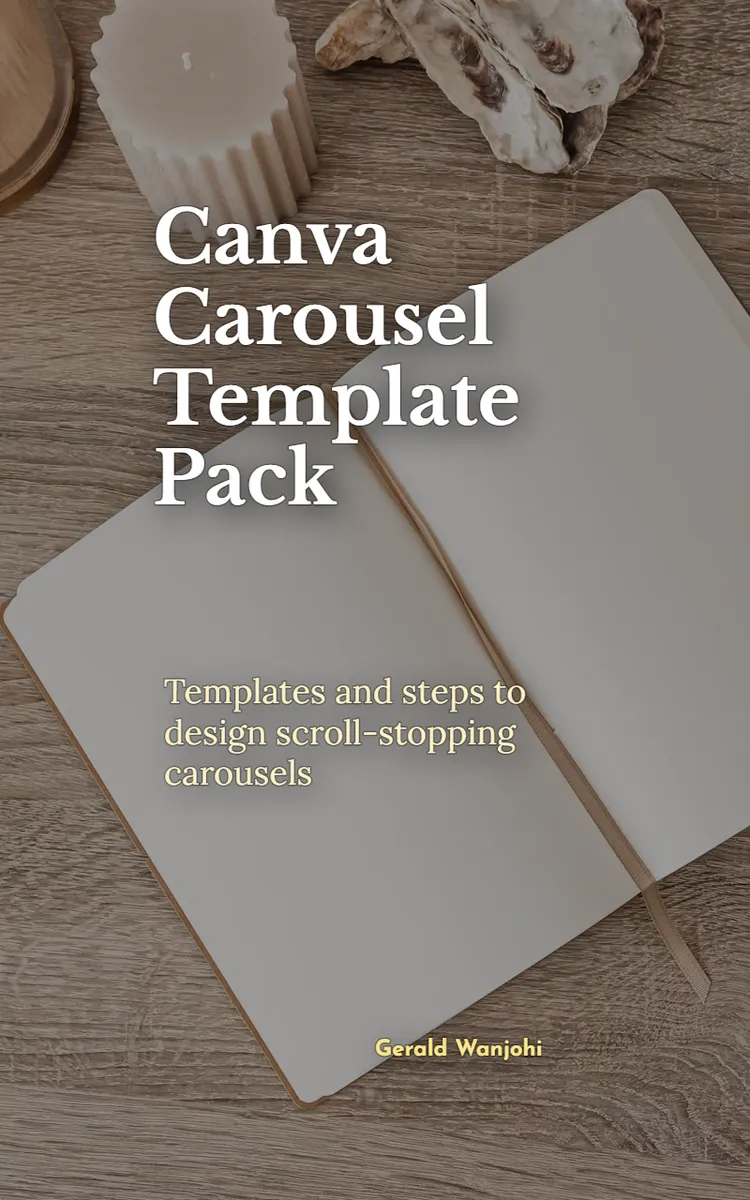
"Canva Carousel Template Pack" is a how-to guide book by Gerald Wanjohi with 8 chapters and approximately 14,961 words. Canva carousel design templates and instructional guidance.
This book was created using Inkfluence AI, an AI-powered book generation platform that helps authors write, design, and publish complete books. It was made with the AI Ebook Generator.
Frequently Asked Questions
What is "Canva Carousel Template Pack" about?
Canva carousel design templates and instructional guidance
How many chapters are in "Canva Carousel Template Pack"?
The book contains 8 chapters and approximately 14,961 words. Topics covered include Carousel Goal and Audience Setup, Choosing the Right Carousel Template, Building a Slide-by-Slide Story Arc, Designing with Canva Grids and Alignment, and more.
Who wrote "Canva Carousel Template Pack"?
This book was written by Gerald Wanjohi and created using Inkfluence AI, an AI book generation platform that helps authors write, design, and publish books.
How can I create a similar how-to guide book?
You can create your own how-to guide book using Inkfluence AI. Describe your idea, choose your style, and the AI writes the full book for you. It's free to start.
Write your own how-to guide book with AI
Describe your idea and Inkfluence writes the whole thing. Free to start.
Start writingCreated with Inkfluence AI


