

Read the first chapter
The whole of chapter one, free. About 9 min. Turn the pages with the arrows, your keyboard, or a swipe.
Chapter 1
Choosing the Right Carousel Template
Match the Template Before You Edit
Will your carousel still make sense when someone views it on a phone, reads only the first slide, or sees it beside posts from your business? Choosing the right Canva template answers those questions before you spend time changing colors, photos, and text.
A template can look attractive and still fail your post. A recipe carousel needs room for ingredients and short instructions. A service carousel needs space to explain a problem, show the solution, and give a clear next step. A square template may suit one platform, while a portrait template may fill more of a phone screen on another. The right choice depends on the job your carousel must do.
The Fit-First Template Checklist gives you a simple way to compare templates before editing. You will check the post’s goal, the audience’s reading needs, the slide structure, and the platform size. You will also know when to reject a template, even if its colors and photos look perfect. The practical takeaway: choose a template that supports your message first, then make it match your brand.
Use the Fit-First Template Checklist
Start by writing one sentence that describes the carousel’s job. Keep the sentence specific: “Teach three ways to clean a blocked drain,” “Show the five steps of a beginner workout,” or “Explain what a first home inspection includes.” This goal helps you judge every template. If the template does not give your message enough space or a clear order, it is the wrong template.
Use the Fit-First Template Checklist in this order:
1. Match the goal. Decide whether the carousel should teach, explain, compare, show steps, answer questions, or promote an offer. A teaching carousel usually needs a strong title slide, several content slides, and a summary or action slide. A comparison carousel needs a layout that keeps two choices easy to scan. The goal determines the slide structure you need.
2. Match the audience. Think about what your readers know and how quickly they will read. Beginners need plain wording, larger text, and one idea per slide. Experienced customers may handle more detail, but they still need clear spacing. If your audience includes people checking their phone between jobs, choose a template with short text blocks and strong headings.
3. Match the platform size. Check the final dimensions before you choose. In Canva, select Create a design, then search for the platform’s carousel format or enter a custom size. A square post uses 1080 × 1080 pixels. A portrait post uses 1080 × 1350 pixels and takes up more vertical space on many phone feeds. Choose the size your platform supports, because resizing later can move text, crop photos, and change the balance of every slide.
4. Match the slide count. Count the useful layouts in the template, not just the number of preview pages. A five-point lesson may need a cover, five teaching slides, and a final action slide. That requires at least seven workable layouts. If the template repeats one layout, decide whether the repetition helps readers follow the lesson or makes the post feel flat.
5. Match the reading load. Copy a sample heading and body text into one slide before committing. Check whether the text fits without shrinking below a comfortable phone-reading size. A template with narrow text columns may suit short tips but fail when you need to explain a safety step or include a short example.
6. Match the action. Decide what readers should do at the end: save the post, send a message, book a service, visit a website, or answer a question. Pick a final-slide layout that gives the action enough space. A tiny call to action (CTA), which tells readers what to do next, can disappear inside a busy design.
Now compare templates by function rather than appearance. Open two or three Canva options in separate tabs or save them to a temporary folder. For each one, ask: “Can I place my real headline, example, and final action here without forcing the design?” Use real words instead of placeholder text. A template may look spacious with “Add title here,” but the heading “Three warning signs your boiler needs attention” takes more room.
Audience needs also affect image choices. A local fitness business serving beginners may need clear exercise photos with enough space for form notes. A food business may need large, close-up images and short ingredient labels. A repair business may need before-and-after photos, but the template must leave room for captions that explain what changed. Choose a layout that helps readers understand the content without guessing.
Ask yourself one quick question before editing: “If I remove the colors and images, does the slide order still guide the reader?” If the answer is no, the template depends too heavily on decoration. A strong template gives you a useful path: promise, explain, support, and direct. That path matters more than a fashionable font or an attractive background.
Apply the Checklist to a Real Carousel
A home repair business needs a carousel titled “Five signs your bathroom tap needs repair.” The goal is to teach readers how to spot a problem and contact the business before a small leak becomes a larger repair. The audience includes homeowners who may know little about plumbing. The business plans to publish the post as a 1080 × 1350 pixel portrait carousel on Instagram.
Follow these steps:
1. Write the content plan. List seven slides: one cover, five signs, and one final action slide. Each sign needs a short heading, one plain-language explanation, and a close-up photo. The expected outcome is a clear list of content before the template search begins.
2. Search Canva with the correct format. Choose Create a design, select a portrait Instagram post, and search for “carousel,” “home tips,” or “step-by-step guide.” Avoid starting with a square design because changing the size later may crop the repair photos and reduce the text area. The expected outcome is a group of templates built for the final screen shape.
3. Shortlist three templates. Select one with large headings and a photo area, one with a split text-and-photo layout, and one with several decorative elements. Do not judge them by color yet. The expected outcome is a fair comparison based on structure.
4. Test real text on the cover. Replace the placeholder title with “5 Signs Your Bathroom Tap Needs Repair.” Keep the heading on two or three lines without shrinking it too far. Reject any template that forces the title into a narrow strip or places it over a busy photo. The expected outcome is a cover that readers can understand while scrolling.
5. Test the longest content slide. Use the sign “The handle feels loose or turns too far.” Add a two-sentence explanation and a photo caption. Check whether the layout leaves enough empty space around the text. Reject layouts that require six-point text or cover the photo with several labels. The expected outcome is a slide that remains readable on a phone.
6. Check the sequence. Confirm that the template includes seven layouts or allows easy duplication without losing variety. Arrange the slides as cover, signs one through five, and action. The expected outcome is a complete reading path rather than a collection of attractive pages.
7. Build the final action slide. Add “Save this checklist. Message us if your tap shows two or more signs.” Leave the business name and contact method visible. The expected outcome is a specific action that fits the repair business’s goal.
8. Preview the carousel at phone size. Use Canva’s preview, then view the exported images on a phone if possible. Look for cropped words, tiny captions, low-contrast text, and photos that no longer show the repair detail. The expected outcome is a final template choice that works in the actual viewing situation.
The split text-and-photo template will usually fit this repair topic better than the decorative option because each sign needs both an explanation and visual proof. The business can then apply its colors and logo without changing the useful structure.
Quick checklist
• Write the carousel goal in one sentence. - Choose the platform and final size before editing. - Count the cover, content, and action slides you need. - Test the longest real heading and paragraph. - Check that each slide carries one main idea. - Leave enough room for photos, captions, and readable text. - Confirm that the final slide supports one clear action. - Preview the finished layout on a phone. - Reject any template that needs tiny text or awkward cropping.
The choice is successful when you can place the real content into the template with only small adjustments. If you must rewrite every heading, remove important details, or squeeze the final action into a corner, return to the template search. A few extra minutes at this stage can prevent a full redesign later.
Fix Template Choices That Look Good but Fail
Choosing by color before structure
A template may use colors that match your brand, but its layout may not fit your message. A dark, photo-heavy design can work for a product launch and fail for a detailed safety guide because the text area stays too small.
Do this: Test the template with your longest heading, one full explanation, and your final action before changing colors.
Not this: Pick the template because its preview uses your favorite colors, then force your content into its narrow text boxes.
If the structure works, you can change colors in Canva with Styles or the color controls. A useful layout gives you more value than a matching background.
Using the wrong platform size
A square design may look fine in Canva but leave unused space or crop important details after you resize it. A portrait design may give you more room in a phone feed, but it still needs to match the platform’s current posting options.
Do this: Confirm the required pixel size when you create the design. Keep important text away from the edges, and preview every slide after resizing.
Not this: Design at a random size and assume Canva’s resize tool will preserve every text box and photo crop.
When you need a different version, duplicate the design first. Keep the original size untouched, then adjust the copy. This protects the layout you already checked.
Trying to fit too much into each slide
A template with six small text boxes may tempt you to add six tips to one page. Readers then face a crowded slide, especially on a phone. The problem does not come from the template alone; it comes from asking one slide to do too many jobs.
Do this: Give each slide one clear point. Split a long explanation across two slides or choose a template with a larger content area.
Not this: Shrink the font until every detail fits, or place several unrelated tips beside one photo.
For example, separate “The tap drips after you close it” from “The handle feels loose.” Each sign deserves its own heading and explanation because readers need to recognize the problem quickly. A longer carousel with seven readable slides works better than a five-slide post that nobody can scan.
A final template check should leave you with three answers: the goal fits, the audience can read it, and the platform can display it correctly. Once those answers are yes, your editing work has a reliable base. The template no longer competes with your message; it helps carry it.
End of chapter one. 7 more chapters and about 15,157 words in the full book.
Swipe or use the arrows to turn the page


What's inside: 8 chapters
- 1. Choosing the Right Carousel Template
- 2. Setting Up Canva Page Sizes
- 3. Building a Slide Story Arc
- 4. Designing for Readability and Speed
- 5. Customizing Colors with Brand Tokens
- 6. Using Canva Grids and Alignment Guides
- 7. Animating Carousels Without Clutter
- 8. Exporting, Testing, and Iterating
About this book
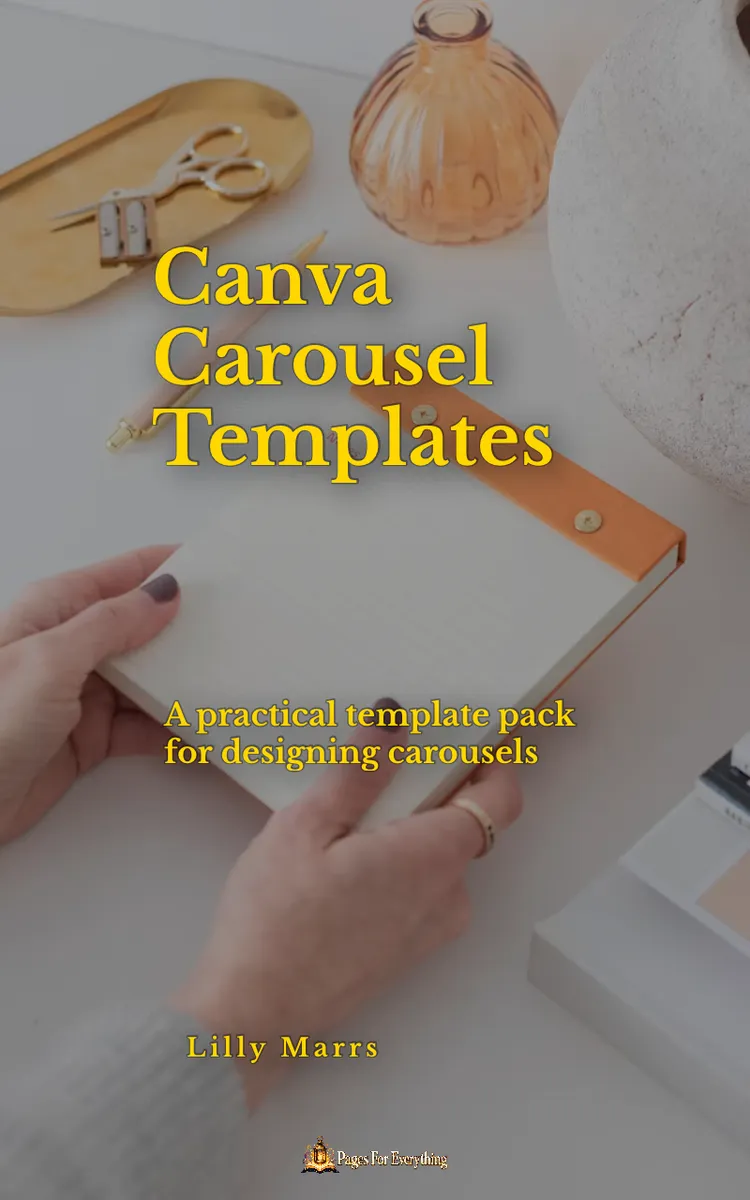
"Canva Carousel Templates" is a how-to guide book by Lilly Marrs with 8 chapters and approximately 15,157 words. Using Canva templates to design engaging carousel posts.
This book was created using Inkfluence AI, an AI-powered book generation platform that helps authors write, design, and publish complete books. It was made with the AI Ebook Generator.
Frequently Asked Questions
What is "Canva Carousel Templates" about?
Using Canva templates to design engaging carousel posts
How many chapters are in "Canva Carousel Templates"?
The book contains 8 chapters and approximately 15,157 words. Topics covered include Choosing the Right Carousel Template, Setting Up Canva Page Sizes, Building a Slide Story Arc, Designing for Readability and Speed, and more.
Who wrote "Canva Carousel Templates"?
This book was written by Lilly Marrs and created using Inkfluence AI, an AI book generation platform that helps authors write, design, and publish books.
How can I create a similar how-to guide book?
You can create your own how-to guide book using Inkfluence AI. Describe your idea, choose your style, and the AI writes the full book for you. It's free to start.
Write your own how-to guide book with AI
Describe your idea and Inkfluence writes the whole thing. Free to start.
Start writingCreated with Inkfluence AI


