
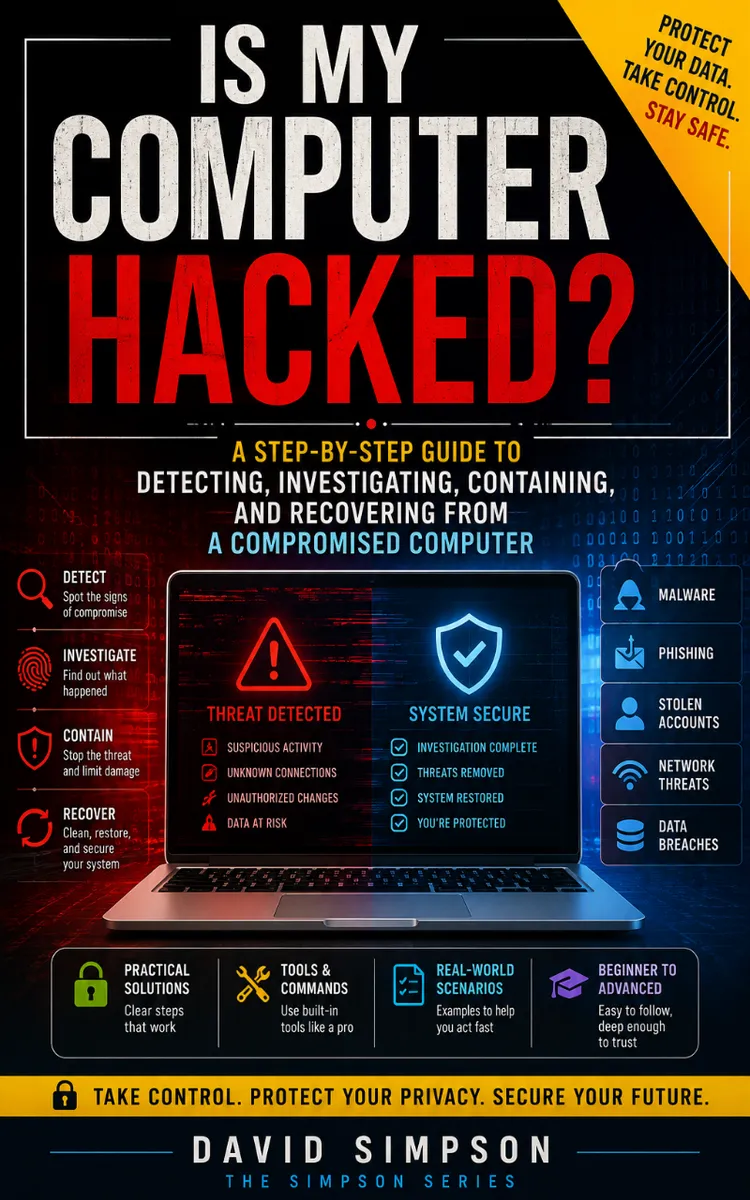
Is My Computer Hacked?
Created with Inkfluence AI
Detect, investigate, contain, recover, and monitor a compromised computer
Table of Contents
- 1. Signs Your PC Is Compromised
- 2. Threat Model for Your Environment
- 3. What EDR and Antivirus Actually Do
- 4. Configuring EDR Alerting Rules
- 5. Suspicious Processes Triage Workflow
- 6. Accounts and Logins That Don’t Belong
- 7. Connections, DNS, and Beaconing Clues
- 8. Persistence Mechanisms to Hunt
- 9. Browser Compromise and Malicious Extensions
- 10. Credential Theft Indicators and Checks
- 11. Logs You Must Collect First
- 12. Evidence Preservation Without Breaking Things
- 13. Containment: Isolate, Quarantine, and Block
- 14. Commands and Tools for Live Triage
- 15. Rebuild vs Repair and Malware Removal
- 16. Verify the Fix and Monitor Post-Incident
Preview: Signs Your PC Is Compromised
A short excerpt from “Signs Your PC Is Compromised”. The full book contains 16 chapters and 29,941 words.
Read the Computer’s Warning Signs
Could an attacker be using your computer right now while the screen looks normal? A compromised system often gives small, observable clues before it produces an obvious failure: a new administrator account, a browser session you do not recognize, a process that returns after termination, or an outbound connection to an unfamiliar address.
These clues matter because malware, credential theft, and unauthorized access leave different traces. A slow computer alone proves little. A slow computer plus a new scheduled task and an unfamiliar login deserves immediate investigation. The goal is not to label every odd behavior as an attack. The goal is to recognize combinations of signals, record what you see, and decide whether to isolate the system before an attacker expands access.
After reading, you should be able to apply the Compromise Signal Checklist, distinguish weak symptoms from strong red flags, and collect first-pass evidence without destroying it. You will also know when a symptom supports a malware, credential-theft, or unauthorized-access hypothesis - and when it does not. Your practical takeaway: treat symptoms as evidence to test, not as a verdict.
Apply the Compromise Signal Checklist
The Compromise Signal Checklist groups warning signs into five areas: system activity, accounts, network connections, persistence, and browser or credential behavior. One signal may have an ordinary explanation. Several related signals that appear close together deserve prompt attention.
Start with the following checks:
1. Check for unexpected system activity. Open Task Manager on Windows or Activity Monitor on macOS and sort by processor, memory, and network use. Record the process name, path, publisher, and start time. A process named `svchost.exe` from `C:\Windows\System32` differs materially from a similarly named executable running from `C:\Users\Public\`. The path and signer provide more useful evidence than the name alone.
2. Check accounts and sign-ins. Review local users, recent interactive logins, and remote sessions. On Windows, run `whoami`, `query user`, and `net user`. Review Security event logs for successful logons, especially logon type 10, which commonly indicates Remote Desktop Protocol (RDP) access. A new local administrator account or a successful login at 03:12 from an unfamiliar source deserves escalation.
3. Check active connections. Run `netstat -ano` on Windows or `lsof -i -n -P` on macOS and Linux. Match each established connection to a process identifier, then identify the owning process. An unfamiliar destination does not automatically indicate command-and-control traffic; software updates, cloud synchronization, and security tools also make outbound connections. The concern increases when an unsigned process maintains a connection after the user closes the related application.
4. Check persistence locations. Persistence allows code to start again after a reboot or user logon. Review Windows Task Scheduler, startup folders, services, and registry run keys. Microsoft Sysinternals Autoruns provides a consolidated view. Look for entries created recently, entries with missing publishers, and commands that launch PowerShell, a script interpreter, or an executable from a temporary directory. Preserve the entry before deleting it because it may explain how the compromise survives.
5. Check browser and credential signals. Look for unfamiliar extensions, changed search settings, unexpected proxy settings, saved passwords that appear accessed, and sessions that remain active after a password change. Credential theft often appears as account activity rather than local damage. Review the identity provider’s sign-in history, revoke unknown sessions, and change credentials from a known-clean device. Do not enter new credentials into the suspect computer until you contain it.
Use timing to connect the signals. If a user reports a new browser extension at 09:00, an unfamiliar sign-in at 09:08, and a PowerShell process at 09:10, record those events as one possible chain. Ask yourself: which observation is independently verifiable, and which one is only a user impression? That distinction keeps the investigation focused.
A useful first-pass decision rule is simple:
| Observed condition | Initial interpretation | Immediate action |
|---|---|---|
| One slow application, no other changes | Weak signal | Check resource use and recent software changes |
| Unknown process with a valid publisher and expected path | Often legitimate | Verify the software and parent process |
| Unknown process from a temporary or user-writable path | Stronger signal | Record details and investigate promptly |
| New administrator account or unknown successful login | High-risk signal | Isolate the system and protect accounts |
| Persistence entry plus outbound connection | High-risk combination | Preserve evidence, isolate, and escalate |
...
About this book
"Is My Computer Hacked?" is a how-to guide book by David Simpson with 16 chapters and approximately 29,941 words. Detect, investigate, contain, recover, and monitor a compromised computer.
This book was created using Inkfluence AI, an AI-powered book generation platform that helps authors write, design, and publish complete books. It was made with the AI Ebook Generator.
Frequently Asked Questions
What is "Is My Computer Hacked?" about?
Detect, investigate, contain, recover, and monitor a compromised computer
How many chapters are in "Is My Computer Hacked?"?
The book contains 16 chapters and approximately 29,941 words. Topics covered include Signs Your PC Is Compromised, Threat Model for Your Environment, What EDR and Antivirus Actually Do, Configuring EDR Alerting Rules, and more.
Who wrote "Is My Computer Hacked?"?
This book was written by David Simpson and created using Inkfluence AI, an AI book generation platform that helps authors write, design, and publish books.
How can I create a similar how-to guide book?
You can create your own how-to guide book using Inkfluence AI. Describe your idea, choose your style, and the AI writes the full book for you. It's free to start.
Write your own how-to guide book with AI
Describe your idea and Inkfluence writes the whole thing. Free to start.
Start writingCreated with Inkfluence AI


