
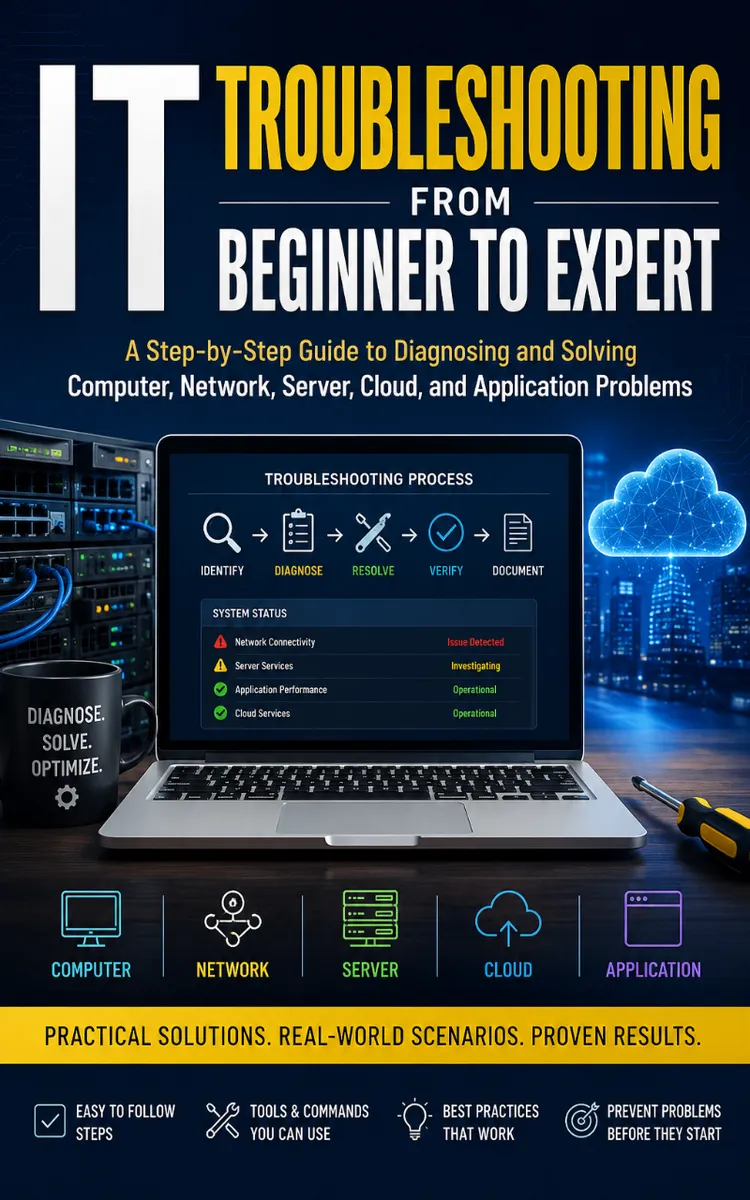
IT Troubleshooting From Beginner To Expert
Created with Inkfluence AI
Systematic troubleshooting for computers, networks, servers, apps, and cloud
Table of Contents
- 1. The Troubleshooting Mindset
- 2. Build a Repeatable Checklist
- 3. Windows Health and System Info
- 4. Event Viewer for Root Causes
- 5. Process and Service Failures
- 6. Networking Basics with ipconfig
- 7. Ping, Tracert, and Path Testing
- 8. DNS Troubleshooting with nslookup
- 9. DHCP Lease and Scope Issues
- 10. Authentication Failures in Windows
- 11. Storage Health and Disk Bottlenecks
- 12. File Shares and Permissions
- 13. Application Logs and Trace Signals
- 14. Performance Tuning with Task Manager
- 15. Server Roles and Service Dependencies
- 16. Packet Captures with Wireshark
- 17. Cloud Connectivity and Service Health
- 18. Centralized Logging and Correlation
- 19. Root Cause Analysis with 5 Whys
- 20. Audit-Ready Fix Verification
Preview: The Troubleshooting Mindset
A short excerpt from “The Troubleshooting Mindset”. The full book contains 20 chapters and 35,323 words.
When the Alert Is Not Yet the Problem
What would you record first if five users reported that an application was “down,” but the server dashboard still showed green? Your first entry should not be a guess about the server. It should state what you know: who is affected, what they cannot do, when the failure began, and what evidence supports the report.
Incident responders work from observed facts toward a tested explanation. That approach matters because a technician who changes settings before defining the problem can destroy evidence, widen the outage, or make later review impossible. A clear scope also prevents wasted effort. A single failed workstation, one office subnet, all remote users, and every customer account represent different incidents even when the symptom sounds identical.
After applying the Triage-to-Truth Loop, you will be able to separate symptoms from causes, choose safe tests, record commands and results, and prove whether a change restored service. Your notes will allow another technician to repeat your reasoning rather than trust your memory.
The Triage-to-Truth Loop
The Triage-to-Truth Loop moves through four connected activities: establish scope, collect evidence, test one explanation at a time, and verify the result. The loop returns to scope whenever new evidence changes the picture. Do not treat it as a straight line that ends after the first successful test.
1. Define the incident boundary. Record the affected service, users, locations, devices, start time, and business impact. Ask whether the failure affects one account, one device, one network segment, or every access path. This boundary tells you which systems belong in the first investigation.
2. Capture the baseline. Record a working comparison. Use a known-good account, device, location, or service endpoint when appropriate. A failed login from one laptop means something different from failed logins for the same account from three separate networks.
3. State a testable hypothesis. Write a sentence that predicts an observable result. “The application server is unavailable” is too broad. “The application server accepts connections from the internal network but not from the virtual private network (VPN)” gives you a test and an expected result.
4. Run the least disruptive test. Start with read-only checks such as event logs, service status, name resolution, route tests, or a second client attempt. Avoid reboots, configuration changes, and account resets until evidence justifies them. Safe tests preserve the original condition and make your conclusion easier to audit.
5. Record the result and update the scope. Write the exact command, time, target, output summary, and interpretation. If a test disproves the hypothesis, discard it instead of forcing later facts to fit it. If the test confirms part of the hypothesis, narrow the next test.
6. Apply one controlled change and verify it. Record the old state, the change, the person or account that made it, and the expected outcome. Verification must reproduce the original failure path, not merely show that a service restarted.
For example, a Domain Name System (DNS) failure can look like an application outage. Test the application by Internet Protocol (IP) address only if the application supports that method, then test name resolution separately with `nslookup app01.example.net`. If the IP connection works and the name lookup returns an old address, the application may be healthy while DNS supplies the wrong destination. That distinction prevents an unnecessary application restart.
Use a simple evidence table during an incident:
| Time | Action or observation | Result | Interpretation | Next decision |
|---|---|---|---|---|
| 09:12 | User reports login failure | Error 0x52e | Authentication failure reported | Test a known-good account |
| 09:16 | Known-good account signs in | Successful | Not a broad authentication outage | Compare affected account |
| 09:20 | Check account status | Locked | Account condition explains symptom | Unlock under policy |
| 09:24 | User signs in again | Successful | Original path works | Monitor and document cause |
Ask yourself after every entry: “What fact did this produce, and what decision does that fact support?” If an action produces no usable fact, it may not belong in the first response.
Applying the Loop to a Login Incident
A support queue shows six failed sign-in reports for an internal payroll application. The first report arrived at 09:12. The application runs on `PAY-APP01`, and users connect through `https://payroll.example.net`. Apply the loop as follows.
1. Define scope at 09:15. Contact two affected users and record their office locations, device names, error text, and last successful sign-in. Check one user from the main office and one from a remote site. Expected outcome: determine whether the issue follows users, devices, or locations.
2....
About this book
"IT Troubleshooting From Beginner To Expert" is a how-to guide book by David Simpson with 20 chapters and approximately 35,323 words. Systematic troubleshooting for computers, networks, servers, apps, and cloud.
This book was created using Inkfluence AI, an AI-powered book generation platform that helps authors write, design, and publish complete books. It was made with the AI Ebook Generator.
Frequently Asked Questions
What is "IT Troubleshooting From Beginner To Expert" about?
Systematic troubleshooting for computers, networks, servers, apps, and cloud
How many chapters are in "IT Troubleshooting From Beginner To Expert"?
The book contains 20 chapters and approximately 35,323 words. Topics covered include The Troubleshooting Mindset, Build a Repeatable Checklist, Windows Health and System Info, Event Viewer for Root Causes, and more.
Who wrote "IT Troubleshooting From Beginner To Expert"?
This book was written by David Simpson and created using Inkfluence AI, an AI book generation platform that helps authors write, design, and publish books.
How can I create a similar how-to guide book?
You can create your own how-to guide book using Inkfluence AI. Describe your idea, choose your style, and the AI writes the full book for you. It's free to start.
Write your own how-to guide book with AI
Describe your idea and Inkfluence writes the whole thing. Free to start.
Start writingCreated with Inkfluence AI


