
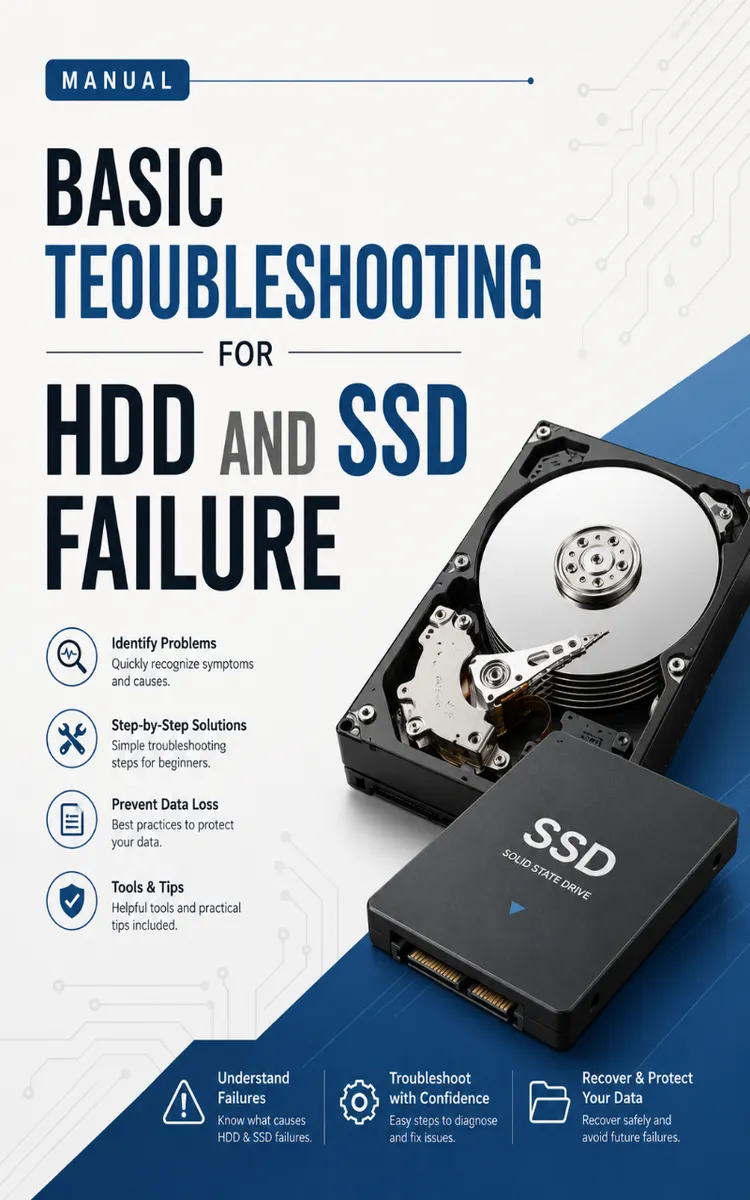
Basic Troubleshooting For HDD And SSD
Created with Inkfluence AI
Troubleshooting HDD and SSD failures with basic diagnostic steps
Table of Contents
- 1. Recognizing HDD and SSD Failure Signs
- 2. Checking Connections and Drive Health Basics
- 3. Running SMART and Error Scans Safely
- 4. Recovering Data Before Any Repair
- 5. Fixing or Replacing the Drive Correctly
Preview: Recognizing HDD and SSD Failure Signs
A short excerpt from “Recognizing HDD and SSD Failure Signs”. The full book contains 5 chapters and 9,698 words.
Have you ever opened a folder and found files missing, or watched a game load slower than it should-even though you didn’t change anything? Those moments usually feel random, but failing storage drives (HDDs and SSDs) often give clear warning signs long before they fully stop working. If you can recognize those signs early, you can decide faster whether you should keep troubleshooting, copy your data first, or replace the drive.
This chapter teaches you the most common “symptom signals” of failing HDDs and SSDs: slow performance, error messages, missing files, clicking sounds, SMART warnings, and unexpected disconnects. You will learn what each symptom typically points to, what you should check right away, and how to avoid wasting time on steps that can make a failing drive worse. By the end, you’ll have a practical way to match what you see on your PC to what’s most likely happening under the hood.
Nadia, a 22-year-old college IT helper, runs into this kind of issue when classmates borrow her laptop for school. One week the computer takes forever to open files; the next week a photo folder shows up “empty,” even though she can still see the drive in File Explorer. When she knows what to look for, she doesn’t guess-she follows a clear path to protect data and figure out whether the drive is the real problem.
Why This Matters
A failing drive doesn’t usually announce itself with one dramatic message. Instead, it starts acting “off”: programs load slowly, file copies stall, folders appear corrupted, or Windows shows errors like “The file or directory is corrupted and unreadable.” When you recognize these patterns, you stop treating the symptoms like separate problems (like “my laptop is just slow”) and start treating them like a storage health issue.
This matters because storage failures can escalate. An HDD might start with occasional delays and then develop more frequent read/write errors. An SSD might start with warning screens and then gradually refuse to write new data. If you keep using a failing drive while it gets worse, you can make recovery harder and increase the chance of permanent data loss. The goal here is simple: spot the common warning signs early and take the next right step.
After reading this chapter, you’ll be able to look at what your PC is doing and pick out the most likely storage-drive symptoms. You’ll also learn which symptoms usually mean “copy your data now” versus which ones might still allow safe troubleshooting. Take a moment and ask yourself: when your PC last misbehaved, did it slow down gradually, or did it suddenly change? That detail often matters.
How It Works
Drives fail in ways you can often see on the surface. Some symptoms come from the drive struggling to read data (slowdowns and errors). Others come from the drive losing communication (disconnects). Some signs point to physical wear (like clicking on an HDD). A few show up as health warnings from tools that track drive status.
To make this practical, use the Symptom-to-Action Map mindset: match what you see to the most likely drive issue, then take the action that protects your data first. You don’t need deep technical knowledge-just consistent observation and a few checks.
1. Watch for slow performance that repeats in the same ways
- If your PC takes much longer to open folders, launch apps, or copy files than it used to, the drive may struggle to read data. On an HDD, this often shows up as frequent pauses during loading. On an SSD, you might see sudden slowdowns during file-heavy tasks.
2. Pay attention to specific file errors and “corrupt” messages
- When Windows shows messages like “The file or directory is corrupted and unreadable” or when copying files fails mid-transfer, the drive can’t reliably read or write parts of the data. The exact wording matters because it often points to read/write problems rather than a simple app glitch.
3. Notice missing files and “empty” folders that still shouldn’t be empty
- Missing files can happen when the drive can’t retrieve the data correctly or when the file system (the way Windows organizes files) gets damaged. If you can still see the drive capacity but folders appear empty or won’t open, treat it as a storage warning, not a “clean-up accident.”
4. Listen for clicking sounds (mostly HDDs)
- A repetitive clicking or tapping from inside the PC often indicates a mechanical issue in an HDD (hard disk drive). SSDs have no moving parts, so they don’t click the same way. If you hear clicking and the drive also shows errors or won’t load files, stop stressing it and move toward data protection.
5. Check SMART warnings and drive health reports
- SMART stands for Self-Monitoring, Analysis and Reporting Technology (SMART). It’s a built-in reporting system that tracks health indicators like read/write reliability....
About this book
"Basic Troubleshooting For HDD And SSD" is a how-to guide book by Lorenz C. Gutierrez with 5 chapters and approximately 9,698 words. Troubleshooting HDD and SSD failures with basic diagnostic steps.
This book was created using Inkfluence AI, an AI-powered book generation platform that helps authors write, design, and publish complete books. It was made with the AI Ebook Generator.
Frequently Asked Questions
What is "Basic Troubleshooting For HDD And SSD" about?
Troubleshooting HDD and SSD failures with basic diagnostic steps
How many chapters are in "Basic Troubleshooting For HDD And SSD"?
The book contains 5 chapters and approximately 9,698 words. Topics covered include Recognizing HDD and SSD Failure Signs, Checking Connections and Drive Health Basics, Running SMART and Error Scans Safely, Recovering Data Before Any Repair, and more.
Who wrote "Basic Troubleshooting For HDD And SSD"?
This book was written by Lorenz C. Gutierrez and created using Inkfluence AI, an AI book generation platform that helps authors write, design, and publish books.
How can I create a similar how-to guide book?
You can create your own how-to guide book using Inkfluence AI. Describe your idea, choose your style, and the AI writes the full book for you. It's free to start.
Write your own how-to guide book with AI
Describe your idea and Inkfluence writes the whole thing. Free to start.
Start writingCreated with Inkfluence AI


